
1. Introduction
This manual provides essential information for setting up, operating, and maintaining your NIMO 15.6-inch FHD Laptop (Model N152). Please read through these instructions carefully to ensure optimal performance and longevity of your device.
2. Setup
2.1 Unboxing and Initial Inspection
Upon receiving your NIMO laptop, carefully open the packaging and ensure all components are present and undamaged. The box should contain:
- 1 x NIMO N152 Laptop
- 1 x Type-C 65W PD Fast Charger
- 1 x User Manual (this document)
- Windows 11 Home (pre-installed)
2.2 Initial Power On and Charging
Before first use, connect the laptop to the 65W Type-C PD Fast Charger. A full charge is recommended. The laptop can provide up to 2 hours of use from a 15-minute charge.

Image: The included 65W PD GaN USB-C Adapter, designed for fast and efficient charging of your NIMO laptop and other compatible devices.
2.3 Operating System Setup (Windows 11 Home)
Follow the on-screen prompts to complete the initial setup of Windows 11 Home. This includes selecting your region, connecting to a Wi-Fi network, and creating a user account.
2.4 Fingerprint Sensor Setup
For enhanced security and quick login, configure the built-in fingerprint sensor located on the touchpad during the Windows setup or via Windows Settings.

Image: Close-up of the fingerprint sensor integrated into the touchpad, allowing for secure and instant login.
3. Operating Your NIMO Laptop
3.1 Display
The NIMO N152 features a 15.6-inch Full HD (1920x1080) IPS display, providing clear and vibrant visuals for work, study, and entertainment.
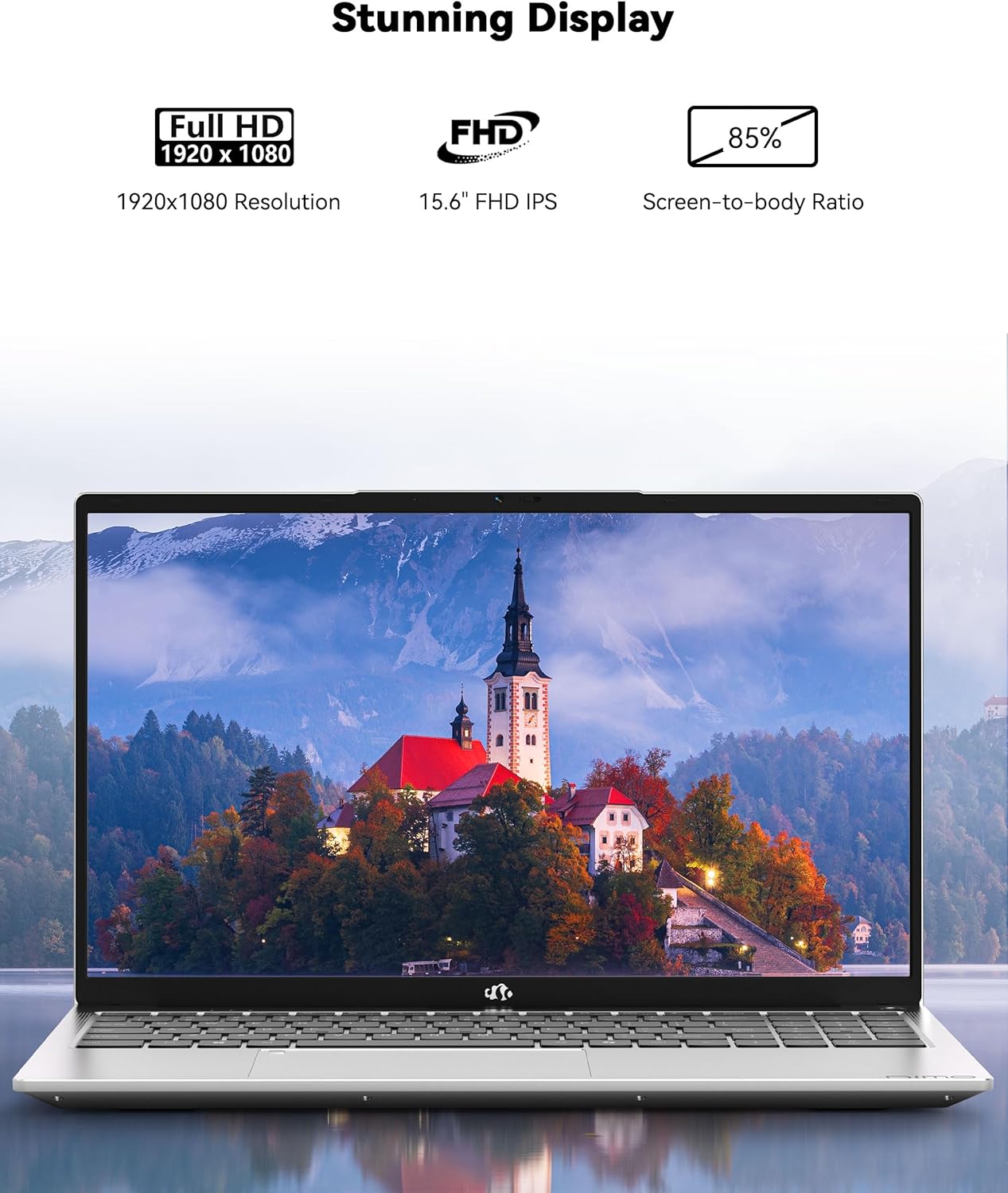
Image: The NIMO laptop showcasing its 15.6-inch Full HD IPS display with vivid colors and sharp details.
3.2 Keyboard and Touchpad
The laptop is equipped with an ergonomic backlit keyboard, allowing for comfortable typing in various lighting conditions. The touchpad supports multi-touch gestures and includes an integrated fingerprint sensor for secure access.
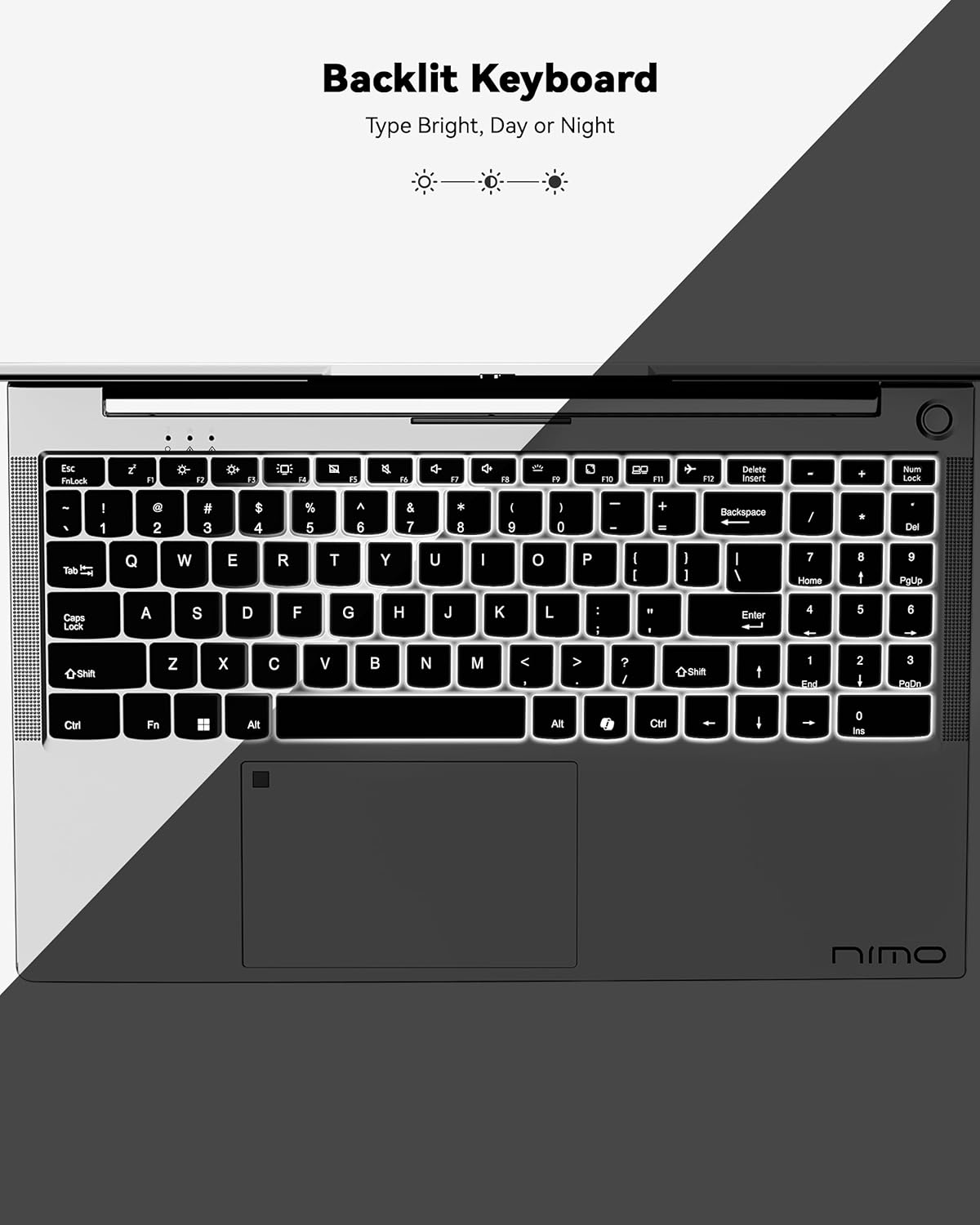
Image: A view of the backlit keyboard, illustrating its illumination for use in low-light environments.
3.3 Ports and Connectivity
The NIMO N152 offers a range of ports for versatile connectivity:
- USB 2.0: 1 port
- USB 3.0: 3 ports
- Type-C: For charging and data transfer
- HDMI 1.4: For external display connections
- Micro SD Reader: For memory cards
- Audio Jack: For headphones/microphone
- Kensington Lock: For security

Image: Side view of the NIMO laptop, highlighting the various input/output ports available for connecting peripherals and external devices.
Wireless connectivity includes Wi-Fi 5 (802.11a/b/g/n/ac) and Bluetooth 5.2.
3.4 Webcam and Audio
The laptop features a 2 MP webcam for video calls and online meetings. Dual 2W, 4Ω speakers provide audio output.
3.5 Performance
Powered by an AMD Ryzen 5 processor with 4 cores up to 3.7GHz, 8GB DDR4 RAM, and a 256GB SSD, the NIMO N152 is designed for smooth multitasking and quick application loading.
Video: An overview of the NIMO 15.6-inch FHD Laptop, demonstrating its use for students, home, and work environments.
Video: Showcasing the NIMO Laptop as a versatile tool for work and study, suitable for various settings and tasks.
4. Maintenance
4.1 Battery Care
The laptop is equipped with a 54WH battery, offering an average battery life of 9 hours. To prolong battery lifespan, avoid extreme temperatures and fully discharging the battery frequently. The 65W PD fast charger supports quick power-ups.

Image: An internal view of the laptop highlighting the 54WH battery and smart battery optimization features.
4.2 Upgradability
The NIMO N152 features an expandable RAM slot for easy self-upgrades and an upgradable SSD slot, allowing you to expand storage as needed.
5. Troubleshooting
If you encounter any issues with your NIMO laptop, please refer to the following general troubleshooting tips:
- Power Issues: Ensure the charger is properly connected and the power outlet is functional. Try a different outlet if necessary.
- Performance Lag: Close unnecessary applications, check for Windows updates, and ensure sufficient free storage space.
- Connectivity Problems: Restart your Wi-Fi router and the laptop. Check network settings to ensure correct connection.
- Software Issues: Ensure all drivers and software are up to date. Consider running a system diagnostic or restoring to a previous point if a recent change caused the issue.
For persistent problems, contact NIMO customer support.
6. Specifications
| Feature | Specification |
|---|---|
| Brand | NIMO |
| Model Name | NIMO N152 |
| Screen Size | 15.6 Inches |
| Screen Resolution | 1920 x 1080 pixels (FHD) |
| Processor | AMD Ryzen 5 (4 Cores, up to 3.7 GHz) |
| RAM | 8 GB DDR4 (Upgradable) |
| Hard Drive | 256 GB SSD (Upgradable) |
| Graphics Coprocessor | AMD Integrated graphics |
| Operating System | Windows 11 Home |
| Wireless Type | 802.11a/b/g/n/ac (Wi-Fi 5) |
| Bluetooth | BT5.2 |
| USB Ports | 1 x USB 2.0, 3 x USB 3.0 |
| Other Ports | Type-C (65W PD), HDMI, Micro SD, Audio Jack, Kensington Lock |
| Webcam | 2 MP |
| Average Battery Life | 9 Hours |
| Item Weight | 3.75 pounds |
| Product Dimensions | 14.07 x 8.98 x 0.76 inches |
| Special Features | Backlit Keyboard, Fingerprint Reader, HD Audio, Numeric Keypad |
7. Warranty and Support
Your NIMO N152 Laptop comes with a 2-year manufacturer's warranty. Additionally, NIMO offers a 90-day hassle-free return and exchange policy. For any product-related questions, technical assistance, or warranty claims, please contact NIMO customer support.
NIMO is committed to providing professional and high-quality customer service. You can find contact information on the official NIMO website or product page.
Video: A seller-provided video highlighting features of a NIMO laptop, including its design and functionality.
Video: A seller-provided video demonstrating the NIMO laptop with a Ryzen 5 3500U processor, showcasing its capabilities.