Introduction
This instruction manual provides essential information for the safe and efficient operation of your Skyworth 60Q6600H 60-Inch QLED+ 4K Google TV. Please read this manual thoroughly before using the television and retain it for future reference. It covers setup, operation, maintenance, and troubleshooting to ensure you get the best experience from your new TV.
Important Safety Information
To reduce the risk of electric shock, fire, or damage, always follow these basic safety precautions:
- Power Source: Connect the TV only to an AC 100-240V, 50/60Hz power supply.
- Ventilation: Ensure adequate ventilation. Do not block ventilation openings. Maintain a minimum distance of 10 cm (4 inches) around the TV for proper airflow.
- Water and Moisture: Do not expose the TV to rain or moisture. Do not place objects filled with liquids, such as vases, on the TV.
- Heat Sources: Keep the TV away from heat sources like radiators, heat registers, stoves, or other apparatus (including amplifiers) that produce heat.
- Cleaning: Unplug the TV from the wall outlet before cleaning. Use a soft, dry cloth. Do not use liquid cleaners or aerosol cleaners.
- Servicing: Do not attempt to service this product yourself. Refer all servicing to qualified service personnel.
- Children: Supervise children to ensure they do not play with the TV.
Package Contents
Verify that all items listed below are included in your package:
- Skyworth 60Q6600H 60-Inch QLED+ 4K Google TV
- Remote Control
- TV Stand (Base)
- User Manual (This document)
- Warranty Card
- Power Cord
- Screws for Stand Assembly
Setup Guide
1. Unpacking the TV
Carefully remove the TV from its packaging. It is recommended to have two people for this process due to the size and weight of the television. Place the TV face down on a soft, flat surface (like a blanket or foam) to prevent screen damage during stand installation.
2. Attaching the Stand
If you are not wall-mounting the TV, attach the included stand:
- Align the stand bases with the corresponding slots on the bottom of the TV.
- Secure each stand base with the provided screws using a screwdriver. Ensure the stands are firmly attached.
- Carefully lift the TV to an upright position and place it on a stable, level surface.
Wall Mounting: The Skyworth 60Q6600H is wall-mountable. If you choose to wall-mount, please refer to the instructions provided with your wall-mount bracket (sold separately) and ensure professional installation for safety.
3. Connecting Peripherals
Connect your external devices to the TV's ports. The TV features multiple connectivity options:
- HDMI (HDMI 2.1): For high-definition devices like Blu-ray players, gaming consoles, and set-top boxes.
- USB: For connecting USB storage devices to play media files.
- LAN (Ethernet): For a wired internet connection.
- Antenna/Cable Input: For connecting an aerial or cable TV signal.
- Audio Output: For connecting external sound systems.
4. Initial Power On and First-Time Setup
- Connect the power cord to the TV and then to a wall outlet.
- Press the power button on the remote control or on the TV itself.
- Follow the on-screen instructions to complete the initial setup, which includes:
- Language selection.
- Connecting to a Wi-Fi network (or using a wired LAN connection).
- Signing in with your Google account to access Google TV features, apps, and Google Assistant.
- Scanning for available TV channels (if using an antenna).
Operating Your TV
1. Remote Control Functions
The included remote control allows you to navigate the TV's interface and control various functions. Familiarize yourself with the buttons for power, volume, channel, input selection, Google Assistant, and app shortcuts.
2. Navigating Google TV Interface
Google TV organizes your content from various streaming services and live TV into a personalized home screen. Use the directional pad and OK button on your remote to browse recommendations, access your apps, and manage settings.
3. Using Smart Features
- Google Assistant: Press the Google Assistant button on your remote and speak into the microphone to search for content, control smart home devices, get answers, and more.
- Chromecast Built-in: Cast content (videos, photos, music) directly from your compatible smartphone, tablet, or computer to the TV. Look for the Cast icon in supported apps.
- Apps: Access pre-installed apps like Netflix, YouTube, and Prime Video. Download thousands more from the Google Play Store.
4. Picture Settings
Your Skyworth 60Q6600H features advanced display technologies. Adjust picture settings via the TV's menu to optimize your viewing experience.
- QLED+ Display: Enjoy vibrant colors and enhanced brightness.
- HDR10+: Provides superior contrast and color accuracy for compatible content.
- Eye Care 5.0: Reduces blue light emission to minimize eye strain during prolonged viewing.
- 120Hz Turbo Motion & MEMC: Enhances motion clarity, reducing blur and judder in fast-paced scenes.
- Film Maker Mode: Preserves the original aspect ratio, colors, and frame rates of films as intended by the director.
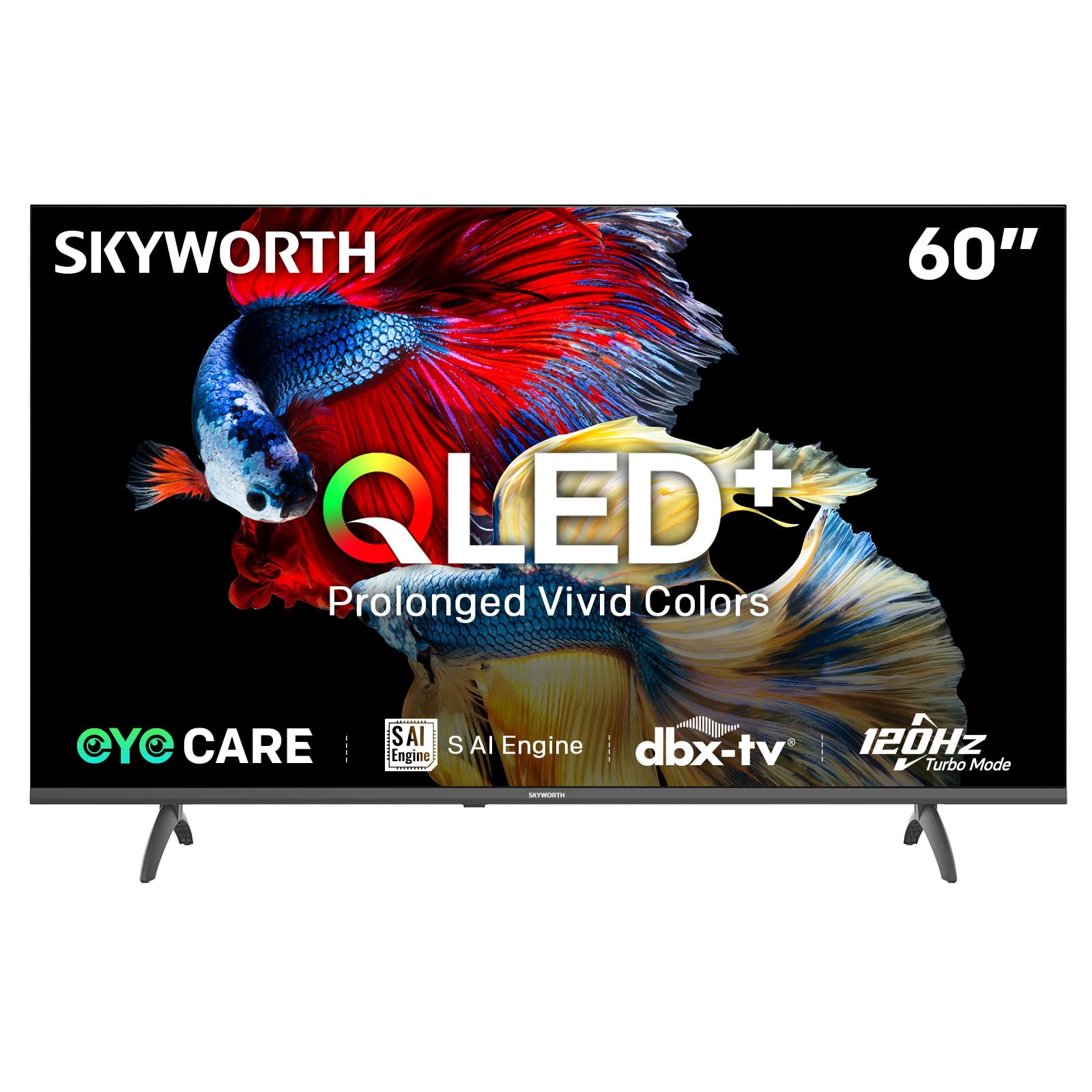
Image: A diagram illustrating the "No-Fading Extended Watching" feature, comparing Skyworth's stable and eco-friendly quantum dot performance over 10 years against conventional quantum dots.

Image: A graphic explaining the QLED+ technology, emphasizing its vivid, eco-friendly, brilliant, and prolonged color performance.

Image: An illustration of the 120Hz Turbo Motion feature, depicting a motocross rider with multiple frames to show enhanced motion clarity compared to 60Hz.
5. Sound Settings
The TV is equipped with 2x15W speakers and supports Dolby Digital/DBX audio processing for clear and powerful sound. Adjust sound modes (e.g., Standard, Music, Movie) and equalizer settings in the audio menu.

Image: A visual highlighting Skyworth's collaboration with Total Sonics for enhanced audio quality, featuring a sound wave graphic and a person associated with audio engineering.
6. Game Mode
Activate Game Mode for reduced input lag and optimized picture settings when connecting gaming consoles, providing a more responsive gaming experience.
7. DVB-T2 Tuner
The integrated DVB-T2 tuner allows you to receive digital terrestrial television broadcasts. Perform a channel scan in the TV settings to find available channels.
Maintenance
1. Cleaning the TV
- Screen: Gently wipe the screen with a soft, lint-free cloth. For stubborn marks, slightly dampen the cloth with water or a specialized screen cleaner (ensure it's safe for TV screens) and wipe gently. Never spray liquid directly onto the screen.
- TV Body: Use a soft, dry cloth to wipe dust from the TV's frame and stand.
- Important: Always unplug the TV from the power outlet before cleaning.
2. Software Updates
Your Google TV may receive automatic software updates to improve performance and add new features. Ensure your TV is connected to the internet for these updates. You can also manually check for updates in the TV's settings menu.
3. Storage and Handling
If storing the TV for an extended period, keep it in a cool, dry place, preferably in its original packaging. When moving the TV, always lift it with at least two people and avoid putting pressure on the screen.
Troubleshooting
Before contacting customer support, try the following solutions for common issues:
| Problem | Possible Solution |
|---|---|
| No Power |
|
| No Picture, But Sound is Present |
|
| No Sound, But Picture is Present |
|
| Remote Control Not Working |
|
| Network Connection Issues |
|
Factory Reset
If problems persist, a factory reset may resolve them. This will erase all personal settings and installed apps, returning the TV to its original factory state. Navigate to Settings > System > About > Reset > Factory data reset and confirm your choice.
Specifications
Detailed technical specifications for the Skyworth 60Q6600H TV:
| Feature | Detail |
|---|---|
| Model | 60Q6600H |
| Display Size | 60 Inches |
| Display Technology | QLED+ |
| Resolution | 3840 x 2160 (4K UHD) |
| Refresh Rate | 120Hz Turbo Motion |
| HDR Support | HDR10+ |
| Brightness | 300 nits |
| Color Gamut | 90% DCI-P3 |
| Eye Care Technology | Eye Care 5.0 |
| Operating System | Google TV |
| Audio Output | 2 x 15W Speakers |
| Audio Technology | Dolby Digital, DBX |
| Connectivity | HDMI 2.1, USB, LAN, Bluetooth 5.1, Dual-band WiFi |
| Tuner | DVB-T2 |
| Product Dimensions (with stand) | 134.5W x 29.9D x 85.8H cm |
| Product Dimensions (without stand) | 134.5W x 8.8D x 78.5H cm |
| Weight (with stand) | 15.9 kg |
| Weight (without stand) | 12.1 kg |

Image: A detailed diagram illustrating the width, depth, and height dimensions of the Skyworth Q6600H 60-inch TV, both with and without its stand.
Warranty and Support
Warranty Information
Your Skyworth 60Q6600H TV comes with a 3-Year Manufacturer's Warranty. This warranty covers defects in materials and workmanship under normal use. Please retain your proof of purchase for warranty claims. For full terms and conditions, refer to the included Warranty Card.
Spare part availability information is not available or provided.
Customer Support
If you encounter issues that cannot be resolved using the troubleshooting guide, or for any other inquiries, please contact Skyworth customer support. Refer to your Warranty Card or the official Skyworth website for the most current contact information.
Online Resources: Visit the official Skyworth website for FAQs, software downloads, and additional support resources.


