
SIXWIN A3056A3-AM33CA-C123-0919
SIXWIN Android 15 9-Inch Touchscreen Car Radio User Manual
Model: A3056A3-AM33CA-C123-0919
1. Introduction
This manual provides detailed instructions for the installation, operation, and maintenance of your SIXWIN Android 15 9-Inch Touchscreen Car Radio. This unit features a 4G+64G memory configuration, Wireless CarPlay, Android Auto, Mirror Link, GPS Navigation, WiFi, Steering Wheel Control, and AHD Rear Camera support. Please read this manual thoroughly before use to ensure proper functionality and safety.
2. Vehicle Compatibility
This car radio is designed for specific Volkswagen (VW) models, including Seat Toledo, Seat Altea, VW Touran, VW Sagitar, VW Jetta, VW Magotan, VW Passat, VW Golf, Skoda, Fabia, and Skoda Roomster. To confirm suitability, compare your vehicle's center console with the images below. If unsure, consult with a professional or the manufacturer.

Image: Compatibility guide for SIXWIN car radio. This image displays various car center console configurations, indicating which are compatible and incompatible with the unit. It helps users verify if their vehicle model is suitable for installation.
3. Packing List and Dimensions
Before beginning installation, please verify that all components listed below are present in your package. The image also provides the main unit's dimensions for reference.

Image: Packing list and dimensions for the SIXWIN car radio. This image shows the main unit with its dimensions (243mm/9.57inch width, 137mm/5.41inch height, 67mm/2.63inch depth) and lists included accessories such as Power Cable, RCA Cable, USB Cable, Camera Input, Radio Antenna, GPS Antenna, Canbus, User Manual, and MIC.
Included Components:
- Main Head Unit (9-inch Touchscreen)
- Power Cable
- RCA Cable
- USB Cable
- Camera Input Cable
- Radio Antenna
- GPS Antenna
- Canbus Decoder
- User Manual
- Microphone (MIC)
- AHD Rear Camera
4. Installation Guide
Proper installation is crucial for optimal performance. It is recommended to have this unit installed by a qualified professional. The following steps outline the general installation process.
4.1. Preparation and Removal of Existing Unit
Before starting, ensure the vehicle's ignition is off and the battery is disconnected to prevent electrical damage. Use appropriate tools to carefully remove the trim around the existing car radio and then unmount the old unit.
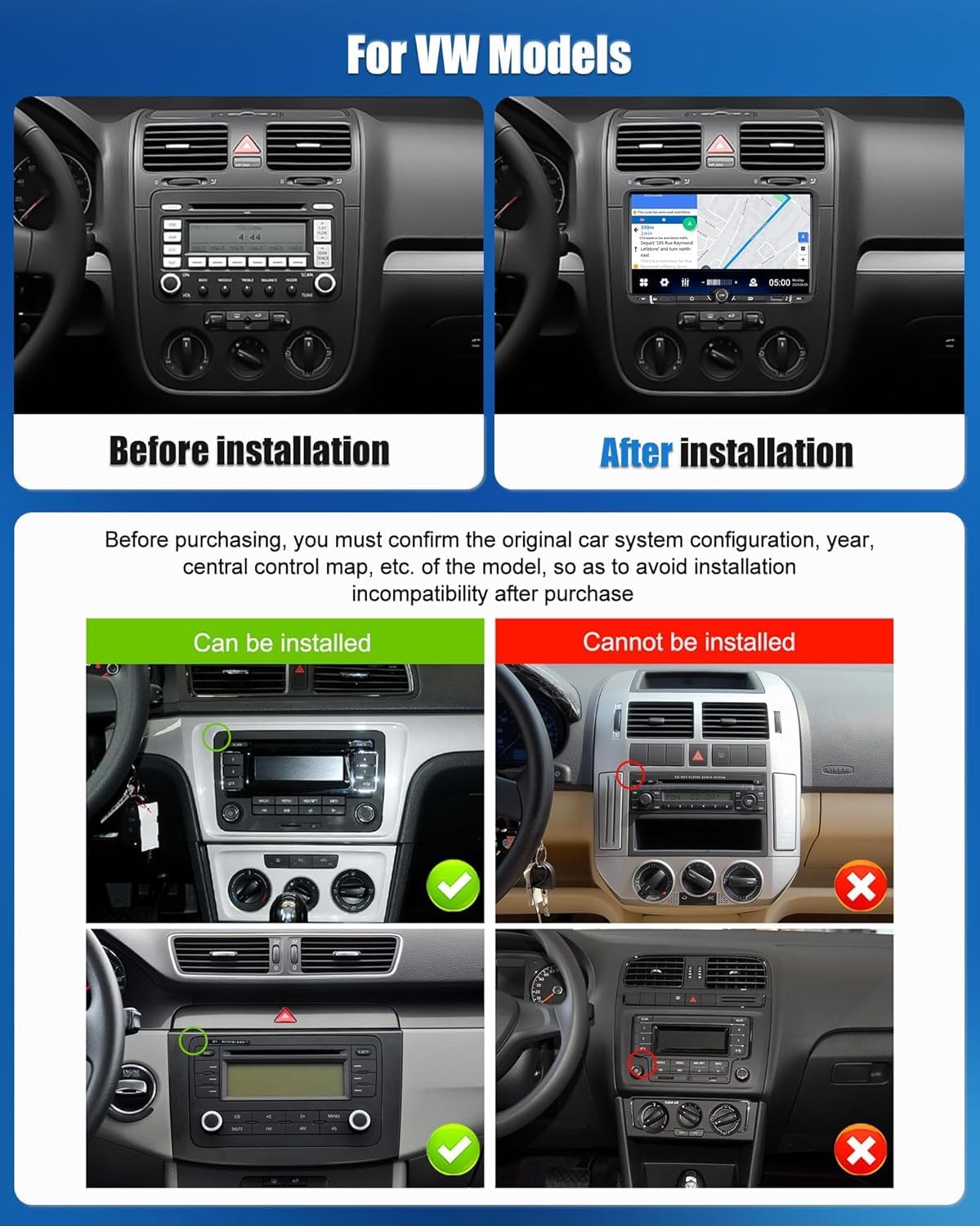
Image: Before and after installation. This image shows a VW dashboard with the original car radio (left) and the new SIXWIN Android 15 unit installed (right), demonstrating the visual upgrade.
4.2. Wiring Connections
Connect the provided wiring harness to the new head unit and then to the vehicle's existing wiring. Ensure all connections are secure. Pay close attention to the power, speaker, and accessory wires. The included Canbus decoder should be connected as per the wiring diagram to ensure proper communication with the vehicle's systems, especially for steering wheel controls.
For the AHD Rear Camera, connect the video output cable from the camera to the "Camera Input" on the head unit. The camera's power cable should be connected to the reversing lamp for automatic activation when shifting into reverse. The ground wire (GND) should be securely attached to the vehicle's chassis.

Image: Backup Camera Input wiring diagram. This diagram illustrates how to connect the AHD rearview camera to the car radio, showing connections for video output, power (reversing lamp), and ground.
4.3. Installation Video
For a visual guide on the installation process, please refer to the official installation video below:
Video: SIXTOP Installation for VW Android Car Stereo. This video demonstrates the step-by-step process of installing the Android car stereo in a Volkswagen vehicle, including panel removal, wiring, and securing the new unit.
4.4. Securing the Unit
Once all connections are made and tested, carefully slide the new head unit into the dashboard opening. Secure it with the screws removed earlier. Reattach the trim panels, ensuring they snap securely into place.
5. Operating Instructions
5.1. Wireless CarPlay & Android Auto
The unit supports wireless CarPlay and Android Auto. To connect, enable Bluetooth and Wi-Fi on your smartphone and pair it with the car radio. Once paired, your phone's interface will be mirrored on the car radio's screen, allowing access to navigation, music, and communication apps. This feature enables seamless switching between map navigation and music playback, enhancing driving safety.

Image: Wireless CarPlay, Android Auto, and Mirror Link. This image displays the user interface for wireless CarPlay and Android Auto, showing various compatible applications and the Mirror Link function.
5.2. Steering Wheel Control
The car radio integrates with your vehicle's steering wheel controls. This allows you to manage functions such as switching songs, adjusting volume, and answering calls directly from your steering wheel, promoting safer driving by keeping your hands on the wheel.

Image: EQ Function and Steering Wheel Control. This image shows the equalizer settings interface and a visual representation of how steering wheel controls can be used to manage the car radio's functions.
5.3. GPS Navigation & WiFi
The unit has built-in GPS with pre-loaded offline maps for North America. It supports both offline and online navigation. Connect to Wi-Fi via a mobile hotspot or available network to download or update apps from the Play Store, similar to a smartphone.
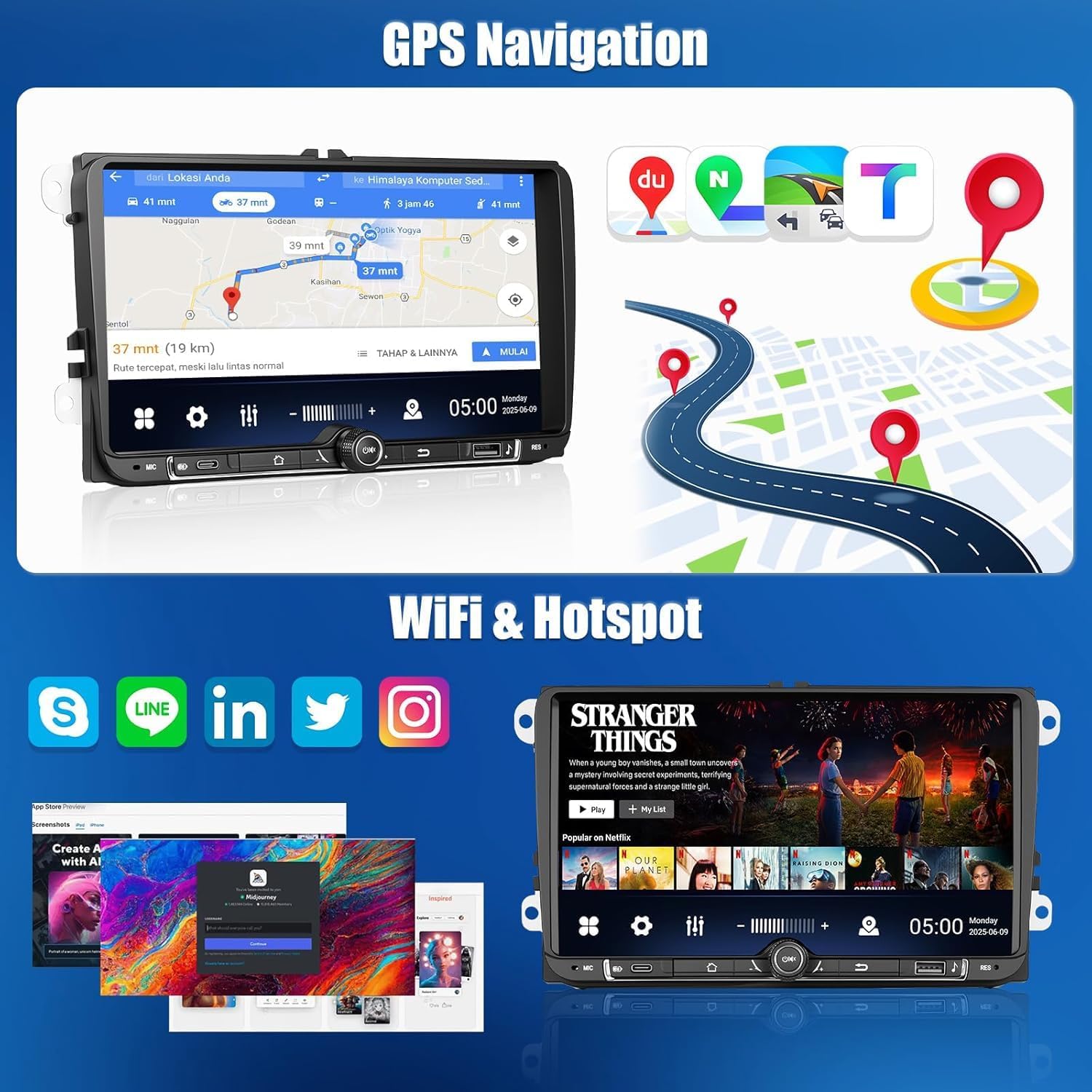
Image: GPS Navigation and WiFi & Hotspot. This image illustrates the GPS navigation interface with map routes and icons for various online services accessible via WiFi.
5.4. Bluetooth Function & FM/RDS Radio
Utilize Bluetooth for hands-free calls and audio streaming from your smartphone. The integrated FM RDS radio provides stable radio broadcasts with real-time station information displayed on the screen.

Image: Bluetooth Function and FM/RDS Radio. This image shows the Bluetooth call interface and the FM radio interface with station presets and RDS information.
5.5. EQ Settings and Split Screen
Customize your audio experience with the adjustable equalizer (EQ) settings. The split-screen function allows you to view and operate multiple applications simultaneously, such as navigation and music playback, for efficient multitasking.
6. Maintenance
To ensure the longevity and optimal performance of your car radio, follow these maintenance guidelines:
- Cleaning: Use a soft, dry cloth to clean the touchscreen and exterior. Avoid abrasive cleaners or solvents that could damage the screen or finish.
- Software Updates: Periodically check for software updates to ensure the system runs efficiently and has the latest features and security patches. Updates can typically be found in the system settings menu or on the manufacturer's website.
- Environmental Conditions: Avoid exposing the unit to extreme temperatures, direct sunlight for prolonged periods, or excessive moisture.
- Cable Management: Ensure all cables are properly routed and secured to prevent damage or interference.
7. Troubleshooting
This section addresses common issues you might encounter. For more complex problems, contact customer support.
- Unit Not Powering On: Check all power connections. Ensure the ignition is on and the car battery is properly connected. Verify fuses are intact.
- No Sound: Check speaker connections. Ensure volume is not muted or set to zero. Verify audio output settings.
- Touchscreen Unresponsive: Try restarting the unit. If the issue persists, a system reset might be necessary (refer to system settings).
- GPS Signal Issues: Ensure the GPS antenna is properly installed and has a clear view of the sky. Check GPS settings within the unit.
- Bluetooth Connectivity Problems: Ensure Bluetooth is enabled on both the unit and your smartphone. Delete previous pairings and try reconnecting.
- System Update Password: If prompted for a password during system updates, this is typically a security measure. Contact SIXWIN customer support for the correct password or update instructions. One user reported needing to contact the vendor for an update link and password to improve stereo performance.
- Steering Wheel Controls Not Working: Verify the Canbus decoder is correctly installed and configured in the system settings.
8. Specifications
| Feature | Detail |
|---|---|
| Brand | SIXWIN |
| Model Number | A3056A3-AM33CA-C123-0919 |
| Operating System | Android 15 |
| Memory Storage Capacity | 64 GB (4G RAM) |
| Screen Size | 9 Inches |
| Display Type | Touchscreen (Capacitive) |
| Connectivity Technology | Bluetooth, WiFi |
| Special Features | Bluetooth, Touchscreen, Wireless CarPlay, Android Auto, Mirror Link, GPS Navigation, Steering Wheel Control, AHD Rear Camera Support, FM RDS Radio, EQ Settings, Split Screen Function |
| Map Type | Worldwide (Offline Map of North America included) |
| Audio Output Mode | Stereo |
| Mounting Type | Dashboard Mount |
| Compatible Devices | Smartphone |
| Supported Satellite Navigation System | GPS |
| Parcel Dimensions | 33.79 x 25.1 x 10.7 cm |
| Item Weight | 1.27 kg |
9. Warranty and Support
This SIXWIN car radio comes with a 1-year warranty from the date of purchase. This warranty covers manufacturing defects and malfunctions under normal use. Please retain your proof of purchase for warranty claims.
For technical support, troubleshooting assistance, or warranty inquiries, please contact SIXWIN customer service through the retailer where the product was purchased or refer to the contact information provided in the product packaging.
Related documentsA3056A3-AM33CA-C123-0919


Ask a question about this manual
Ask about setup, troubleshooting, compatibility, parts, safety, or missing instructions. Manuals+ will review the question and use this page’s manual context to help answer it.