
1. Introduction
This manual provides detailed instructions for the installation, operation, and maintenance of your SIXWIN A3676 Android Car Radio Stereo. This 7-inch touchscreen unit is designed to upgrade the in-car entertainment and navigation system for various Volkswagen, Seat, and Skoda models, including Jetta, Passat, Touran, Tiguan, Golf, Caddy, Magotan, and Sagitar. Please read this manual thoroughly before installation and use to ensure proper function and safety.
2. Safety Information
- Ensure the vehicle's ignition is off and the battery is disconnected before starting installation to prevent electrical shorts or damage.
- Professional installation is recommended. Incorrect wiring can cause damage to the unit or the vehicle.
- Do not operate the unit in a way that distracts you from driving. Always prioritize road safety.
- Avoid exposing the unit to extreme temperatures, direct sunlight for prolonged periods, or excessive moisture.
- Use only specified accessories and wiring harnesses provided with the unit.
3. Package Contents
Verify that all items listed below are included in your package:

Image: Dimensions of the SIXWIN A3676 unit and a visual representation of all included accessories such as power cables, RCA cables, Canbus, GPS antenna, radio antenna, microphone, rear camera input cable, user manual, rear camera, and USB cable.
- SIXWIN A3676 Head Unit (7-inch touchscreen)
- Power Cable (1)
- RCA Cable (1)
- 3.8Pin Canbus Plug (1)
- USB Cable (1)
- Rear Camera Input Cable (1)
- Radio Antenna (1)
- GPS Antenna (1)
- Microphone (1)
- Rear Camera (1)
- User Manual (This document)
4. Installation
The SIXWIN A3676 is designed for plug-and-play installation in compatible VW, Seat, and Skoda models. However, due to variations in vehicle configurations, professional installation is highly recommended.

Image: Visual comparison of a car dashboard before and after the SIXWIN A3676 unit is installed. It also illustrates different dashboard configurations, indicating which types are compatible (green checkmark) and incompatible (red cross) for installation.
4.1 Pre-Installation Check
- Vehicle Compatibility: Before purchasing and installing, compare the dimensions of the unit (218mm x 133mm) with your vehicle's center console. Ensure your vehicle's original car system configuration and year are compatible.
- Disconnect Battery: Always disconnect the negative terminal of your vehicle's battery before beginning any electrical work.
4.2 General Installation Steps
- Remove Original Unit: Carefully remove your vehicle's existing car radio or navigation system. Refer to your vehicle's service manual for specific instructions.
- Connect Wiring Harness: Connect the provided power cable, RCA cable, Canbus plug, and other necessary cables to the corresponding ports on the SIXWIN A3676 unit and your vehicle's wiring harness. Ensure all connections are secure.
- Connect Antennas: Connect the GPS antenna and radio antenna to their respective ports on the unit. Position the GPS antenna in a location with a clear view of the sky (e.g., dashboard).
- Connect Backup Camera: If installing the backup camera, route the camera cable from the rear of the vehicle to the head unit and connect it to the "Rear Camera Input Cable" port.
- Test Connections: Before fully reassembling the dashboard, temporarily reconnect the vehicle battery and power on the unit to test basic functions (power, audio, touchscreen, camera input).
- Secure Unit: Once tested, carefully mount the SIXWIN A3676 unit into the dashboard opening and secure it.
- Reassemble Dashboard: Reinstall any removed trim panels and components.
5. Initial Setup
After successful installation, follow these steps for initial setup:
- Power On: Start your vehicle to power on the unit.
- Language and Time: Follow the on-screen prompts to select your preferred language and set the correct date and time.
- WiFi Connection: Navigate to the settings menu, select "Network & Internet," and connect to an available Wi-Fi network. This is essential for online navigation, app downloads, and updates.
- Steering Wheel Control Learning: Access the "Steering Wheel Control" settings in the menu. Follow the instructions to program your vehicle's steering wheel buttons to control the unit's functions.
6. Operating Instructions
6.1 Wireless CarPlay & Android Auto
Connect your iPhone or Android device wirelessly for seamless integration. This allows you to access navigation, music, calls, and messages directly from the unit's screen using voice commands or touch controls.
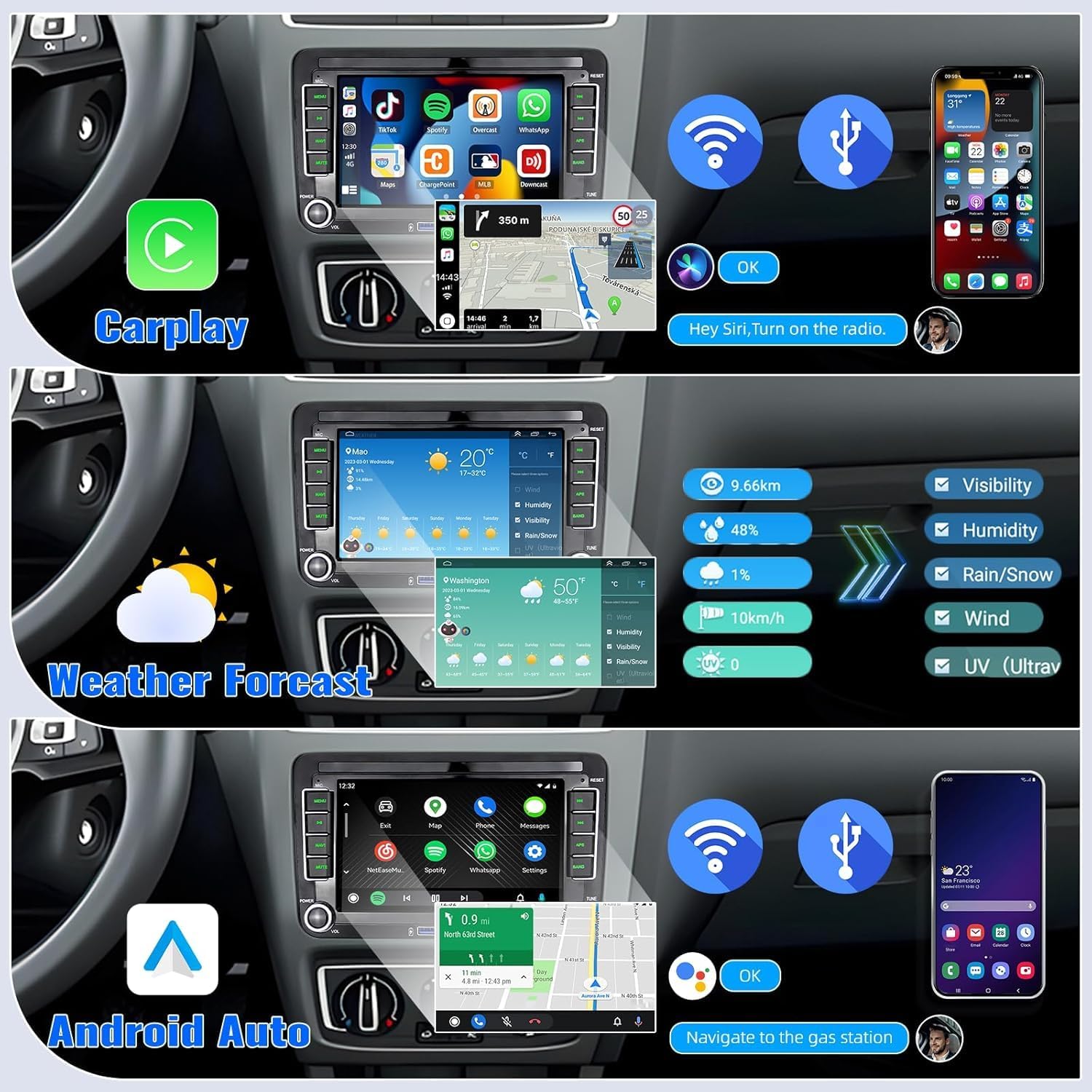
Image: The top section displays the CarPlay interface with navigation and app icons. The middle section shows a detailed weather forecast. The bottom section illustrates the Android Auto interface with navigation and media controls.
- For iPhone (CarPlay): Ensure Bluetooth and Wi-Fi are enabled on your iPhone. On the head unit, open the CarPlay app and follow the pairing instructions.
- For Android (Android Auto): Ensure Bluetooth and Wi-Fi are enabled on your Android device. On the head unit, open the Android Auto app and follow the pairing instructions.
6.2 Mirror Link
Project your smartphone's screen onto the stereo display via USB or Wi-Fi for full access to apps, media, and videos. Note: Samsung devices may not be fully supported.

Image: The top section shows the Mirror Link feature, mirroring a phone screen to the head unit. The middle section illustrates the Steering Wheel Control interface with various function buttons. The bottom section displays the view from the backup camera, highlighting waterproof, night vision, and wide-angle capabilities.
- For iOS (Wi-Fi): Connect your iPhone to the unit's Wi-Fi hotspot and open the Mirror Link app.
- For Android (USB/Wi-Fi): Connect your Android phone via USB or Wi-Fi and follow the prompts in the Mirror Link app.
6.3 GPS Navigation & WiFi Connectivity
The unit features built-in GPS and Wi-Fi, supporting both online and offline navigation. Connect to Wi-Fi to access online maps, real-time traffic, and other internet-based applications.

Image: The top section illustrates WiFi connectivity and the ability to stream online video and music. The middle section shows GPS navigation with options for both offline maps and online real-time traffic updates. The bottom section displays various network radio applications.
- Online Navigation: Connect to Wi-Fi and use pre-installed navigation apps or download your preferred ones from the app store.
- Offline Navigation: Download offline maps for your desired regions to navigate without an internet connection.
- Wi-Fi Usage: Once connected to Wi-Fi, you can browse the internet, stream media, and use various online applications.
6.4 Bluetooth Functionality
The unit supports Bluetooth for hands-free calling, music streaming, and phonebook synchronization.
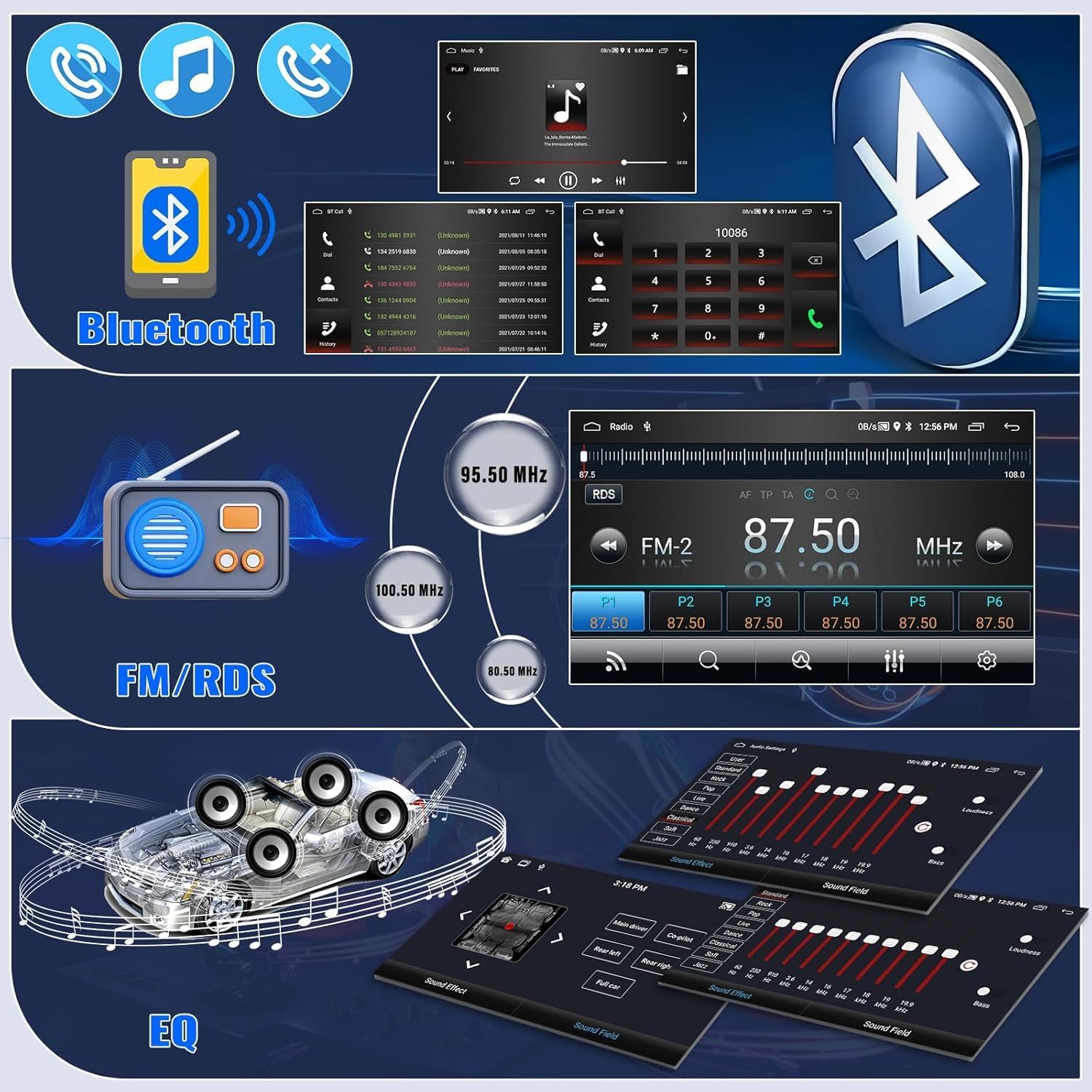
Image: The top section displays the Bluetooth interface for hands-free calling and music playback. The middle section shows the FM radio interface with RDS information and preset stations. The bottom section illustrates the Equalizer (EQ) settings for audio customization.
- Pairing: Enable Bluetooth on your phone and search for the unit (e.g., "SIXWIN A3676"). Pair the devices.
- Hands-Free Calling: Use the built-in or external microphone for clear calls. Access your phonebook directly from the unit.
- Bluetooth Music: Stream audio from your paired device to the car stereo.
6.5 FM RDS Radio & EQ
Enjoy FM radio with RDS (Radio Data System) for station information. Customize your audio experience with the built-in Equalizer (EQ).
- FM Radio: Scan for stations, save presets, and view RDS information (if available).
- Equalizer: Adjust audio frequencies to match your preferences and vehicle acoustics.
6.6 Backup Camera
The included AHD backup camera provides a clear view of the area behind your vehicle when reversing, enhancing safety and ease of parking. It features waterproof, night vision, and wide-angle capabilities.
- The camera display automatically activates when the vehicle is shifted into reverse gear.
6.7 Steering Wheel Control (SWC)
Program your vehicle's steering wheel buttons to control various functions of the head unit, such as volume adjustment, track skipping, and answering calls.
- Refer to Section 5 for initial setup of SWC.
6.8 Split Screen Function & UI Themes
The unit supports split-screen functionality, allowing two applications to run simultaneously. You can also customize the interface with 61 different UI themes.

Image: This image highlights the 7-inch touchscreen display, its 1024x600 resolution, and IPS technology. It also shows an example of the split-screen feature in use, displaying two applications side-by-side.
- Split Screen: Drag an app icon to one side of the screen to activate split-screen mode, then select another app for the other side.
- UI Themes: Access the theme settings to choose from 61 available interface designs.
7. Maintenance
- Cleaning: Use a soft, dry cloth to clean the touchscreen and unit exterior. Avoid abrasive cleaners or solvents.
- Software Updates: Periodically check for software updates via the system settings menu to ensure optimal performance and access to new features. A stable Wi-Fi connection is required for updates.
- Avoid Liquids: Do not spill liquids on the unit.
8. Troubleshooting
| Problem | Possible Cause | Solution |
|---|---|---|
| Unit does not power on. | Incorrect wiring; Blown fuse; Vehicle battery disconnected. | Check power connections; Inspect vehicle fuses; Ensure battery is connected. |
| No sound. | Volume too low; Mute activated; Speaker wiring issue. | Increase volume; Check mute status; Verify speaker connections. |
| GPS signal lost or inaccurate. | GPS antenna obstructed or improperly placed; Outdated maps. | Ensure GPS antenna has a clear view of the sky; Update maps. |
| Bluetooth pairing failed. | Bluetooth not enabled on phone/unit; Device too far; Interference. | Enable Bluetooth on both devices; Bring devices closer; Restart unit and phone. |
| Backup camera not displaying. | Camera cable disconnected; Incorrect wiring to reverse light trigger. | Check camera input cable connection; Verify reverse trigger wire. |
| Touchscreen unresponsive. | Temporary software glitch; Screen protector interference. | Restart the unit; Remove and reapply screen protector if applicable. |
If problems persist, please contact SIXWIN customer support for assistance.
9. Specifications
| Brand | SIXWIN |
| Model Name | A3676 |
| Screen Size | 7 inches |
| Display Type | Touch Screen (Capacitive) |
| Memory Storage Capacity | 64 GB |
| Connectivity Technology | Bluetooth, Wi-Fi |
| Special Features | Bluetooth, Touchscreen, CarPlay, Android Auto, Mirror Link, GPS, FM RDS, EQ, Backup Camera, Steering Wheel Control, Split Screen, 61 UI Themes |
| Supported Satellite Navigation System | GPS |
| Audio Output Mode | Stereo |
| Compatible Vehicle Type | Car (VW Jetta, Passat, Touran, Tiguan, Golf, Caddy, Magotan, Sagitar, Seat, Skoda) |
| Parcel Dimensions | 32.2 x 24.9 x 10.8 cm |
| Item Weight | 1.25 kg |
10. Warranty and Support
The SIXWIN A3676 Android Car Radio Stereo comes with a 1-year warranty from the date of purchase.
For technical support, warranty claims, or any questions regarding your product, please contact SIXWIN customer service. Refer to the contact information provided with your purchase documentation or visit the official SIXWIN website.
