
1. Product Overview
The PORLEI Wireless Trackball Mouse TM246G is designed for ergonomic comfort and precise control. It features multi-device connectivity via Bluetooth and a USB receiver, adjustable DPI settings, and a long-lasting rechargeable battery. This manual provides instructions for setup, operation, maintenance, and troubleshooting.
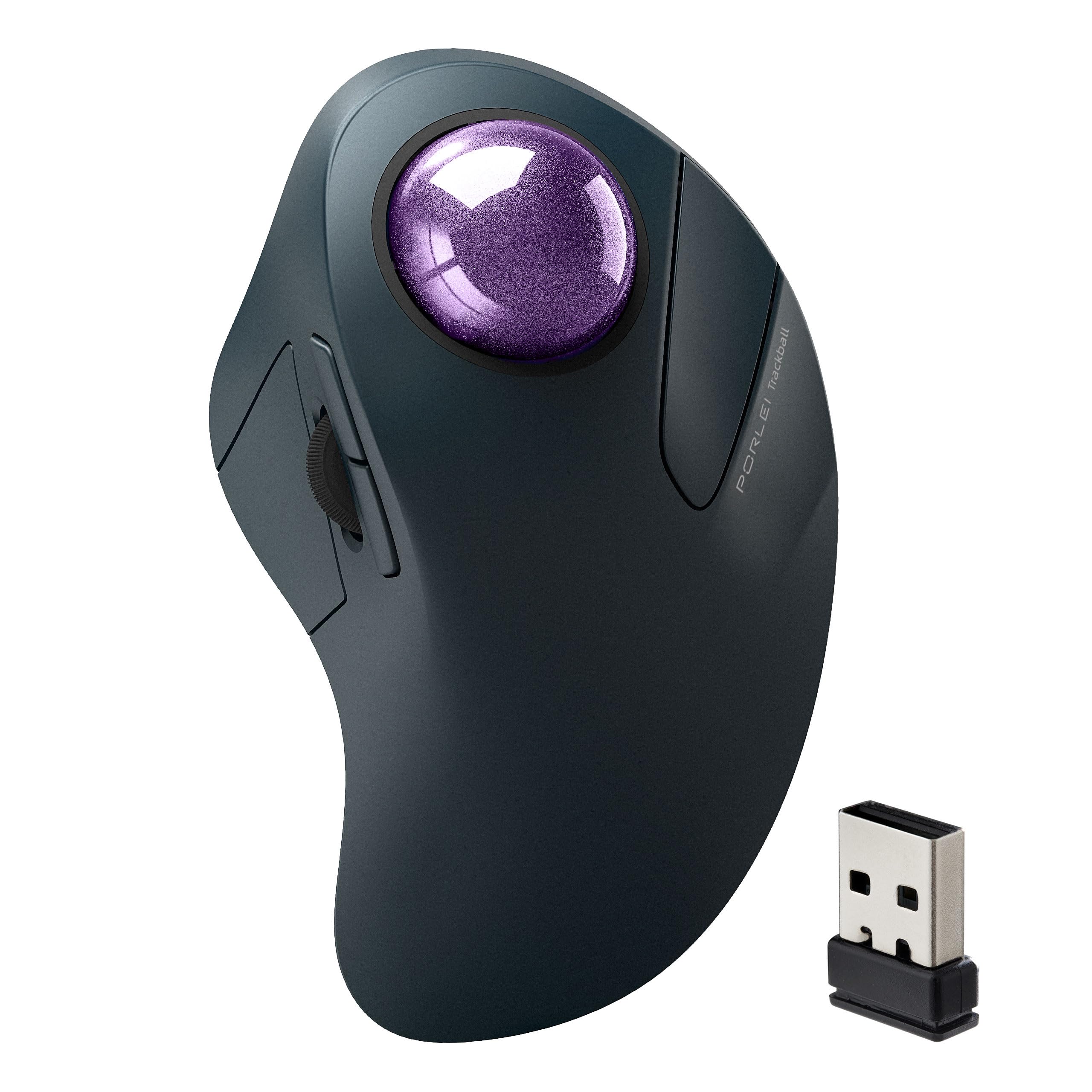
Image 1.1: PORLEI Wireless Trackball Mouse TM246G. This image displays the purple trackball mouse from a top-down perspective, highlighting its ergonomic shape and the prominent trackball.
Key Features:
- Ergonomic Design: Shaped for comfortable use, reducing wrist strain during extended periods.
- Precise Index Finger Control: The trackball allows for accurate cursor movement with minimal hand motion.
- Adjustable DPI: 5 levels (200, 400, 800, 1200, 1600) for customized cursor sensitivity.
- Multi-Device Connectivity: Seamlessly switch between up to three devices using Bluetooth or the 2.4GHz USB receiver.
- Rechargeable Battery: Provides up to 120 days of use on a single charge.
- Wide Compatibility: Supports Windows, Mac, Android, PC, and laptop systems.
2. Setup Guide
2.1 Package Contents
Before you begin, ensure all items are present:
- PORLEI Wireless Trackball Mouse TM246G
- USB Receiver (stored in the mouse's bottom compartment)
- USB Charging Cable
- User Manual (this document)
2.2 Charging the Mouse
The mouse comes with a built-in rechargeable battery. For optimal performance, fully charge the mouse before first use.
- Connect the small end of the USB charging cable to the charging port on the front of the mouse.
- Connect the larger end of the USB charging cable to a USB power source (e.g., computer USB port, USB wall adapter).
- The charging indicator light will illuminate. Once fully charged, the light will change or turn off (refer to LED indicator section for details).

Image 2.1: Charging the PORLEI Trackball Mouse. The image shows the trackball mouse connected via its USB-C charging cable to a laptop, illustrating the charging process.
2.3 Connecting the Mouse
The PORLEI Trackball Mouse offers two connection methods: 2.4GHz USB receiver and Bluetooth.
2.3.1 2.4GHz USB Receiver Connection
- Locate the USB receiver in the compartment on the bottom of the mouse.
- Plug the USB receiver into an available USB port on your computer.
- Turn on the mouse using the power switch on the bottom.
- Press the "Mode Switch" button on the bottom of the mouse until the indicator light for the 2.4G mode (usually green) is active.
- Your computer should automatically detect and install the necessary drivers. The mouse is ready for use.
2.3.2 Bluetooth Connection (Up to 2 Devices)
The mouse supports two separate Bluetooth connections (BT1 and BT2).
- Turn on the mouse using the power switch on the bottom.
- Press the "Mode Switch" button on the bottom of the mouse to select either BT1 or BT2 mode. The corresponding indicator light will blink slowly.
- To enter pairing mode, press and hold the "Mode Switch" button for 3-5 seconds until the BT1 or BT2 indicator light blinks rapidly.
- On your device (PC, laptop, tablet, Mac, Android):
- Go to Bluetooth settings.
- Search for new devices.
- Select "PORLEI Trackball Mouse" (or similar name) from the list of available devices.
- Confirm pairing. The indicator light on the mouse will stop blinking and remain solid for a few seconds, then turn off.
- Repeat steps 2-4 to connect a second device using the other Bluetooth channel (BT2).

Image 2.2: Multi-Device Wireless Freedom. This image illustrates the trackball mouse wirelessly connected to both a laptop and a tablet, demonstrating its multi-device capability.
3. Operation
3.1 Button Functions
The PORLEI Trackball Mouse features 6 buttons and a scroll wheel. Refer to the diagram below for button identification.

Image 3.1: Mouse Button Diagram. This diagram labels the Left Mouse Button, Right Mouse Button, Forward/Backward Buttons, Precision Scroll Wheel, DPI Button, and Triple Connection (Mode Switch) on the PORLEI Trackball Mouse. Note: All mouse buttons are not programmable. Forward/Backward buttons are not compatible with MAC OS.
- Left Mouse Button: Standard click function.
- Right Mouse Button: Standard right-click function (context menu).
- Forward/Backward Buttons: Navigate forward/backward in web browsers or file explorers. (Note: These buttons are not compatible with Mac OS.)
- Precision Scroll Wheel: Scroll up and down. Can also be clicked for middle-click functionality.
- DPI Button (on bottom): Cycles through 5 DPI settings (200, 400, 800, 1200, 1600) to adjust cursor speed.
- Mode Switch Button (on bottom): Switches between 2.4G, BT1, and BT2 connection modes. Press and hold to enter Bluetooth pairing mode.
Note: All mouse buttons are not programmable.
3.2 Adjusting DPI (Cursor Speed)
The mouse offers 5 adjustable DPI levels to suit your preference and task requirements.
- Locate the DPI button on the underside of the mouse.
- Press the DPI button to cycle through the available settings: 200 DPI, 400 DPI, 800 DPI, 1200 DPI, and 1600 DPI.
- Observe the cursor speed on your screen and select the setting that feels most comfortable and precise for your current activity.

Image 3.2: Precise Tracking with Adjustable DPI. This image highlights the mouse's ability to adjust cursor speed with DPI settings ranging from 200 to 1600, indicated by an overlay.
3.3 Switching Between Connected Devices
To switch between devices connected via 2.4GHz USB receiver, Bluetooth 1, and Bluetooth 2:
- Simply press the "Mode Switch" button on the bottom of the mouse.
- Each press will cycle through the modes: 2.4G (USB), BT1, BT2.
- The corresponding indicator light will briefly illuminate to confirm the selected mode.
4. Maintenance
4.1 Cleaning the Trackball
Over time, dust and debris can accumulate inside the trackball mechanism, affecting its smoothness. Regular cleaning is recommended.
- Turn off the mouse using the power switch.
- Gently push the trackball from the underside opening to remove it from its socket.
- Use a soft, lint-free cloth to wipe the trackball clean.
- Use a cotton swab or compressed air to clean the inside of the trackball socket, paying attention to the small sensor points.
- Reinsert the trackball into its socket, ensuring it moves freely.
- Turn the mouse back on.

Image 4.1: Removable Trackball for Cleaning. This image shows the trackball mouse with its purple trackball removed, illustrating how to access the interior for cleaning.
4.2 Battery Care
- Avoid fully discharging the battery frequently.
- Charge the mouse when the low battery indicator appears.
- Use the provided USB charging cable or a compatible 5V charger.
- If storing the mouse for an extended period, charge it to about 50% and store in a cool, dry place.
5. Troubleshooting
5.1 Mouse Not Responding
- Check Power: Ensure the mouse is turned on and has sufficient battery charge. Recharge if necessary.
- Check Connection Mode: Verify that the mouse is in the correct connection mode (2.4G, BT1, or BT2) for your device. Use the "Mode Switch" button.
- USB Receiver: If using 2.4G, try plugging the USB receiver into a different USB port on your computer.
- Bluetooth Re-pairing: If using Bluetooth, try unpairing and re-pairing the mouse with your device.
- Restart Device: Restart your computer or device.
5.2 Trackball Movement is Jerky or Inaccurate
- Clean Trackball: Follow the instructions in Section 4.1 to clean the trackball and its socket. Dust and debris are common causes.
- Adjust DPI: Experiment with different DPI settings using the DPI button on the bottom of the mouse.
5.3 Bluetooth Connection Issues
- Ensure Pairing Mode: Make sure the mouse is in Bluetooth pairing mode (BT1 or BT2 indicator blinking rapidly).
- Device Bluetooth On: Confirm that Bluetooth is enabled on your computer or device.
- Forget Device: On your computer/device, "forget" or "remove" the mouse from your Bluetooth device list, then attempt to pair again.
- Interference: Move closer to your device and away from potential sources of interference (e.g., Wi-Fi routers, other wireless devices).
5.4 Forward/Backward Buttons Not Working on Mac
- This is expected behavior. The forward/backward buttons are not compatible with Mac OS.
6. Specifications
| Feature | Detail |
|---|---|
| Model Number | TM246G |
| Brand | PORLEI |
| Connectivity Technology | Bluetooth, 2.4GHz USB |
| Movement Detection | Trackball |
| Number of Buttons | 6 |
| DPI Settings | 200, 400, 800, 1200, 1600 |
| Battery Life | Up to 120 days (single charge) |
| Item Weight | 10.5 ounces (297.67 grams) |
| Dimensions (Package) | 6.97 x 4.41 x 2.56 inches |
| Color | Purple (C-Purple) |
| Compatibility | Windows, Mac, Android, PC, Laptop |
7. Warranty & Support
7.1 Warranty Information
PORLEI products are designed for reliability and performance. This product is covered by a standard manufacturer's warranty against defects in materials and workmanship. Please refer to the product packaging or the official PORLEI website for specific warranty terms and duration.
The product also includes a 30-day return policy from the date of purchase, as per Amazon's standard policy.
7.2 Customer Support
If you encounter any issues or have questions regarding your PORLEI Wireless Trackball Mouse, please contact our customer support team:
- Online Support: Visit the official PORLEI website for FAQs, driver downloads, and support contact forms.
- Email Support: Refer to the contact information provided on the product packaging or the "thank you card" included with your purchase.
- Amazon Seller Page: You can also reach out to "Porlei Direct" via their seller page on Amazon for assistance. Visit PORLEI Store on Amazon
When contacting support, please have your product model number (TM246G) and purchase details ready.