Transformers Vertical Ergonomic Mouse TF-VM01 User Manual
Model: TF-VM01
1. Introduction
Thank you for choosing the Transformers Vertical Ergonomic Mouse TF-VM01. This device is designed to provide a comfortable and efficient computing experience, reducing wrist strain with its ergonomic vertical design. It features multi-device connectivity, an intuitive LED screen, and a versatile knob control. This manual will guide you through the setup, operation, and maintenance of your new mouse.

Image 1.1: The Transformers Vertical Ergonomic Mouse TF-VM01 and its 2.4G USB wireless dongle.
2. Package Contents
Please check the package for the following items:
- TF-VM01 Wireless Vertical Mouse (1)
- User manual and warranty card (1)
- USB Wireless Dongle (1)
- USB Type-C Cable (1)
3. Product Overview and Features
3.1 Ergonomic Design
The TF-VM01 mouse features a 57° tilt angle, promoting a natural handshake posture to alleviate wrist fatigue and reduce pressure on the wrist during extended use. This design helps prevent conditions like carpal tunnel syndrome.

Image 3.1: The 57-degree ergonomic tilt of the mouse.

Image 3.2: Visual comparison illustrating reduced wrist pressure with the ergonomic design.
3.2 LED Screen & Knob Control
The integrated LED screen provides real-time updates on DPI settings, battery level, and current connection mode. The innovative knob offers efficient control for various tasks, including zooming, horizontal scrolling, and volume adjustment, enhancing productivity in applications like CAD, Photoshop, or spreadsheets.

Image 3.3: LED screen displaying available knob functions and connection status.
3.3 Multi-Device Connectivity
The mouse supports dual-mode connectivity: 2.4G wireless and Dual Bluetooth 5.0 (BT1 and BT2). This allows seamless connection to up to three devices simultaneously, compatible with Windows, Mac OS, and Android systems.

Image 3.4: Illustrates 3-device connectivity across different operating systems.
3.4 6-Level DPI Adjustment
Adjust the mouse sensitivity with six DPI settings: 800, 1600, 2400, 2800, 3200, and 4000. This allows for precise control tailored to various tasks, from detailed design work to general web browsing.
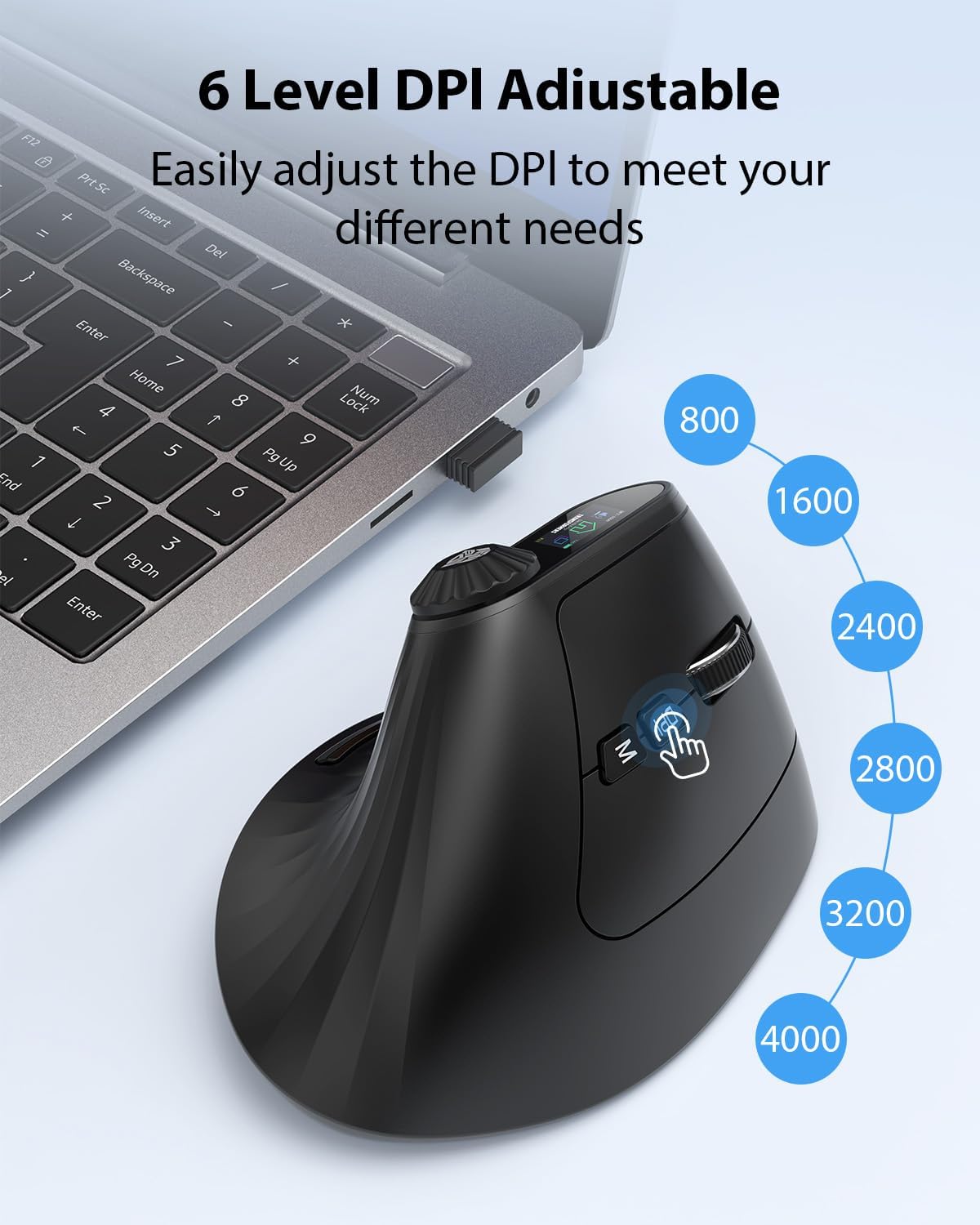
Image 3.5: The 6-level DPI adjustment feature.
3.5 Rechargeable Battery
Equipped with a built-in 500mAh lithium-ion battery, the mouse is rechargeable via the included Type-C cable. It features button wake-up functionality and an auto-sleep mode to conserve power.

Image 3.6: The mouse being charged via its Type-C port.
3.6 Quiet Clicks
The mouse features a silent button design, providing soft, tactile feedback without the noise of traditional mouse clicks. This makes it suitable for quiet environments such as libraries or shared workspaces.

Image 3.7: The mouse is designed for quiet operation.
4. Setup
4.1 Charging the Mouse
- Connect the included USB Type-C cable to the charging port on the front of the mouse.
- Connect the other end of the cable to a USB power source (e.g., computer USB port, USB wall adapter).
- The LED screen will indicate the charging status. A full charge typically takes a few hours.
4.2 Connecting via 2.4G Wireless
- Locate the USB Wireless Dongle in the package.
- Insert the USB dongle into an available USB port on your computer.
- Turn on the mouse using the power switch located on the bottom.
- The mouse should automatically connect to your computer. The LED screen will display the 2.4G connection icon.
4.3 Connecting via Bluetooth (BT1, BT2)
- Turn on the mouse using the power switch.
- Double-click the Mode Switch Button (usually located near the scroll wheel or on the side) to cycle through connection modes until 'BT1' or 'BT2' is displayed on the LED screen.
- Press and hold the Mode Switch Button for 3-5 seconds until the Bluetooth icon on the LED screen starts blinking, indicating pairing mode.
- On your device (computer, laptop, tablet), go to Bluetooth settings and search for new devices.
- Select "TF-VM01" or a similar name from the list of available devices to pair.
- Once connected, the Bluetooth icon on the mouse's LED screen will stop blinking and remain solid.
- Repeat these steps to connect to a second Bluetooth device using the 'BT2' mode.
5. Operating Instructions
5.1 Power On/Off
Use the power switch on the bottom of the mouse to turn it on or off.
5.2 DPI Adjustment
Press the DPI button (located near the scroll wheel) to cycle through the six DPI settings (800/1600/2400/2800/3200/4000). The current DPI will be displayed on the LED screen.
5.3 Knob Functions
The multi-functional knob allows for quick access to various features:
- Wake Screen: Single-click the knob to wake the LED screen.
- Select Function: After waking the screen, scroll the knob to navigate through available functions (e.g., Alt+Tab, Zoom, Volume).
- Confirm/Exit: Single-click the knob again to confirm the selected function or to exit the function selection mode. If no choice is made within 2 seconds, the function will be automatically selected.

Image 5.1: Step-by-step guide for using the knob functions.

Image 5.2: Examples of knob functions displayed on the LED screen.
5.4 Side Buttons (Forward/Back, Copy/Paste)
The mouse includes dedicated buttons for common actions:
- Forward/Back Buttons: Located on the side, these buttons allow for quick navigation in web browsers and file explorers. Note: These buttons are not compatible with Mac OS.
- Copy/Paste Buttons: Dedicated buttons for copy and paste functions are available for enhanced productivity.
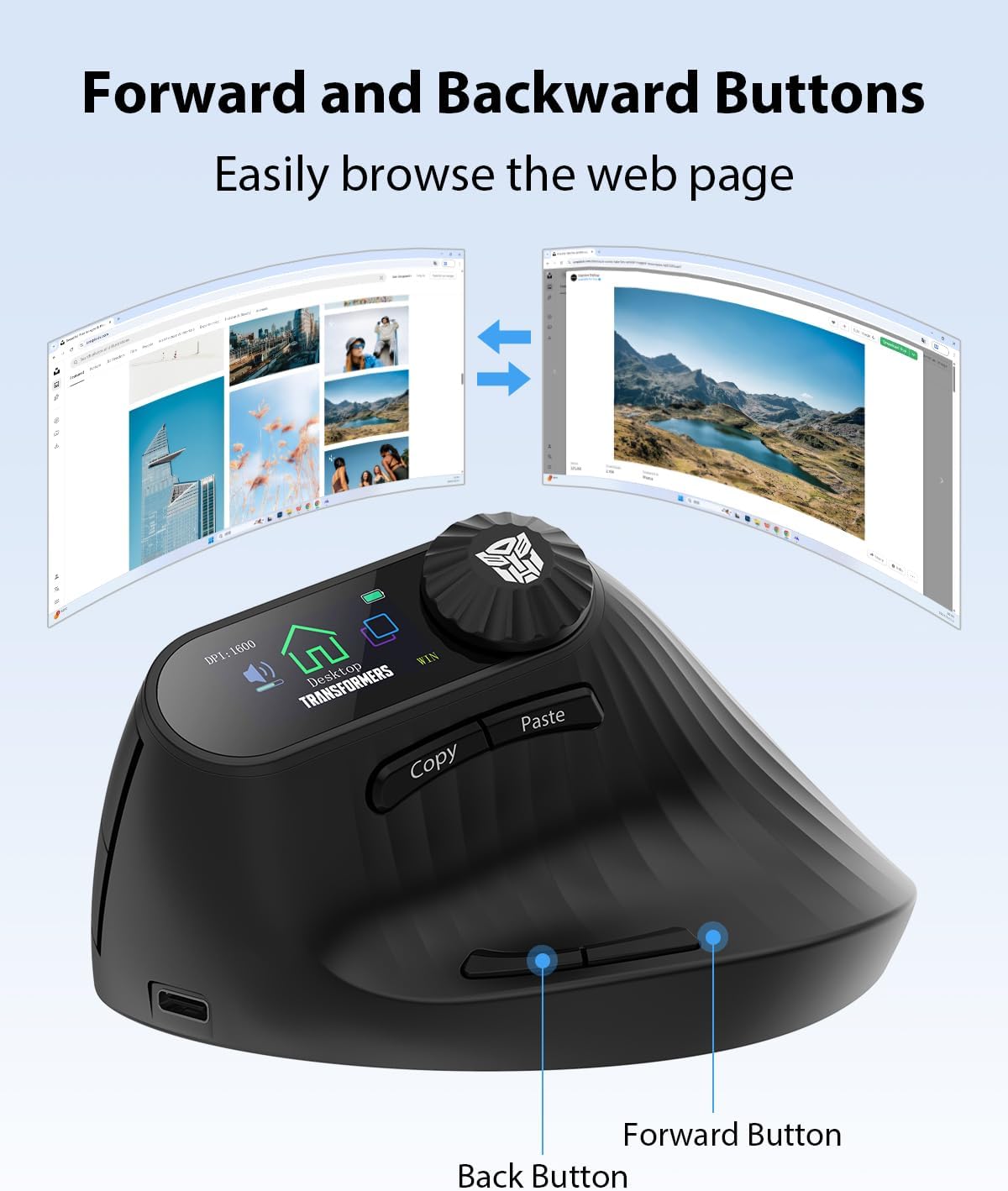
Image 5.3: Location of the Forward and Back buttons.
5.5 System Switching (Windows/Mac)
To switch between Windows and Mac system compatibility, press and hold the DPI button for 3-5 seconds.
5.6 LED Screen Information
The LED screen displays:
- Current DPI setting.
- Battery level indicator.
- Active connection mode (2.4G, BT1, BT2).
- Low voltage reminder.

Image 5.4: Detailed button description and layout.
6. Maintenance
To ensure the longevity and optimal performance of your Transformers Vertical Ergonomic Mouse TF-VM01, follow these maintenance guidelines:
- Cleaning: Use a soft, dry cloth to wipe the surface of the mouse. For stubborn dirt, slightly dampen the cloth with water or a mild cleaning solution. Avoid using harsh chemicals or abrasive materials.
- Storage: When not in use for extended periods, store the mouse in a cool, dry place away from direct sunlight and extreme temperatures.
- Battery Care: Avoid fully discharging the battery frequently. Charge the mouse when the low battery indicator appears on the LED screen.
- Avoid Drops: Protect the mouse from drops and impacts, which can damage internal components.
7. Troubleshooting
If you encounter issues with your mouse, please refer to the following common solutions:
- Mouse not responding:
- Ensure the mouse is powered on.
- Check the battery level on the LED screen and charge if necessary.
- For 2.4G connection, ensure the USB dongle is securely plugged into a working USB port. Try a different USB port.
- For Bluetooth connection, ensure Bluetooth is enabled on your device and the mouse is paired correctly. Try re-pairing the mouse.
- Try restarting your computer or device.
- Cursor movement is erratic or slow:
- Clean the optical sensor on the bottom of the mouse.
- Ensure you are using the mouse on a suitable surface (non-reflective, uniform color).
- Adjust the DPI setting to a higher value if movement is too slow.
- Bluetooth connection drops frequently:
- Ensure the mouse is within the effective range of your device (typically 10 meters).
- Minimize interference from other wireless devices.
- Re-pair the mouse with your device.
- Forward/Back buttons not working on Mac:
- As noted, these buttons are not compatible with Mac OS. This is expected behavior.
8. Specifications
| Feature | Specification |
|---|---|
| Model Number | TF-VM01 |
| Product Dimensions | 4.54 x 3.22 x 0.1 inches |
| Item Weight | 3.63 ounces |
| Connectivity Technology | 2.4G Hz, Bluetooth 5.0 (BT1+BT2) |
| DPI Settings | 800/1600/2400/2800/3200/4000 |
| Battery Type | 500mAh Lithium-ion (Rechargeable) |
| Charging Port | USB Type-C |
| Movement Detection | Optical |
| Special Features | Ergonomic Design, LED Screen, Knob Control, Quiet Clicks |
| Compatibility | Windows, Mac OS, Android |
9. Warranty and Support
The Transformers Vertical Ergonomic Mouse TF-VM01 comes with a standard manufacturer's warranty. Please refer to the warranty card included in your package for specific terms and conditions, including warranty duration and coverage details.
For technical support, troubleshooting assistance, or warranty claims, please contact Transformers customer service through the contact information provided on the warranty card or the official Transformers product website.


