
1. Safety Information
Please read all instructions carefully before installing or operating the WAVLINK 10G PCIe Network Card. Retain this manual for future reference.
- Always power off your computer and disconnect it from the power source before opening the case or installing any internal components.
- Discharge any static electricity from your body by touching a grounded metal object (e.g., the computer chassis) before handling the network card.
- Handle the network card by its edges to avoid touching the gold contacts or components.
- Ensure proper ventilation inside your computer case to prevent overheating.
- Important: Remove the protective plastic film from the PCI-e interface before connecting the card to the PC's PCI-e slot.
2. Package Contents
Verify that all items are present in your package:
- WAVLINK 10G PCIe Network Card (Model: WL-NWP004-10G)
- Standard Profile Bracket (pre-installed)
- Low Profile Bracket
- Mounting Screws
- USB Flash Drive (containing drivers)
- Quick Installation Guide

Image: Contents of the WAVLINK 10G PCIe Network Card package, including the card, brackets, screws, and USB drive.
3. Product Overview
The WAVLINK 10G PCIe Network Card is designed to provide high-speed network connectivity for desktop computers. It features the AQC113 controller for reliable performance and supports multiple speed options.
Key Features:
- 10G High-Speed Transmission: Achieves network speeds up to 10 times faster than traditional gigabit rates, supporting 10000/5000/2500Mbps.
- PCIe Compatibility: Compatible with PCIe x4, x8, and x16 slots. Note: Not compatible with PCI slots.
- Operating System Support: Seamless compatibility with Windows 11, Windows 10, and Linux operating systems.
- Flexible Bracket Versatility: Includes both standard and low-profile brackets for installation in various computer case sizes.
- Robust Metal Shielding & Heat Sink: Minimizes electromagnetic interference and provides excellent heat dissipation for stable network transmission.
- Thickened Gold Finger: Ensures stable and reliable connection to the PCIe slot.
Component Identification:

Image: The WAVLINK 10G PCIe Network Card highlighting the AQC113C-B1 controller for stable transmission.
- PCIe Interface: Connects to the motherboard's PCIe slot.
- RJ45 Ethernet Port: Connects to your network cable.
- AQC113C-B1 Controller: The main chip responsible for network processing.
- Heat Sink: Dissipates heat from the controller for optimal performance.
- Gold Finger: The gold-plated contacts that interface with the PCIe slot.

Image: The WAVLINK 10G PCIe Network Card showing both standard and low-profile brackets.
4. Setup: Physical Installation
Follow these steps to physically install the WAVLINK 10G PCIe Network Card into your computer:
Video: A detailed guide on how to install a PCIe network card into a desktop computer. This video demonstrates the process of opening the PC case, identifying an available PCIe slot, removing the slot cover, inserting the card, and securing it with a screw.
- Power Off and Open PC Case:
Completely power off your computer and disconnect all cables. Open the computer case to access the motherboard.

Image: Illustration of powering off a PC and opening its side panel to reveal internal components.
- Identify an Available PCIe Slot:
Locate an available PCIe x4, x8, or x16 slot on your motherboard. Ensure it is clear of obstructions.
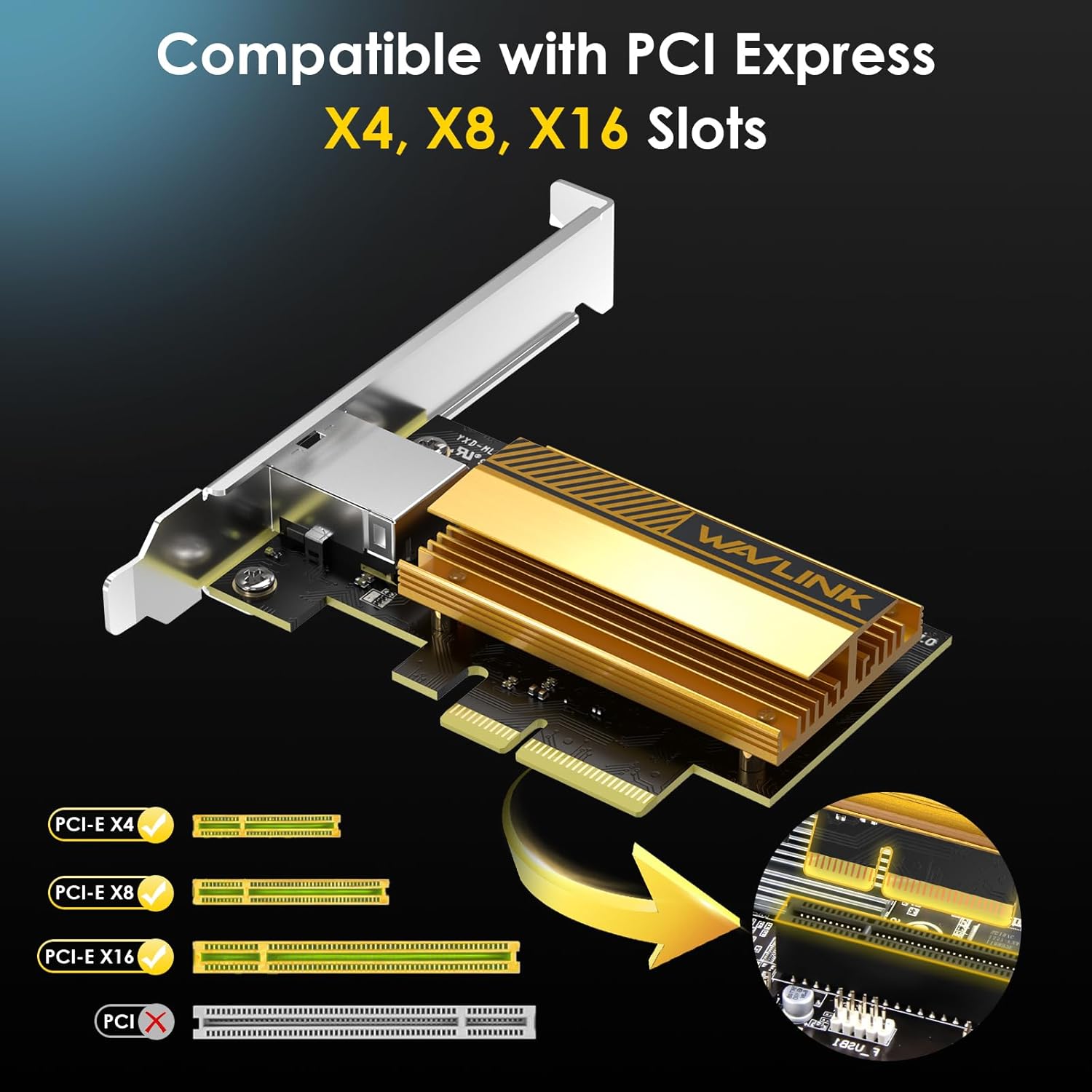
Image: Diagram showing compatible PCIe x4, x8, and x16 slots on a motherboard.
- Remove Slot Cover:
Unscrew and remove the metal slot cover corresponding to the chosen PCIe slot from the back of your computer case.

Image: Illustration of inserting the PCIe network card into an available slot on the motherboard.
- Install the Network Card:
Carefully align the network card with the PCIe slot and press it firmly until it is fully seated. Ensure the bracket aligns with the opening in the case.
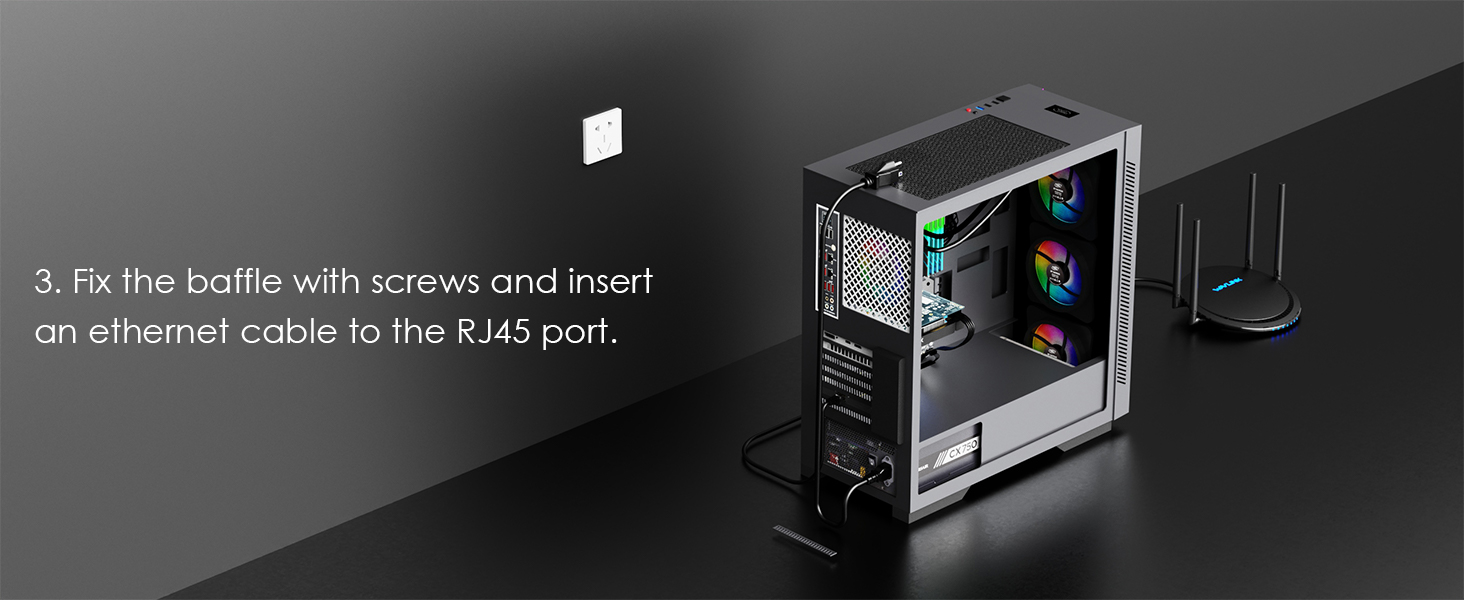
Image: Illustration of securing the network card with screws and connecting an Ethernet cable to its RJ45 port.
- Secure the Card:
Use the screw removed earlier to secure the network card's bracket to the computer case.
- Close Case and Reconnect:
Close the computer case, reconnect all cables, and power on your PC.
5. Operating Instructions
Driver Installation:
After physical installation, you need to install the appropriate drivers for the network card to function correctly.
- Using the Included USB Flash Drive:
Insert the provided USB flash drive into an available USB port on your computer. Navigate to the drive and run the driver installation executable. Follow the on-screen prompts to complete the installation.

Image: A USB flash drive, typically included for driver installation.
- Downloading Drivers Online:
Alternatively, you can download the latest drivers from the official WAVLINK website. Visit www.wavlink.com, navigate to the support section, and search for model WL-NWP004-10G. Download and install the drivers according to the instructions provided on the website.
- Verification:
After installation, check Device Manager (Windows) or network settings (Linux) to ensure the network card is recognized and functioning correctly.
Network Cable Requirements:
To achieve optimal performance, use appropriate Ethernet cables:
- For 10Gbps speeds, a Cat6A or higher Ethernet cable is recommended.
- Cat5E and Cat6 cables can support lower speeds (2.5G/5G) but may not consistently achieve 10Gbps over longer distances.

Image: Chart detailing recommended Ethernet cable types for 2.5G, 5G, and 10G network speeds.
Advanced Network Configuration (Optional):
- Jumbo Frames: For maximum throughput, especially with large file transfers, enable Jumbo Frames (e.g., 9K MTU) on your network card, router, and other network devices. Ensure consistent settings across all devices.
- Full Duplex: The card supports full duplex operation. In most cases, leaving this setting on "Auto" is sufficient. If manual configuration is required, set it to "10Gbps Full Duplex".
6. Maintenance
Proper maintenance ensures the longevity and optimal performance of your network card:
- Keep Clean: Periodically clean your computer's interior to prevent dust buildup on the network card and its heat sink. Dust can impede heat dissipation.
- Airflow: Ensure good airflow within your PC case. The card's excellent heat sink helps manage temperature, but proper case ventilation is crucial.
- Driver Updates: Regularly check the WAVLINK website for updated drivers to ensure compatibility and performance improvements.

Image: Close-up of the WAVLINK 10G PCIe Network Card's heat sink, designed for efficient heat dissipation.
7. Troubleshooting
If you encounter issues with your WAVLINK 10G PCIe Network Card, refer to the following common solutions:
- No Network Connection / Card Not Detected:
- Ensure the card is fully seated in the PCIe slot.
- Verify that the correct drivers are installed. Reinstall drivers if necessary.
- Check the network cable connection to both the card and your router/switch.
- Try a different PCIe slot if available.
- Slow Network Speeds:
- Confirm you are using a Cat6A or higher Ethernet cable for 10Gbps.
- Check if Jumbo Frames are enabled and consistently configured across all network devices (card, switch, router).
- Ensure your router/switch supports 10Gbps speeds.
- Update network card drivers to the latest version.
- Driver Installation Warnings (e.g., Antivirus Flags):
Some antivirus software may flag driver installation files as suspicious. If you encounter such warnings, download the drivers directly from the official WAVLINK website (www.wavlink.com) to ensure authenticity. Temporarily disable antivirus during installation if confident in the source, then re-enable immediately.
- Intermittent Connection:
- Check for loose connections.
- Ensure the card is not overheating; verify proper case ventilation.
- Test with a different Ethernet cable.
8. Specifications
| Brand | WAVLINK |
| Model Number | WL-NWP004-10G |
| Hardware Interface | PCIe x1 (Compatible with x4, x8, x16 slots) |
| Compatible Devices | Desktop PC |
| Data Link Protocol | Gigabit Ethernet (10G Base-T) |
| Data Transfer Rate | 10 Gigabits Per Second (10000/5000/2500Mbps) |
| Controller Chipset | AQC113C-B1 (Marvell AQtion) |
| Operating System Support | Windows 11, Windows 10, Linux |
| Item Weight | 0.15 Kilograms |
9. Warranty & Support
Warranty Information:
The WAVLINK 10G PCIe Network Card comes with a 1-Year Warranty from the date of purchase. This warranty covers manufacturing defects and ensures product reliability. Please retain your proof of purchase for warranty claims.
Customer Support:
For technical assistance, troubleshooting, or warranty inquiries, please contact WAVLINK customer support:
- Email: support@wavlink.com
- Live Chat Support: Visit www.wavlink.com (Mon-Fri 08:30 am - 5:30 pm UTC+8)
- Phone (US Local): +1(888)973-0883 (Mon-Fri 09:00 am - 10:00 pm UTC-5)

Image: WAVLINK customer support contact details.
