
1. Product Overview
The Acer ErgoEase Vertical Wireless Mouse is designed for ergonomic comfort and versatile connectivity. It features dual wireless modes (2.4GHz and Bluetooth), adjustable DPI settings, silent buttons, and a rechargeable battery with RGB lighting.
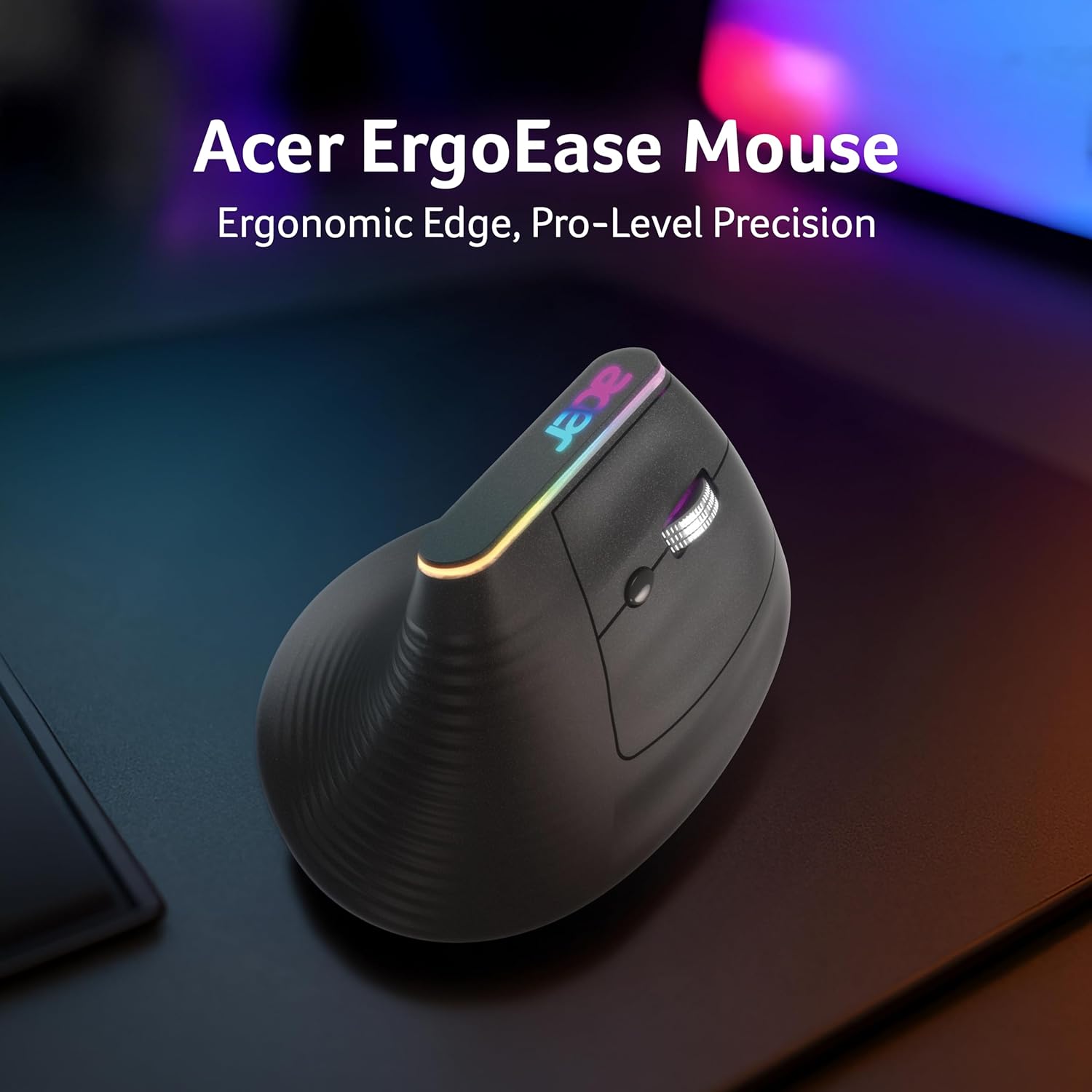
Image: The Acer ErgoEase Vertical Wireless Mouse, showcasing its ergonomic design.
2. Package Contents
- Acer ErgoEase Vertical Wireless Mouse
- User Manual (this document)
- USB Charging Cable
- 2.4GHz USB Receiver (typically stored in the mouse battery compartment)
3. Setup Instructions
3.1 Charging the Mouse
Before first use, fully charge the mouse. Connect the provided USB charging cable to the mouse's charging port and to a USB power source (e.g., computer USB port, USB wall adapter).

Image: The Acer ErgoEase mouse connected via its USB charging cable.
3.2 Connecting via 2.4GHz USB Receiver
- Locate the 2.4GHz USB receiver, usually stored in a compartment on the underside of the mouse.
- Insert the USB receiver into an available USB port on your computer.
- Turn on the mouse using the power switch located on the underside.
- The mouse should automatically connect to your computer.

Image: The Acer ErgoEase mouse illustrating its cable-free 2.4GHz connectivity.
3.3 Connecting via Bluetooth
- Turn on the mouse using the power switch.
- Switch the connectivity mode to Bluetooth (refer to the mouse's underside for the mode switch).
- On your computer or device, open Bluetooth settings.
- Search for new devices and select "Acer ErgoEase Mouse" (or similar name) from the list.
- Follow any on-screen prompts to complete the pairing process.
4. Operating Instructions
4.1 Button Functions
The Acer ErgoEase mouse features 6 buttons and a scroll wheel:
- Left Click Button: Standard selection.
- Right Click Button: Context menu.
- Scroll Wheel: Scroll up/down, middle click.
- Forward Button: Navigate forward in web browsers/folders.
- Backward Button: Navigate backward in web browsers/folders.
- DPI Adjustment Button: Cycles through DPI settings.
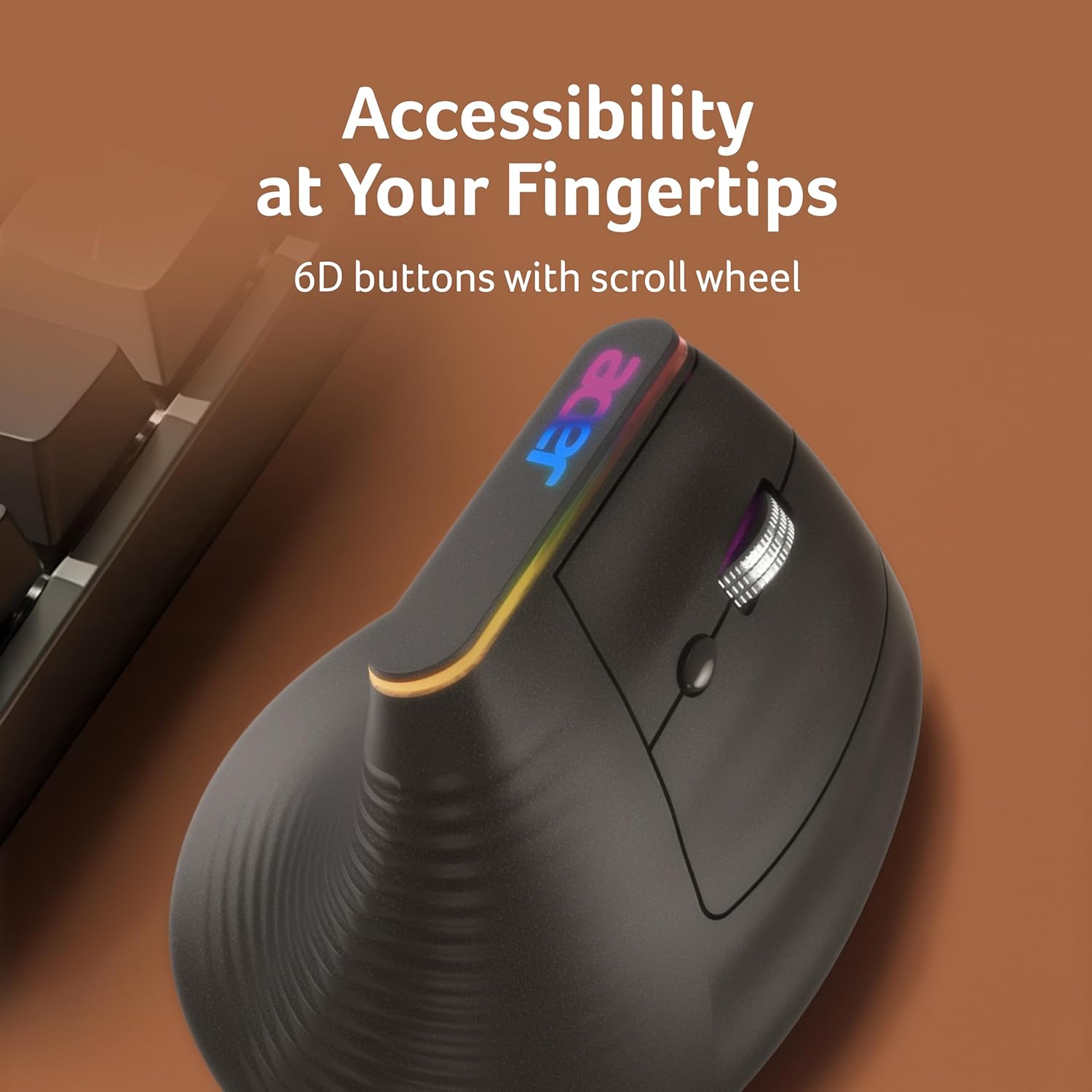
Image: Close-up view of the Acer ErgoEase mouse, highlighting its 6 buttons and scroll wheel.
4.2 DPI Adjustment
Press the DPI adjustment button (usually located near the scroll wheel) to cycle through the available sensitivity settings: 1200, 1600, 2400, and 3200 DPI. Select the sensitivity that best suits your task.

Image: The Acer ErgoEase mouse demonstrating its adjustable DPI resolution for precise control.
4.3 RGB Lighting
The mouse features an RGB glowing light mode. This lighting is primarily for aesthetic purposes and indicates the mouse is active. The RGB lighting can be turned off or on via a switch on the underside of the mouse, if available, or it may be linked to the mouse's activity.

Image: The Acer ErgoEase mouse with its RGB glowing light mode active.
5. Maintenance
5.1 Battery Charging
The mouse is equipped with a built-in 500mAh rechargeable battery. When the battery is low, connect the mouse to a USB power source using the provided charging cable. The RGB lighting may change or an indicator light may show charging status.
5.2 Cleaning
To clean the mouse, use a soft, dry cloth. For stubborn dirt, a slightly damp cloth can be used, ensuring no moisture enters the mouse's internal components. Avoid using harsh chemicals or abrasive materials.
6. Troubleshooting
- Mouse not responding:
- Ensure the mouse is powered on.
- Check battery level and charge if necessary.
- For 2.4GHz connection, ensure the USB receiver is securely plugged into a working USB port.
- For Bluetooth connection, ensure Bluetooth is enabled on your device and the mouse is paired correctly. Try re-pairing.
- Try connecting to a different USB port or device to rule out port/device issues.
- Cursor movement is erratic or slow:
- Clean the optical sensor on the underside of the mouse.
- Ensure you are using the mouse on a suitable surface (non-reflective, uniform color).
- Adjust the DPI setting to a higher value if movement is too slow.
- Bluetooth connection drops frequently:
- Ensure the mouse is within the effective range of your device's Bluetooth receiver.
- Minimize interference from other wireless devices.
- Update your device's Bluetooth drivers.
7. Specifications
| Feature | Detail |
|---|---|
| Brand | Acer |
| Model Name | ErgoEase |
| Model Number | ZC.A01SI.394 |
| Colour | Grey |
| Connectivity Technology | Bluetooth, 2.4GHz USB |
| Movement Detection Technology | Optical |
| Button Quantity | 6 |
| DPI Settings | 1200, 1600, 2400, 3200 |
| Hand Orientation | Ambidextrous |
| Compatible Devices | PC, Laptop, MacBook, iPad, Android devices |
| Operating System Compatibility | Windows 8/10/11, Mac OS, iOS 13 and above, Android |
| Battery Type | 1 Lithium Ion (included), 500mAh |
| Power Source | Battery Powered |
| Material | ABS |
| Item Weight | 96 Grams |
| Item Dimensions (L x W) | 11.8L x 7.8W Centimeters |
| Special Features | Ergonomic Design, Rechargeable, Running RGB, Silent Buttons |
8. Warranty Information
This Acer ErgoEase Vertical Wireless Mouse comes with a 1 Year Manufacturer Warranty from the date of purchase. Please retain your purchase receipt for warranty claims. The warranty covers manufacturing defects under normal use conditions.
For detailed warranty terms and conditions, please refer to the official Acer website or contact customer support.
9. Support
For any service-related queries, technical assistance, or further information regarding your Acer ErgoEase Vertical Wireless Mouse, please contact Acer customer support:
- Toll-Free Number: 1800-11-4100
- WhatsApp Support: 6366800400
- Email: acersupport@in.startek.com
- Online Support: Scan the QR code below or visit https://acer1.in/swdlo
Live agent support is available from Monday to Saturday, 9 AM to 6 PM, excluding public holidays.

Image: Acer customer support details including phone numbers, email, and a QR code for online support.