
Introduction
This manual provides essential information for setting up, operating, maintaining, and troubleshooting your HP 27-cr0306 All-in-One Desktop Computer. Please read these instructions carefully before using your device to ensure optimal performance and longevity.
What's in the Box
Verify that all items are present in the packaging:
- HP 27-cr0306 All-in-One Desktop Computer
- Keyboard
- Mouse
- Power Adapter
- Documentation (this manual, warranty information)
Setup
1. Connecting Peripherals
Connect the included keyboard and mouse to the available USB ports on the back of the computer. Refer to the port diagram below for connection points.
2. Power Connection
Connect the power adapter to the power input port on the back of the All-in-One computer, then plug the power cord into a wall outlet.
3. Initial Boot-Up
Press the power button, usually located on the side or bottom edge of the display. Follow the on-screen instructions to complete the Windows 11 setup process, including language selection, network connection, and user account creation.
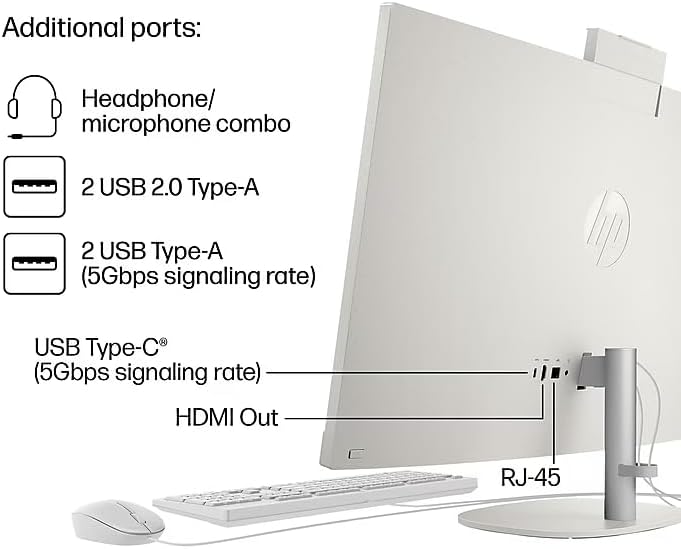
Figure 1: Rear Port Connections. This image illustrates the various ports available on the back of the HP All-in-One computer. These include a headphone/microphone combo jack, two USB 2.0 Type-A ports, two USB Type-A (5Gbps signaling rate) ports, a USB Type-C (5Gbps signaling rate) port, an HDMI Out port, and an RJ-45 Ethernet port. A mouse and keyboard are also shown connected to the USB ports.
Operating Your Computer
Windows 11 Operating System
Your HP All-in-One PC comes pre-installed with Windows 11 Home. Familiarize yourself with the Windows 11 interface, including the Start Menu, Taskbar, and File Explorer. Online resources and tutorials are available from Microsoft for detailed guidance on using Windows 11.
Display Features
The 27-inch Full HD (1920 x 1080) IPS display features a three-sided micro-edge design and an anti-glare coating for an enhanced viewing experience. Adjust display settings such as brightness and resolution through the Windows display settings.
Performance
Equipped with an Intel Core i5-1334U processor and 8GB of RAM, this computer is designed for efficient multitasking and everyday computing tasks. The 256GB PCIe NVMe M.2 Solid State Drive provides fast boot times and quick application loading.
Maintenance
Cleaning
- Screen: Use a soft, lint-free cloth lightly dampened with water or a screen cleaner specifically designed for electronics. Do not spray liquid directly onto the screen.
- Chassis: Wipe the exterior surfaces with a soft, dry cloth. Avoid abrasive cleaners.
- Vents: Periodically check and gently clean the ventilation openings to prevent dust buildup, which can affect cooling performance.
Software Updates
Regularly check for and install Windows updates to ensure your system has the latest security patches and performance improvements. HP also provides driver and software updates through their support website or pre-installed utility applications.
General Care
Avoid placing the computer in direct sunlight or near heat sources. Ensure adequate ventilation around the device. Protect the computer from spills and excessive dust.
Troubleshooting
This section addresses common issues you might encounter. For more complex problems, refer to the HP support website or contact customer service.
- No Power:
- Ensure the power cord is securely connected to both the computer and a working electrical outlet.
- Verify the power adapter is functioning correctly.
- Try a different power outlet.
- No Display:
- Check if the computer is powered on.
- Adjust the display brightness settings.
- If an external monitor is connected, ensure it is properly connected and selected as the output.
- Keyboard/Mouse Not Responding:
- Ensure the USB cables are securely plugged into the correct ports.
- Try connecting the peripherals to different USB ports.
- If wireless, check battery levels and ensure the receiver is properly connected.
- Slow Performance:
- Close unnecessary applications running in the background.
- Check for and install any pending Windows updates.
- Run a disk cleanup and defragmentation (for HDD, though SSDs manage this differently).
- Ensure sufficient free space on the SSD.
Specifications
| Feature | Detail |
|---|---|
| Model Number | 27-cr0306 |
| Display Size | 27 Inches |
| Screen Resolution | 1920 x 1080 (FHD) |
| Processor | Intel Core i5-1334U (1.3 GHz) |
| RAM | 8GB DDR4 (3200 MHz) |
| Storage | 256 GB PCIe NVMe M.2 SSD |
| Graphics | Integrated Intel UHD Graphics 630 |
| Operating System | Windows 11 Home |
| Ports | 4x USB 2.0 Type-A, 1x USB Type-C, HDMI OUT, RJ-45, Headphone/Microphone combo |
| Item Weight | 26.2 pounds |
| Product Dimensions (LxWxH) | 28.74 x 20.74 x 6.89 inches |
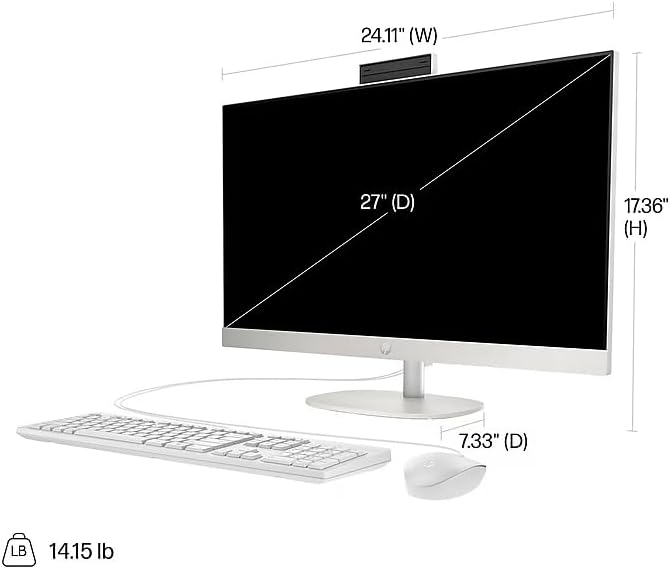
Figure 2: Product Dimensions. This image displays the front view of the HP All-in-One computer, illustrating its physical dimensions. The screen is 27 inches diagonally. The width (W) is approximately 24.11 inches, the height (H) is approximately 17.36 inches, and the depth (D) of the stand is approximately 7.33 inches. The total weight is indicated as 14.15 lbs.
Warranty and Support
Your HP All-in-One Desktop Computer is covered by a standard warranty. Please refer to the warranty card included in your product packaging for specific terms and conditions, including coverage duration and service options. For technical assistance, driver downloads, or further support, visit the official HP support website or contact HP customer service.
HP Support Website: support.hp.com


