
1. Setup
This section guides you through the initial setup of your MSI Katana 15 HX Gaming Laptop.
1.1 Unboxing and Initial Inspection
Carefully remove the laptop and all accessories from the packaging. Verify that all components listed in the 'What's in the Box' section are present and undamaged.
- MSI Katana 15 HX Laptop
- Power Adapter and Cable
- User Manual (this document)
1.2 Connecting the Power Adapter
- Connect the power cable to the power adapter.
- Plug the power adapter into the DC-in port on the laptop.
- Plug the power cable into a grounded electrical outlet.
It is recommended to fully charge the battery before the first use.
1.3 First Boot and Windows Setup
- Open the laptop lid and press the power button.
- Follow the on-screen instructions to complete the Windows 11 Home setup process. This includes selecting your region, language, creating a user account, and connecting to a network.
1.4 Connecting Peripherals
Your laptop offers various ports for connecting external devices:
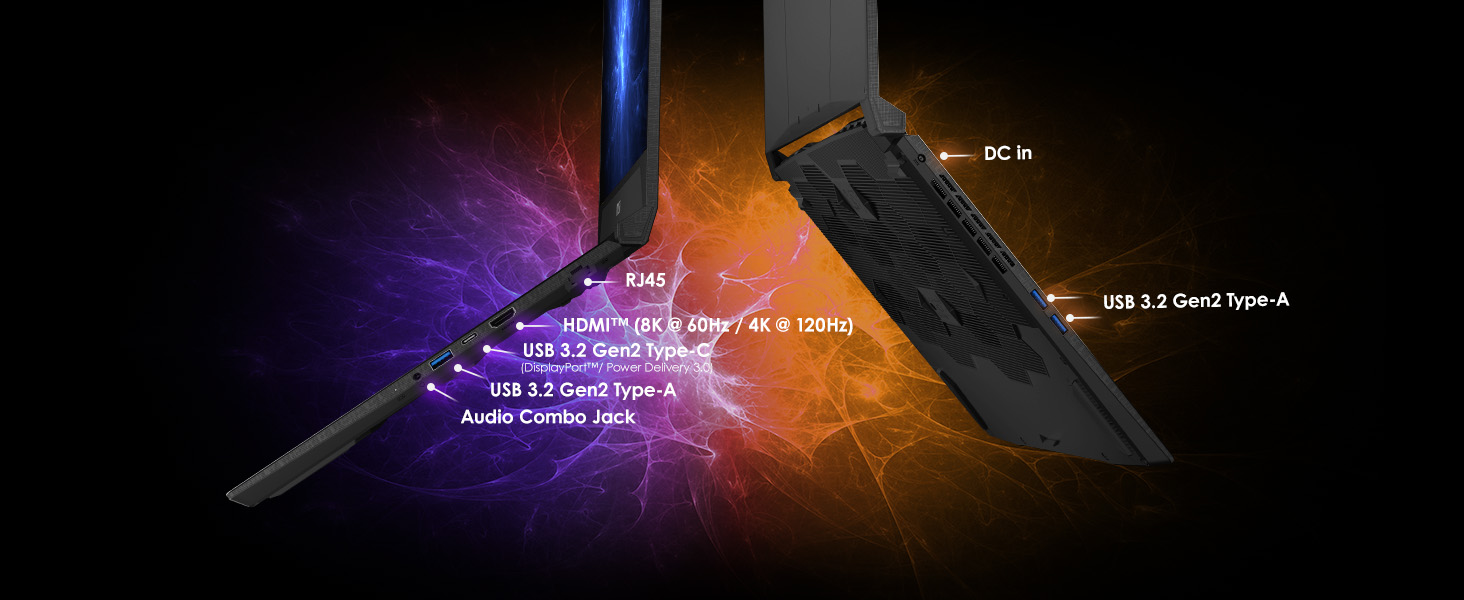
Image: Overview of the laptop's input/output ports, including USB, HDMI, and Ethernet.
- USB Devices: Connect mice, keyboards, external drives, or other USB accessories to the available USB 3.2 Gen 2 Type-A or Type-C ports.
- External Display: Use the HDMI port (supports up to 8K @ 60Hz or 4K @ 120Hz) or the USB-C port with DisplayPort functionality to connect an external monitor.
- Network: For a wired connection, plug an Ethernet cable into the RJ45 port. For wireless, connect via Wi-Fi 6E.
- Audio: Connect headphones or external speakers to the Audio Combo Jack.
2. Operating Your Laptop
Understand the key features and functions of your MSI Katana 15 HX for optimal performance.
2.1 Keyboard Functions
The laptop features a 4-Zone RGB gaming keyboard with highlighted WASD keys and a numpad.
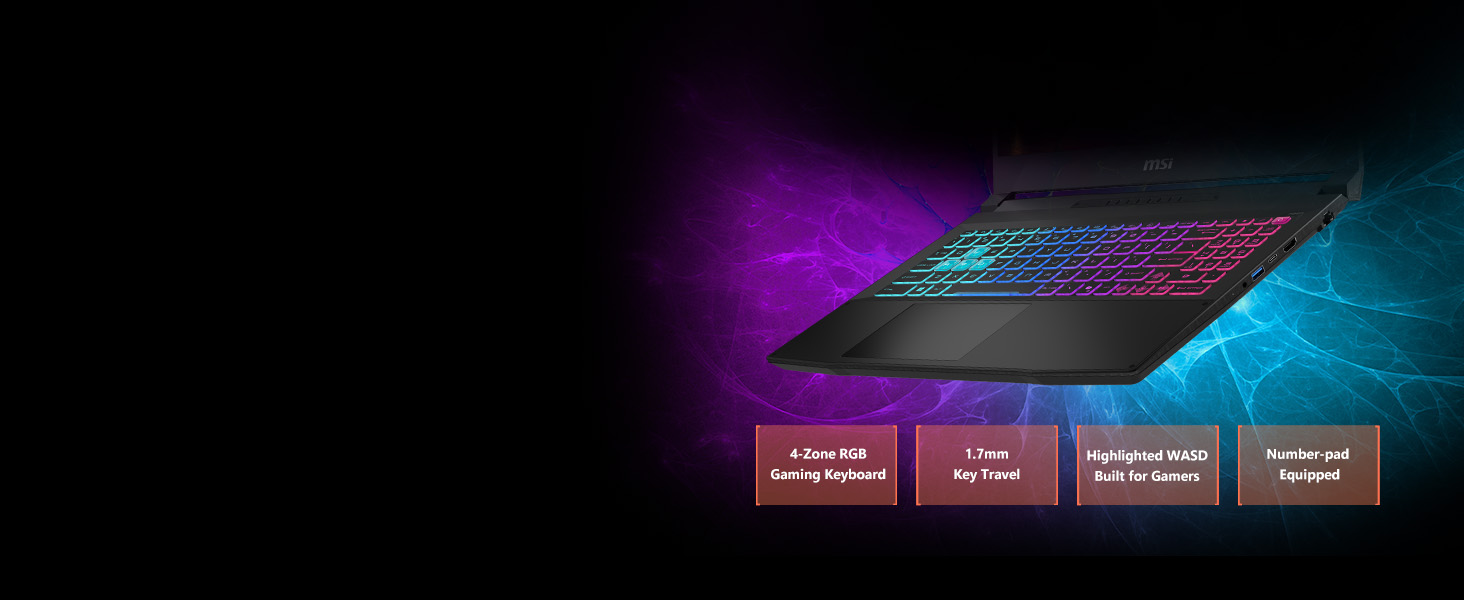
Image: Close-up of the 4-Zone RGB keyboard with highlighted WASD keys.
- Function Keys (Fn): Combine the 'Fn' key with F1-F12 keys for quick access to system functions like volume control, display brightness, and keyboard backlight settings.
- RGB Customization: Use the pre-installed MSI software (e.g., MSI Center) to customize the 4-Zone RGB lighting effects.
2.2 Touchpad Usage
The multi-touch touchpad supports various gestures for navigation and control in Windows 11.
- Single Tap: Left-click.
- Two-Finger Tap: Right-click.
- Two-Finger Scroll: Scroll up or down.
- Pinch-to-Zoom: Zoom in or out on content.
2.3 Display Settings
Your laptop features a 15.6" QHD (2560x1440) 165Hz display with 100% DCI-P3 color gamut.

Image: Laptop display showcasing QHD resolution, 165Hz refresh rate, and P3 color accuracy.
- Adjust display brightness via Fn keys or Windows settings.
- Ensure the display refresh rate is set to 165Hz in Windows Display Settings for the smoothest experience.
2.4 Performance Modes and Cooling
The laptop is equipped with Cooler Boost 5 technology to manage thermal performance.
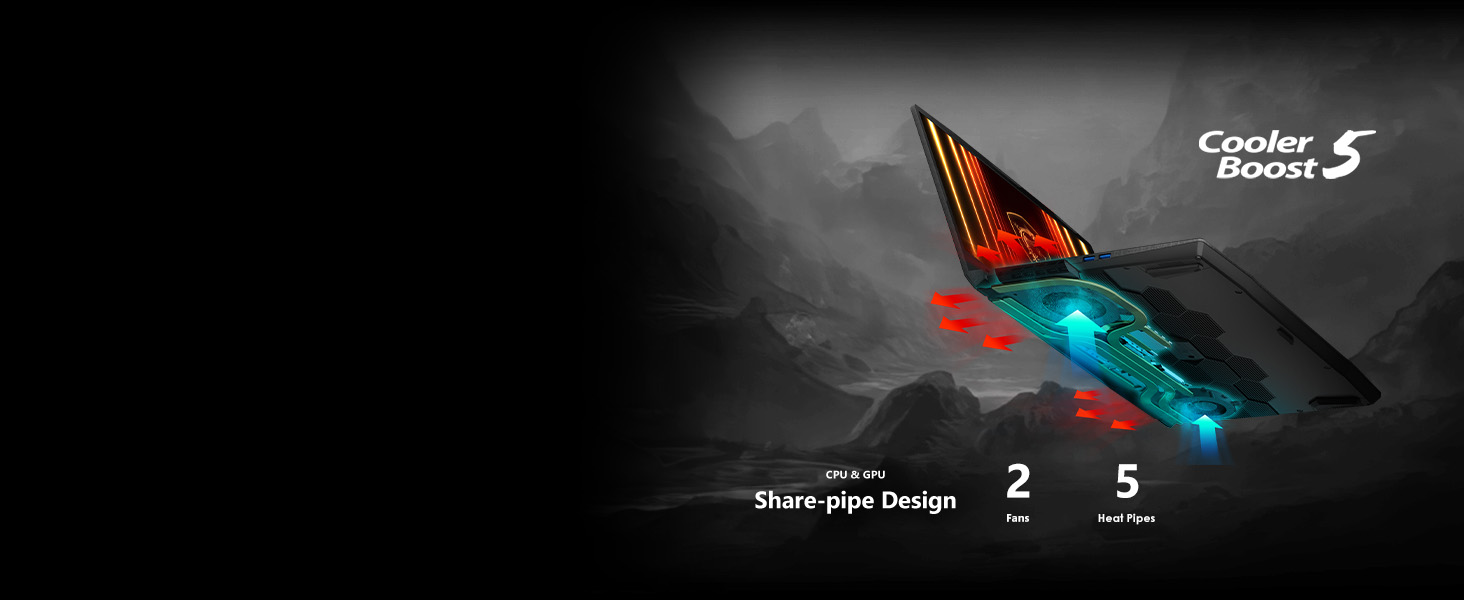
Image: Diagram illustrating the Cooler Boost 5 system with dual fans and multiple heat pipes.
Use the MSI Center software to switch between different performance modes (e.g., Extreme Performance, Balanced, Silent) to optimize for tasks like gaming or general use. Cooler Boost 5, with its dual fans and shared-pipe design, helps maintain stable temperatures during intensive use.
3. Maintenance
Proper maintenance ensures the longevity and optimal performance of your laptop.
3.1 Cleaning the Laptop
- Screen: Use a soft, lint-free cloth lightly dampened with water or a screen cleaner. Avoid harsh chemicals.
- Keyboard and Chassis: Use a soft brush or compressed air to remove dust from the keyboard. Wipe surfaces with a soft, dry cloth.
- Vents: Periodically use compressed air to clear dust from the cooling vents to ensure proper airflow.
3.2 Software Updates
- Windows Updates: Regularly check for and install Windows updates to ensure system stability and security. Go to Settings > Windows Update.
- Driver Updates: Keep your graphics drivers (NVIDIA GeForce RTX 5060) and other system drivers updated. Use the NVIDIA GeForce Experience application and MSI Center for driver management.
3.3 Battery Care
- Avoid completely discharging the battery frequently.
- If storing the laptop for an extended period, charge the battery to around 50-60% and store it in a cool, dry place.
- Avoid exposing the laptop to extreme temperatures.
4. Troubleshooting
This section addresses common issues you might encounter with your laptop.
4.1 No Power
- Ensure the power adapter is securely connected to both the laptop and a working electrical outlet.
- Verify the power outlet is functional by plugging in another device.
- If the battery is completely drained, allow the laptop to charge for at least 30 minutes before attempting to power it on.
4.2 Display Issues
- No Display: Connect an external monitor to check if the issue is with the laptop's internal display. If the external monitor works, the internal display or its connection may be faulty.
- Flickering/Distorted Display: Update your NVIDIA graphics drivers. Try adjusting the display refresh rate in Windows settings.
4.3 Performance Problems
- Slow Performance: Check Task Manager for high CPU, RAM, or disk usage by background applications. Close unnecessary programs.
- Overheating: Ensure cooling vents are clear of obstructions. Use MSI Center to activate Cooler Boost or switch to a higher performance mode.
- Gaming Performance: Ensure your games are using the dedicated NVIDIA GeForce RTX 5060 GPU and not the integrated graphics. Update graphics drivers.
4.4 Network Connectivity Issues
- Wi-Fi: Ensure Wi-Fi is enabled (Fn+F10). Restart your router and modem. Check Wi-Fi driver status in Device Manager.
- Ethernet: Verify the Ethernet cable is securely connected. Check network adapter settings in Windows.
5. Specifications
Key technical specifications for the MSI Katana 15 HX Gaming Laptop (Model B14WFK-810US).
| Feature | Detail |
|---|---|
| Model Name | Katana 15 HX B14WFK-810US |
| Processor | Intel Core i7-14650HX (14th Gen) |
| Graphics | NVIDIA GeForce RTX 5060 (8GB GDDR7) |
| Display | 15.6" QHD (2560x1440) 165Hz LCD, Matte Finish |
| RAM | 16 GB DDR5 (5600 MHz), Max 64 GB |
| Storage | 1 TB NVMe SSD |
| Operating System | Windows 11 Home |
| Connectivity | Wi-Fi 6E (802.11ax), Bluetooth 5.3, Ethernet |
| Ports | HDMI (8K@60Hz/4K@120Hz), USB-C (DisplayPort/PD), USB 3.2 Gen 2 Type-A (x2), RJ45, Audio Combo Jack |
| Keyboard | 4-Zone RGB Backlit Gaming Keyboard with Numpad |
| Battery | 75 watt-hours Lithium Polymer |
| Weight | 5.3 pounds |
| Dimensions (L x W x Thickness) | 14.13" x 0.99" x 10.31" |
6. Warranty and Support
Information regarding your product's warranty and available support options.
6.1 Manufacturer's Warranty
Your MSI Katana 15 HX Gaming Laptop comes with a 1 Year Manufacturer Limited Warranty. This warranty covers defects in materials and workmanship under normal use during the warranty period. Please refer to the warranty card included with your product or visit the official MSI website for full terms and conditions.
6.2 Optional Protection Plans
Additional protection plans may be available for purchase to extend coverage beyond the standard manufacturer's warranty. These plans typically offer extended service, accidental damage protection, or other benefits.
- 2-Year Protection Plan: Extends coverage for 24 months.
- 4-Year Protection Plan: Extends coverage for 48 months.
- Complete Protect: A monthly subscription plan covering eligible purchases.
For details on these plans, including pricing and terms, please consult your retailer or the plan provider.
6.3 Technical Support
For technical assistance, driver downloads, or service inquiries, please visit the official MSI support website or contact MSI customer service. Have your laptop's model number (B14WFK-810US) and serial number ready when contacting support.


