
1. Product Overview
The SIXWIN A8342 Android Car Radio is a 9-inch Incell Touch Screen multimedia system designed for specific BMW Mini Clubman R55 and Mini Cooper R56 models manufactured between 2007 and 2013. This unit integrates advanced features such as wireless CarPlay, Android Auto, GPS navigation, WiFi connectivity, Bluetooth 5.0, FM radio, and support for a backup camera and steering wheel controls. It aims to enhance your driving experience with modern infotainment capabilities.
2. Package Contents
Before installation, please verify that all components listed below are present in your package.

Image: Packing List & Size. This image displays the main unit dimensions (53.8 cm / 21.2 inch width, 28.3 cm / 11.1 inch height) and a detailed diagram of the wiring harness. Below the main unit, individual components are shown: Microphone, Tool, Power cable, RCA cable, USB cable, User manual, Accessories, Radio antenna, RCA cable, GPS antenna, Rear view input, Microphone, and Camera. The wiring diagram includes connections for AUX IN L/R, AMP-CON, AUTO-ANT, KEY1, KEY2, BRAKE, and an 8-pin Canbus Plug.
- Main Head Unit (9-inch Incell Touch Screen)
- Power Cable
- RCA Cables (multiple)
- USB Cable
- GPS Antenna
- Radio Antenna
- External Microphone
- Backup Camera (if included in your specific package)
- Installation Tools (plastic pry tools, screws)
- User Manual
- Canbus Decoder (integrated with wiring harness)
3. Installation Guide
3.1. Compatibility Check
This car radio is specifically designed for BMW Mini Clubman R55 and Mini Cooper R56 models from 2007-2013. It is compatible with basic and navigation versions of these vehicles. It is crucial to verify your car's dashboard configuration before proceeding with installation.

Image: Installation Display. This image shows the car radio installed in a Mini Cooper dashboard (labeled "After installation") with GPS navigation displayed. It also shows a "Before installation" view of a dashboard with a "Low configuration" warning. Below, three dashboard types are presented: Figure A (compatible, green check), Figure B (incompatible, red X), and Figure C (incompatible, red X). The compatible dashboard (A) features a large central speedometer with a circular display area, while incompatible dashboards (B and C) have different central console layouts, particularly around the radio and climate controls.
Refer to the image above. Your car's dashboard must match Figure A for proper compatibility. If your dashboard resembles Figure B or C, this product is not suitable for your vehicle. Contact customer service if you are unsure about compatibility.
3.2. General Installation Steps (Professional Installation Recommended)
- Disconnect Battery: Before starting, disconnect the negative terminal of your car's battery to prevent electrical shorts.
- Remove Original Head Unit: Carefully remove the trim panels around your existing car radio using the provided plastic pry tools. Unscrew and detach the original head unit.
- Connect Wiring Harness:
- Connect the main power harness from the new unit to your car's existing wiring. Ensure the Canbus decoder is properly connected.
- Connect the RCA cables for audio output, if using external amplifiers.
- Connect the USB cable for external devices.
- Connect the radio antenna and GPS antenna to their respective ports on the new head unit.
- For the backup camera, connect the video input cable to the head unit. The camera's power wire typically connects to the reverse light circuit (12V) to activate when shifting into reverse. Note: Ensure sufficient cable length for all connections, especially for the backup camera.
- Connect the external microphone for hands-free calling.
- Connect the steering wheel control wires (KEY1, KEY2) if applicable and not handled by the Canbus.
- Test Connections: Before fully reassembling, reconnect the car battery and perform a preliminary test. Turn on the unit, check for sound, display functionality, and basic controls.
- Secure New Head Unit: Carefully slide the new SIXWIN A8342 unit into the dashboard opening. Secure it with screws or clips as per your vehicle's design.
- Reassemble Trim: Reattach all removed trim panels, ensuring they snap securely into place.
- Final Testing: Conduct a thorough test of all features: radio, Bluetooth, CarPlay/Android Auto, GPS, backup camera, and steering wheel controls.
Important: If you are not experienced with car audio installation, it is highly recommended to seek professional assistance to avoid damage to your vehicle or the product.
4. Operating Instructions
4.1. Wireless CarPlay & Android Auto
Connect your iPhone or Android phone wirelessly via Bluetooth to access CarPlay or Android Auto. This allows you to use navigation, make calls, send messages, and play music directly from your phone's interface on the car radio screen. Use Siri or Google Assistant for voice commands.

Image: Wireless CarPlay Android Auto. This image shows the car radio display with the Apple CarPlay interface on the left and the Android Auto interface on the right, demonstrating seamless integration of smartphone features. Icons for various applications like Maps, Phone, Messages, Music, and YouTube are visible. The bottom of the image highlights "Bluetooth connection" and voice assistant activation phrases like "Hey, Siri. Call Annie." and "OK, Google. Navigate Home."
4.2. GPS Navigation
The unit features a high-precision GPS module for accurate real-time positioning. It supports offline map pre-download, allowing for navigation even in areas with poor network coverage. Follow on-screen prompts for turn-by-turn directions.
4.3. WiFi Connectivity
Connect the head unit to a WiFi hotspot (home, public, or mobile) to access online features, stream content, and download applications. The built-in high-speed WiFi module ensures stable and fast network access.
4.4. Bluetooth 5.0
Pair your smartphone via Bluetooth 5.0 for hands-free calling and audio streaming. The integrated noise-canceling microphone improves call clarity by filtering out engine and wind noise. Enjoy high-quality audio playback through your car's sound system.
4.5. FM Radio
The unit includes a high-sensitivity FM radio module. You can perform automatic channel searches or manually tune to frequencies. This provides access to local news, traffic updates, and music, especially useful in areas with limited network connectivity.
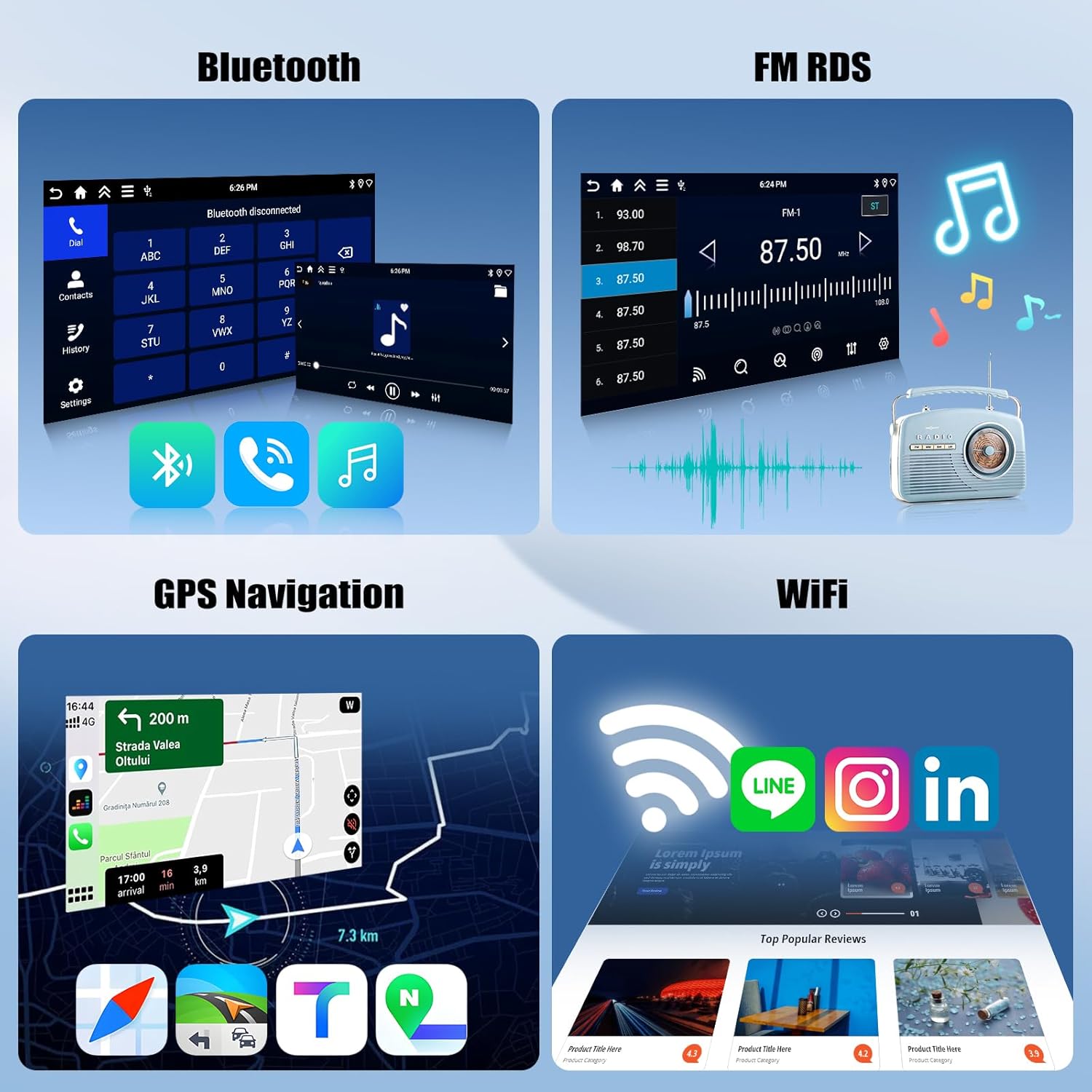
Image: Bluetooth, FM RDS, GPS Navigation, WiFi. This composite image showcases four key features. Top-left shows the Bluetooth interface for phone calls and music. Top-right displays the FM RDS radio interface with station presets and a visual equalizer. Bottom-left illustrates the GPS navigation screen with map details, speed, and estimated arrival time. Bottom-right depicts the WiFi connectivity screen, showing various social media and app icons, indicating internet access.
4.6. Backup Camera
When properly installed and connected, the backup camera automatically displays a wide-angle, HD image on the screen when the vehicle is shifted into reverse. This feature includes night vision and IP68 waterproofing for enhanced safety and durability.
4.7. Steering Wheel Control
Maintain control over your audio system without removing your hands from the steering wheel. The unit supports existing steering wheel controls for adjusting volume, changing tracks, and managing calls, provided your vehicle's wiring and Canbus system are compatible.

Image: Backup Camera & Steering Wheel Control. This image shows the backup camera view on the car radio screen, featuring parking guidelines and a wide-angle perspective. Details about the camera's 170° wide angle, HD image, IP68 waterproof rating, and night vision capabilities are highlighted. Below, the steering wheel control functionality is illustrated, showing how to adjust volume, switch songs, and answer calls using the vehicle's steering wheel buttons.
4.8. HD Touch Screen & Mirror Link
The 9-inch Incell touch screen offers a 1280*720 resolution for clear visuals and responsive touch control. Mirror Link functionality allows you to display your smartphone's screen (both iOS and Android) directly onto the car radio, supporting both wired and wireless connections.
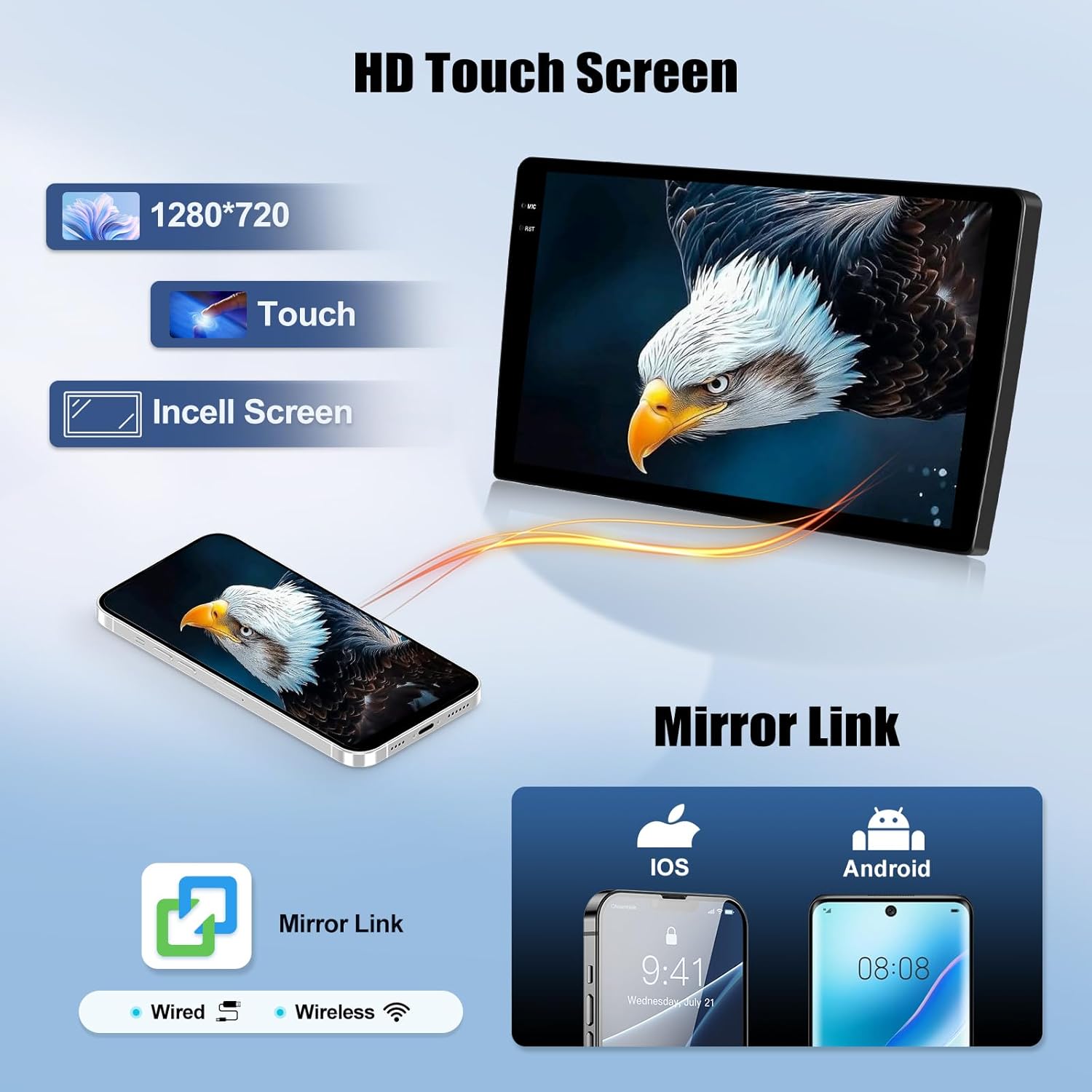
Image: HD Touch Screen & Mirror Link. This image highlights the 1280*720 resolution and Incell Touch Screen technology of the display. It also demonstrates the Mirror Link feature, showing an iPhone and an Android phone mirroring their screens onto the car radio display, indicating support for both wired and wireless connections.
5. Maintenance
- Screen Cleaning: Use a soft, lint-free cloth to gently wipe the screen. For stubborn smudges, slightly dampen the cloth with water or a screen-safe cleaner. Avoid harsh chemicals or abrasive materials.
- Software Updates: Periodically check for software updates via the unit's WiFi connection to ensure optimal performance and access to new features.
- General Care: Avoid exposing the unit to extreme temperatures, direct sunlight for prolonged periods, or excessive moisture.
6. Troubleshooting
If you encounter issues, please refer to the following common troubleshooting steps:
- No Power/Unit Not Turning On:
- Check all power connections, ensuring they are securely plugged in.
- Verify the car's fuse related to the radio.
- Ensure the car battery is properly connected and charged.
- No Sound Output:
- Check the volume level on the unit and ensure it is not muted.
- Verify all speaker wire connections are secure and correctly wired.
- If using external amplifiers, ensure they are powered on and connected correctly.
- Confirm that the correct audio source is selected (e.g., Bluetooth, FM, CarPlay).
- Note: Incorrect wiring, especially with the Canbus or speaker outputs, can lead to no sound. Double-check the wiring diagram.
- Backup Camera Not Displaying:
- Ensure the camera's video input cable is securely connected to the head unit.
- Verify the camera's power wire is correctly connected to the reverse light circuit (12V) and receiving power when reverse gear is engaged.
- Check the camera itself for any damage or obstructions.
- CarPlay/Android Auto Not Connecting:
- Ensure Bluetooth is enabled on both your phone and the head unit.
- Delete previous pairings and try pairing again.
- Check your phone's settings for CarPlay/Android Auto permissions.
- Ensure your phone's operating system is up to date.
- Steering Wheel Controls Not Working:
- Verify that the KEY1 and KEY2 wires (or Canbus connection) are correctly installed.
- Access the steering wheel control learning function in the unit's settings and follow the on-screen instructions to program the buttons.
- Other Electrical Issues (e.g., turn signals, tachometer):
- If other vehicle functions are affected after installation, immediately disconnect the head unit and reconnect the original radio.
- This indicates a potential wiring error or incompatibility with the vehicle's electrical system. Seek professional assistance immediately.
7. Specifications
| Feature | Detail |
|---|---|
| Model Name | A8342 |
| Brand | SIXWIN |
| Screen Size | 9 inches |
| Screen Resolution | 1280*720 |
| Touch Screen Type | Incell Capacitive Touchscreen |
| Operating System | Android |
| Memory Storage Capacity | 128 GB |
| RAM (Additional Features) | 4G |
| Connectivity Technology | Wi-Fi, Bluetooth 5.0 |
| Supported Navigation System | GPS (Worldwide Map Types) |
| Compatible Devices | Smartphone (for CarPlay/Android Auto) |
| Product Dimensions (L x W x H) | 25L x 25W x 25H millimeters (approx. 2.54 x 2.54 x 2.54 cm) |
| Item Weight | 2.09 kg |
8. Warranty and Support
SIXWIN products are designed for reliability and performance. For warranty information, please refer to the documentation included with your purchase or contact SIXWIN customer support directly. If you require technical assistance, have questions about installation, or need troubleshooting guidance beyond this manual, please reach out to our support team.
Contact Information:
- Email: Refer to your product packaging or the official SIXWIN website.
- Website: Visit the SIXWIN Store on Amazon (for general inquiries and product information).
- Phone: Refer to your product packaging or the official SIXWIN website.
When contacting support, please have your product model (A8342) and purchase details ready.
