
1. Introduction
This manual provides essential instructions for the safe and efficient operation of your Smart Tech 43UH02V 4K UHD Smart TV. Please read this manual thoroughly before using the television and retain it for future reference.
The Smart Tech 43UH02V is a 43-inch (108 cm) 4K UHD LED Smart TV featuring Whale OS. It offers a resolution of 3840x2160 pixels, HDR10 support, and integrated applications like Netflix, YouTube, and Prime Video. Connectivity options include 3 HDMI ports, 2 USB ports, Ethernet, Wi-Fi, and optical output. The TV also supports Chromecast and voice control.
2. Safety Information
Observe the following safety precautions to prevent damage and ensure safe operation:
- Do not expose the TV to rain or moisture.
- Do not block ventilation openings.
- Ensure proper grounding for the power cord.
- Protect the power cord from being walked on or pinched.
- Unplug the TV during lightning storms or when unused for long periods.
- Refer all servicing to qualified service personnel.
3. Package Contents
Verify that all items are present in the package:
- Smart Tech 43UH02V 4K UHD Smart TV
- Power Cable
- Remote Control (requires 2 AAA batteries, not always included)
- TV Stand components
- User Manual (this document)
4. Setup
4.1 Attaching the Stand
Carefully place the TV screen-down on a soft, flat surface to prevent damage. Attach the stand components to the designated slots on the bottom of the TV using the provided screws. Ensure the stand is securely fastened before placing the TV upright.
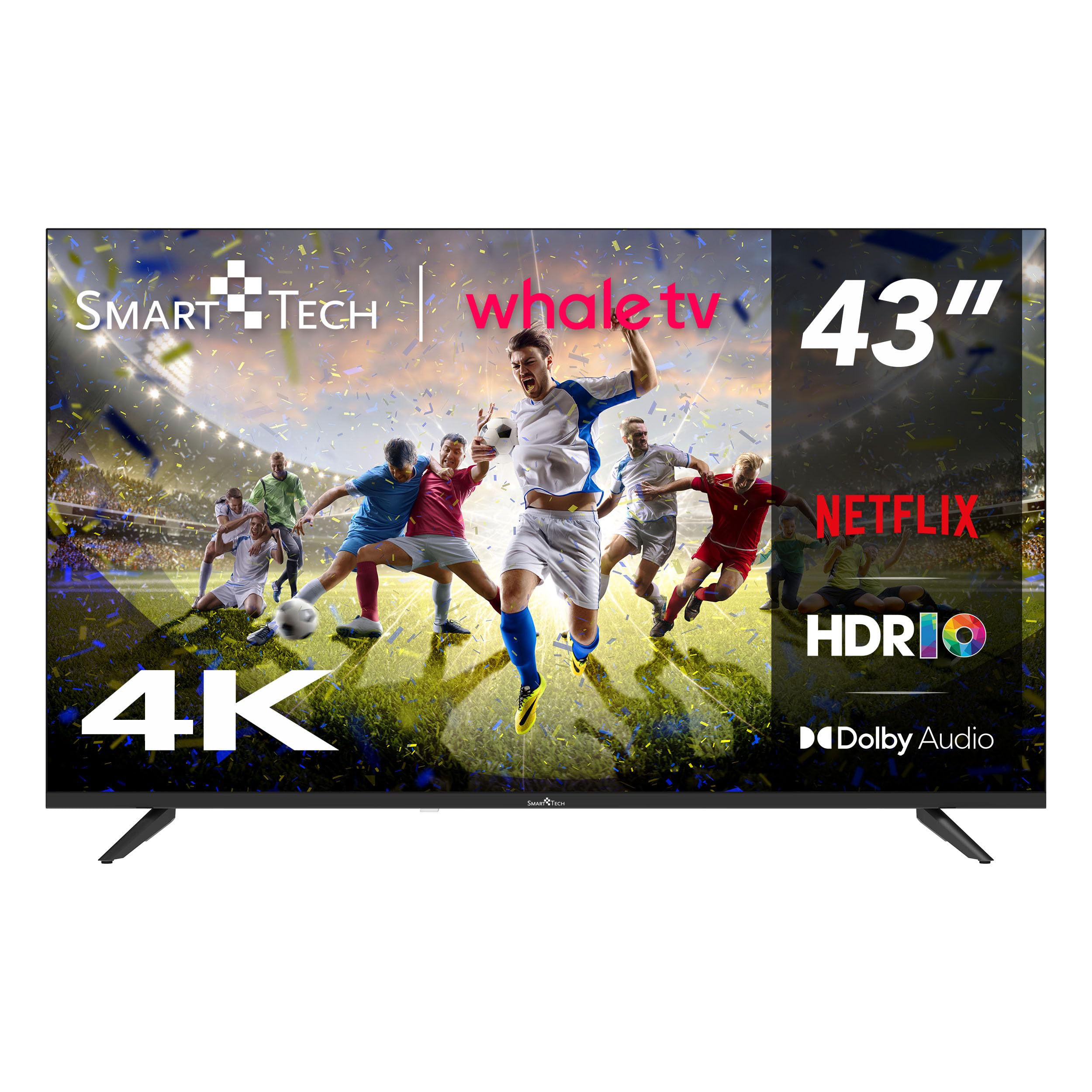
Image: Front view of the Smart Tech 43UH02V TV with its stand attached, ready for use.
4.2 Wall Mounting (Optional)
If you choose to wall mount your TV, remove the stand. Use a VESA-compatible wall mount kit (sold separately) that matches the TV's VESA mounting pattern. Follow the instructions provided with your wall mount kit. Professional installation is recommended for wall mounting.

Image: Smart Tech 43UH02V TV displayed on a wooden table, illustrating its placement in a living space.
4.3 Connecting Power
Connect the power cable to the TV's power input and then to a wall outlet. Ensure the power outlet is easily accessible.
4.4 Connecting External Devices
Your TV is equipped with multiple ports for connecting external devices:
- HDMI Ports (x3): For high-definition audio and video devices like Blu-ray players, game consoles, or set-top boxes.
- USB Ports (x2): For connecting USB storage devices to play media files or for software updates.
- Ethernet Port: For a wired internet connection.
- Optical Output: For connecting to an external audio system.

Image: Side profile of the Smart Tech 43UH02V TV, highlighting the various input/output ports for connectivity.
4.5 Initial Power On and Network Connection
After connecting power, press the power button on the remote control or TV. Follow the on-screen instructions for initial setup, including language selection, time zone, and network connection. You can connect to the internet via Wi-Fi or an Ethernet cable.
5. Operating Instructions
5.1 Remote Control
Insert 2 AAA batteries into the remote control. The remote allows you to navigate the TV's interface, adjust volume, change channels, and access smart features directly.

Image: The Smart Tech TV remote control, featuring dedicated buttons for quick access to popular applications like Netflix, YouTube, Disney+, and Prime Video.
5.2 Smart TV Features (Whale OS)
Your TV runs on Whale OS, providing a fluid and intuitive interface. Access pre-installed applications such as Netflix, YouTube, and Prime Video directly from the home screen. Navigate using the remote control's directional pad and OK button.
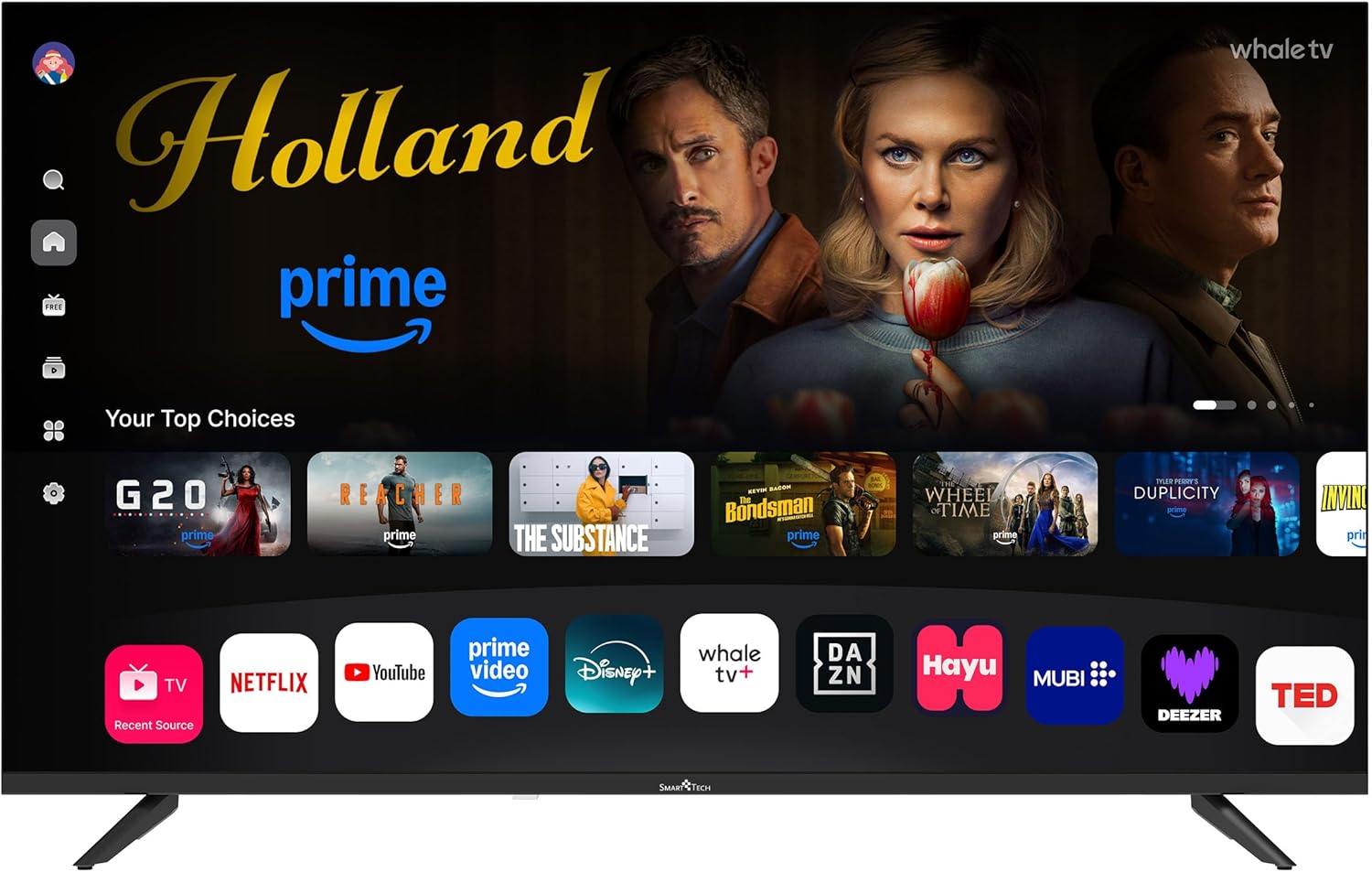
Image: The Whale OS smart TV interface, displaying various streaming service icons including Netflix, Prime Video, Disney+, and YouTube, along with content recommendations.
5.3 Input Source Selection
To switch between connected devices (e.g., HDMI 1, USB), press the "Source" or "Input" button on your remote control and select the desired input from the on-screen menu.
5.4 Chromecast / Miracast
The TV includes integrated Chromecast functionality, allowing you to cast content from compatible mobile devices or computers directly to your TV. Miracast is also supported for screen mirroring.
5.5 Voice Control
Utilize the voice control feature via the remote control to search for content, open applications, or control TV functions hands-free.
6. Maintenance
6.1 Cleaning the Screen
Gently wipe the screen with a soft, lint-free cloth. For stubborn marks, slightly dampen the cloth with water or a specialized screen cleaner. Do not spray liquid directly onto the screen.
6.2 Cleaning the TV Body
Use a soft, dry cloth to wipe the TV's casing. Avoid using abrasive cleaners or solvents.
6.3 Software Updates
Your TV may receive software updates to improve performance and add new features. Ensure your TV is connected to the internet to receive these updates. You can usually check for updates in the TV's settings menu.
7. Troubleshooting
If you encounter issues with your TV, refer to the following common solutions:
- No Power: Check if the power cable is securely connected and the outlet is functioning. Try a different outlet.
- No Picture/Sound: Ensure the correct input source is selected. Check cable connections to external devices.
- Remote Control Not Working: Replace the batteries. Ensure there are no obstructions between the remote and the TV's IR sensor.
- Network Connection Issues: Restart your router and modem. Reconnect the TV to the Wi-Fi network or check the Ethernet cable.
- Picture Quality Issues: Adjust picture settings (brightness, contrast, sharpness) in the TV menu. Ensure the content source is high quality.
For further assistance, contact customer support.
8. Specifications

Image: Technical drawing showing the dimensions of the Smart Tech 43UH02V TV, including width, height, and depth in millimeters.
| Brand | Smart Tech |
| Model Number | 43UH02V |
| Screen Size | 43 Inches (108 cm) |
| Display Technology | LED |
| Resolution | 4K UHD (3840x2160 pixels) |
| Refresh Rate | 60 Hz |
| Operating System | Whale OS |
| Special Features | Miracast, HDR10, Voice Control, Chromecast Built-in |
| Connectivity | Wi-Fi, Ethernet, 3x HDMI, 2x USB |
| Audio | 2x 10W Speakers, Dolby Digital+ |
| Color | Black |
| Product Dimensions (WxDxH) | 95 cm x 23 cm x 60 cm (approx.) |
| Power Consumption (SDR) | 50 kWh/1000h |
| Power Consumption (HDR) | 51 kWh/1000h |

Image: Visual comparison illustrating the difference between Full HD (1920x1080px) and Ultra HD (3840x2160px) resolutions, highlighting the superior detail of 4K UHD.

Image: A collage showcasing key features of the Smart Tech TV, including 4K resolution, HDR10, Triple Tuner, Bezel-less design, and Hotel Mode.
9. Warranty and Support
Spare Parts Availability: Spare parts for this product are guaranteed to be available for 11 years from the date of purchase.
For technical support or warranty claims, please contact your retailer or the manufacturer directly. Refer to the contact information provided with your purchase documentation.
EPREL Database: For detailed product information and energy efficiency data, you can visit the European Product Registry for Energy Labelling (EPREL) database using the following link: https://eprel.ec.europa.eu/qr/2335800

Image: The EPREL energy label for the Smart Tech TV, showing energy efficiency class F for both SDR and HDR content, along with power consumption figures and screen dimensions.


