1. Introduction
The koyetubs GF11-M7 Mini GPS Tracker is a compact and versatile device designed for real-time location tracking of vehicles, children, elderly individuals, and pets. It offers precise positioning without the need for monthly subscription fees, utilizing a standard SIM card for connectivity. Its magnetic design allows for discreet and easy placement.

Image: The koyetubs GF11-M7 Mini GPS Tracker shown alongside a vehicle and a map interface, illustrating its primary function as a car GPS tracker.
2. Safety Information
- Do not disassemble or modify the device. Unauthorized modifications can void the warranty and pose safety risks.
- Keep the device away from extreme temperatures, direct sunlight, and moisture.
- Use only the provided charging cable or a certified equivalent.
- Ensure the SIM card is correctly inserted before powering on the device.
- Dispose of the device and its battery according to local regulations.
3. Package Contents
Please check the package for the following items:
- koyetubs GF11-M7 Mini GPS Tracker
- USB Charging Cable
- User Manual (this document)
- Note: A valid SIM card is not included and must be purchased separately.
4. Product Overview
The GF11-M7 is an ultra-thin and compact GPS tracker featuring a built-in magnet for easy, no-installation attachment. It supports real-time tracking, electronic fence alerts, and track playback functionalities.
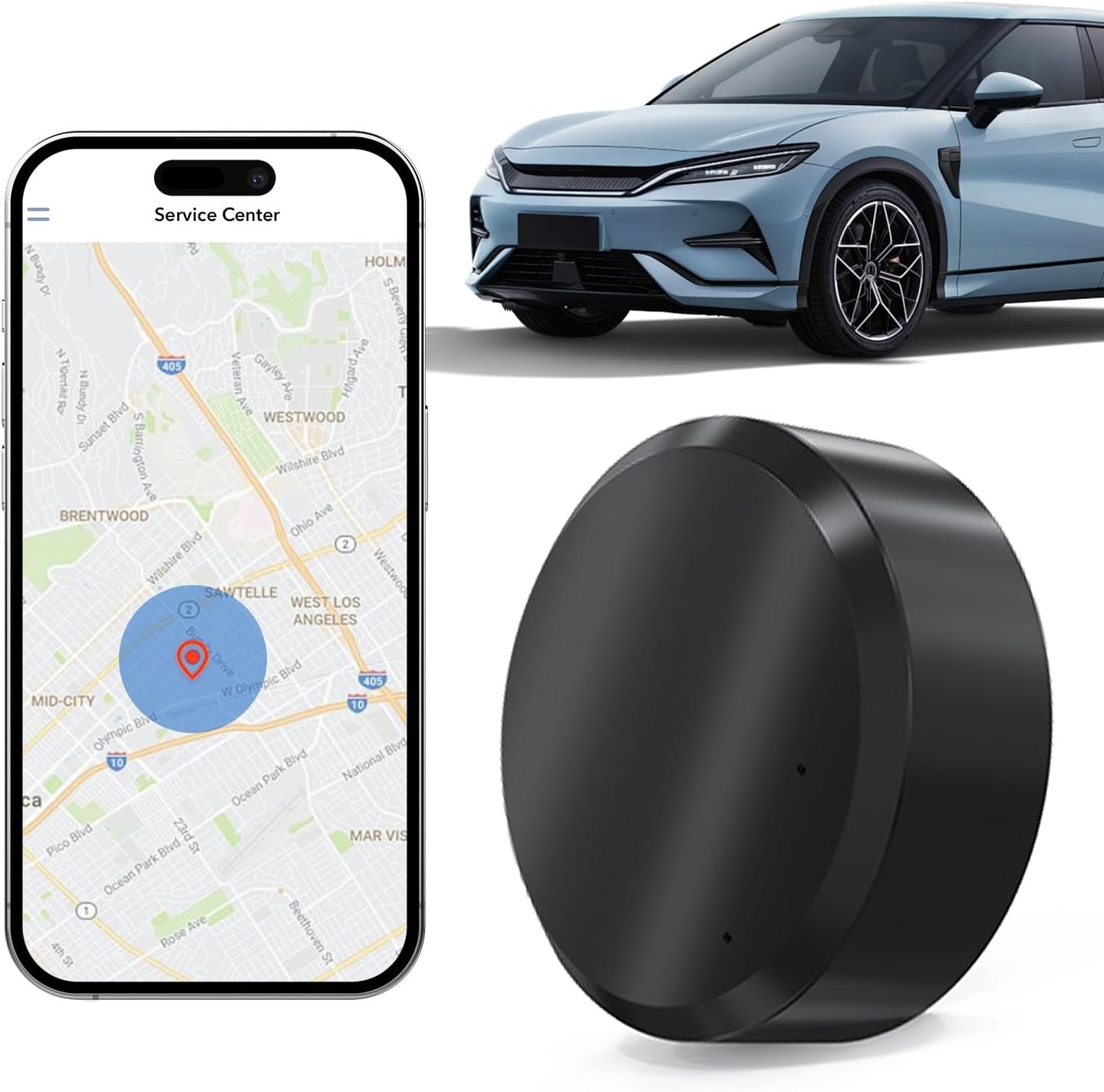
Image: The GF11-M7 tracker, a smartphone showing a map with a location pin, and a modern car, illustrating the device's application.
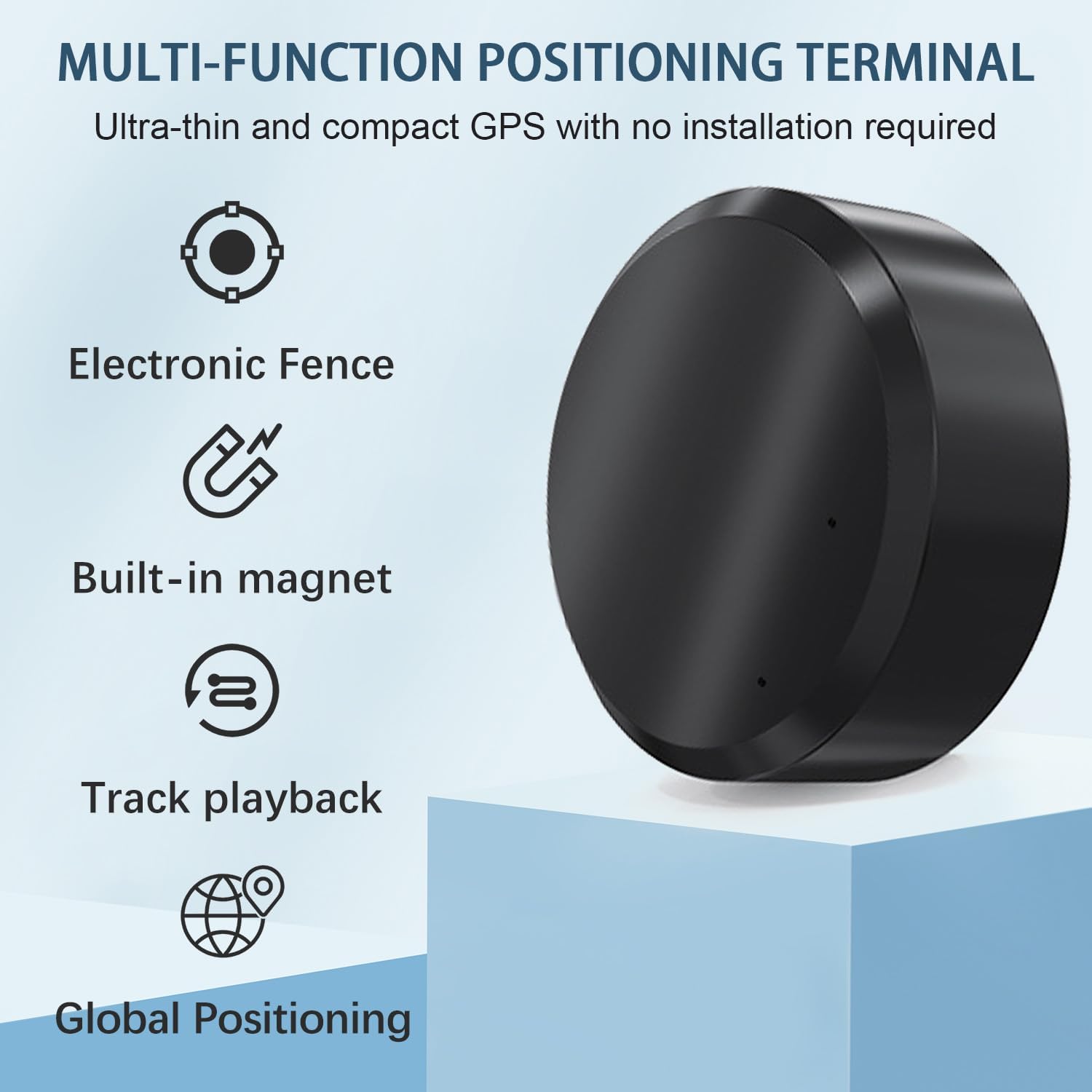
Image: A visual representation of the tracker's core features: Electronic Fence, Built-in Magnet, Track Playback, and Global Positioning.

Image: An X-ray view of a car indicating optimal hidden placement spots for the magnetic GPS tracker, including under the seat, in the glove box, trunk, interior armrest box, and rear bumper.
5. Setup
5.1 SIM Card Installation
The GF11-M7 requires a valid GSM SIM card (2G/3G/4G compatible, with data plan) to function. Ensure the SIM card is activated and has sufficient credit/data.
- Locate the SIM card slot on the device.
- Carefully insert the activated SIM card into the slot, ensuring correct orientation.
- Close the SIM card slot cover securely to protect it from dust and moisture.
5.2 App Installation and Activation
To monitor the tracker, you need to download the dedicated mobile application.
- Scan the QR code provided in the packaging or search for the official app name (usually mentioned in the packaging or a small leaflet) in your device's app store (Google Play Store for Android, Apple App Store for iOS).
- Download and install the application.
- Open the app and register a new account if you don't have one.
- Add your GF11-M7 tracker to the app by entering its unique ID number (usually found on the device itself or its packaging).
- Follow the on-screen instructions to complete the binding process.

Image: A visual guide to the easy setup process, emphasizing SIM card insertion, app download for iOS and Android, and global tracking capabilities.
6. Operating Instructions
Once set up, the GF11-M7 offers several tracking and security features accessible via the mobile application.
6.1 Real-Time Tracking
View the current location of your tracker on a map in real-time. The app allows you to select update intervals (e.g., 30 seconds, 1, 5, or 10 minutes) to balance tracking precision and battery life.
6.2 Electronic Fence (Geo-fence)
Set up virtual boundaries on the map. You will receive an alert on your smartphone if the tracker enters or exits these predefined areas.
6.3 Track Playback
Review the historical movement routes of the tracker for a specified period. This feature allows you to see where the device has been.
6.4 Anti-Theft Features
- Vibration Alerts: Receive notifications if the device detects significant vibration, indicating potential tampering or movement.
- Sound Monitoring: Some models may offer remote sound monitoring capabilities (check app features).

Image: A comprehensive view of the tracker's protective features, including electronic fence, track playback, built-in magnet, global positioning, alarm reminders, and large battery capacity, all managed via a smartphone app.

Image: Illustrates the real-time GPS tracking capability, showing how the tracker's location is displayed on a phone map, applicable for tracking vehicles, children, pets, and individuals in various settings.
7. Maintenance
7.1 Charging the Device
The GF11-M7 is equipped with a rechargeable Lithium Polymer battery. When the battery level is low, connect the device to a power source using the provided USB charging cable. A full charge typically takes a few hours. The battery life varies depending on tracking frequency and usage.
7.2 Cleaning
To clean the device, use a soft, dry cloth. Do not use liquid cleaners or abrasive materials, as these can damage the device.
8. Troubleshooting
| Issue | Possible Solution |
|---|---|
| Device not powering on | Ensure the device is fully charged. Check the charging cable and adapter. |
| No GPS signal or inaccurate location | Ensure the device is in an open area with a clear view of the sky. Verify the SIM card has an active data plan and good network coverage. |
| App not connecting to the device | Check if the SIM card is properly inserted and active. Verify the device ID entered in the app is correct. Restart both the device and the app. |
| Battery drains quickly | Reduce the frequency of location updates in the app settings. Ensure the device is not in an area with poor network coverage, which can increase power consumption. |
| No alerts received | Check app notification settings on your smartphone. Ensure the electronic fence or other alert features are correctly configured in the app. |
9. Specifications

Image: Detailed dimensions and weight of the GF11-M7 Mini GPS Tracker, highlighting its compact and lightweight design.
| Feature | Detail |
|---|---|
| Model Number | GF11-M7 |
| Brand | koyetubs |
| Dimensions | 1.1 x 1.1 x 0.53 inches (approx. 28 x 28 x 14 mm) |
| Item Weight | 0.35 ounces (approx. 10g) |
| Battery | 1 Lithium Polymer battery (included) |
| Connectivity Technology | GPS, Wireless (requires GSM SIM card) |
| Special Features | Real-Time Tracking, Electronic Fence, Track Playback, Magnetic Attachment, Anti-Theft Alerts |
| Supported Application | Dedicated mobile app (iOS & Android) |
| Specific Uses | Car Tracker, Kids Tracker, Pet Tracker |
10. Warranty and Support
The koyetubs GF11-M7 Mini GPS Tracker comes with a standard manufacturer's warranty. For specific warranty terms, duration, and conditions, please refer to the product packaging or contact the seller directly. For technical support or further assistance, please reach out to the customer service provided by your retailer or the manufacturer.


