
1. Introduction
This manual provides essential information for the safe and efficient use of your Philips 43V-type 4K UHD Smart TV, model PUH7700. Please read these instructions carefully before operating the television and retain them for future reference.
2. Safety Information
Always follow basic safety precautions when using this television to reduce the risk of fire, electric shock, and injury.
- Do not expose the television to rain or moisture.
- Do not block ventilation openings.
- Ensure proper grounding of the power plug.
- Unplug the television during lightning storms or when unused for long periods.
- Refer all servicing to qualified service personnel.
3. Package Contents
Verify that all items are present in the package:
- Philips 43V-type 4K UHD Smart TV (PUH7700)
- Stand x2 (with 4 screws)
- Remote Control x1
- Instruction Manual (this document)
- Power Cable
- Screws x2 (ST4x9.5-10.5mm - for bottom stand attachment)
4. Setup
4.1 Unpacking the TV
For safety, it is recommended that two people handle the unpacking process. Place the outer box vertically on a flat surface. Cut the tape and remove the locks at the bottom of the box. Carefully lift the outer box vertically to remove the TV. Remove the protective cushioning materials around the TV.
Video: This video demonstrates the unpacking process and stand attachment for a Philips 7700 series TV. It shows how to open the box, remove packaging, and secure the stand. Note that the video shows a 65-inch model, but the process is similar for the 43-inch model.
4.2 Attaching the Stand
Before attaching the stand, ensure you have a Phillips head screwdriver. Take out the base stands and confirm the model numbers (e.g., '65F-L' for left, '65F-R' for right) match your TV. Align the stand holes with the corresponding holes on the bottom of the TV. Insert the screws (M5 x 4) and tighten them securely. Repeat for the other side. Once both stands are attached, carefully lift the TV and place it upright on a stable surface. Ensure the stands are firmly fixed.
The power cord is located at the back of the TV. If wall mounting is required, please consult a professional.
4.3 Initial Setup
After connecting the power cable and turning on the TV, the Google TV logo will appear. Follow the on-screen instructions to pair your remote control. Press the 'HOME' and 'BACK' buttons simultaneously for 3 seconds to enter pairing mode. The lamp on the top left of the remote will flash, indicating pairing. Once paired, select 'Skip' using the central button on the remote if you wish to proceed without further remote pairing steps.
Video: This video guides you through the initial setup process for a Philips 7700 series TV. It covers remote pairing, language selection, connecting to Wi-Fi, logging into your Google account, and selecting TV mode.
- Language Selection: Choose your preferred language from the list.
- Google TV Setup: You can set up the TV using the Google TV app on your smartphone (scan QR code) or manually with the remote.
- TV Mode Selection: Select 'Home Mode' for efficient energy use in a home environment. Confirm your selection.
- Wi-Fi Connection: Select your Wi-Fi network and enter the password to connect. Note: Wi-Fi connection may require several attempts initially; this is not a malfunction.
- Google Account Login/Registration: Log in or register with your Google account.
- Google Services: Review and agree to Google's terms of service.
- Google Home Integration: Choose whether to add the TV to Google Home.
- Service Selection: Select the streaming services you wish to use. The corresponding apps will be automatically installed. Some apps may not be available in all regions or require a separate subscription.
- Disclaimer: Review the disclaimer terms.
- System Update Check: Navigate to Settings > System > Device Information > System Update to ensure your system is up to date.
5. Operating Instructions
5.1 Smart TV Features (Google TV)
Your Philips TV comes with Google TV built-in, offering a seamless entertainment experience. Access movies, shows, and content from all your subscriptions directly from the home screen. Utilize Google's recommendation features to discover new content, search over 10,000 titles, and watch hundreds of free channels. Create personalized profiles for customized viewing.

Image: The Google TV interface displaying a wide array of streaming service applications, providing access to diverse content.
5.2 Picture and Sound Quality
Experience immersive viewing with 4K UHD resolution and Dolby Atmos sound.
- 4K UHD Resolution: Enjoy ultra-high definition visuals (3840x2160) with crisp details, even on a large screen.
- Dolby Atmos Sound: Immerse yourself in movies and games with powerful, three-dimensional audio.
- HDR10/HLG Support: Enhanced HDR image expression for stunning detail in both bright and dark scenes.
- MEMC (Motion Estimation, Motion Compensation): Smoothly renders fast-moving scenes, ideal for sports and action movies, reducing blur.
- Blue Eye Care Technology: Philips' unique 'Blue Eye Care Technology' cuts 90% of harmful blue light, protecting your eyes during long viewing sessions without compromising picture quality. Certified by TÜV & UL.
- Flicker-Free: PWM dimming technology suppresses screen flicker, reducing eye strain and dryness for comfortable long-term viewing.
- AI Picture Engine: Philips' proprietary PixelPlus Ultra HD and AI picture engine deliver 4K clarity and three-dimensional images.

Image: A visual comparison illustrating the enhanced detail and clarity of 4K UHD resolution (3840x2160) compared to Full HD (1920x1080).

Image: A family enjoying an immersive viewing experience with Dolby Vision and Dolby Atmos, watching an underwater scene on their Philips TV.
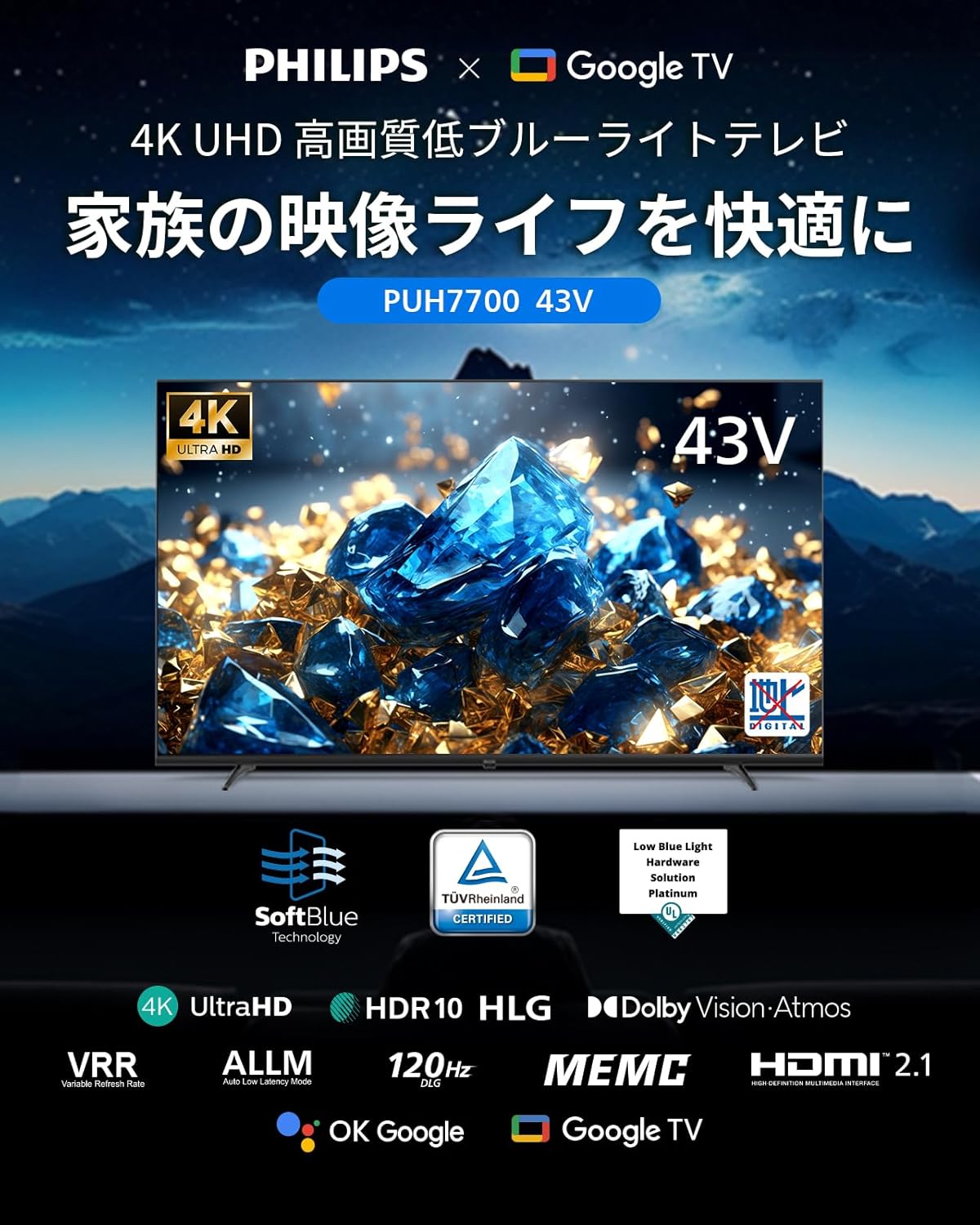
Image: A diagram illustrating Philips' Blue Eye Care Technology, which reduces harmful blue light by 90% to protect viewers' eyes.
5.3 Gaming Features
- ALLM (Auto Low Latency Mode): Automatically switches to game mode when a game console is connected, minimizing input lag for a smooth gaming experience.
- VRR (Variable Refresh Rate): Supports variable refresh rates for enhanced gaming immersion and smoother visuals, eliminating screen tearing and lag.
- DLG 120Hz: Simulates 120Hz refresh rate for smoother motion in games.

Image: A visual demonstration of ALLM, VRR, and MEMC technologies, showcasing improved responsiveness and smooth motion in gaming and fast-action scenes.
5.4 Connectivity
The TV offers versatile connectivity options:
- HDMI Ports: 3 HDMI ports for connecting game consoles, desktop PCs, soundbars, and other devices. Supports HDMI ARC.
- Bluetooth 5.1: Connect wireless headphones, speakers, and other Bluetooth devices.
- USB: Two USB interfaces for media playback.
- Wi-Fi: Supports 2.4GHz and 5GHz wireless LAN for internet connectivity.
- Chromecast Built-in: Easily cast photos and videos from your iPhone or Android smartphone to the TV screen.
- LAN-RJ45: For wired internet connection.
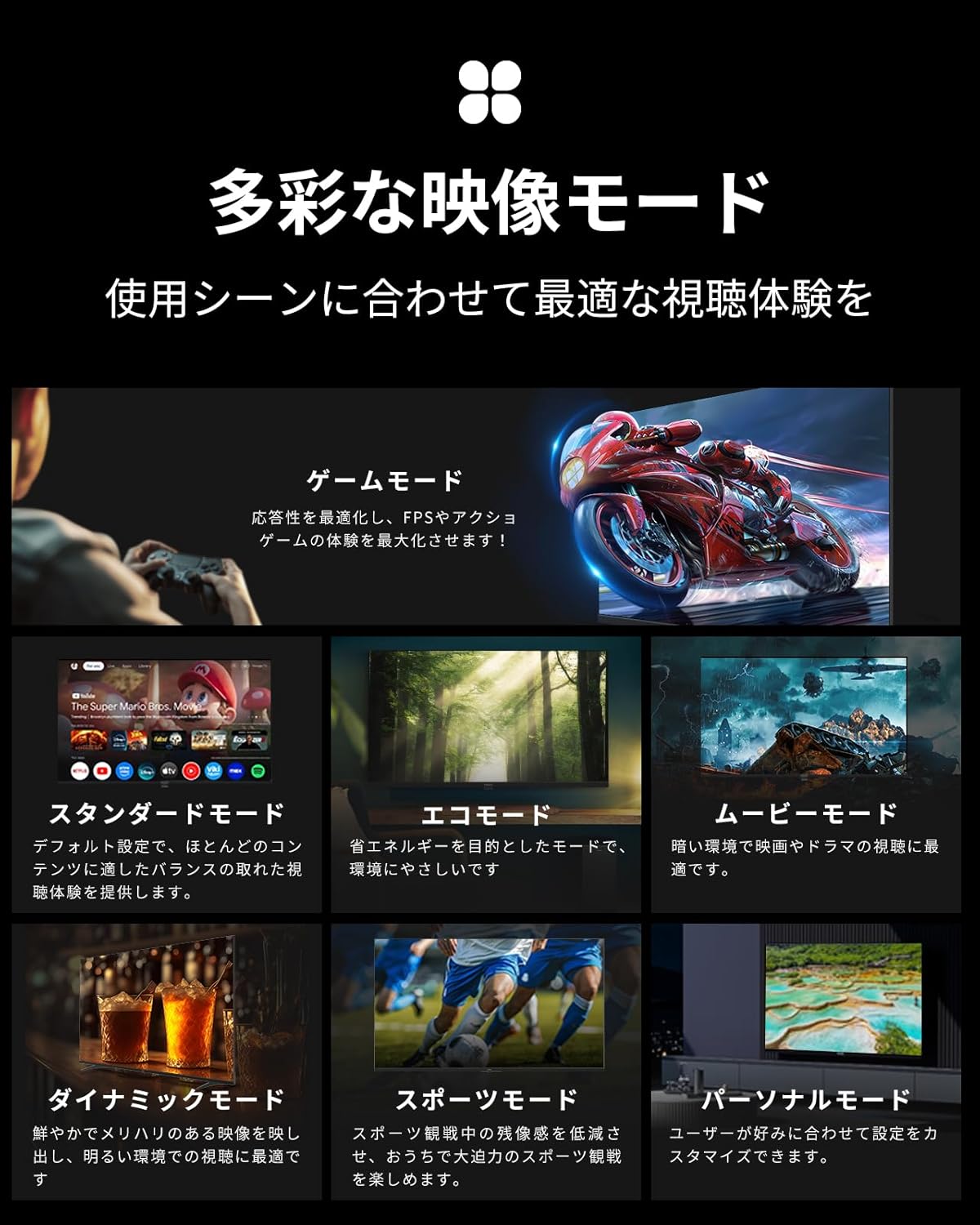
Image: A detailed view of the TV's rear panel, highlighting the various input and output ports for comprehensive connectivity.

Image: A user casting content from a smartphone to the TV screen, illustrating the convenience of Chromecast built-in for sharing media.
5.5 Voice Control
The included remote control supports voice input and features direct buttons for popular apps like ABEMA, YouTube, Netflix, and Hulu. Use Google Assistant to search for movies, shows, and apps by voice. (Remote pairing is required for voice search functionality).

Image: The remote control featuring dedicated buttons for popular streaming services and a voice search function, allowing quick access to content.
5.6 Image Modes
Select the optimal viewing experience for any scene with various image modes:
- Game Mode: Optimizes responsiveness for FPS and action games.
- Standard Mode: Default setting for balanced viewing across most content.
- Eco Mode: Energy-saving mode, environmentally friendly.
- Movie Mode: Best for movies and dramas in dark environments.
- Dynamic Mode: Vivid and sharp images, ideal for bright environments.
- Sports Mode: Reduces motion blur for clear sports viewing.
- Personal Mode: Customize settings to your preference.
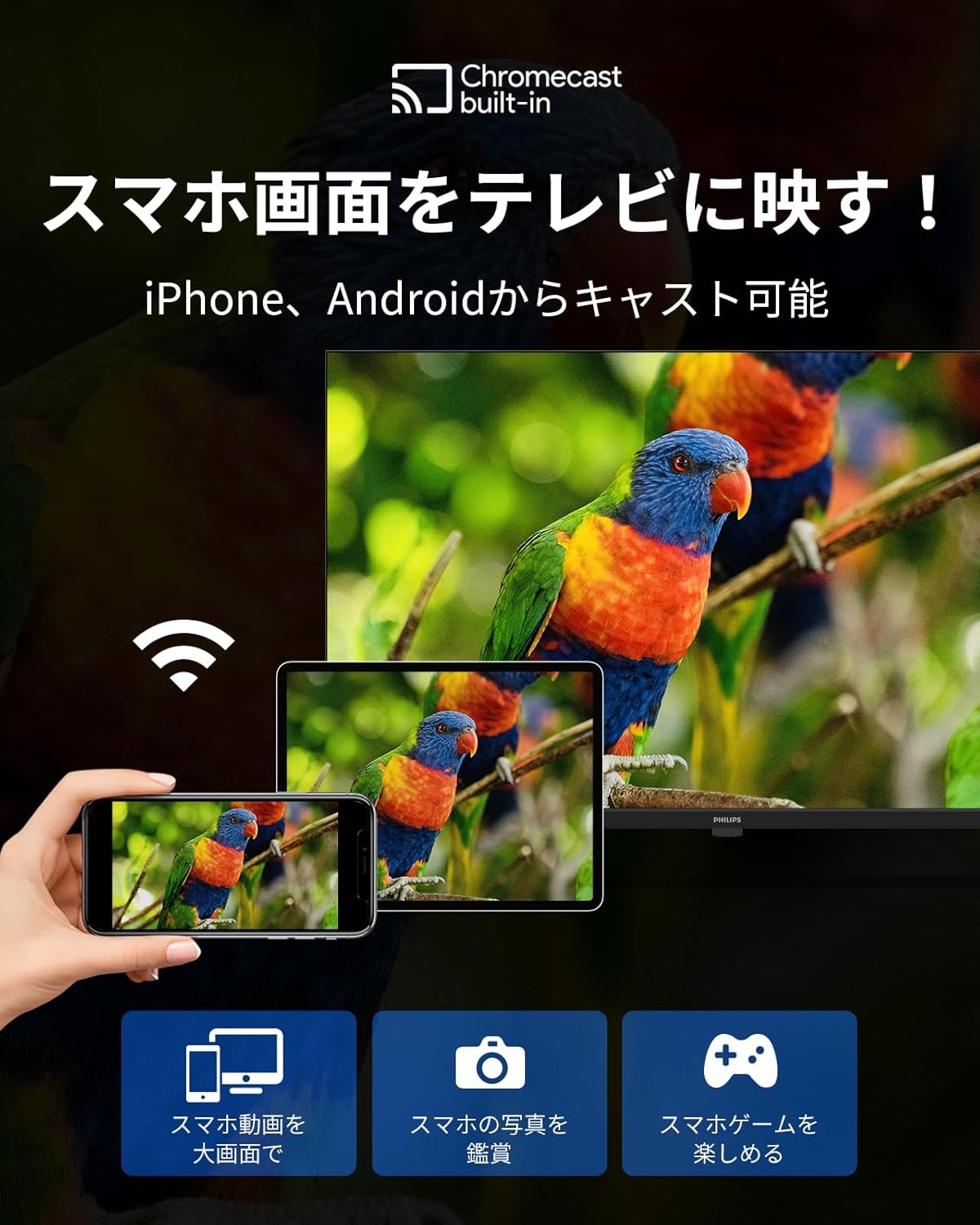
Image: A display of various image modes available on the TV, each optimized for different content types and viewing environments.
6. Maintenance
- Screen Cleaning: Gently wipe the screen with a soft, dry cloth. For stubborn marks, use a screen-specific cleaner applied to the cloth, not directly to the screen.
- Cabinet Cleaning: Wipe the cabinet with a soft, dry cloth. Do not use abrasive cleaners or solvents.
- Ventilation: Ensure the ventilation openings on the TV are not blocked to prevent overheating.
7. Troubleshooting
If you encounter issues with your TV, try the following solutions before contacting support:
- No Power: Ensure the power cable is securely connected to both the TV and the power outlet. Try a different outlet.
- No Picture/Sound: Check that the correct input source is selected. Verify all cable connections (HDMI, etc.) are secure.
- Remote Not Working: Check the remote control batteries. Ensure the remote is paired correctly (refer to Initial Setup).
- No Internet Connection: Verify your Wi-Fi password and network selection. Restart your router and the TV.
- Apps Not Loading: Check your internet connection. Ensure the app is updated to the latest version.
- System Slow/Unresponsive: Restart the TV by unplugging it from the power outlet for a few minutes, then plugging it back in.
8. Specifications
| Feature | Specification |
|---|---|
| Model Number | PUH7700 |
| Screen Size | 43V-type (43 inches) |
| Resolution | 3840 x 2160 (4K UHD) |
| Display Type | VA LCD |
| Aspect Ratio | 16:9 |
| Refresh Rate | 60Hz (DLG 120Hz) |
| Max Speaker Output | 8W + 8W |
| Bluetooth Version | 5.1 |
| Wireless LAN | 2.4GHz / 5GHz |
| Power Consumption | 110W |
| Dimensions (without stand) | 957 x 559 x 87 mm |
| Dimensions (with stand) | 957 x 614 x 258 mm |
| Weight (without stand) | 7.2 kg |
| HDMI Ports | 3 |
| USB Ports | 2 |
| Wall Mount Standard | VESA 300 x 300 |

Image: A table outlining the detailed specifications of the Philips PUH7700 TV, including dimensions, resolution, refresh rate, and connectivity options, alongside recommended room sizes for various TV sizes.
9. Warranty and Support
All Philips products sold are genuine. This product comes with a 365-day warranty period. In case of product defects under normal use, a free product exchange will be provided. (Excludes malfunctions caused by customer's intent or negligence).
If the product arrives damaged or scratched during delivery, please contact us for a free exchange.
Support Hours: Monday - Friday, 10:00 - 12:00 / 13:00 - 17:00 (Excluding Saturdays, Sundays, national holidays, summer holidays, and New Year holidays).


