
OTTOCAST OTTOCAST ScreenFlow
OTTOCAST ScreenFlow 11.4" Wireless Portable CarPlay Screen User Manual
Model: OTTOCAST ScreenFlow
1. Introduction
Thank you for choosing the OTTOCAST ScreenFlow 11.4" Wireless Portable CarPlay Screen. This device enhances your driving experience by integrating advanced features like wireless CarPlay, Android Auto, and multimedia streaming directly onto your dashboard. Powered by Android 13, it offers a fast, stable, and continuously updated system. This manual provides essential information for setup, operation, maintenance, and troubleshooting to ensure optimal performance and longevity of your device.

The OTTOCAST ScreenFlow device displaying navigation and Netflix simultaneously, accompanied by the included backup camera and connection cables.
2. What's in the Box
Please verify that all components are present in your package:
- 1 x OTTOCAST ScreenFlow Unit
- 1 x Stand with 3M adhesive
- 1 x Back up Camera
- 1 x AUX Cable (1.5M)
- 1 x Cigarette Lighter Power Adapter
- 1 x User Manual

All items included in the OTTOCAST ScreenFlow product package.
3. Setup and Installation
3.1 Mounting the ScreenFlow Unit
- Choose a Location: Select a flat, clean area on your dashboard that does not obstruct your view or interfere with airbags.
- Clean the Surface: Ensure the dashboard surface is free of dust and grease. Use an alcohol wipe if necessary and allow it to dry completely.
- Attach the Stand: Peel the protective film from the 3M adhesive on the silicone base of the stand. Firmly press the stand onto the chosen dashboard location for at least 30 seconds. The soft silicone base conforms to dashboard curves for a secure fit.
- Secure the Screen: Attach the ScreenFlow unit to the stand. Adjust the angle for optimal viewing.
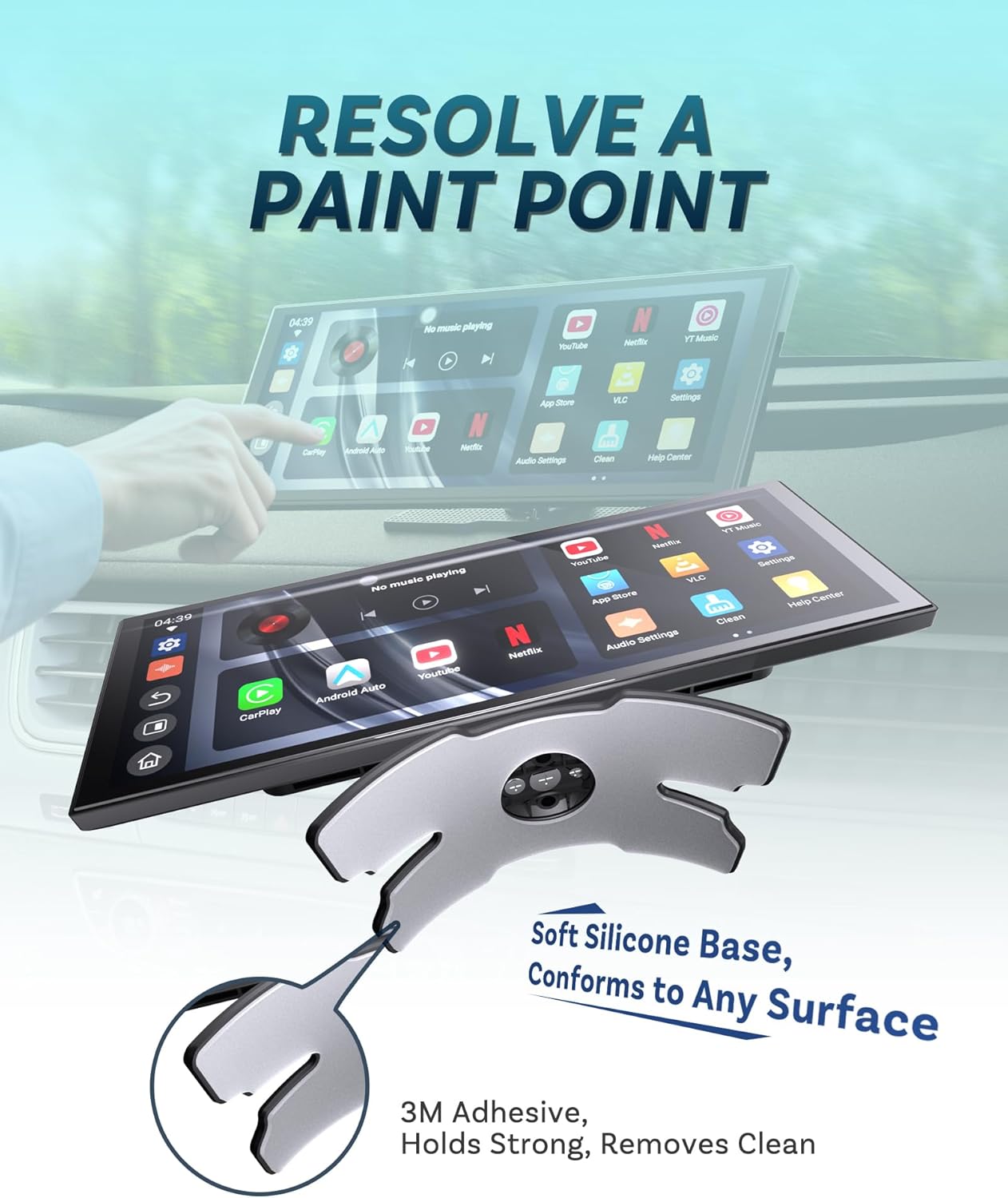
The flexible silicone base and 3M adhesive ensure a secure and clean installation on various dashboard surfaces.
3.2 Connecting the Backup Camera
The included camera is 360° rotatable and can function as either a front or rear view camera. For rear view functionality, professional installation is recommended to connect the camera to your vehicle's reverse light circuit.
- Mount the Camera: Choose a suitable location for the camera (e.g., near the license plate for rear view).
- Route the Cable: Carefully route the camera cable to the ScreenFlow unit, ensuring it does not interfere with moving parts or get pinched.
- Connect to ScreenFlow: Plug the camera cable into the designated "Rearview Ports" on the ScreenFlow unit.

The 360° rotatable camera offers flexible mounting options for front or rear vehicle views.
3.3 Power Connection
Connect the cigarette lighter power adapter to your vehicle's 12V power outlet and then to the ScreenFlow unit's power input.
3.4 Audio Output Methods
The ScreenFlow offers multiple ways to output audio to your car's speakers:
- AUX Output: Connect the included AUX cable from the ScreenFlow's AUX port to your car's AUX input.
- FM Transmitter: Tune your car's radio to an unused FM frequency and set the ScreenFlow to transmit audio on the same frequency.
- Bluetooth: Pair the ScreenFlow with your car's Bluetooth system. The dual Bluetooth feature allows one connection for your phone and another for your car stereo, enabling seamless audio mixing.
- Built-in Speaker: The device has a built-in speaker for direct audio output.
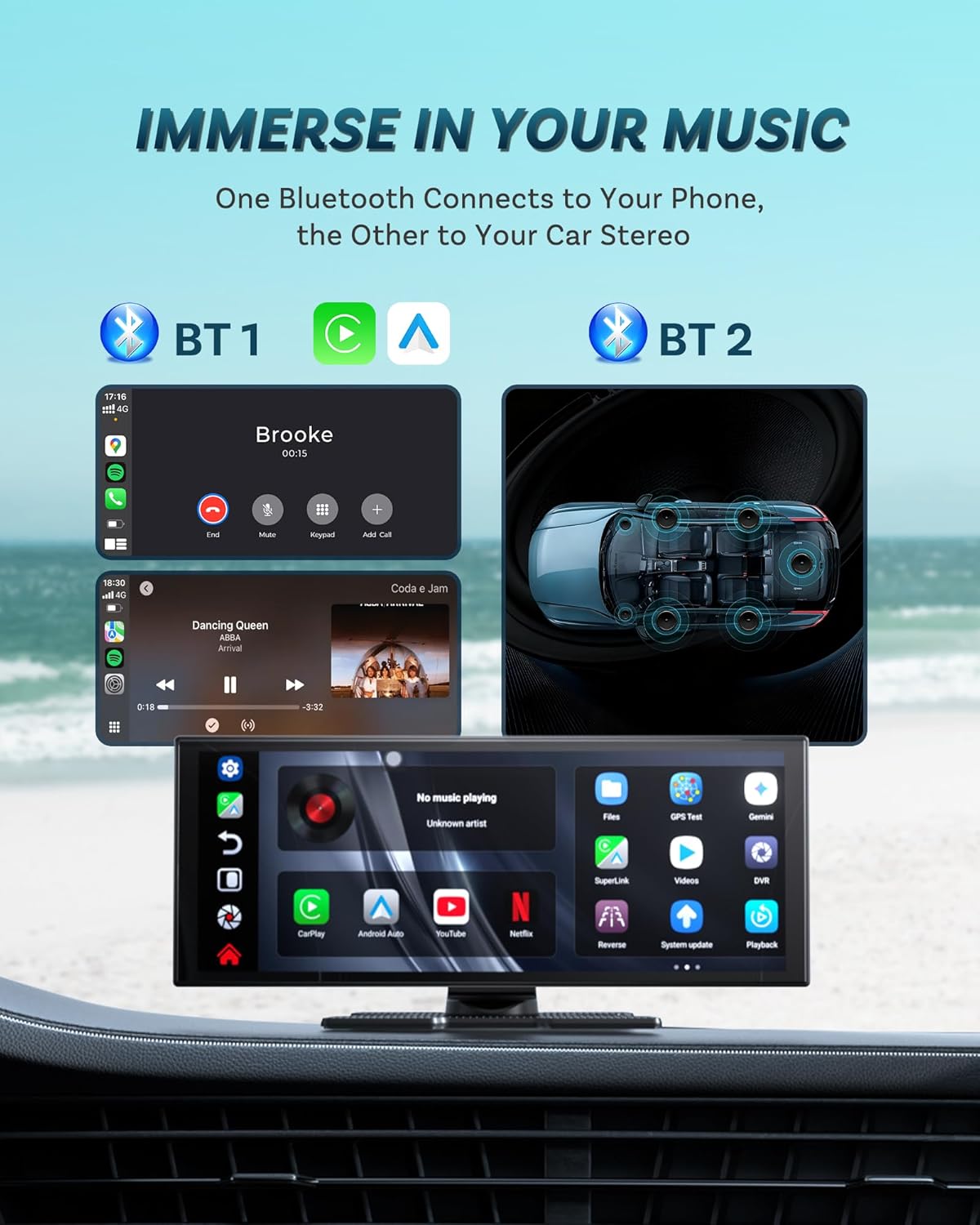
Dual Bluetooth connectivity allows for simultaneous phone and car stereo connections, enhancing audio integration.
4. Operating Instructions
4.1 Initial Power On and Boot-up
After connecting power, the ScreenFlow unit will boot up. The device features a fast 2-second boot-up time after the initial startup, which may take approximately 20 seconds.
4.2 Wireless CarPlay and Android Auto
The ScreenFlow supports wireless CarPlay for iPhone (iOS 8+) and wireless Android Auto for Android (Android 10+). Utilize the dual WiFi and dual Bluetooth for stable and reliable connections.
- Enable Bluetooth/WiFi: On your smartphone, ensure Bluetooth and WiFi are enabled.
- Pair Device: On the ScreenFlow, navigate to the CarPlay or Android Auto section and follow the on-screen instructions to pair with your phone via Bluetooth.
- Automatic Connection: Once paired, the device should automatically connect to your phone when powered on.
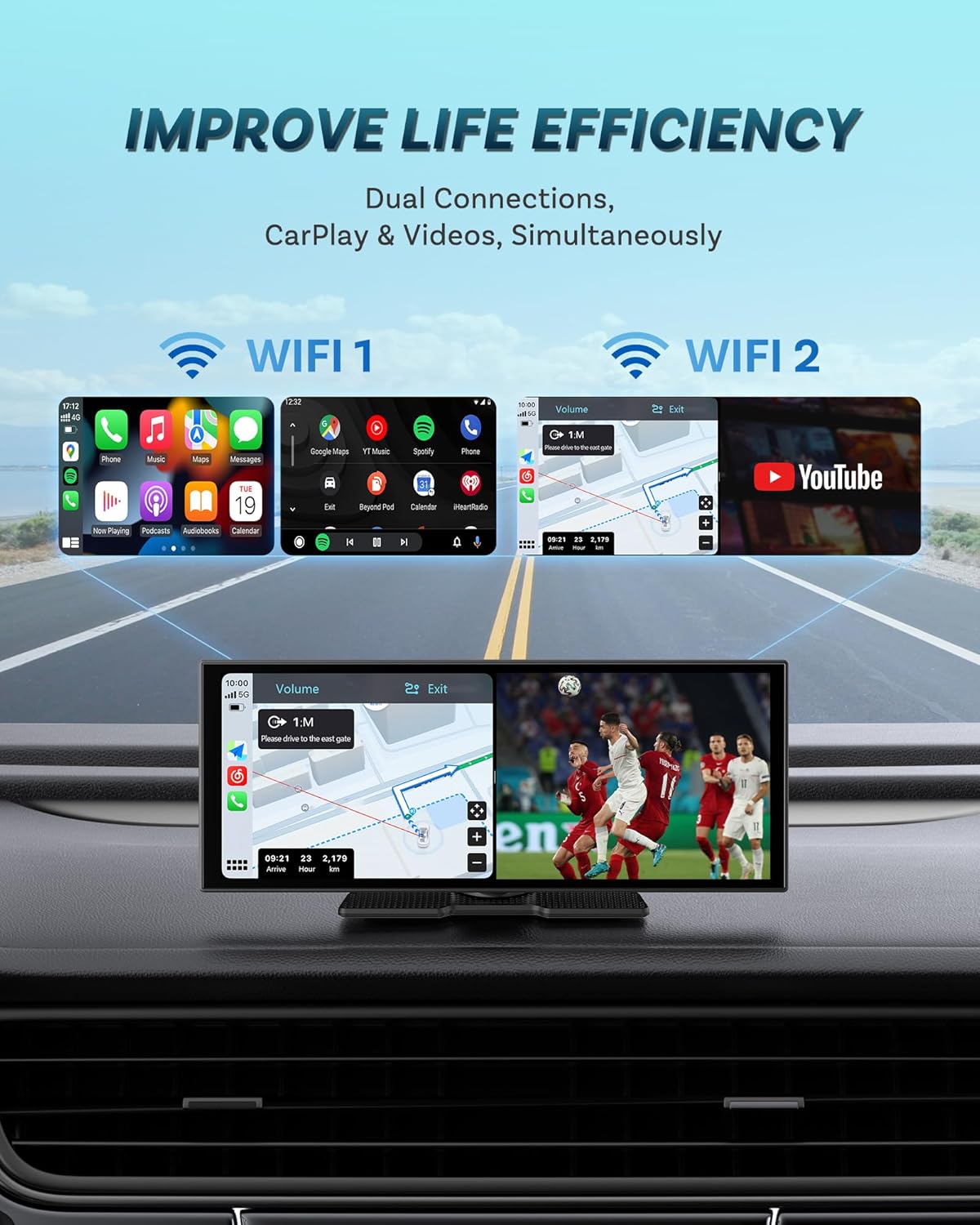
Dual WiFi connectivity allows for simultaneous use of navigation (CarPlay/Android Auto) and video streaming (YouTube).
4.3 Android 13 OS and Built-in Apps
The ScreenFlow runs on Android 13, providing a responsive and stable user experience. It comes with pre-installed applications such as Netflix and YouTube. These apps, along with the system itself, support FOTA (Firmware Over-The-Air) updates for continuous improvements and compatibility.

The Android 13 operating system ensures fast performance and supports continuous software updates.
4.4 Display Features
The 11.4-inch HD touchscreen offers a resolution of 1920x720 pixels, providing clear visuals. It features an automatic brightness adjustment for optimal visibility in various lighting conditions (day/night mode).
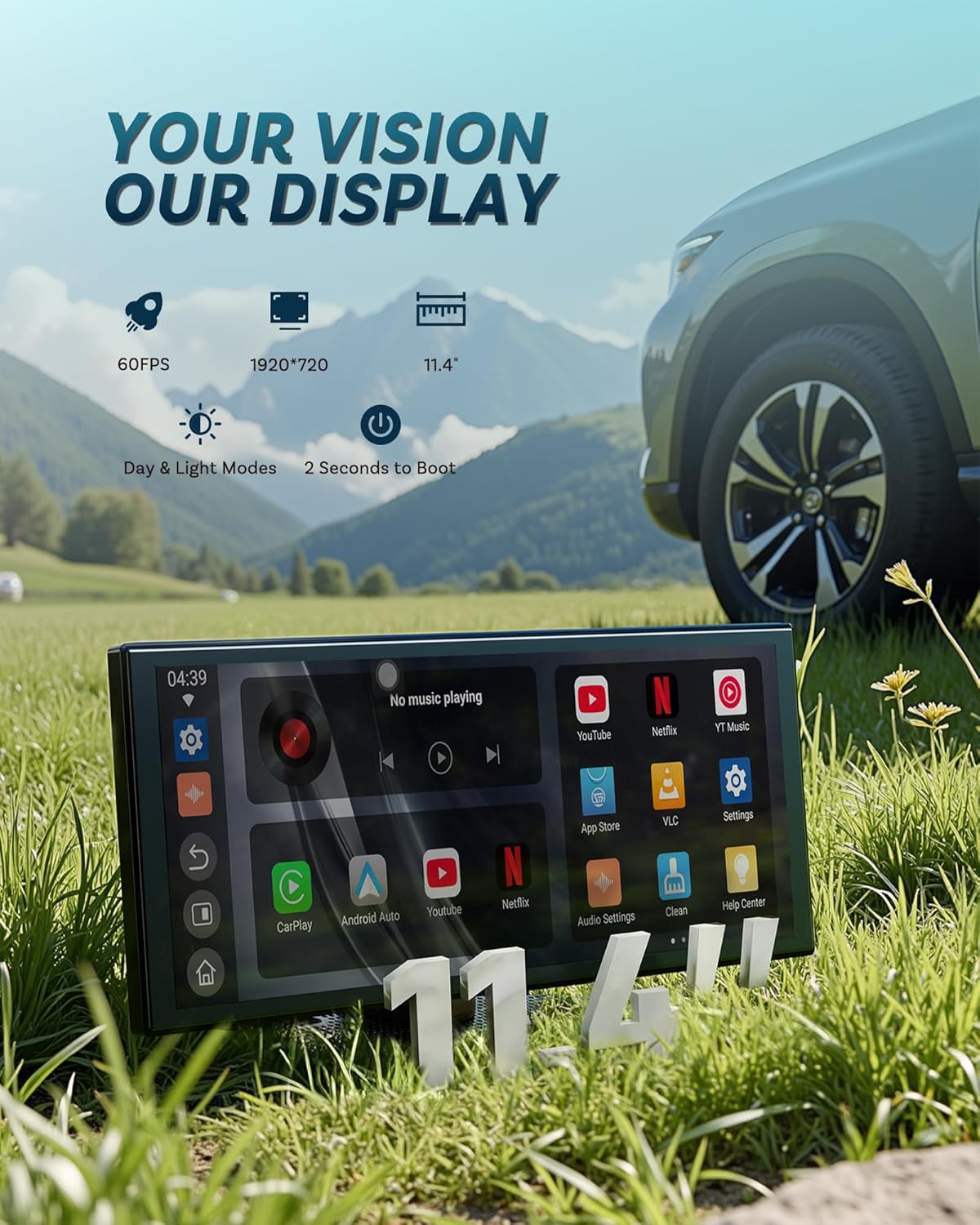
The 11.4-inch HD display provides a clear and vibrant visual experience with a resolution of 1920x720.
4.5 Split-screen Functionality
The device supports split-screen multitasking, allowing you to view two applications simultaneously, such as navigation and media playback. This feature helps maintain focus on the road while accessing essential information.

Split-screen multitasking allows for simultaneous display of navigation and other applications.
4.6 Port Overview
The ScreenFlow unit includes various ports for connectivity and expansion:
- AUX Port: For wired audio output to your car's stereo.
- TF Card Slot: For expandable storage.
- Rearview Ports: For connecting the backup camera.
- USB Port: For data transfer or connecting other peripherals.

Overview of the connectivity ports available on the OTTOCAST ScreenFlow unit.
5. Maintenance
- Cleaning: Use a soft, dry cloth to clean the screen and exterior. Avoid abrasive cleaners or solvents.
- Software Updates: Regularly check for FOTA updates in the device settings to ensure you have the latest features and bug fixes.
- Temperature: Avoid exposing the device to extreme temperatures, both hot and cold, to prevent damage.
6. Troubleshooting
6.1 No Power
- Ensure the cigarette lighter adapter is securely plugged into both the vehicle's 12V outlet and the ScreenFlow unit.
- Check if the vehicle's 12V outlet is functioning (e.g., by plugging in another device).
6.2 Wireless CarPlay/Android Auto Not Connecting
- Verify that Bluetooth and WiFi are enabled on your smartphone.
- Ensure your phone's operating system meets the minimum requirements (iOS 8+ for CarPlay, Android 10+ for Android Auto).
- Forget the device from your phone's Bluetooth settings and re-pair.
- Restart both your phone and the ScreenFlow unit.
6.3 No Audio Output
- AUX: Check if the AUX cable is properly connected to both the ScreenFlow and your car's AUX input. Ensure your car stereo is set to AUX input.
- FM: Confirm that the ScreenFlow and your car radio are tuned to the exact same unused FM frequency. Adjust volume levels on both devices.
- Bluetooth: Ensure the ScreenFlow is successfully paired with your car's Bluetooth and your car stereo is set to Bluetooth audio.
6.4 Backup Camera Not Displaying
- Check all cable connections from the camera to the ScreenFlow unit.
- If connected to the reverse light, ensure the connection is secure and the reverse light is functioning.
7. Specifications
| Feature | Specification |
|---|---|
| Model Name | OTTOCAST ScreenFlow |
| Screen Size | 11.4 Inches |
| Resolution | 1920x720 |
| Operating System | Android 13 |
| Connectivity Technology | Dual Bluetooth, Dual WiFi |
| Special Features | Wireless Android Auto/CarPlay, OTA Update, Customizable UI, Real-time GPS Navigation, Multiple Audio Output Methods, Second Boot-up, Split-screen Function |
| Audio Output Mode | Stereo, AUX Output, Built-in Speaker, FM, Bluetooth |
| Product Dimensions | 10.63 x 2.76 x 4.33 inches |
| Item Weight | 1.23 pounds (0.56 Kilograms) |
8. Warranty and Support
OTTOCAST offers a 1-month product warranty for the ScreenFlow device. For any technical assistance or inquiries, our dedicated technical team is available to respond within 24 hours. Please refer to the contact information provided in your package or visit the official OTTOCAST website for support.
Related documentsOTTOCAST ScreenFlow


Ask a question about this manual
Ask about setup, troubleshooting, compatibility, parts, safety, or missing instructions. Manuals+ will review the question and use this page’s manual context to help answer it.