
1. Introduction and Safety Information
Thank you for purchasing the TELE System TS32 LX15F 32-inch LED TV. This manual provides essential information for the safe and efficient operation of your television. Please read it thoroughly before using the product and retain it for future reference.
Important Safety Instructions:
- Do not expose the TV to rain or moisture to prevent fire or electric shock.
- Ensure proper ventilation around the TV. Do not block ventilation openings.
- Place the TV on a stable, level surface to prevent it from falling.
- Unplug the TV during lightning storms or when unused for long periods.
- Do not open the TV casing; refer all servicing to qualified personnel.
2. Package Contents
Please check that all the following items are included in your package:
- TELE System TS32 LX15F 32-inch LED TV
- Remote Control
- Batteries for Remote Control (AAA x 2)
- TV Stand and Screws
- Power Cable
- Instruction Manual (this document)
3. Product Overview
3.1 Front View
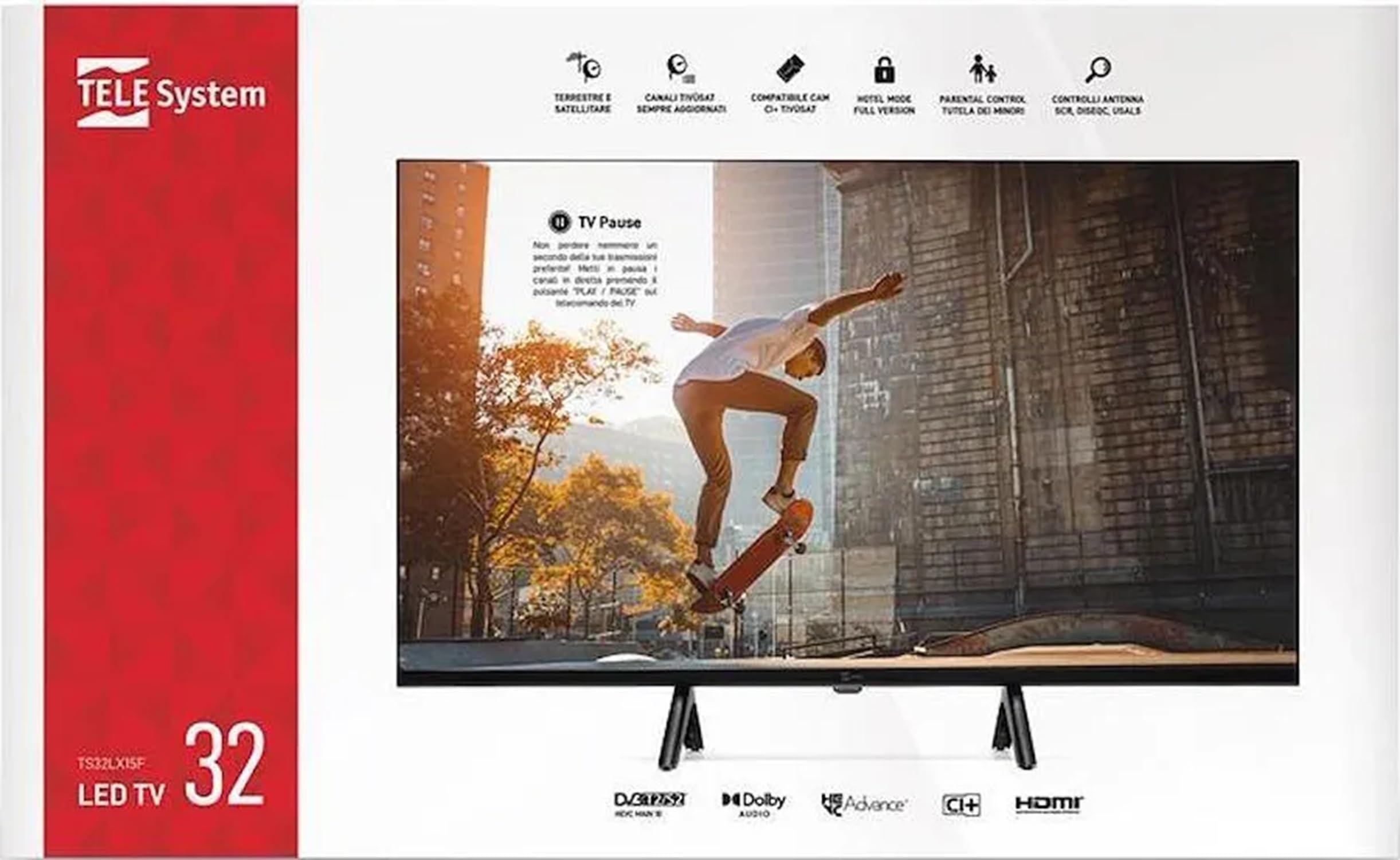
This image displays the front of the TELE System TS32 LX15F television. It features the 32-inch LED screen, designed for clear visual output. The brand logo 'TELE System' is typically located at the bottom center of the bezel.
3.2 Rear View (General Description)
The rear panel of the TV houses various input and output ports for connecting external devices. These typically include HDMI ports, USB ports, antenna input, satellite input, and an audio output for headphones. Specific port locations may vary slightly.
3.3 Remote Control (General Description)
The provided remote control allows you to operate all functions of your TV from a distance. It includes buttons for power, volume, channel selection, menu navigation, input source selection, and special functions like EPG and media playback controls.
4. Setup
4.1 Stand Assembly
- Carefully place the TV face down on a soft, clean surface to prevent screen damage.
- Align the stand with the mounting holes on the bottom of the TV.
- Secure the stand using the provided screws. Do not overtighten.
- Carefully lift the TV to its upright position on a stable surface.
4.2 Connecting Peripherals
Ensure the TV is unplugged before making any connections.
- Antenna/Cable Connection: Connect a DVB-T2 compatible antenna cable to the 'ANT IN' port for terrestrial digital broadcasts.
- Satellite Connection: Connect a satellite dish cable to the 'SAT IN' port for satellite digital broadcasts (DVB-S2). This TV is compatible with SCR satellite systems.
- HDMI Devices: Connect devices like Blu-ray players, game consoles, or set-top boxes to the HDMI ports (3 available).
- USB Devices: Insert USB drives for media playback into the USB ports (2 available).
- Headphones: Connect headphones to the 3.5mm headphone jack for private listening.
- CI/CI+ Module: Insert a Conditional Access Module (CAM) into the CI/CI+ slot for encrypted channels, including Tivùsat certified CAMs.
5. Initial Setup and First Use
- After connecting all necessary cables, plug the power cable into an electrical outlet.
- Press the Power button on the remote control or on the TV to turn it on.
- The first-time installation wizard will appear. Follow the on-screen prompts to select your preferred language, country, and time zone.
- The TV will then guide you through the channel scanning process. Select 'DVB-T2' for terrestrial channels and 'DVB-S2' for satellite channels. The TV supports automatic channel scanning, sorting, and updating.
- Once the scan is complete, your TV is ready for use.
6. Operating Instructions
6.1 Basic TV Functions
- Power On/Off: Press the Power button on the remote.
- Volume Control: Use the VOL +/- buttons to adjust the volume.
- Channel Selection: Use the CH +/- buttons to change channels sequentially, or the number buttons for direct access.
- Input Source: Press the 'SOURCE' or 'INPUT' button to switch between connected devices (HDMI 1, HDMI 2, HDMI 3, DVB-T2, DVB-S2).
6.2 Menu Navigation
- Press the 'MENU' button to access the main menu.
- Use the arrow buttons (Up/Down/Left/Right) to navigate through menu options.
- Press 'OK' or 'ENTER' to confirm a selection.
- Press 'EXIT' or 'BACK' to return to the previous menu or exit the menu.
6.3 Media Playback via USB
Insert a USB storage device into one of the TV's USB ports. The TV's media player will typically launch automatically or can be accessed via the input source menu. You can browse and play compatible media files, including MKV video files.
6.4 Electronic Program Guide (EPG)
Press the 'EPG' button on your remote control to view the Electronic Program Guide, which provides information about current and upcoming TV programs.
6.5 TV Pause Function
The TV supports a 'TV Pause' function, allowing you to temporarily pause live television broadcasts. This feature typically requires a USB storage device connected to the TV.
6.6 Hotel Mode
The TV includes a Hotel Mode feature, which allows for specific settings such as blocking channels, setting maximum volume limits, and controlling programming and video settings. This mode is typically accessed via a special menu for institutional use.
7. Troubleshooting
If you encounter problems with your TV, please refer to the following table for common issues and solutions:


