
1. Introduction
This manual provides essential information for the proper setup, operation, and maintenance of your COLORROOM K10 Android 15 Tablet. Please read this guide thoroughly before using your device to ensure optimal performance and longevity.
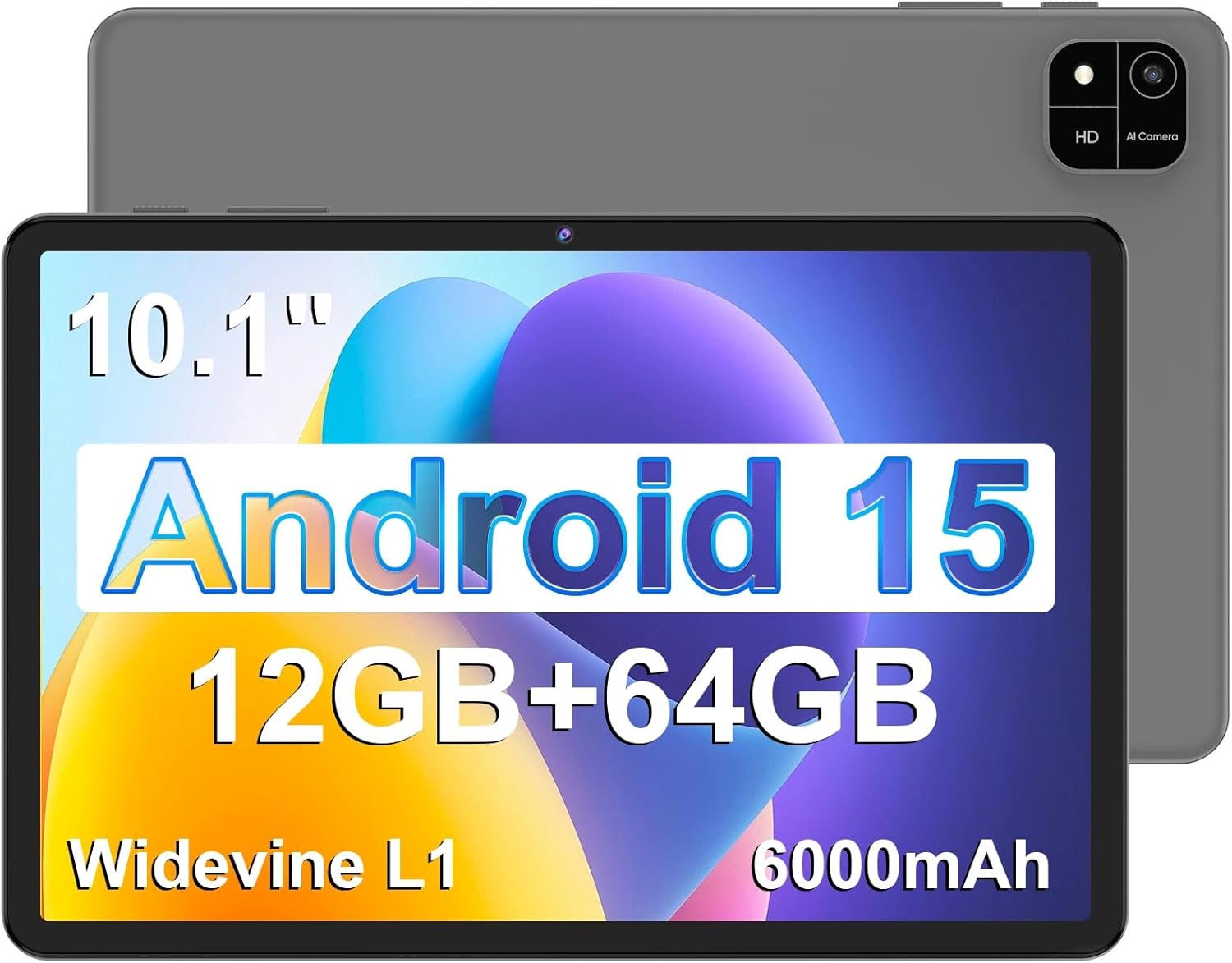
Image 1.1: Front and back view of the COLORROOM K10 Android 15 Tablet. The front shows the 10.1-inch display with 'Android 15', '12GB+64GB', 'Widevine L1', and '6000mAh' text overlays. The back shows a grey finish with a dual camera module.
2. Package Contents
Verify that all items are present in the package:
- COLORROOM K10 Android Tablet
- USB-C Charging Cable (Assumed)
- Power Adapter (Assumed)
- User Manual (This document)
3. Device Overview
The COLORROOM K10 tablet features a 10.1-inch IPS display, an octa-core processor, and dual cameras. Familiarize yourself with the physical components of your tablet.

Image 3.1: Diagram illustrating key features including the Octa-Core CPU, Wi-Fi 2.4G/5G, 6000mAh Battery, 12GB RAM + 64GB ROM, IPS Touchscreen, and up to 2TB Expandable storage.
Physical Components:
- 10.1-inch IPS Display: Main screen for interaction.
- Front Camera (2MP): Located above the screen, used for video calls and selfies.
- Rear Camera (8MP): Located on the back, used for taking photos and videos.
- Power Button: Typically on the side, used to turn the device on/off or wake/sleep.
- Volume Buttons: Typically on the side, used to adjust audio volume.
- USB-C Port: For charging and data transfer.
- 3.5mm Headphone Jack: For connecting wired headphones.
- MicroSD Card Slot: For storage expansion (up to 2TB).
- Dual Speakers: For audio output.
4. Setup
4.1 Initial Power On
- Press and hold the Power button until the screen lights up.
- Follow the on-screen prompts to select your language, region, and other initial settings.
4.2 Charging the Tablet
Before first use, fully charge the tablet. Use the provided USB-C cable and power adapter.
- Connect the USB-C cable to the tablet's USB-C port.
- Connect the other end of the cable to the power adapter, then plug the adapter into a wall outlet.
- The battery icon on the screen will indicate charging status. The tablet supports 18W fast charging.
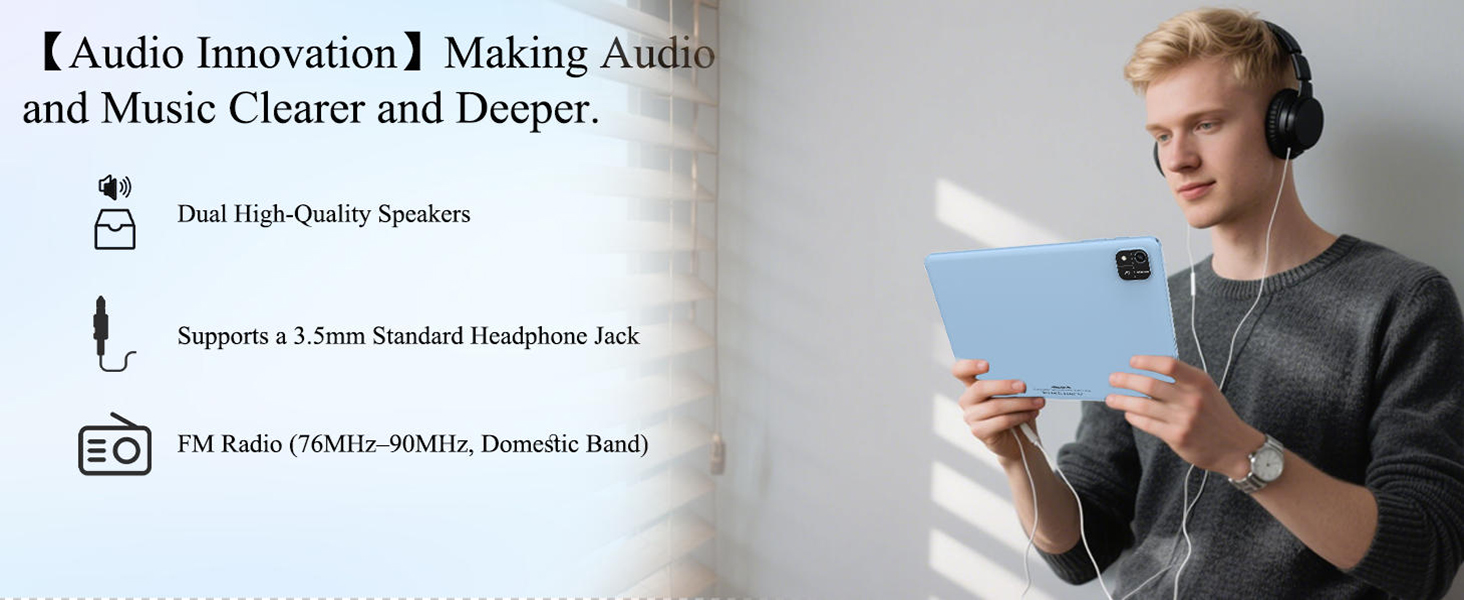
Image 4.2: Illustration of the tablet being charged via USB-C, highlighting the 6000mAh battery and estimated usage times for music, video, and reading.
4.3 Wi-Fi Connection
- Go to Settings > Network & internet > Wi-Fi.
- Toggle Wi-Fi on.
- Select your desired network from the list and enter the password if prompted.
- The tablet supports dual-band Wi-Fi 5 (2.4GHz/5GHz) for stable connectivity.
4.4 Google Account Setup
To access the Google Play Store and other Google services, sign in with your Google account during initial setup or later via Settings > Accounts.
5. Operating Instructions
5.1 Basic Navigation
Your tablet runs on Android 15, offering an intuitive user interface.
- Home Screen: Swipe left/right to navigate between screens.
- App Drawer: Swipe up from the bottom of the screen to access all installed applications.
- Notifications & Quick Settings: Swipe down from the top of the screen to view notifications and quick access settings like Wi-Fi, Bluetooth, and brightness.
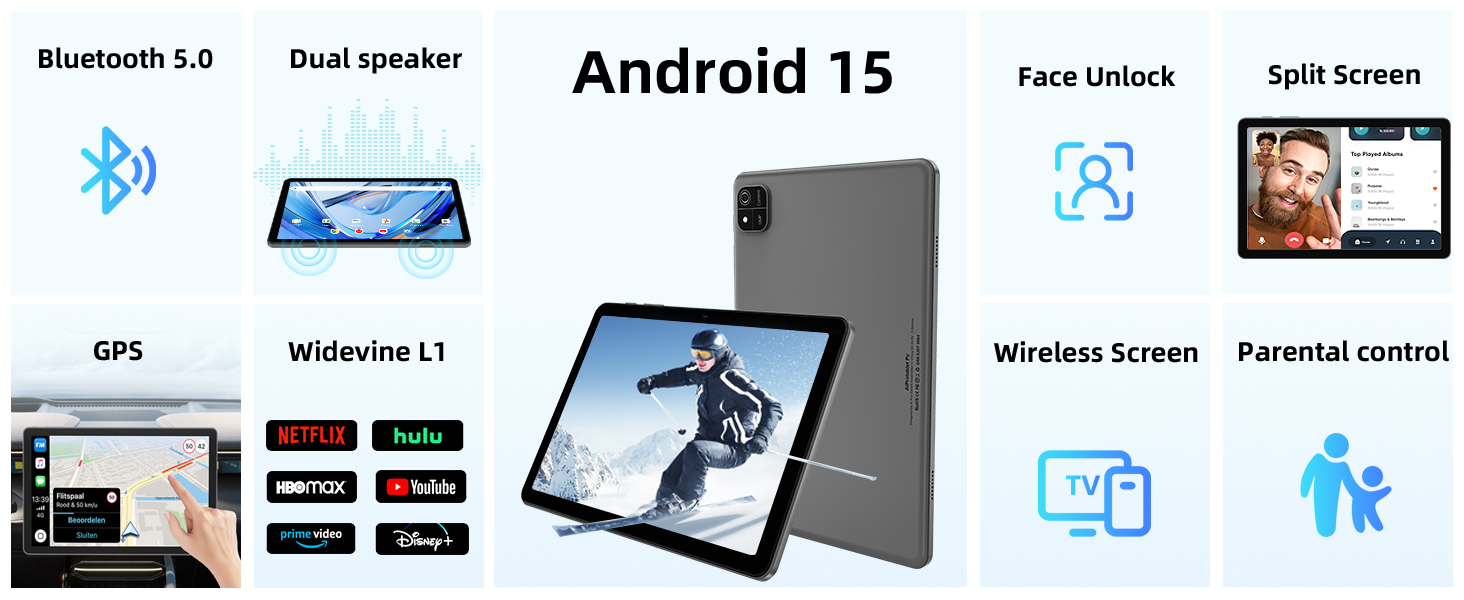
Image 5.1: Visual representation of Android 15 features including DIY Settings, Privacy Security, Faster Speed, Stay Updated, and More Functions.
5.2 Storage Management
The tablet comes with 64GB of internal storage and 12GB of RAM (4GB physical + 8GB virtual). You can expand storage up to 2TB using a MicroSD card (not included).
- To insert a MicroSD card, locate the card slot on the side of the tablet and gently push the card in until it clicks.
- Manage storage via Settings > Storage.
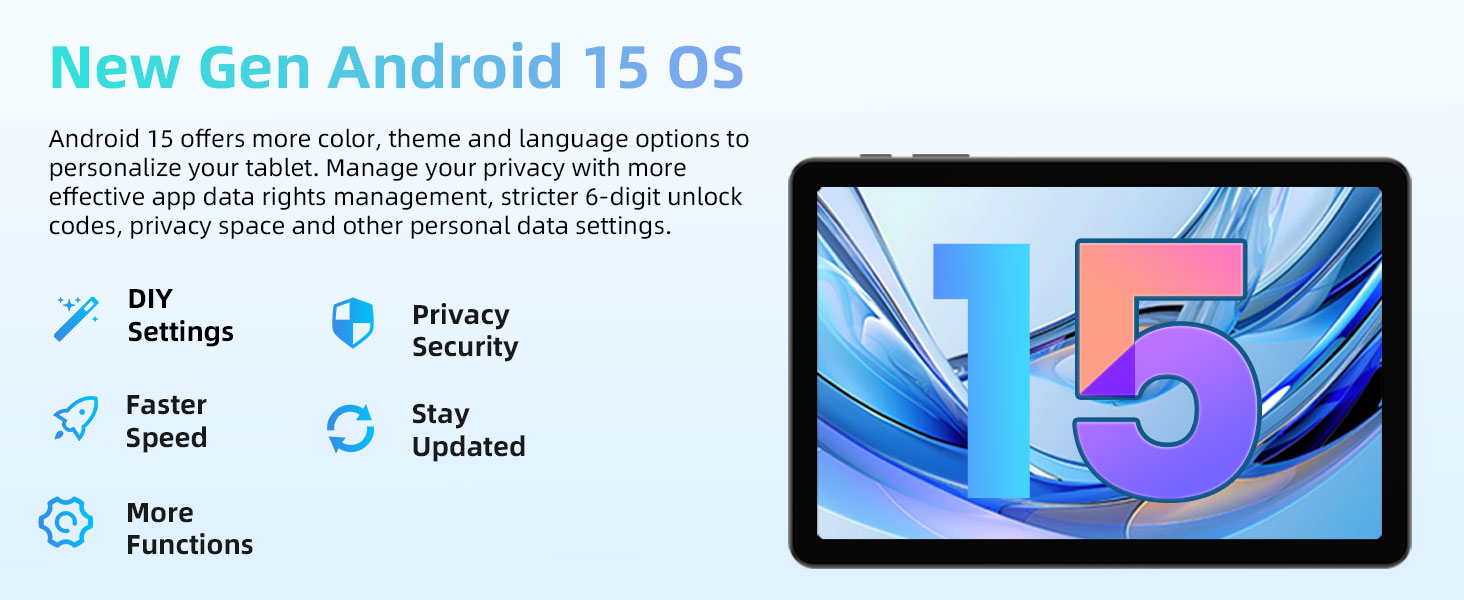
Image 5.2: The tablet screen showing various applications and media, emphasizing the 64GB ROM and 2TB expandable storage capacity.
5.3 Camera Usage
The tablet is equipped with a 2MP front camera and an 8MP rear camera.
- Open the Camera app from the home screen or app drawer.
- Tap the shutter button to take a photo.
- Switch between front and rear cameras using the camera toggle icon.
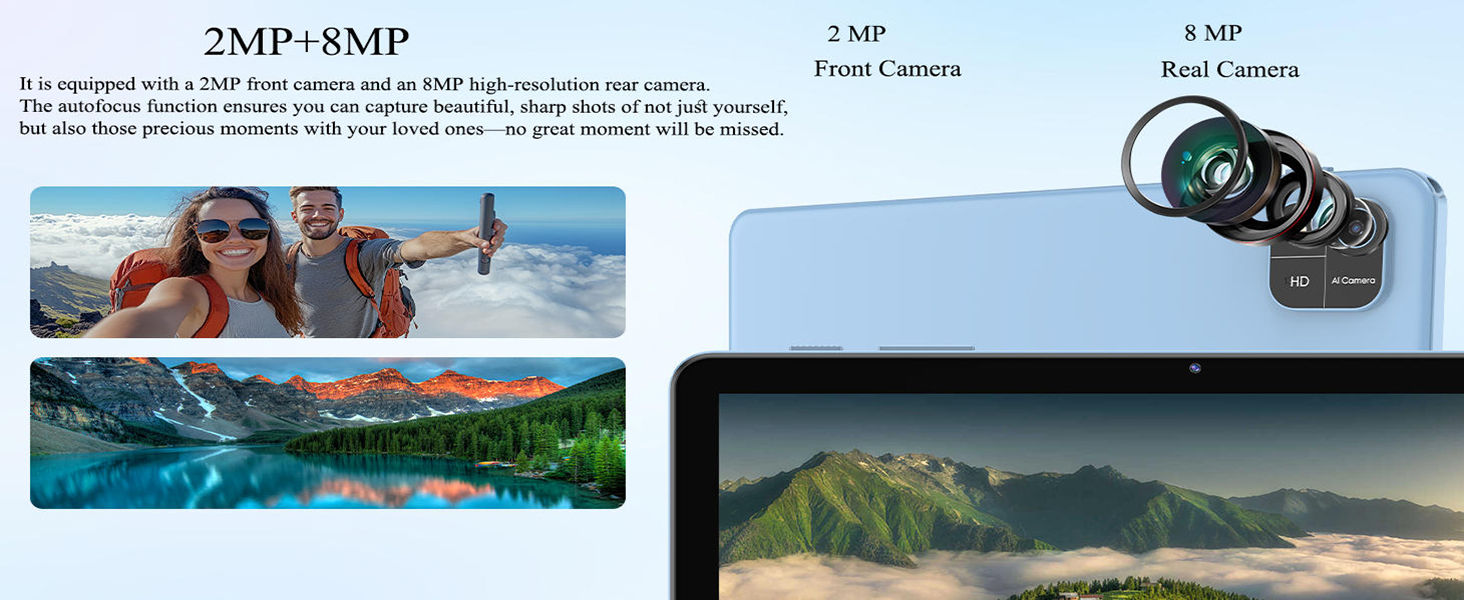
Image 5.3: Depicts the 2MP front and 8MP rear cameras, alongside example photos taken with the tablet.
5.4 Connectivity
- Bluetooth 5.0: Pair with Bluetooth devices (headphones, speakers) via Settings > Connected devices > Bluetooth.
- GPS: The tablet includes GPS functionality for navigation and location-based services.
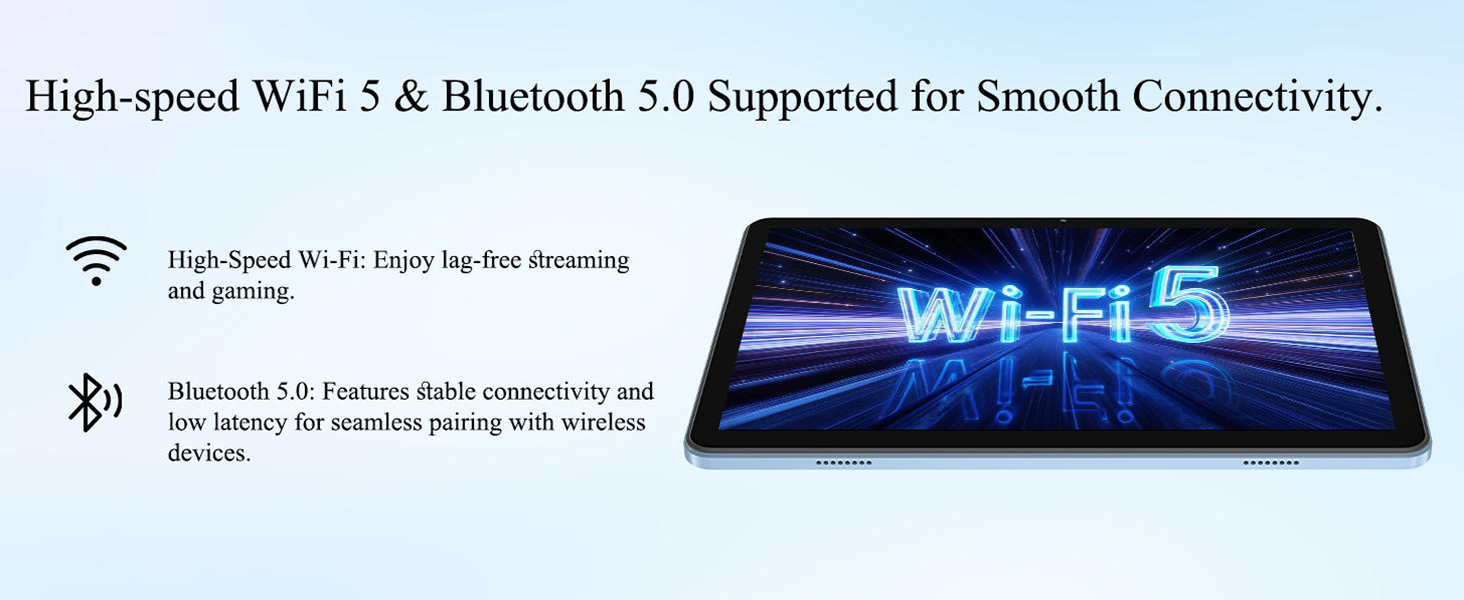
Image 5.4: The tablet screen showing 'Wi-Fi 5' and 'Bluetooth 5.0' logos, indicating high-speed wireless connectivity.
5.5 Multimedia Features
- Widevine L1: Supports high-definition streaming from services like Netflix, Disney+, Hulu, and Amazon Prime Video.
- Dual Speakers: Provides enhanced audio experience.
- 3.5mm Headphone Jack: For private listening.
- FM Radio: Listen to local radio stations.

Image 5.5: The tablet screen showing content from Netflix, YouTube, Hulu, and Prime Video, indicating Widevine L1 security solution for high-resolution playback.
5.6 Special Features
- Face Unlock: Configure face recognition for quick and secure unlocking via Settings > Security & privacy > Face unlock.
- Split-Screen: Use two apps simultaneously. Activate by long-pressing the recent apps button or dragging an app to the side of the screen.
- Parental Control: Manage app usage and content access for children.

Image 5.6: A user unlocking the tablet using face recognition, illustrating the Face Recognition Unlock feature.
6. Maintenance
6.1 Battery Care
The 6000mAh battery provides up to 5 hours of mixed usage and 3 days of standby time.
- Avoid extreme temperatures, which can degrade battery life.
- Do not let the battery completely drain frequently.
- Use the original charger and cable for optimal charging.
6.2 Cleaning
- Use a soft, lint-free cloth to clean the screen and body.
- Avoid using harsh chemicals or abrasive materials.
6.3 Software Updates
Regularly check for and install software updates to ensure your tablet has the latest features and security patches. Go to Settings > System > System update.
7. Troubleshooting
If you encounter issues with your tablet, try the following solutions:
- Tablet not turning on: Ensure the battery is charged. Connect the charger and wait a few minutes before attempting to power on again.
- Screen unresponsive: Restart the tablet by holding the Power button for about 10 seconds.
- Wi-Fi connection issues: Restart your Wi-Fi router. Go to Settings > Network & internet > Wi-Fi, forget the network, and reconnect.
- Apps crashing: Clear the cache of the problematic app (Settings > Apps > [App Name] > Storage & cache > Clear cache). If the issue persists, reinstall the app.
- Slow performance: Close unnecessary background apps, clear cache, or consider a factory reset as a last resort (back up your data first).
8. Specifications
| Feature | Specification |
|---|---|
| Model | K10 |
| Operating System | Android 15 |
| Display Size | 10.1 Inches IPS |
| Resolution | 1280 x 800 pixels |
| Processor | Octa-core (Unisoc T606, 2 GHz) |
| Graphics Coprocessor | Mali-G57 |
| RAM | 12GB (4GB physical + 8GB virtual) |
| Internal Storage | 64GB |
| Expandable Storage | Up to 2TB via MicroSD card (not included) |
| Battery Capacity | 6000mAh |
| Charging | 18W Fast Charging, USB-C |
| Wi-Fi | Wi-Fi 5 (802.11ac, Dual-band 2.4GHz/5GHz) |
| Bluetooth | Bluetooth 5.0 |
| Front Camera | 2MP |
| Rear Camera | 8MP |
| Audio | Dual Speakers, 3.5mm Headphone Jack, FM Radio |
| Navigation | GPS |
| Security | Face Unlock, Widevine L1 |
| Dimensions (LxWxH) | 9.8 x 6.2 x 0.27 inches |
| Weight | 1.94 pounds (approx. 500g) |
9. Safety Information
- Do not expose the tablet to extreme temperatures, direct sunlight, or moisture.
- Avoid dropping or subjecting the tablet to severe impact.
- Use only manufacturer-approved accessories.
- Do not attempt to disassemble or repair the tablet yourself. This may void the warranty and cause damage.
- Dispose of the tablet and its battery responsibly according to local regulations.
10. Warranty and Support
For warranty information and technical support, please refer to the warranty card included with your product or visit the official COLORROOM website. Keep your proof of purchase for warranty claims.


