
Introduction
This manual provides essential instructions for setting up, operating, maintaining, and troubleshooting your HP Prodesk 600 G2 Mini PC Desktop. This renewed system features an Intel Core i3-6100 processor, 8GB DDR4 RAM, and a 256GB SSD, running Windows 11 Pro. Please read this guide thoroughly to ensure proper use and longevity of your device.
What's in the Box
Upon unboxing, verify that all the following components are present:
- 1 x HP Prodesk 600 G2 Mini Computer
- 1 x Keyboard
- 1 x Mouse
- 1 x USB Wi-Fi + Bluetooth Adapter
- 1 x Power Adapter (may not be original, but compatible)
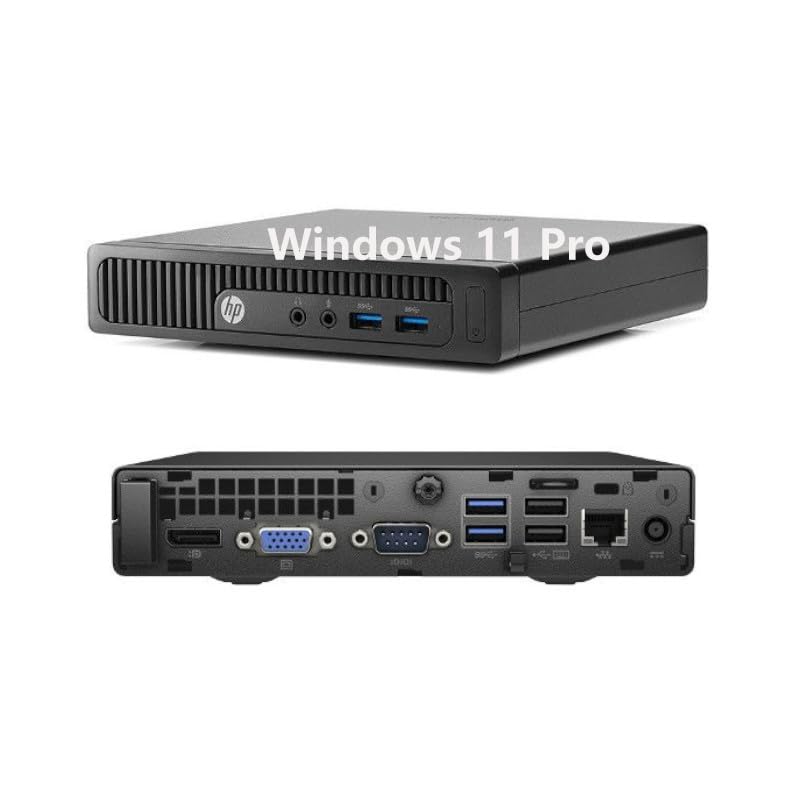
Image: The HP Prodesk 600 G2 Mini PC, a wired keyboard with RGB backlighting, and a wired mouse. These are the primary components included with your purchase.
Setup Instructions
- Connect Peripherals:
- Connect the keyboard and mouse to the available USB ports on the mini PC.
- Connect your monitor(s) to the DisplayPort (DP) output(s) on the rear of the mini PC.
- Insert the USB Wi-Fi + Bluetooth adapter into an available USB port.
- Connect Power:
Plug the power adapter into the mini PC's power input, then plug the other end into a wall outlet.
- Power On:
Press the power button located on the front of the mini PC. The system will begin to boot up.
- Initial Windows 11 Pro Setup:
Follow the on-screen prompts to complete the initial setup of Windows 11 Pro. This includes selecting your region, keyboard layout, creating a user account, and connecting to a network.
- Connect to Wi-Fi:
After Windows 11 Pro setup, locate the Wi-Fi icon in the system tray. Click on it, select your desired network, and enter the password to connect. Ensure the USB Wi-Fi adapter is properly inserted.
Operating Instructions
Front Panel Overview

Image: A detailed view of the HP Prodesk 600 G2 Mini PC's front panel, showing the headphone jack, microphone jack, two USB 3.0 ports, a USB Type-C port, and the power button.
- Headphone Jack: Connect headphones or external speakers.
- Microphone Jack: Connect a microphone for audio input.
- USB 3.0 Ports (x2): For high-speed data transfer with compatible USB devices.
- USB Type-C Port: Versatile port for data transfer and connecting compatible devices.
- Power Button: Turns the PC on or off.
Rear Panel Ports
The rear panel typically includes additional USB ports, DisplayPort (DP) for video output, and an RJ-45 Ethernet port for wired network connections.
- DisplayPort (DP): Connect your monitor(s) for video output.
- RJ-45 Ethernet Port: For wired internet connection.
- Additional USB Ports: For connecting other peripherals.
Windows 11 Pro
Your HP Prodesk 600 G2 Mini PC comes pre-installed with Windows 11 Pro. This operating system offers enhanced security features and a user-friendly interface. For detailed information on Windows 11 Pro functionalities, please refer to Microsoft's official documentation.
Maintenance
- Software Updates: Regularly check for and install Windows updates to ensure system stability and security.
- Physical Cleaning:
- Use a soft, dry cloth to clean the exterior of the PC.
- Periodically use compressed air to clear dust from vents to maintain optimal airflow and prevent overheating.
- Clean the keyboard and mouse as needed with appropriate cleaning solutions.
- Data Backup: Regularly back up important data to an external drive or cloud storage to prevent data loss.
Troubleshooting
If you encounter issues with your HP Prodesk 600 G2 Mini PC, refer to the following common solutions:
- No Power:
- Ensure the power adapter is securely connected to both the PC and a working power outlet.
- Verify the power outlet is functional by plugging in another device.
- No Display:
- Check that the monitor is powered on and the video cable (DisplayPort) is securely connected to both the PC and the monitor.
- Try a different video cable or monitor if available.
- Wi-Fi Not Connecting:
- Ensure the USB Wi-Fi adapter is properly inserted into a USB port.
- Check Wi-Fi settings in Windows 11 Pro to ensure Wi-Fi is enabled and you are selecting the correct network with the correct password.
- Restart the PC and your Wi-Fi router.
- Slow Performance:
- Close unnecessary applications running in the background.
- Ensure Windows is up to date.
- Check for malware or viruses.
If these steps do not resolve your issue, please contact the seller or refer to the support information provided with your purchase.
Specifications
| Feature | Specification |
|---|---|
| Brand | HP |
| Model Name | HP Prodesk 600 G2 Mini |
| Operating System | Windows 11 Pro |
| CPU Model | Intel Core i3-6100 |
| CPU Speed | 3.7 GHz |
| Processor Count | 2 Cores (4 Threads) |
| Cache Size | 3 MB |
| RAM Memory Installed | 8 GB DDR4 |
| Hard Disk Description | 256 GB SSD (Solid State Drive) |
| Graphics Card Description | Integrated |
| Video Output | DisplayPort |
| Max Display Resolution | 4096x2160 |
| Connectivity Technology | Bluetooth, USB, Wi-Fi (via USB adapter) |
| Front I/O Ports | 2 x USB 3.0, Microphone, Headphone, USB Type-C |
| Rear I/O Ports | DisplayPort, RJ-45 Ethernet, Additional USB ports |
| Human-Interface Input | Mouse, Keyboard |
Warranty and Support
This product is a renewed item. The power supply and charger may not be original but are compatible and fully functional. The product is delivered in a normal box, not the original packaging.
For warranty information and technical support, please refer to the documentation provided by the seller at the time of purchase. If you have questions regarding the included USB Wi-Fi adapter or any other component, contact the seller directly for assistance.
Amazon Renewed products typically come with a 90-day refund or replacement policy. Please check your specific purchase details for exact terms.


