
Introduction
The MAONO PD100W is a versatile wireless and USB dynamic microphone designed for high-quality audio recording, streaming, podcasting, and gaming. It offers dual-mode connectivity, advanced noise reduction, customizable RGB lighting, and real-time monitoring for a professional audio experience.
What's in the Box
- Wireless Dynamic Microphone with Stand
- RX USB-C Receiver
- 2-in-1 USB-A&C to USB-C Charging Cable
- 2-in-1 USB-A&C to USB-C Adapter
- User Manual
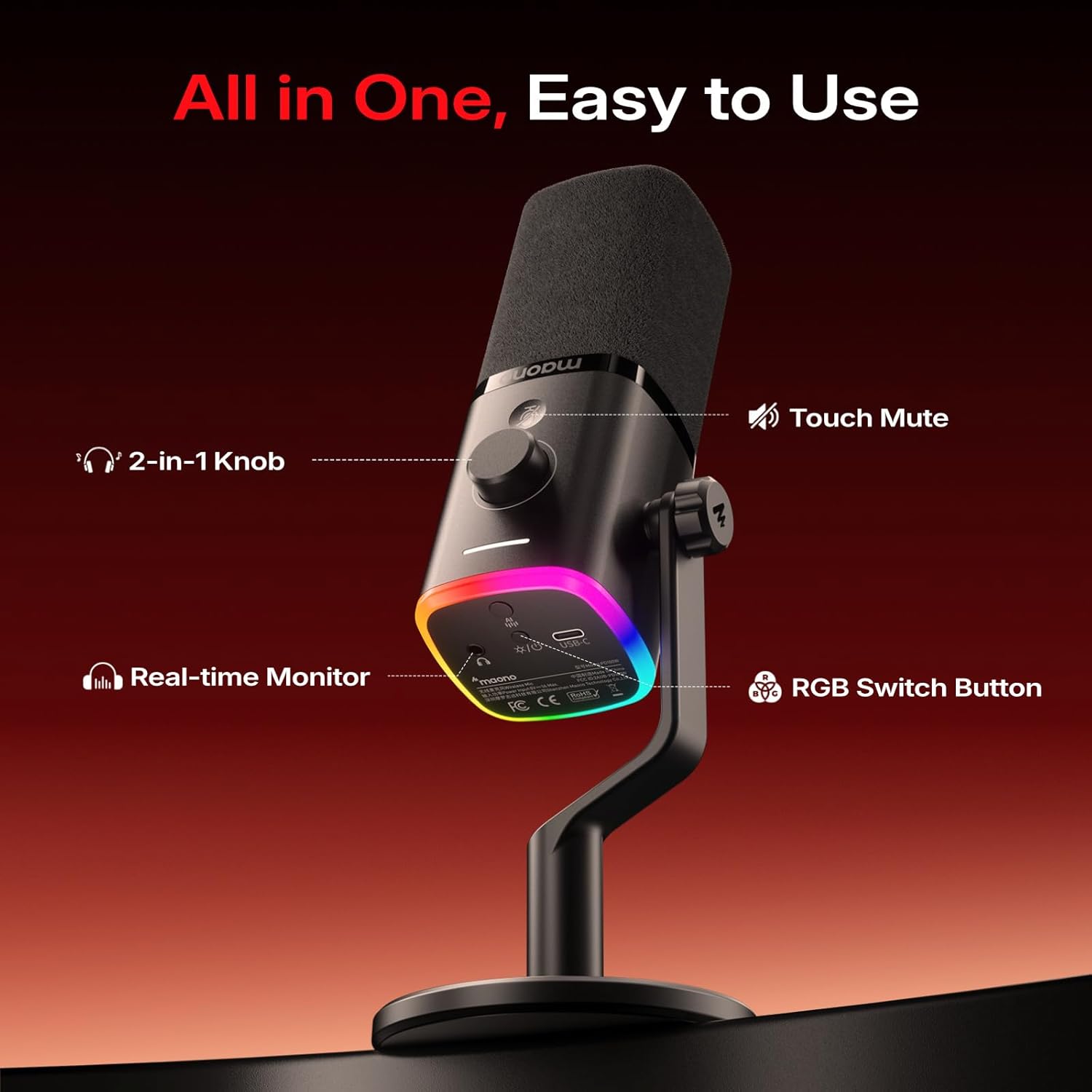
Image: Contents of the MAONO PD100W package. Includes the microphone with its desk stand, a USB-C receiver, a USB-A&C to USB-C charging cable, a USB-A&C to USB-C adapter, and the user manual.
Setup Instructions
Assembling the Microphone
- Attach the microphone to the included desk stand by screwing it onto the 3/8-inch or 5/8-inch thread.
- Ensure the microphone is securely fastened to prevent accidental movement.

Image: Close-up view of the microphone's base showing the dual-thread design (3/8-inch and 5/8-inch) for attaching to the desk stand or other compatible mounts.
Connecting to Devices
The MAONO PD100W supports both wireless (2.4G) and USB wired connections.
Wireless Mode (2.4G)
- Insert the RX USB-C Receiver into your device's USB-C port (PC, Laptop, Phone, PS5). Use the provided 2-in-1 USB-A&C to USB-C Adapter if your device only has a USB-A port.
- Press and hold the power button at the bottom of the microphone to turn it on. The RGB lights will illuminate.
- The microphone and receiver should automatically pair. A stable indicator light on the microphone confirms a successful connection.
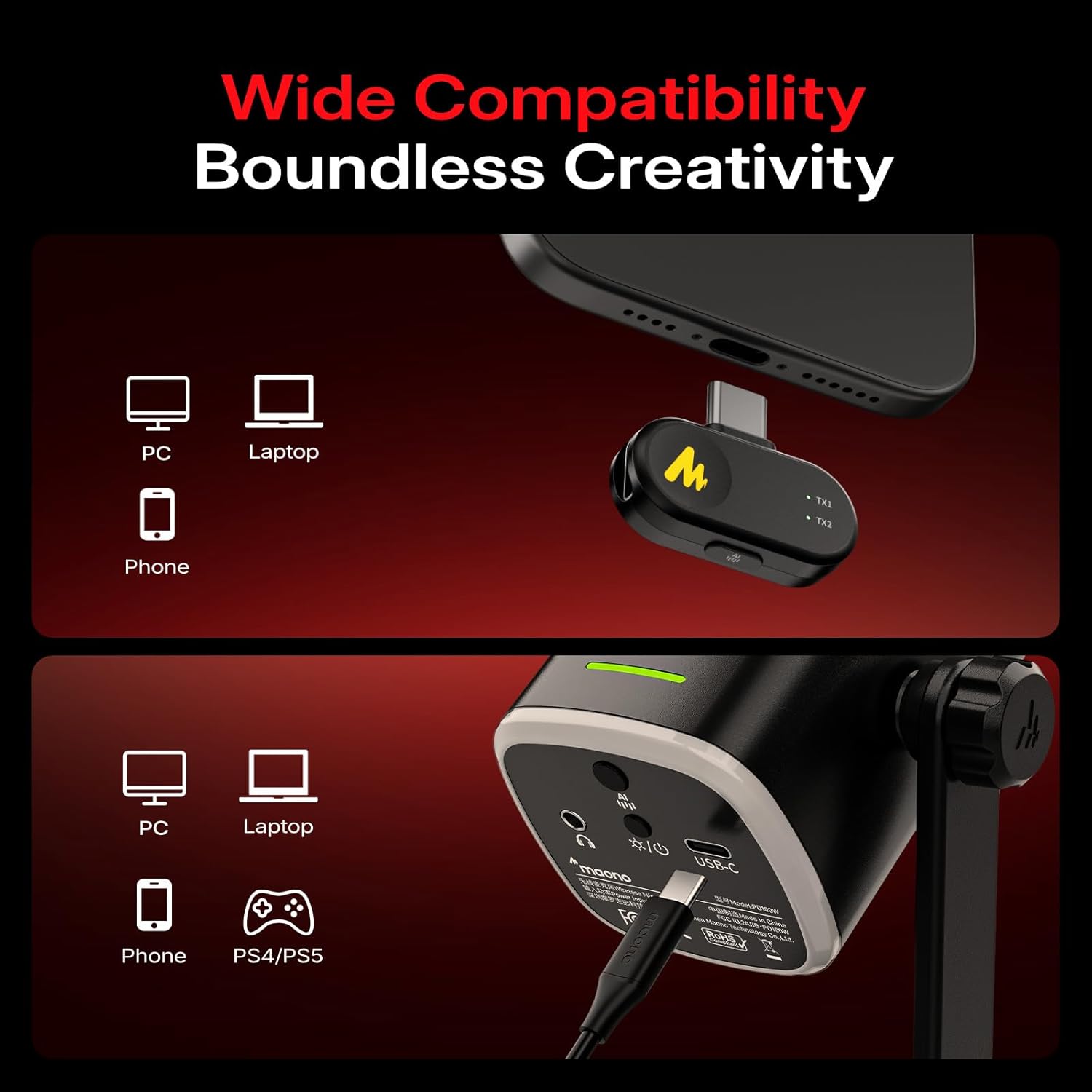
Image: A visual guide illustrating how to connect the MAONO PD100W microphone to various devices (PC, laptop, phone, PS5) using both wireless (via USB-C receiver) and wired (via USB-C cable) methods.
USB Wired Mode
- Connect the microphone to your device (PC, Laptop, Phone, PS5) using the provided 2-in-1 USB-A&C to USB-C Charging Cable.
- The microphone will be recognized as an audio input device. No additional drivers are typically required for basic functionality.
Operating Instructions
Power On/Off
Press and hold the power button located at the bottom of the microphone to turn it on or off.
Mute Function
Tap the touch-sensitive mute button on the microphone for instant silence. The RGB lights will turn off when muted, providing a visual indicator.
Noise Reduction
The microphone features one-click noise reduction with 3 adjustable levels (low, medium, high). Press the dedicated noise reduction button to cycle through the levels or activate/deactivate the feature. This helps isolate background noises from your computer, keyboard, and fan.
Video: This video demonstrates the indicator light guide for the MAONO PD100W microphone, showing how different light patterns correspond to various functions like charging, mute, volume adjustment, gain adjustment, noise reduction levels, and RGB lighting modes.
Gain and Volume Control
Use the 2-in-1 smart knob to adjust both microphone gain and headphone volume. Short press the knob to switch between controlling gain (white indicator light) and headphone volume (blue indicator light).
Real-Time Monitoring
The 3.5mm headphone jack allows you to monitor your audio in real-time, ensuring optimal sound quality during recording or streaming.
Customizable RGB Lighting
The microphone features customizable RGB lighting with multiple colors and 3 lighting modes. Press the RGB switch button to cycle through 8 dynamic colors or turn the lighting off. Brightness and color customization can also be managed via the Maono Link software.

Image: A user interacting with the MAONO PD100W microphone, highlighting its customizable RGB lighting feature. The microphone is placed on a desk with a computer setup.
Maono Link Software
The accompanying Maono Link software, compatible with Windows, iOS, and Android, allows for fine-tuning of various microphone settings:
- EQ Adjustment: Customize the equalizer settings for your desired sound profile.
- Noise Reduction: Adjust noise cancellation levels beyond the hardware buttons.
- RGB Effects: Personalize lighting effects, brightness, and color.
- Sound Presets: Utilize one-click presets for vocal recording, streaming, and podcasting.
- Battery Indicator: Monitor real-time battery levels.

Image: Screenshots of the Maono Link software interface on both a laptop and a smartphone, displaying options for microphone gain, monitor volume, noise reduction, scene modes, and RGB lighting controls.
Battery Life
The MAONO PD100W features a built-in 1500 mAh rechargeable battery, offering up to 40 hours of continuous use on a single charge. An orange indicator flashes when the battery level drops below 20%. Real-time battery monitoring is available via the Maono Link software.
Specifications
| Feature | Detail |
|---|---|
| Audio Sensitivity | 94 Decibels |
| Impedance | 32 Ohms |
| Microphone Form Factor | Desktop |
| Power Source | Battery Powered, Corded Electric |
| Number of Batteries | 1 Nonstandard Battery (included) |
| Material | Plastic, Metal |
| Signal-to-Noise Ratio | 82 dB |
| Hardware Platform | Laptop, PC, Smartphone |
| Number of Channels | 1 |
| Frequency Response | 16000 Hz |
| Item Weight | 1.57 pounds |
| Battery Type | Lithium Ion |
| Recommended Uses | Gaming, Online-Chatting, Recording, Streaming, Video Conference |
| Connectivity Technology | USB, Wireless |
| Connector Type | USB Type-A, USB Type-C |
| Polar Pattern | Unidirectional |
Troubleshooting
- No Sound Output: Ensure the microphone is powered on and correctly connected (either via USB cable or the wireless receiver). Check your device's audio input settings to confirm the MAONO PD100W is selected. Verify that the microphone is not muted and the gain is adequately adjusted.
- Poor Audio Quality: Adjust the microphone gain to an appropriate level to avoid clipping or low volume. Utilize the built-in noise reduction feature or the Maono Link software to minimize background noise. Ensure the microphone is positioned correctly, ideally 2-6 inches from your mouth.
- Wireless Connection Issues: Ensure the RX USB-C Receiver is securely plugged into your device. If issues persist, try re-pairing the microphone and receiver (refer to the user manual for specific pairing instructions). Check for potential interference from other 2.4Ghz devices.
- RGB Lights Not Working: Press the RGB switch button to cycle through modes or turn them on. Check settings in the Maono Link software.
- Battery Draining Quickly: Ensure the microphone is fully charged before use. Monitor battery levels via the Maono Link software. Reduce RGB brightness or turn off RGB lights if extended battery life is needed.
Maintenance
- Cleaning: Use a soft, dry cloth to clean the microphone body. Avoid using harsh chemicals or abrasive materials.
- Storage: Store the microphone in a cool, dry place away from direct sunlight and extreme temperatures when not in use.
- Battery Care: For optimal battery longevity, avoid fully discharging the battery frequently. Charge the microphone regularly, even if not in constant use.
Warranty and Support
MAONO products typically come with a manufacturer's warranty. Please refer to the warranty card included in your product packaging or visit the official MAONO website for detailed warranty information and customer support options. For additional product function tutorials and FAQs, please visit https://faq.maono.com.


