
1. Introduction
This manual provides detailed instructions for the installation, operation, and maintenance of your Surakey Android 13 Car Stereo. Please read this manual thoroughly before using the product to ensure proper functionality and safety. Keep this manual for future reference.
2. Product Features
- Operating System: Android 13 with 2GB RAM and 32GB ROM for smooth performance.
- Display: 7-inch IPS touchscreen with 1024x600 resolution.
- Connectivity: Supports Wireless CarPlay and Android Auto via USB cable, Bluetooth, or WiFi.
- Screen Functions: Mirror Link for iOS and Android smartphones, and Split Screen display for multitasking.
- Navigation: Integrated GPS module for offline navigation and online map application support via WiFi/WLAN.
- Audio: FM/RDS radio, Bluetooth for hands-free calling and music streaming, DSP for sound processing, and EQ adjustment.
- Control: Steering Wheel Control (SWC) compatibility for convenient operation.
- Multimedia: Supports HD 1024P/IPS 1280P video playback, MP3, AUX, USB.
- Expandability: Compatible with external devices such as TPMS, OBD2, DVR, DAB+, and rearview cameras.
3. Specifications
| Feature | Specification |
|---|---|
| Material | Metal |
| Operating System | Android 13 |
| Screen Size | 7 Inches IPS Touch Screen |
| Resolution | 1024x600 |
| Unit Size | 2 Din |
| USB Ports | 2 (4 pin + 6 pin) |
| Memory (RAM + ROM) | 2GB + 32GB |
| Human Interface Input | Buttons, Touchscreen |
| Package Dimensions | 1.97 x 1.18 x 1.18 inches |
| Item Weight | 1.6 ounces |
4. Package Contents
Verify that all items are present in the package:
- Surakey Android 13 Car Stereo Unit
- Power Cable
- RCA Input/Output Cables
- 2 USB Cables
- Camera Input Cable
- GPS Antenna
- Instruction Manual
- Canbus Box
- Radio Adaptor
- Backup Camera

Figure 4.1: Car Stereo Unit and Included Accessories

Figure 4.2: Rear View of Car Stereo Unit with Wiring
5. Setup and Installation
Installation of the car stereo requires technical knowledge and experience. It is highly recommended to have the unit installed by a qualified professional to avoid damage to the product or your vehicle's electrical system.
5.1 Pre-Installation Check
- Ensure the vehicle's battery is disconnected before starting installation.
- Verify compatibility with your Dodge Grand Caravan (2008-2020) and check the existing wiring harness.
- Confirm all package contents are present and undamaged.
5.2 Wiring Connections
Connect the provided wiring harnesses according to your vehicle's specific wiring diagram. Pay close attention to the power, ground, speaker, and accessory wires. The included Canbus Box and Radio Adaptor are designed to integrate with your vehicle's system.
5.3 GPS Antenna Installation
Mount the GPS antenna in a location with a clear view of the sky, typically on the dashboard or under the windshield, to ensure optimal signal reception.
5.4 Backup Camera Installation
Install the backup camera at the rear of your vehicle, ensuring it has a clear view. Connect the camera input cable to the designated port on the car stereo unit. The system is designed to automatically display the rear camera feed when the vehicle is in reverse.
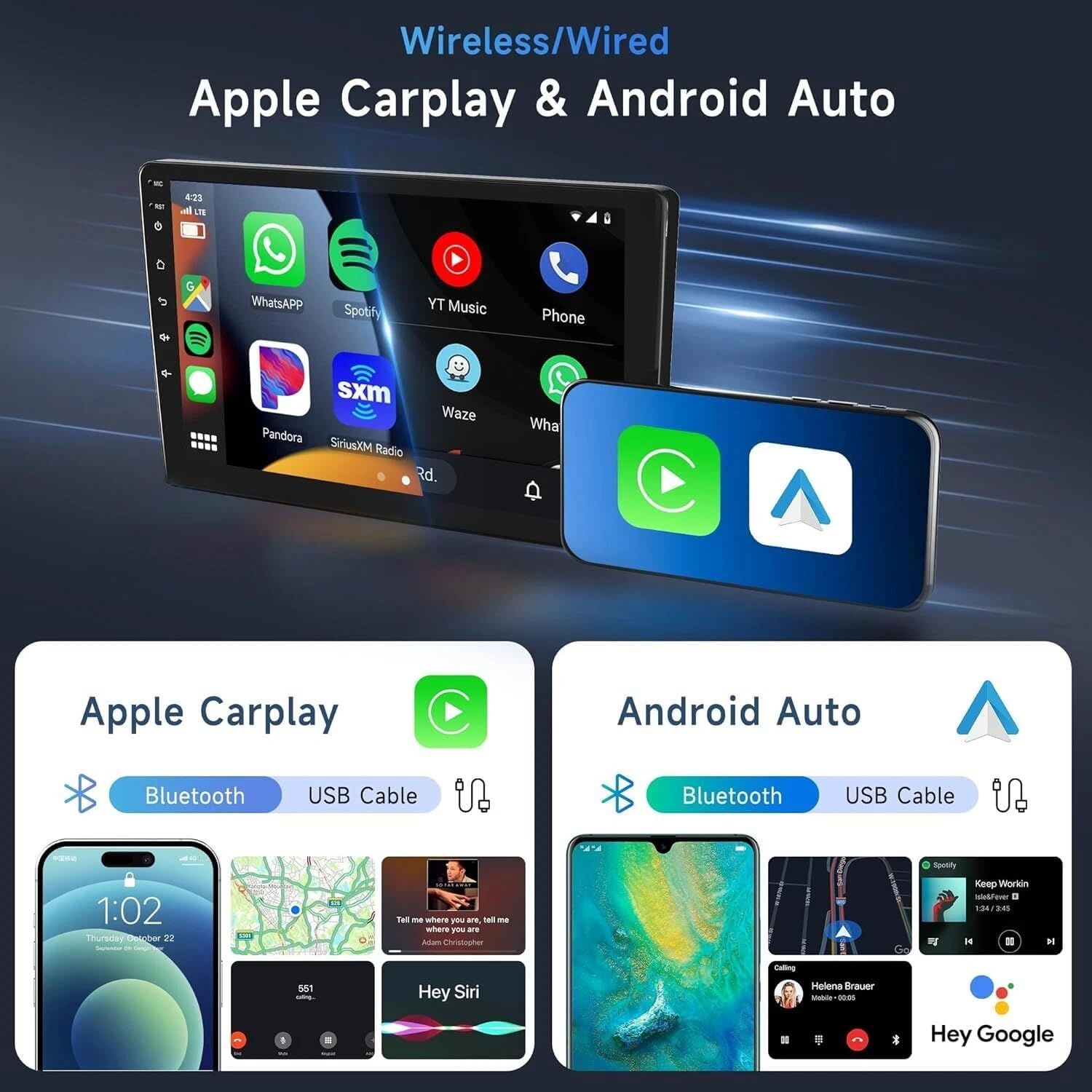
Figure 5.1: Wireless/Wired Apple CarPlay & Android Auto Interface

Figure 5.2: Rear Camera Functionality
6. Operating Instructions
6.1 Basic Operation
- Power On/Off: Press and hold the power button (usually located on the front panel) to turn the unit on or off.
- Volume Adjustment: Use the physical knob or the touchscreen controls to adjust the volume.
- Touchscreen: Navigate the interface by tapping, swiping, and pinching on the 7-inch IPS display.
6.2 CarPlay and Android Auto
Connect your iOS or Android smartphone to the car stereo via a USB cable for wired connection, or wirelessly via Bluetooth and WiFi. Once connected, you can access phone features such as navigation, music, calls, messages, and voice control directly from the car stereo display.
6.3 GPS Navigation
The unit supports both offline and online navigation. For offline navigation, ensure the GPS module is connected. For online navigation, connect the unit to a WiFi network and download your preferred navigation applications from the app store.
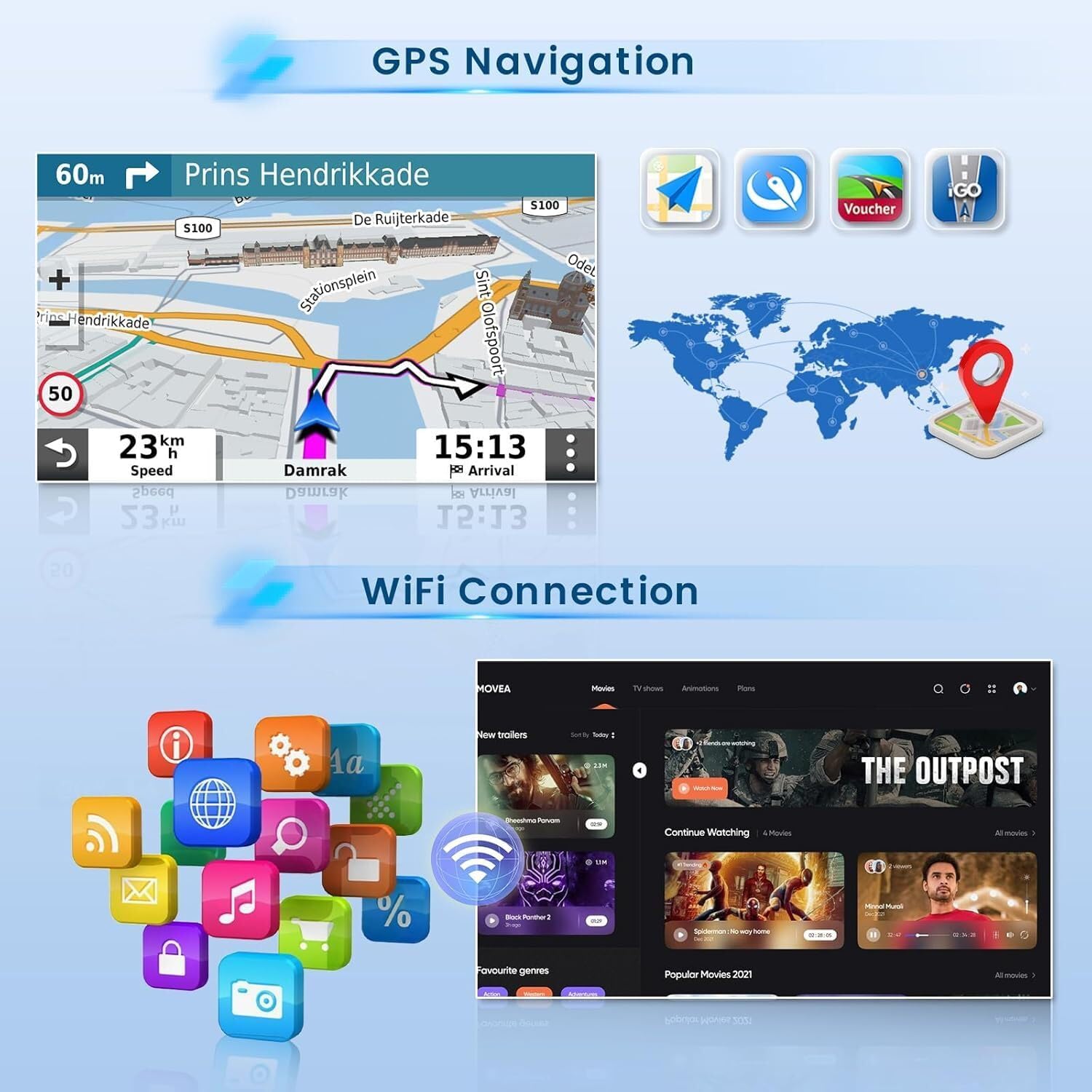
Figure 6.1: GPS Navigation and WiFi Connection Interface
6.4 Bluetooth and FM/RDS Radio
- Bluetooth: Pair your smartphone to the car stereo via Bluetooth for hands-free calling and wireless audio streaming.
- FM/RDS Radio: Tune into FM radio stations. The RDS (Radio Data System) feature provides additional information like station name and song title where available.
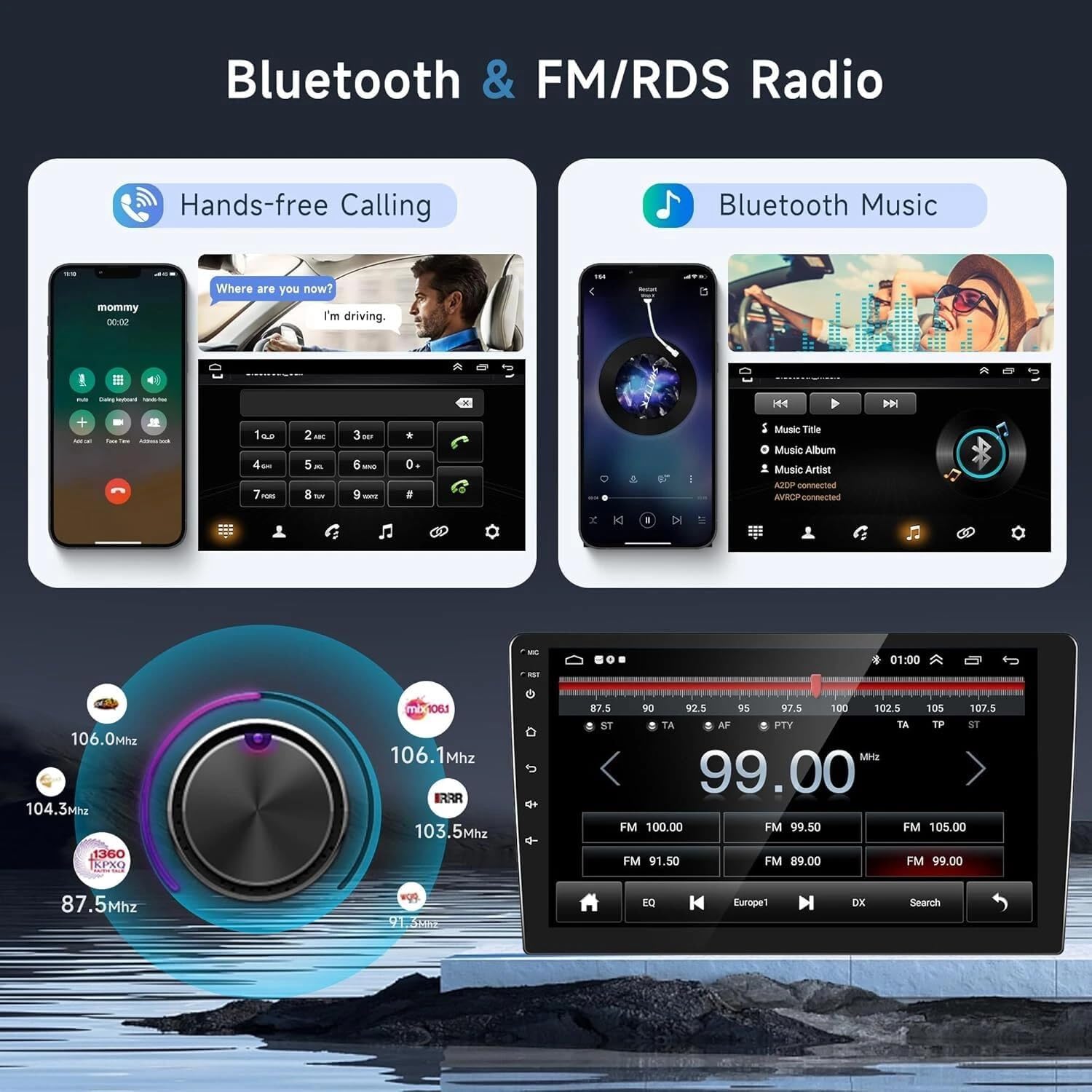
Figure 6.2: Bluetooth and FM/RDS Radio Interface
6.5 Mirror Link and Split Screen
- Mirror Link: Project your smartphone screen onto the car stereo display via WiFi.
- Split Screen: Long-press an application icon to activate split-screen mode, allowing two applications to run simultaneously (e.g., navigation and music).
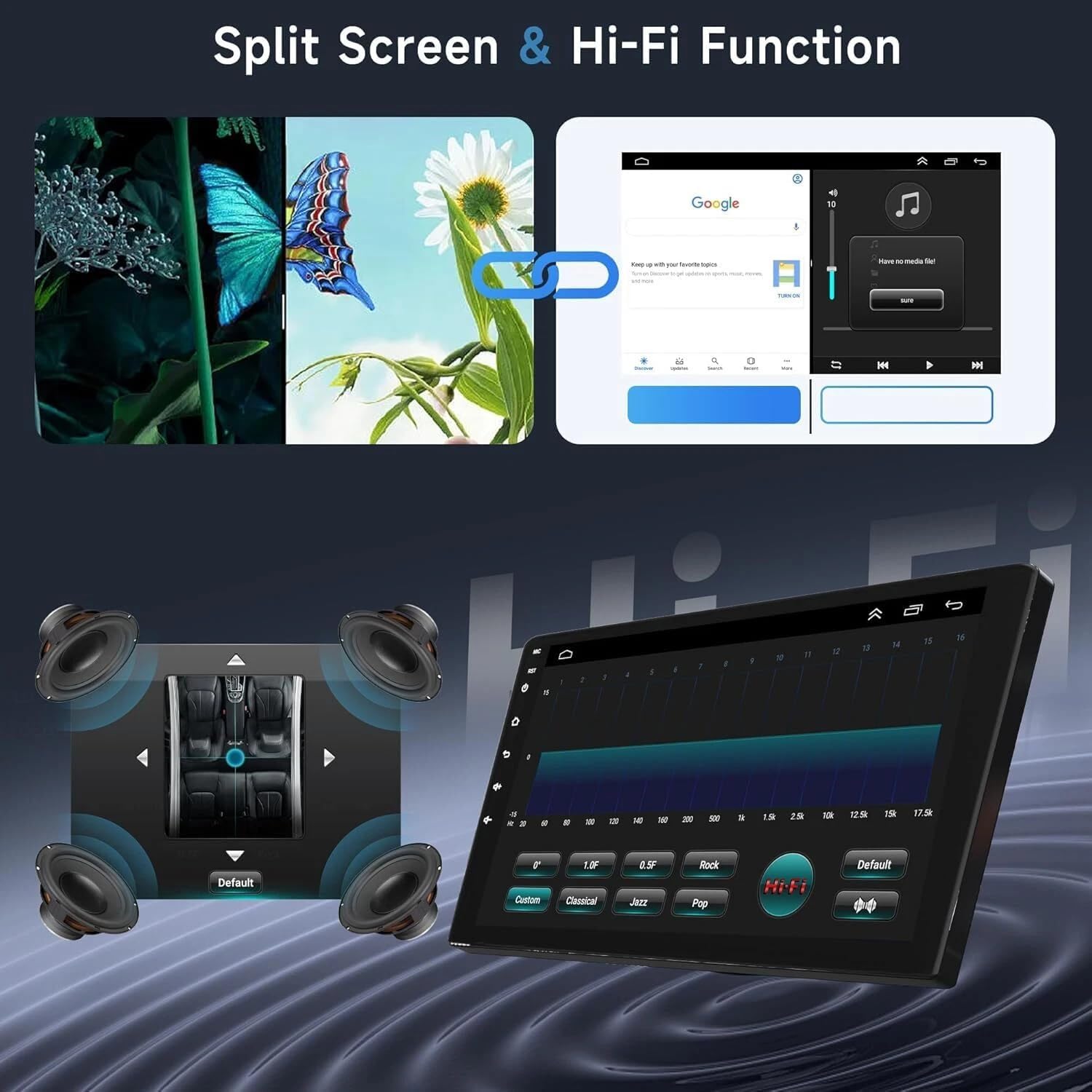
Figure 6.3: Split Screen and Hi-Fi Function Interface
6.6 System Settings
Access the system settings menu to customize various aspects of the car stereo, including display, audio (EQ Adjustment, DSP), general settings (e.g., default volume, boot volume, lantern settings), and steering wheel control configuration.
Video 6.1: Demonstration of Car Stereo Features including media playback, volume adjustment, EQ settings, system settings, map navigation selection, and split-screen display.
7. Maintenance
- Cleaning: Use a soft, dry cloth to clean the screen and unit. Avoid abrasive cleaners or solvents.
- Software Updates: Periodically check for software updates to ensure optimal performance and access to new features. Updates can usually be performed via WiFi.
- Temperature: Avoid exposing the unit to extreme temperatures, which can affect its lifespan and performance.
8. Troubleshooting
If you encounter issues with your car stereo, refer to the following common problems and solutions:
- No Power: Check all power connections and fuses. Ensure the vehicle's battery is properly connected.
- No Sound: Verify speaker connections, check volume levels, and ensure the audio source is correctly selected.
- GPS Not Working: Ensure the GPS antenna is properly installed and has a clear view of the sky. Check GPS settings in the system menu.
- Bluetooth Connection Issues: Ensure Bluetooth is enabled on both the car stereo and your device. Try unpairing and re-pairing the devices.
- Touchscreen Unresponsive: Try restarting the unit. If the issue persists, a factory reset might be necessary (note: this will erase all user data).
- Backup Camera Not Displaying: Check the camera's power and video connections. Ensure the vehicle is in reverse.
For persistent issues not covered here, please contact customer support.
9. Warranty and Support
Your Surakey Android 13 Car Stereo is covered by a manufacturer's warranty. Please refer to the warranty card included in your package for specific terms and conditions. For technical support, troubleshooting assistance, or warranty claims, please contact Surakey customer service through the retailer where the product was purchased or visit the official Surakey website.