Introduction
This manual provides essential information for the proper setup, operation, and maintenance of your Garvee 88-Key Digital Piano Keyboard. Designed for beginners, this portable, USB-powered electric piano offers a comprehensive learning experience with Bluetooth MIDI connectivity and dual speakers. Please read this manual thoroughly before using your instrument to ensure optimal performance and longevity.
What's Included
Carefully unpack your Garvee Digital Piano Keyboard and verify that all the following items are present:
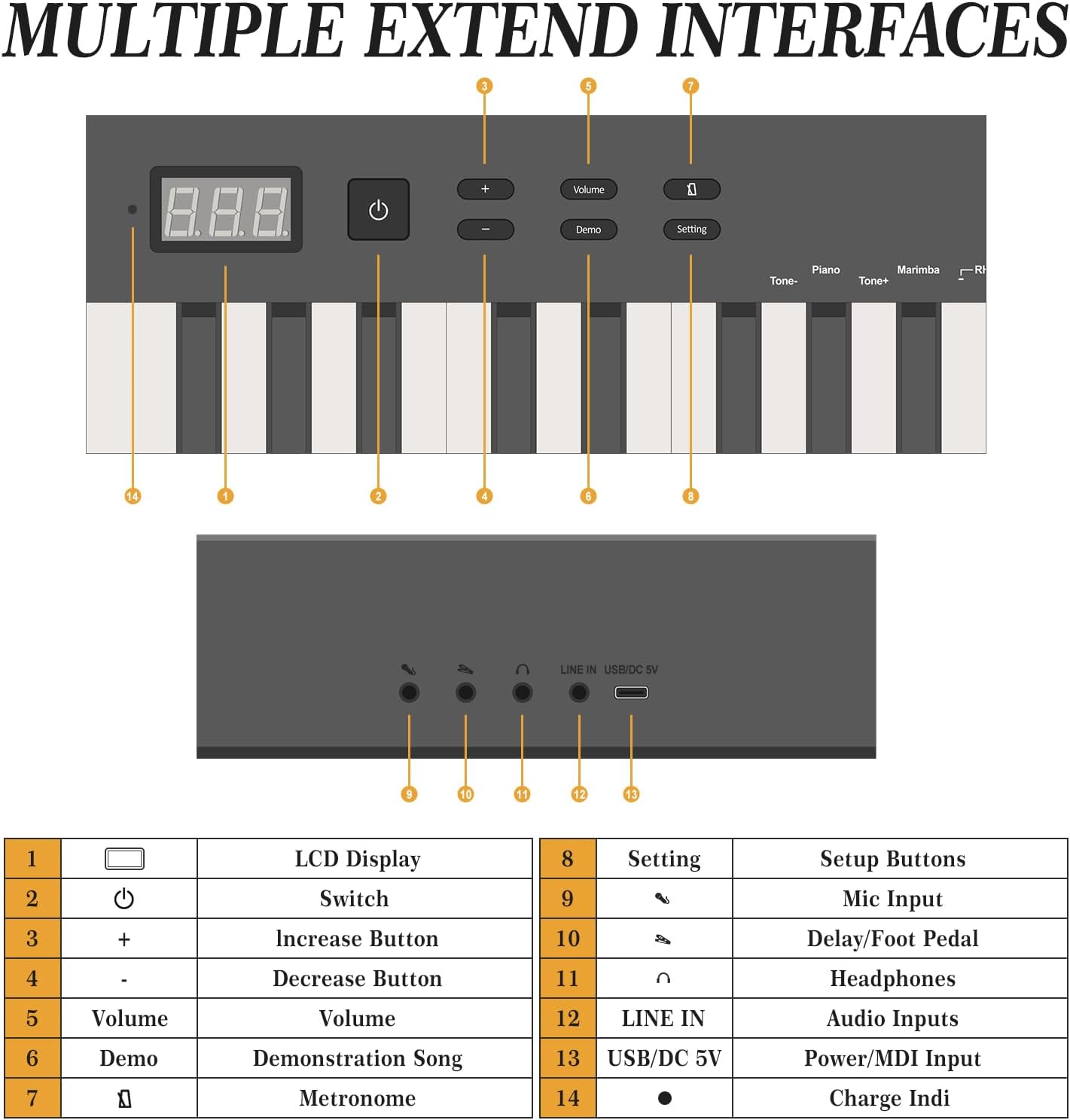
Image: All items included in the Garvee 88-Key Digital Piano Keyboard package.
- Garvee 88-Key Digital Piano Keyboard: The main instrument.
- Carrying Bag: For convenient transport and protection.
- Book Clip (Music Stand): To hold sheet music or a tablet.
- Sustain Pedal: For expressive playing.
- Power Adapter: To power the keyboard.
- Headphones: For private practice sessions.
- Note Stickers: For key identification, especially useful for beginners.
Product Features
Your Garvee Digital Piano Keyboard is equipped with several features designed to enhance your musical journey:
Bluetooth & MIDI Functionality

Image: Bluetooth and MIDI connectivity of the Garvee digital piano with various devices and music applications.
The integrated Bluetooth and MIDI functions allow for wireless connection to external devices such as smartphones, tablets, and computers. This enables interaction with various music learning and production applications like Pop Piano, Perfect Piano, and Garageband, expanding your creative and learning possibilities.
Dual Keyboard Mode

Image: Two individuals playing the Garvee digital piano simultaneously in dual keyboard mode.
This feature divides the 88 keys into two independent sections, allowing two players to use the keyboard simultaneously. It is ideal for teaching scenarios where an instructor can play alongside a student, or for duets.
Rich Sound Functions

Image: Overview of the Garvee digital piano's rich sound functions.
- 129 Tones: A wide variety of instrument sounds to explore.
- 128 Polyphony: Allows for complex musical passages without notes cutting off.
- 30 Demos: Pre-recorded songs for listening and learning.
- MIDI: Musical Instrument Digital Interface for connection to other MIDI devices.
- Record & Play: Capture and review your performances.
- Metronome: Essential tool for rhythm practice.
Semi-Weighted, Touch-Sensitive Keys

Image: Visual representation of the semi-weighted, touch-sensitive keys.
The 88 full-sized keys feature a semi-weighted, touch-sensitive design, mimicking the feel of an acoustic piano. This allows for dynamic expression, where the volume and tone change based on how hard or soft you press the keys.
Portable Design
Its lightweight and foldable design makes the keyboard easy to transport and store, ideal for practice at home, lessons, or while traveling.
Quiet Practice Option
With adjustable volume and a dedicated headphone jack, you can practice privately without disturbing others, fostering focused learning.
Controls and Interfaces
Familiarize yourself with the control panel and various input/output ports:

Image: Labeled diagram of the Garvee digital piano's controls and interfaces.
| No. | Control/Port | Function |
|---|---|---|
| 1 | LCD Display | Shows current settings, tone, and other information. |
| 2 | Switch | Power On/Off button. |
| 3 | + | Increase button for various settings (e.g., tone, volume). |
| 4 | - | Decrease button for various settings. |
| 5 | Volume | Adjusts the overall output volume. |
| 6 | Demo | Plays demonstration songs. |
| 7 | Setting | Accesses setup buttons and advanced settings. |
| 8 | Mic Input | Connect an external microphone. |
| 9 | Delay/Foot Pedal | Connect the sustain pedal or other foot controllers. |
| 10 | Headphones | Connect headphones for private listening. |
| 11 | LINE IN | Audio input for connecting external audio sources. |
| 12 | USB/DC 5V | Power input (DC 5V) and USB port for MIDI data transfer. |
| 13 | Charge Indicator | Indicates charging status. |
Setup
- Unpack: Carefully remove all components from the packaging. Retain packaging for future transport or storage.
- Placement: Place the keyboard on a stable, flat surface. If using the included book clip, attach it to the designated slot.
- Power Connection: Connect the provided power adapter to the USB/DC 5V port (12) on the rear of the keyboard and plug it into a standard electrical outlet. The charge indicator (13) will illuminate.
- Sustain Pedal: Connect the sustain pedal to the Delay/Foot Pedal port (9).
- Headphones (Optional): For private practice, connect your headphones to the Headphone port (10).
Operating Instructions
Power On/Off
- Press the Switch button (2) to turn the keyboard on. The LCD display (1) will light up.
- Press the Switch button (2) again to turn the keyboard off.
Adjusting Volume
- Use the Volume button (5) and the + (3) or - (4) buttons to adjust the master volume.
Selecting Tones/Voices
- Press the Tone+ or Tone- buttons (located near the right side of the keyboard, not explicitly numbered but visible in image 71qoxrO3wuL) to cycle through the available 129 tones. The selected tone will be shown on the LCD display (1).
Playing Demo Songs
- Press the Demo button (6) to start playing demonstration songs.
- Press Demo again to stop or cycle through different demo songs.
Using Metronome
- Press the Metronome button (located near the right side of the keyboard, not explicitly numbered but visible in image 71qoxrO3wuL) to activate the metronome.
- Use the + (3) and - (4) buttons to adjust the tempo.
- Press the Metronome button again to turn it off.
Recording and Playback
- Press the Record button (located near the right side of the keyboard, not explicitly numbered but visible in image 71qoxrO3wuL) to begin recording your performance. The record indicator will light up.
- Play your desired piece.
- Press the Record button again to stop recording.
- Press the Play button (located near the right side of the keyboard, not explicitly numbered but visible in image 71qoxrO3wuL) to listen to your recorded performance.
Bluetooth MIDI Connection
- Ensure your Garvee keyboard is powered on.
- On your external device (smartphone, tablet, computer), enable Bluetooth.
- Open a compatible music application (e.g., Pop Piano, Perfect Piano, Garageband).
- Within the app's settings, locate the MIDI or Bluetooth device connection option.
- Select your Garvee keyboard from the list of available devices to establish a connection.
Maintenance
- Cleaning: Use a soft, dry cloth to wipe the surface of the keyboard. For stubborn dirt, slightly dampen the cloth with water. Avoid using abrasive cleaners, solvents, or waxes, as these can damage the finish.
- Key Cleaning: Gently wipe the keys with a soft, slightly damp cloth. Do not allow liquid to seep between the keys.
- Storage: When not in use, store the keyboard in a cool, dry place, away from direct sunlight and extreme temperatures. Use the provided carrying bag for protection.
- Power Adapter Care: Always handle the power adapter and cable with care. Do not bend or twist the cable excessively. Unplug the adapter from the wall when not in use for extended periods.
Troubleshooting
If you encounter any issues, please refer to the following common problems and solutions:
- No Sound:
- Ensure the keyboard is powered on.
- Check the volume level using the Volume button (5) and +/- buttons (3, 4).
- If headphones are connected, ensure they are fully plugged in and functioning. Disconnect them to check if sound comes from the internal speakers.
- Verify that the power adapter is correctly connected.
- Keys Not Responding:
- Restart the keyboard by turning it off and on again.
- Ensure no foreign objects are lodged between the keys.
- Bluetooth Connection Issues:
- Ensure Bluetooth is enabled on both the keyboard and your external device.
- Make sure the keyboard is within range of the external device.
- Try restarting both the keyboard and the external device.
- Check the settings within your music application to ensure the correct MIDI device is selected.
- Power Indicator Not Lighting Up:
- Check if the power adapter is securely plugged into both the keyboard and the wall outlet.
- Ensure the wall outlet is functional.
- Try using a different compatible USB power source if available.
Specifications
| Feature | Specification |
|---|---|
| Model Number | 82Q1wcofATAiavIyw_3k9QRvBefz |
| Number of Keys | 88 |
| Key Type | Semi-weighted, Touch-sensitive |
| Polyphony | 128 notes |
| Tones | 129 |
| Demo Songs | 30 |
| Connectivity | Bluetooth MIDI, USB/DC 5V, LINE IN, Headphone Out, Mic Input, Foot Pedal |
| Power Supply | DC 5V (USB-powered) |
| Product Dimensions | 50.39"D x 5"W x 10.43"H (128cm D x 12.7cm W x 26.5cm H) |
| Item Weight | 15.43 Pounds (7 kg) |
| Special Features | Foldable design, Dual Speakers |
Warranty and Support
For warranty information or technical support, please refer to the documentation provided with your purchase or contact Garvee customer service through their official website or the retailer where the product was purchased. Please have your model number (82Q1wcofATAiavIyw_3k9QRvBefz) and proof of purchase ready when contacting support.


