
1. Introduction
The Brondi WINDOW 2 is a user-friendly flip mobile phone designed for clear and comfortable communication. It features a larger 2-inch screen for enhanced visibility and ease of use. Key functionalities include active flip to answer/end calls, a dedicated LED torch, and notifications visible when the flip is closed. This device supports Dual SIM functionality, allowing you to manage two numbers simultaneously. The package includes the WINDOW 2 mobile phone, a Type-C charger, battery, and this user manual.
Product Features:
- 2-inch display for clear viewing.
- Active Flip: Answer and end calls by simply opening or closing the phone.
- LED Torch: Instant illumination with a dedicated button.
- Closed Flip Notifications: Check calls and messages without opening the phone.
- Vibration: Ensures you don't miss calls, even in silent mode.
- Dual SIM: Manage two phone numbers on one device.
- Long Battery Life: Up to 190 minutes talk time and 160 hours standby.
- Type-C Charger: Modern and convenient charging.
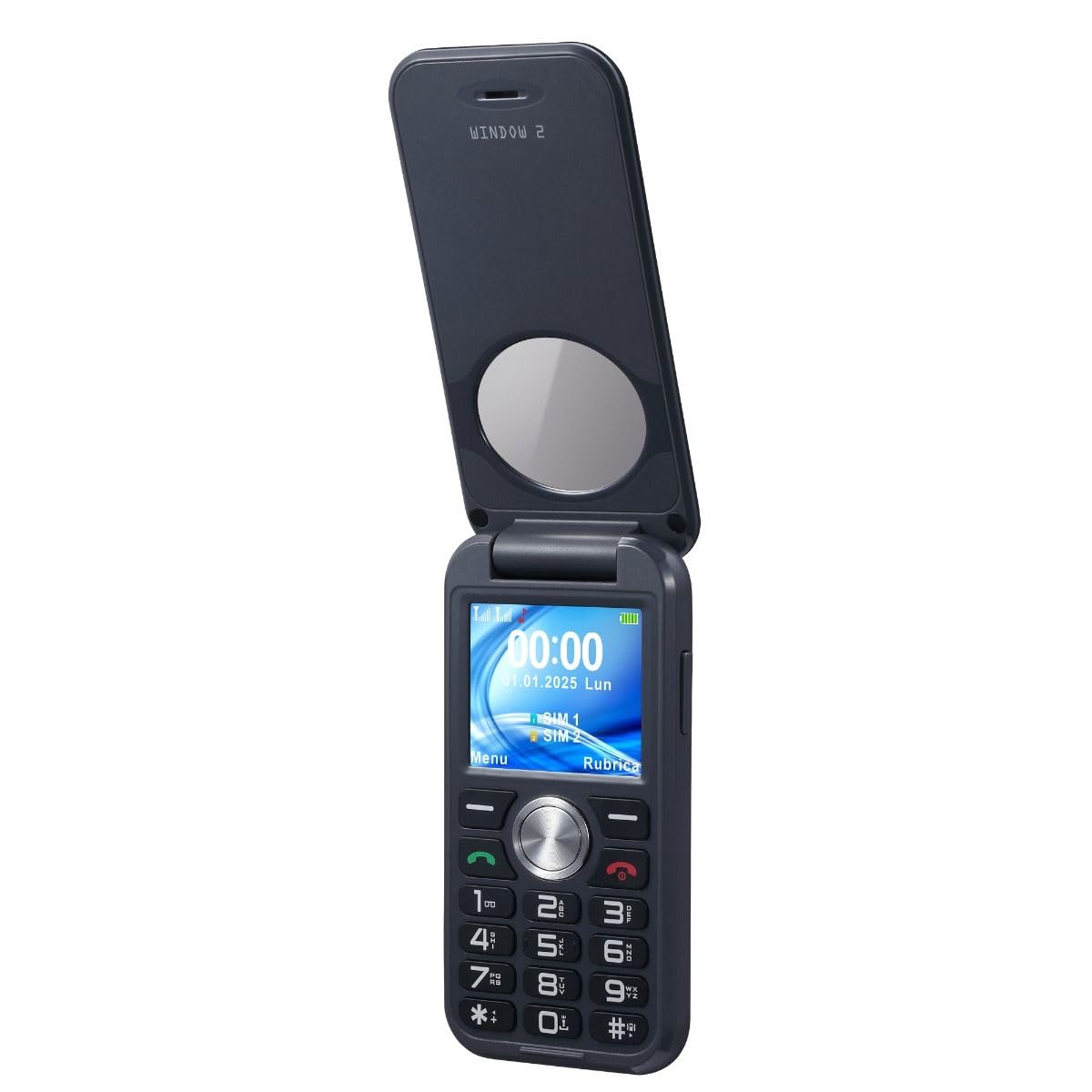

2. Setup
2.1. Unboxing and Initial Inspection
Carefully remove all components from the packaging. Verify that all items listed in the 'What's in the Box' section are present and undamaged.
2.2. Battery and SIM Card Installation
To install the battery and SIM card(s):
- Remove the back cover of the phone.
- Insert your SIM card(s) into the designated slot(s). The Brondi WINDOW 2 supports Dual SIM.
- Place the battery into its compartment, ensuring the contacts align correctly.
- Replace the back cover until it clicks securely into place.
2.3. Charging the Battery
Connect the Type-C charger to the phone and a power outlet. The charging indicator will illuminate. If the battery is completely drained, the indicator may not respond immediately; wait patiently for a few minutes for the charging process to initiate and the indicator to appear.
3. Operating Instructions
3.1. Power On/Off
To power on the phone, press and hold the power button until the screen illuminates. To power off, press and hold the power button and select 'Power Off' from the options.
3.2. Making and Receiving Calls
- Making a Call: Enter the phone number using the keypad and press the green call button.
- Receiving a Call (Active Flip): Simply open the flip cover to answer an incoming call. Close the flip cover to end the call.
3.3. SOS Emergency Calls
The phone features an SOS emergency button. Pressing this button will automatically dial up to 5 pre-set family numbers. Ensure emergency contacts are configured in the phone settings.
3.4. Using the LED Torch
The Brondi WINDOW 2 includes a dedicated LED torch. Press the torch button on the side of the phone to turn it on or off.
3.5. Adjusting Volume
Use the volume control buttons located on the side of the phone to adjust call volume, ringtone volume, and media volume.
3.6. Language Settings
To change the phone's language:
- Go to Settings.
- Select Phone Settings.
- Choose Languages.
- Select your desired language and confirm with OK.
3.7. Setting Ringtones
To customize your phone's ringtones:
- Navigate to Settings.
- Select Profiles, then General.
- Choose Customize.
- Select SIM1 Ringtone or SIM2 Ringtone to set your preferred ringtone.
3.8. Disabling Keypad Vocals
If you wish to turn off the vocal feedback when pressing keypad buttons:
- Go to Settings.
- Select Profiles, then General.
- Choose Customize.
- Find Keypad and select Click or Silent instead of Human Voice.
4. Maintenance
4.1. Battery Care
To maximize battery life and performance:
- Avoid exposing the phone to extreme temperatures.
- Charge the battery fully before first use.
- If the phone is not used for an extended period, charge it periodically to prevent deep discharge.
- The battery capacity is 800 mAh, providing approximately 3.17 hours of average battery life and 190 minutes of talk time.
4.2. General Care
- Keep the phone dry. This device is not water resistant.
- Clean the phone with a soft, dry cloth. Avoid using harsh chemicals.
- Protect the screen from scratches by keeping it away from sharp objects.
5. Troubleshooting
5.1. Common Issues and Solutions
- Phone does not power on: Ensure the battery is correctly inserted and charged. Connect the charger and wait a few minutes if the battery was completely drained.
- Cannot make/receive calls: Check if the SIM card(s) are properly inserted and activated. Verify network signal strength.
- No sound or low volume: Adjust the volume using the side buttons. Check ringtone settings.
- Keypad vocals are active/inactive unexpectedly: Refer to section 3.8 for instructions on disabling/enabling keypad vocals.
6. Specifications
| Feature | Detail |
|---|---|
| Brand | Brondi |
| Model Name | WINDOW 2 |
| Operating System | Proprietary |
| Memory Capacity | 1 GB |
| Screen Size | 2 Inches |
| Resolution | 208 x 156 |
| Wireless Carrier | All carriers |
| Cellular Technology | 2G |
| Connectivity Technology | GSM |
| Color | Black |
| SIM Card Slots | Dual SIM |
| Charging Port | USB-C |
| Form Factor | Flip |
| User Interface Type | Alphanumeric keypad |
| Water Resistance Level | Not water resistant |
| Headphone Jack | 3.5 mm |
| Camera Flash | LED |
| Battery Capacity | 800 Milliamper-hour (mAh) |
| Average Battery Life | 3.17 Hours |
| Talk Time | 190 Minutes |
| GPS Functionality | False |
| Screen Type | LCD |
7. Warranty and Support
7.1. Product Warranty
The Brondi WINDOW 2 mobile phone comes with a 2-year manufacturer's warranty. Please retain your proof of purchase for warranty claims.
7.2. Manufacturer Information
Manufacturer: Brondi
7.3. Further Assistance
For additional support or inquiries, please refer to the official Brondi website or contact their customer service.


