
Introduction
This manual provides instructions for the PERFASCIN RC833A FMB2 Replacement Voice Remote Control. It is designed to operate specific TCL TV models, including the C7K Premium QD-Mini LED TV and C7K QLED 55P79K. Please read this manual thoroughly before use to ensure proper setup and operation.
Package Contents
- 1 x PERFASCIN RC833A FMB2 Replacement Voice Remote Control
Product Overview
The PERFASCIN RC833A FMB2 remote control features a standard layout with dedicated buttons for navigation, volume, channel control, and direct access to streaming services. It also includes a voice control function for enhanced interaction with your television.

Image 1: Front view of the PERFASCIN RC833A FMB2 Replacement Voice Remote Control, showing all buttons including number pad, navigation, volume, channel, and app shortcuts.
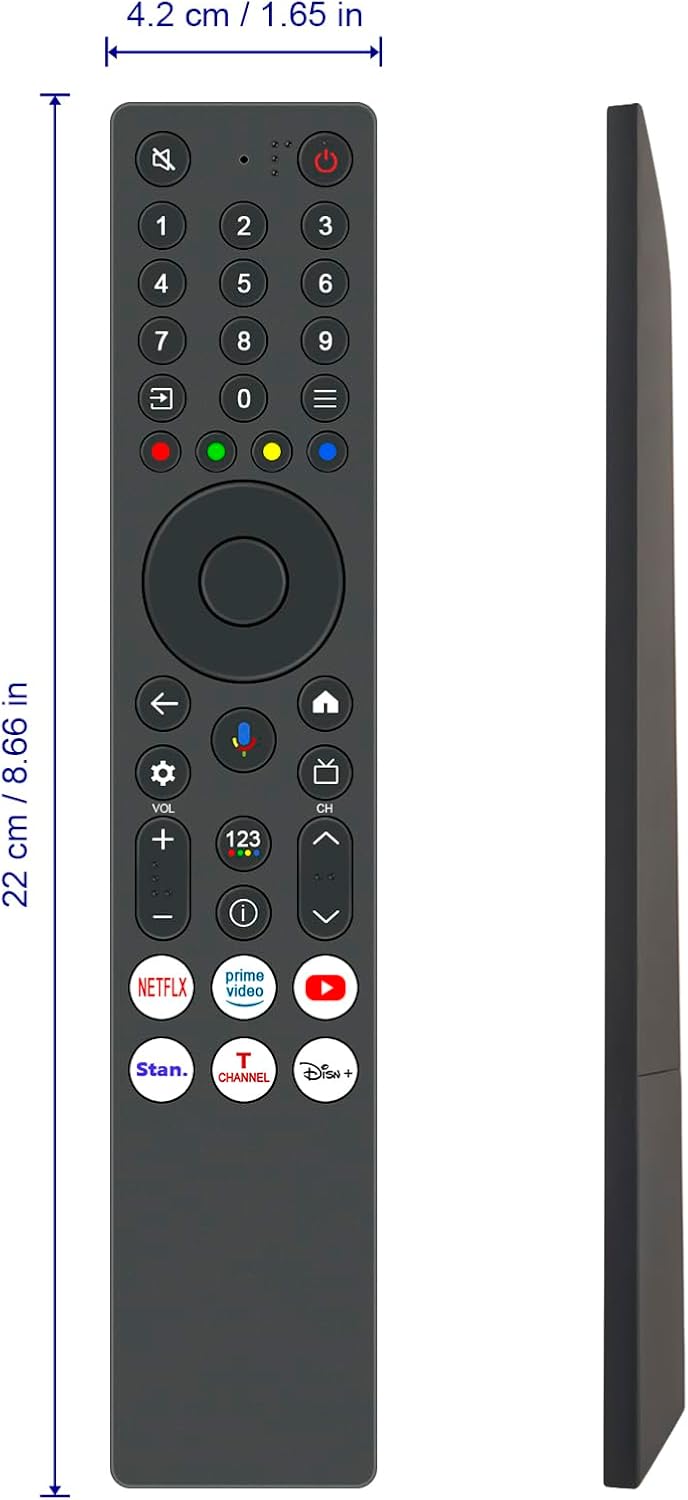
Image 2: Side and front view of the remote control, illustrating its physical dimensions (approximately 22 cm / 8.66 inches in length and 4.2 cm / 1.65 inches in width).
Button Functions
| Button | Function |
|---|---|
| Power (Red button) | Turns the TV on or off. |
| Mute (Speaker with cross icon) | Mutes or unmutes the TV audio. |
| Number Pad (0-9) | Direct channel selection or inputting numbers. |
| Input Source (Arrow in box icon) | Selects the input source (HDMI, AV, etc.). |
| Navigation Pad (Up, Down, Left, Right, OK) | Navigates menus and confirms selections. |
| Back (Left arrow icon) | Returns to the previous screen or menu. |
| Voice Control (Microphone icon) | Activates the voice assistant for commands and search. |
| Home (House icon) | Returns to the TV's home screen. |
| Settings (Gear icon) | Accesses TV settings menu. |
| Volume Up/Down (VOL +/-) | Adjusts the TV volume. |
| Channel Up/Down (CH +/-) | Changes TV channels. |
| Netflix, Prime Video, YouTube, Stan., T Channel, Disney+ | Direct access buttons for specified streaming applications. |
Setup
1. Battery Installation
- Locate the battery compartment on the back of the remote control.
- Slide the battery cover downwards to open it.
- Insert two AAA batteries, ensuring the positive (+) and negative (-) terminals match the indicators inside the compartment.
- Slide the battery cover back into place until it clicks securely.

Image 3: Rear view of the remote control with the battery cover removed, showing the battery compartment for AAA batteries.
2. Pairing the Remote Control (for Voice Functionality)
This remote control is a voice remote and requires pairing with your TCL TV to enable voice commands and full functionality. The pairing process may vary slightly depending on your specific TCL TV model. Refer to your TV's user manual for detailed pairing instructions if these steps do not work.
- Ensure your TCL TV is powered on.
- Press the Home button on your remote control.
- Navigate to Settings on your TV screen.
- Select Remotes & Accessories or a similar option.
- Choose Add Accessory or Pair Remote.
- Follow the on-screen prompts. You may be instructed to press and hold specific buttons on the new remote (e.g., the OK button and Home button simultaneously, or the Voice Control button) until an indicator light flashes or a message appears on the TV screen confirming successful pairing.
- Once paired, test the voice control by pressing the Voice Control button and speaking a command.

Image 4: Close-up view of the remote control, specifically highlighting the voice control button with its microphone icon.
Operating the Remote Control
Basic TV Control
- Power: Press the red power button to turn the TV on or off.
- Volume: Use the VOL +/- buttons to adjust the sound level.
- Channels: Use the CH +/- buttons to change channels.
- Navigation: Use the Up, Down, Left, Right arrows and the OK button to navigate menus and select options.
- Input Source: Press the Input Source button to switch between connected devices (e.g., HDMI 1, HDMI 2).
Using Voice Control
After successful pairing, you can use voice commands:
- Press and hold the Voice Control button (microphone icon).
- Speak clearly into the remote control.
- Release the button when you have finished speaking.
- Examples of commands: "Open Netflix," "Search for action movies," "What's the weather like?"
App Shortcut Buttons
The remote includes dedicated buttons for quick access to popular streaming services:
- Press the Netflix button to launch the Netflix application.
- Press the Prime Video button to launch Amazon Prime Video.
- Press the YouTube button to launch YouTube.
- Other dedicated buttons (Stan., T Channel, Disney+) will launch their respective applications.
Maintenance
Cleaning
- Wipe the remote control with a soft, dry cloth.
- Do not use liquid cleaners or abrasive materials, as these can damage the remote.
Battery Replacement
- Replace batteries when the remote's response becomes sluggish or stops working.
- Always replace both batteries at the same time with new AAA batteries.
- Do not mix old and new batteries, or different types of batteries.
- Remove batteries if the remote will not be used for an extended period to prevent leakage.
Troubleshooting
| Problem | Solution |
|---|---|
| Remote not responding. |
|
| Voice control not working. |
|
| App shortcut buttons not working. |
|
Specifications
- Model: RC833A FMB2
- Compatible TV Models: TCL C7K Premium QD-Mini LED TV, TCL C7K QLED 55P79K (RC833A-FMB2 G0401-000264)
- Special Feature: Voice Search
- Power Source: 2 x AAA Batteries (not included)
- Material: ABS
- Color: Black
- Dimensions: Approximately 22 cm (8.66 inches) x 4.2 cm (1.65 inches)
- Weight: Approximately 1 ounce (without batteries)
Warranty and Support
For warranty information or technical support, please refer to the documentation provided with your original purchase or contact the seller directly. The manufacturer, PERFASCIN, may also offer support resources.
For further assistance, you may visit the PERFASCIN brand page on Amazon.