
Introduction
Thank you for choosing the Digitus DA-70919 USB-C 8K 12-Port Docking Station. This device is designed to expand the connectivity of your USB-C enabled laptop or computer, providing a comprehensive solution for video output, data transfer, network access, and power delivery. Please read this manual carefully to ensure proper installation and operation.
Product Overview
The Digitus DA-70919 docking station offers 12 essential ports to enhance your workspace. It supports high-resolution video output, fast data transfer, and efficient power delivery to your host device.

Figure 1: Detailed diagram of the Digitus DA-70919 docking station ports and their functions. This diagram labels each of the 12 ports on the docking station, including Audio Jack, USB-A, USB-C, USB-C PD, DisplayPort, HDMI, RJ45 Gigabit Ethernet, and SD/MicroSD card slots, along with anti-theft protection.

Figure 2: Front view of the Digitus DA-70919 docking station showing all accessible ports. A clear view of the docking station's front panel, displaying the various input and output ports including USB-A, USB-C, HDMI, DisplayPort, Ethernet, and card readers.
Key Features:
- Video Output: 2x HDMI, 1x DisplayPort (DP) supporting up to 8K/30Hz for single display, or multi-display configurations.
- USB Data Ports: 2x USB-A 3.2 Gen 2 (10Gbps), 1x USB-A 3.2 Gen 1 (5Gbps), 1x USB-C 3.2 Gen 2 (10Gbps).
- Power Delivery (PD): USB-C PD 3.0 port for charging your host laptop (up to 85W output).
- Network: Gigabit Ethernet (RJ45) for stable wired internet connection.
- Card Readers: SD and MicroSD card slots with 104 MBps transfer speed.
- Audio: 3.5mm audio jack for headphones or speakers.
Setup Instructions
Follow these steps to set up your Digitus DA-70919 docking station:
- Check Host USB-C Port Compatibility: Ensure your laptop's USB-C port supports DisplayPort Alternate Mode (DP Alt Mode) for video output and Power Delivery for charging. Without DP Alt Mode, video output will not function.

Figure 3: Guide to USB-C port compatibility for DisplayPort Alternate Mode. This graphic explains which types of USB-C ports on your laptop support the full functionality of the docking station, specifically highlighting the requirement for DisplayPort Alternate Mode (DP Alt Mode) for video output.
- Connect to Host Device: Connect the integrated USB-C cable from the docking station to the USB-C port on your laptop.
- Connect Power Adapter (Optional but Recommended): If you wish to charge your laptop via the docking station or power high-demand peripherals, connect a USB-C Power Delivery adapter (not included, up to 100W recommended) to the USB-C PD input port on the docking station.
- Connect External Displays: Connect your monitors to the HDMI and/or DisplayPort outputs on the docking station using appropriate cables.
- Connect Peripherals: Plug in your USB devices (keyboard, mouse, external drives), Ethernet cable, SD/MicroSD cards, and audio devices to the corresponding ports on the docking station.
- Driver Installation: In most cases, the docking station is plug-and-play and does not require additional drivers. If prompted, allow your operating system to install any necessary drivers automatically.
Operating Instructions
Display Modes
The docking station supports various display configurations:
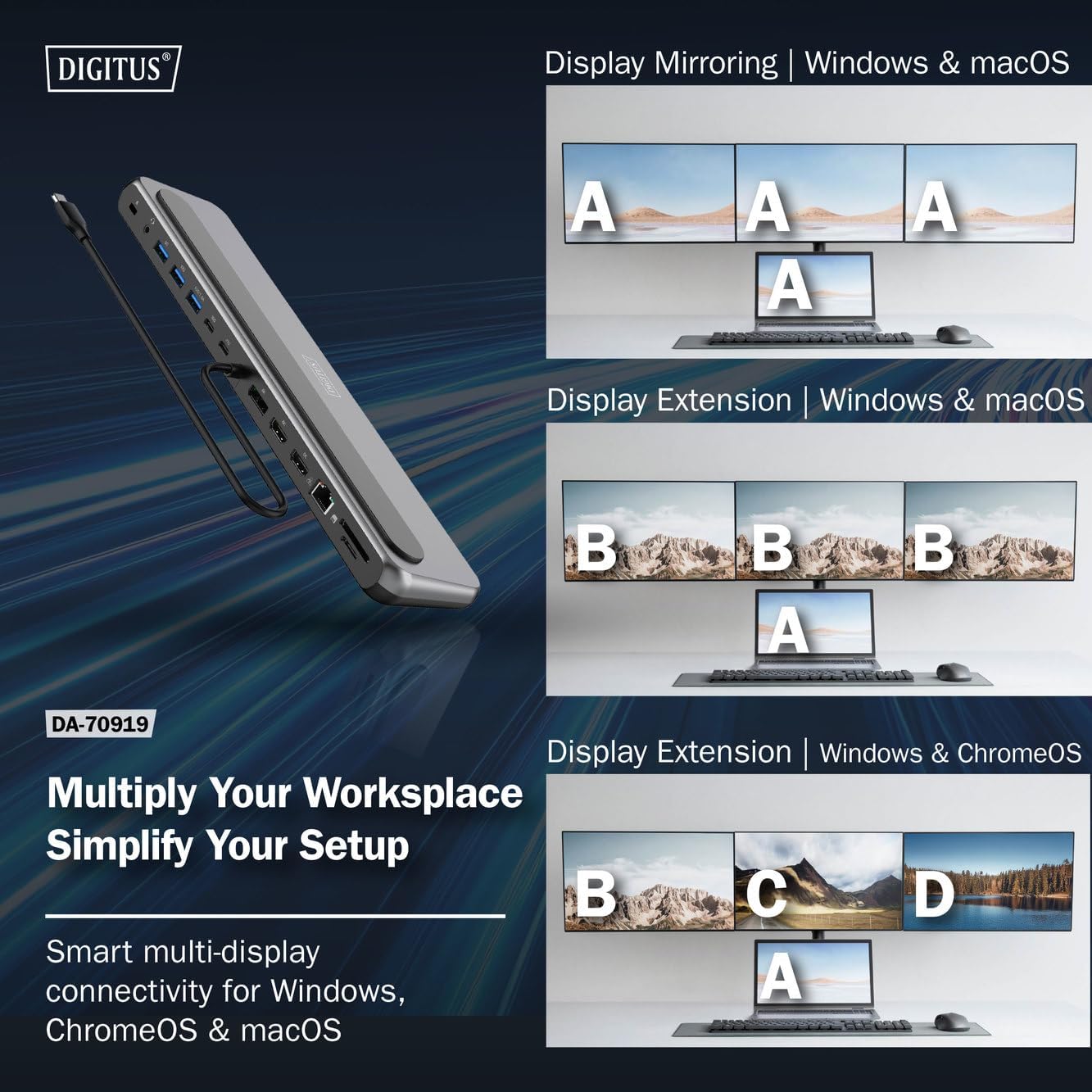
Figure 4: Diagram showing display mirroring and extension modes for Windows, macOS, and ChromeOS. This image illustrates the various display configurations supported by the docking station, including mirroring your screen or extending it across multiple external monitors on Windows, macOS, and ChromeOS.
- Mirror Mode: Duplicates your laptop's display onto the external monitors.
- Extend Mode (Windows/ChromeOS): Extends your desktop across multiple external monitors, allowing for a multi-tasking environment. Supports dual monitors (2x 4K/60Hz) and triple monitors (1x 4K/60Hz + 2x 4K/30Hz) in MST (Multi Stream Transport) mode.
- Extend Mode (macOS): macOS typically supports extended desktop to one external monitor, with other external monitors mirroring each other.
To configure display settings, access your operating system's display settings (e.g., Windows Display Settings, macOS System Preferences > Displays).
Data Transfer
Utilize the USB-A and USB-C data ports for connecting external storage devices, keyboards, mice, and other USB peripherals. The USB 3.2 Gen 2 ports offer speeds up to 10Gbps, while the USB 3.2 Gen 1 port offers speeds up to 5Gbps.
Power Delivery
When a compatible USB-C PD power adapter is connected to the docking station's PD input port, the docking station can deliver up to 85W of power to charge your connected laptop. This allows you to power your laptop and peripherals through a single USB-C connection.
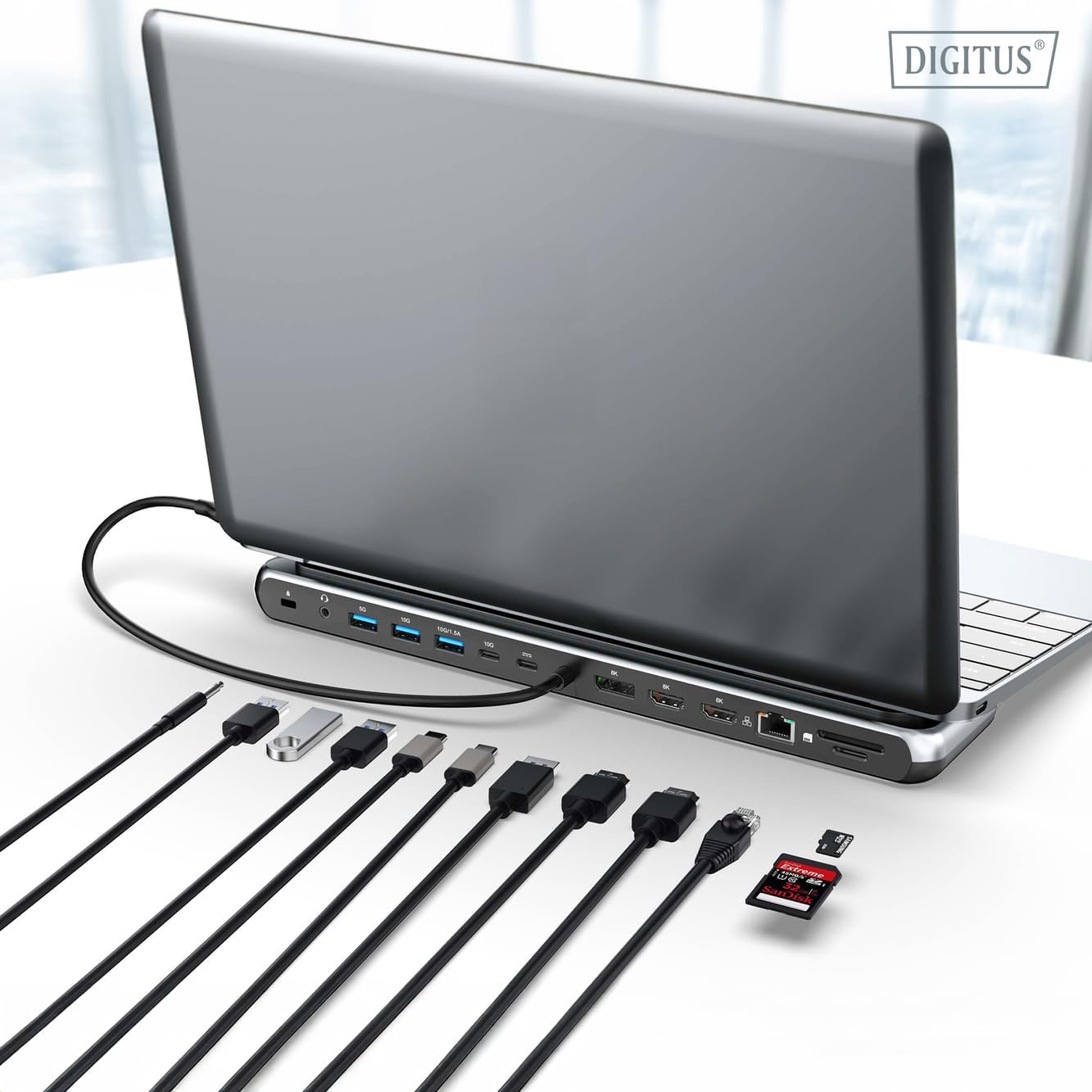
Figure 5: Illustration of the docking station's fast charging capability via USB-C Power Delivery. This image demonstrates the Power Delivery function, showing a 100W input to the docking station and an 85W output to charge the connected laptop.
Network Connection
Connect an Ethernet cable to the RJ45 port for a stable and high-speed wired network connection (10/100/1000 Mbps Gigabit Ethernet).
Card Readers
Insert SD or MicroSD cards into the dedicated slots for quick access to photos, videos, and other files. The card readers support transfer speeds up to 104 MBps.
Audio Output
Connect your headphones or speakers to the 3.5mm audio jack for audio output.
Maintenance
- Cleaning: Use a soft, dry cloth to clean the surface of the docking station. Avoid using liquid cleaners or solvents.
- Storage: Store the docking station in a cool, dry place away from direct sunlight and extreme temperatures.
- Handling: Avoid dropping or subjecting the device to strong impacts. Do not attempt to disassemble the docking station.
Troubleshooting
If you encounter issues with your docking station, please refer to the following common solutions:
- No Display Output:
- Ensure your laptop's USB-C port supports DisplayPort Alternate Mode.
- Check all video cables (HDMI/DP) are securely connected to both the docking station and the monitor.
- Verify that the monitor is powered on and set to the correct input source.
- Try connecting one monitor at a time to isolate the issue.
- Update your laptop's graphics drivers.
- No Power Delivery to Laptop:
- Ensure a compatible USB-C PD power adapter (up to 100W) is connected to the docking station's PD input port.
- Verify that your laptop's USB-C port supports Power Delivery.
- Check the power adapter and cable for damage.
- USB Devices Not Recognized:
- Reconnect the USB device to a different port on the docking station.
- Ensure the docking station is properly connected to the host laptop.
- If using a high-power USB device, ensure the docking station is connected to an external power adapter.
- Ethernet Connection Issues:
- Check the Ethernet cable connection to both the docking station and your router/modem.
- Verify network settings on your laptop.
- Restart your router/modem and laptop.
- Card Reader Not Working:
- Ensure the SD/MicroSD card is inserted correctly and fully.
- Test the card with another device to confirm it is not damaged.
Specifications
| Feature | Specification |
|---|---|
| Model | DA-70919 |
| Host Connection | USB-C (integrated cable) |
| Video Output | 2x HDMI, 1x DisplayPort (DP) |
| Max. Single Display Resolution | 8K (7680x4320) @ 30Hz |
| Max. Dual Display Resolution (MST) | 2x 4K (3840x2160) @ 60Hz |
| Max. Triple Display Resolution (MST) | 1x 4K@60Hz + 2x 4K@30Hz |
| USB-A Data Ports | 2x USB 3.2 Gen 2 (10Gbps), 1x USB 3.2 Gen 1 (5Gbps) |
| USB-C Data Port | 1x USB 3.2 Gen 2 (10Gbps) |
| Power Delivery (PD) Input | USB-C PD 3.0 (up to 100W) |
| Power Delivery (PD) Output to Host | Up to 85W |
| Ethernet | RJ45 Gigabit (10/100/1000 Mbps) |
| Card Readers | SD, MicroSD (104 MBps) |
| Audio | 1x 3.5mm Audio Jack |
| Compatibility | Windows, macOS, ChromeOS |
| Operating Temperature | 0°C to 45°C (32°F to 113°F) |
| Storage Temperature | -10°C to 70°C (14°F to 158°F) |
Warranty and Support
The Digitus DA-70919 USB-C 8K 12-Port Docking Station comes with a 2-year warranty from the date of purchase. This warranty covers manufacturing defects and ensures the product functions as described under normal use.
For technical support, warranty claims, or further assistance, please contact your retailer or visit the official Digitus website for contact information. Please have your product model number (DA-70919) and proof of purchase ready when seeking support.


