
1. Introduction
This manual provides detailed instructions for the NBD 5K Digital Camera, Model B0FR94J83W. This camera is designed for photography and vlogging, featuring 5K video recording, 64MP still images, a 180° flip screen, 16X digital zoom, auto-focus, and macro lens capabilities. Please read this manual thoroughly before using your camera to ensure proper operation and to maximize its features.
2. Package Contents
Verify that all items listed below are included in your package:
- NBD 5K Digital Camera (Model B0FR94J83W)
- Wide-angle/Macro Lens (52mm)
- External Microphone
- 64GB Memory Card
- USB Cable
- 2 x Lithium-Ion Batteries
- Battery Charger
- Camera Neck Rope
- Black Leather Bag
- Lens Cleaning Cloth
- Card Reader
Note: The camera body and accessories are included as a complete kit.

Image: All components included in the NBD 5K Digital Camera kit.
3. Camera Overview
Familiarize yourself with the main components of your NBD 5K Digital Camera.
Front View
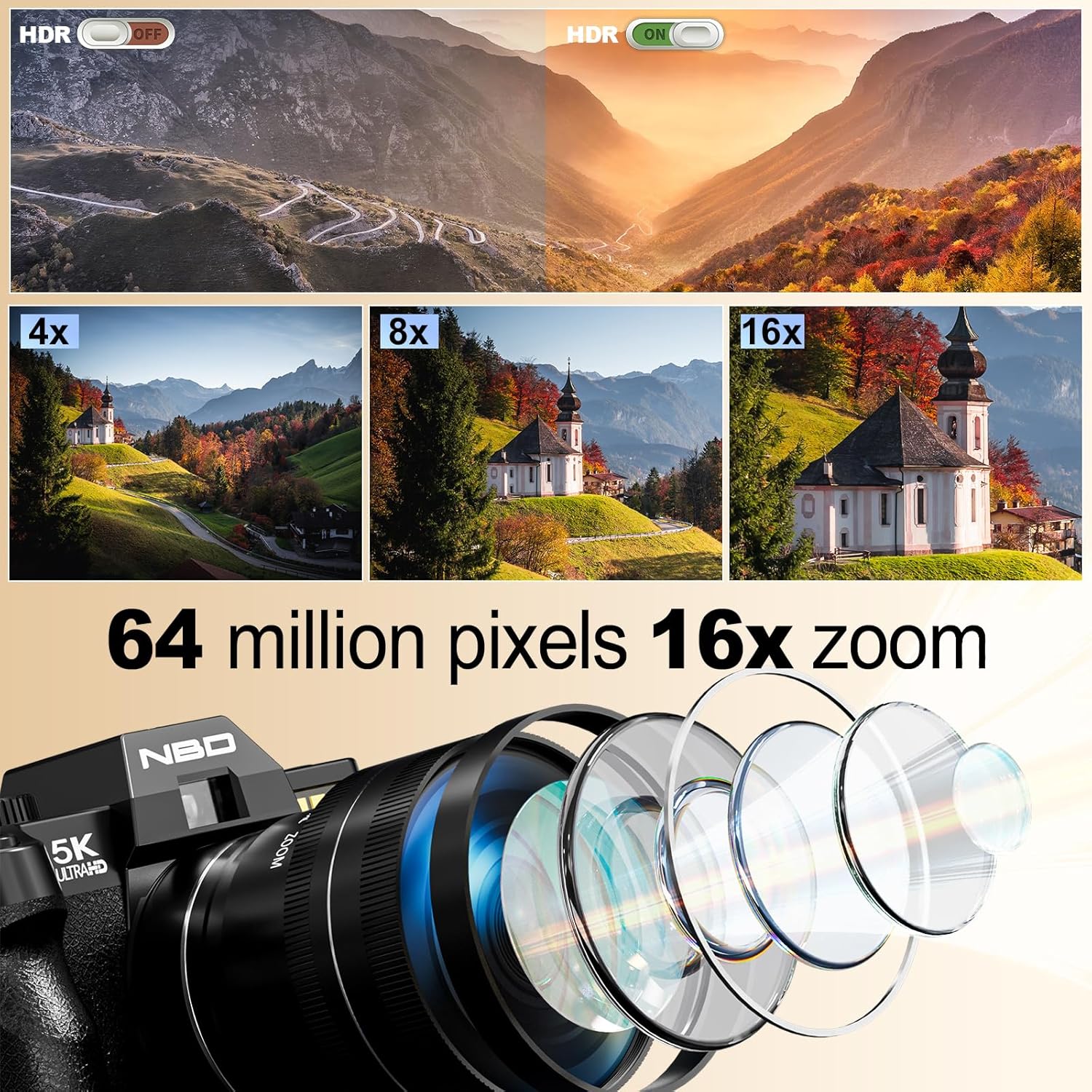
Image: Front view of the camera, showing the lens, flash, and NBD branding.
- Lens: Digital zoom lens with F1.8 aperture and macro capability.
- Flash: Built-in flash for low-light conditions.
- Shutter Button: To capture photos or start/stop video recording.
Rear View

Image: Rear view of the camera, highlighting the 180° flip screen and control buttons.
- 180° Flip Screen (LCD): For easy self-portraits and vlogging.
- Navigation Buttons: For menu navigation and settings adjustment.
- Mode Dial: To select various shooting modes.
Side View (Ports)
Video: A close-up view of the camera's ports, including USB and microphone input.
- USB Port: For charging and data transfer.
- Microphone Input: For connecting the external microphone.
4. Setup
4.1. Battery Installation and Charging
- Open the battery compartment cover located at the bottom of the camera.
- Insert a fully charged Lithium-Ion battery, ensuring correct polarity.
- Close the battery compartment cover securely.
- To charge, connect the camera to a power source using the provided USB cable and charger. The charging indicator light will show the charging status.
4.2. Memory Card Installation
The camera supports a 64GB TF card (microSD). Ensure the card is inserted correctly.
- Locate the memory card slot, usually near the battery compartment or on the side.
- Insert the 64GB TF card with the gold contacts facing the correct direction until it clicks into place.
- It is recommended to format the memory card via the camera's menu before first use to ensure compatibility and optimal performance.
4.3. Lens Attachment
The camera comes with a wide-angle/macro lens. This lens can be attached to the front of the camera's main lens.
Video: Demonstrates how to attach the wide-angle/macro lens to the camera.
- Align the threads of the wide-angle/macro lens with the threads on the front of the camera's built-in lens.
- Gently twist the accessory lens clockwise until it is securely fastened.
- To use the macro function, unscrew the front part of the accessory lens, leaving the macro component attached to the camera.
4.4. External Microphone Connection
For enhanced audio quality, connect the included external microphone.
- Locate the microphone input port on the camera (refer to the Camera Overview section).
- Plug the external microphone's jack into the microphone input port.
- Ensure the microphone is securely connected before recording.
5. Operating the Camera
5.1. Power On/Off
Press and hold the power button (usually located on the top or side) to turn the camera on or off.
5.2. Basic Photography
- Select Mode: Rotate the mode dial to the desired shooting mode (e.g., Automatic, Portrait).
- Frame Your Shot: Use the 180° flip screen to compose your image.
- Focus: The camera features auto-focus. Half-press the shutter button to allow the camera to focus. A green box will indicate focus lock.
- Capture: Fully press the shutter button to take a 64MP photo.
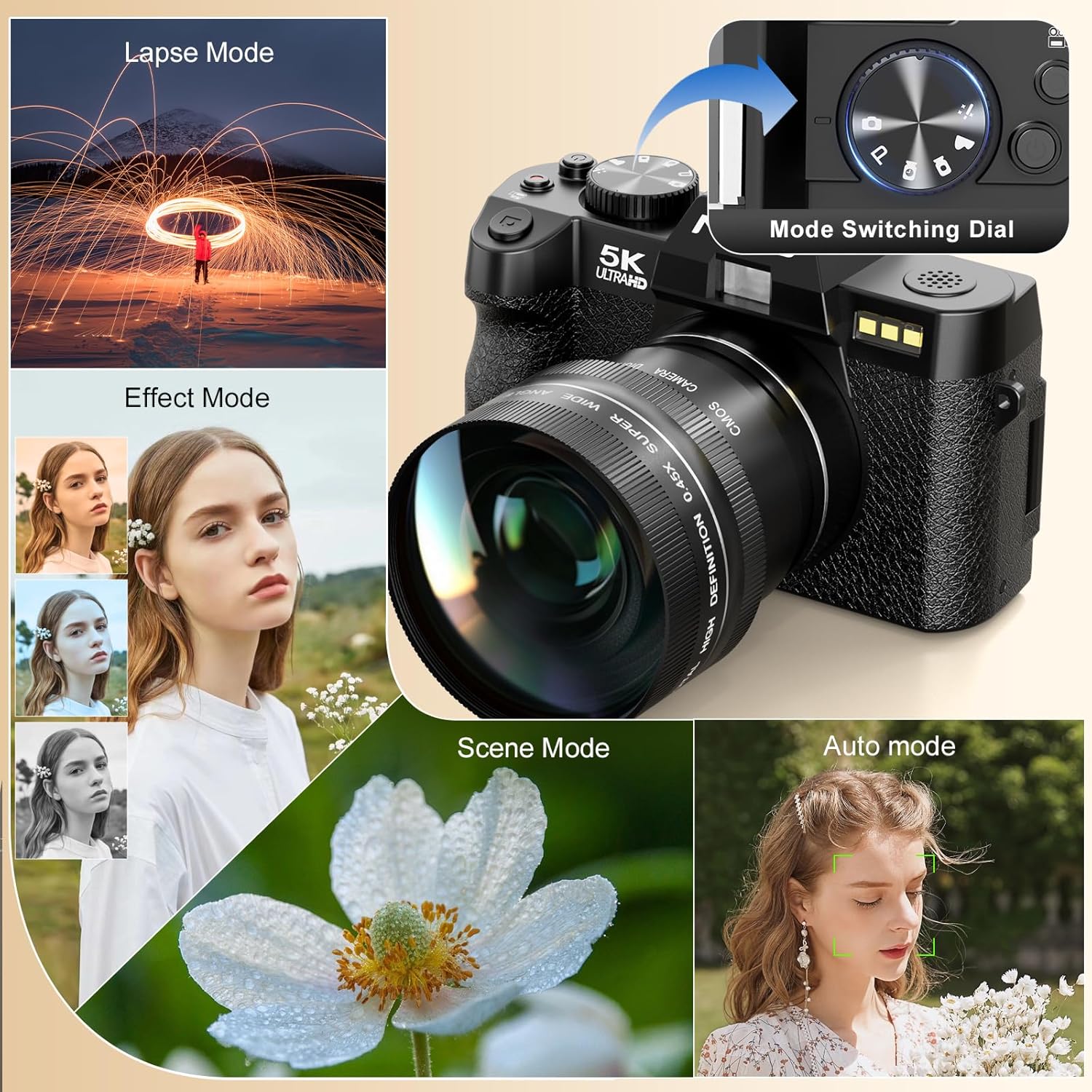
Image: Illustrates the camera's 64 million effective pixels, AF mode, and low-light focusing capabilities.
5.3. Using Digital Zoom
The camera supports 16X digital zoom. Use the zoom lever (often around the shutter button) to zoom in or out.
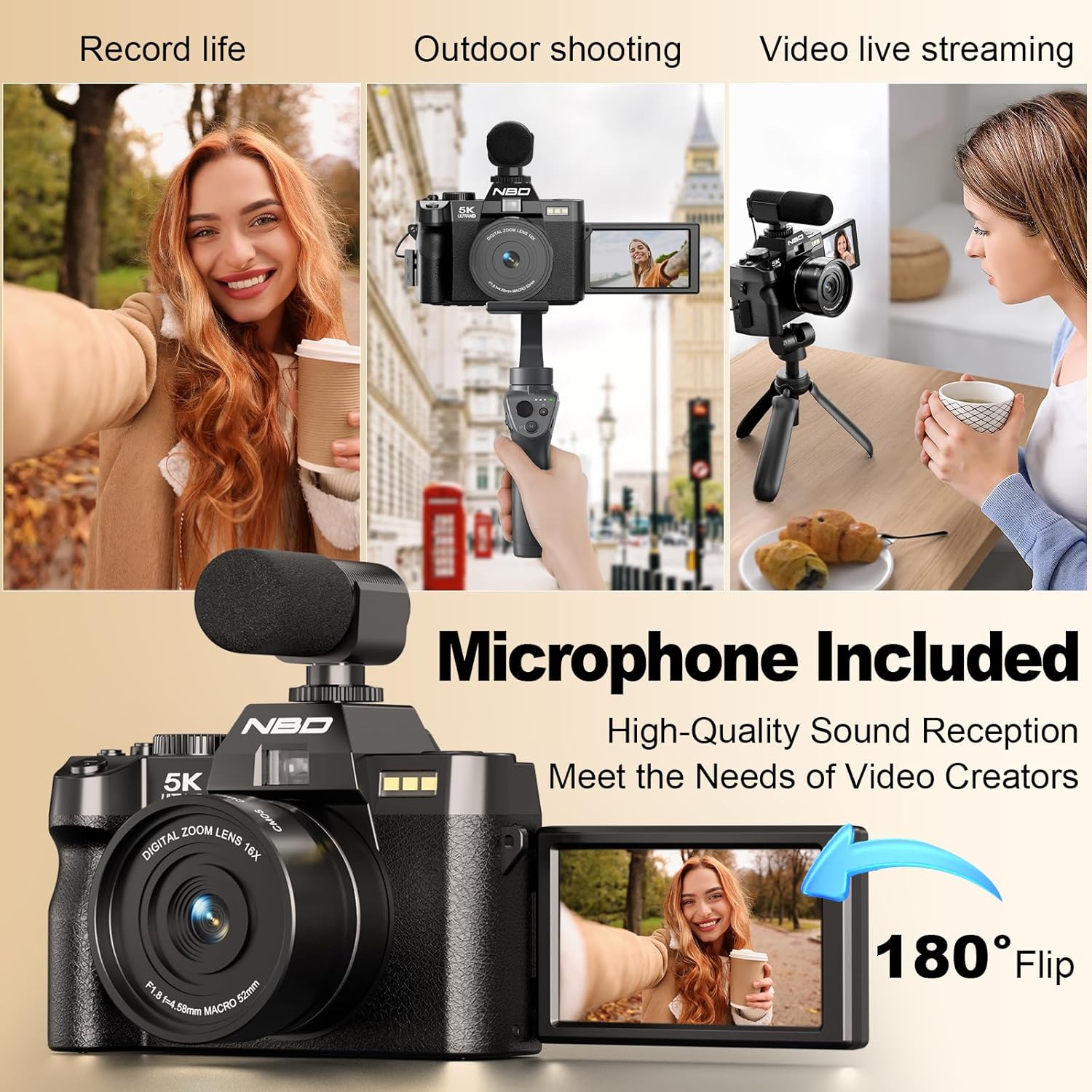
Image: Visual representation of 4x, 8x, and 16x digital zoom levels on the NBD 5K Digital Camera.
5.4. Video Recording
The camera supports 5K 25fps and 1080P 60fps video recording.
Video: Shows the NBD 5K Digital Camera in action, recording video in various settings.
- Select Video Mode: Rotate the mode dial to the video camera icon.
- Start Recording: Press the shutter button to begin recording.
- Stop Recording: Press the shutter button again to stop recording.
- Vlogging: Utilize the 180° flip screen to monitor yourself while recording. Ensure the external microphone is connected for clear audio.

Image: Demonstrates the superior detail of 5K video resolution compared to 2K and 1080P.

Image: The camera set up for vlogging, showing the external microphone and flip screen.
5.5. Camera Modes
The mode dial allows selection of various shooting modes for different scenarios:
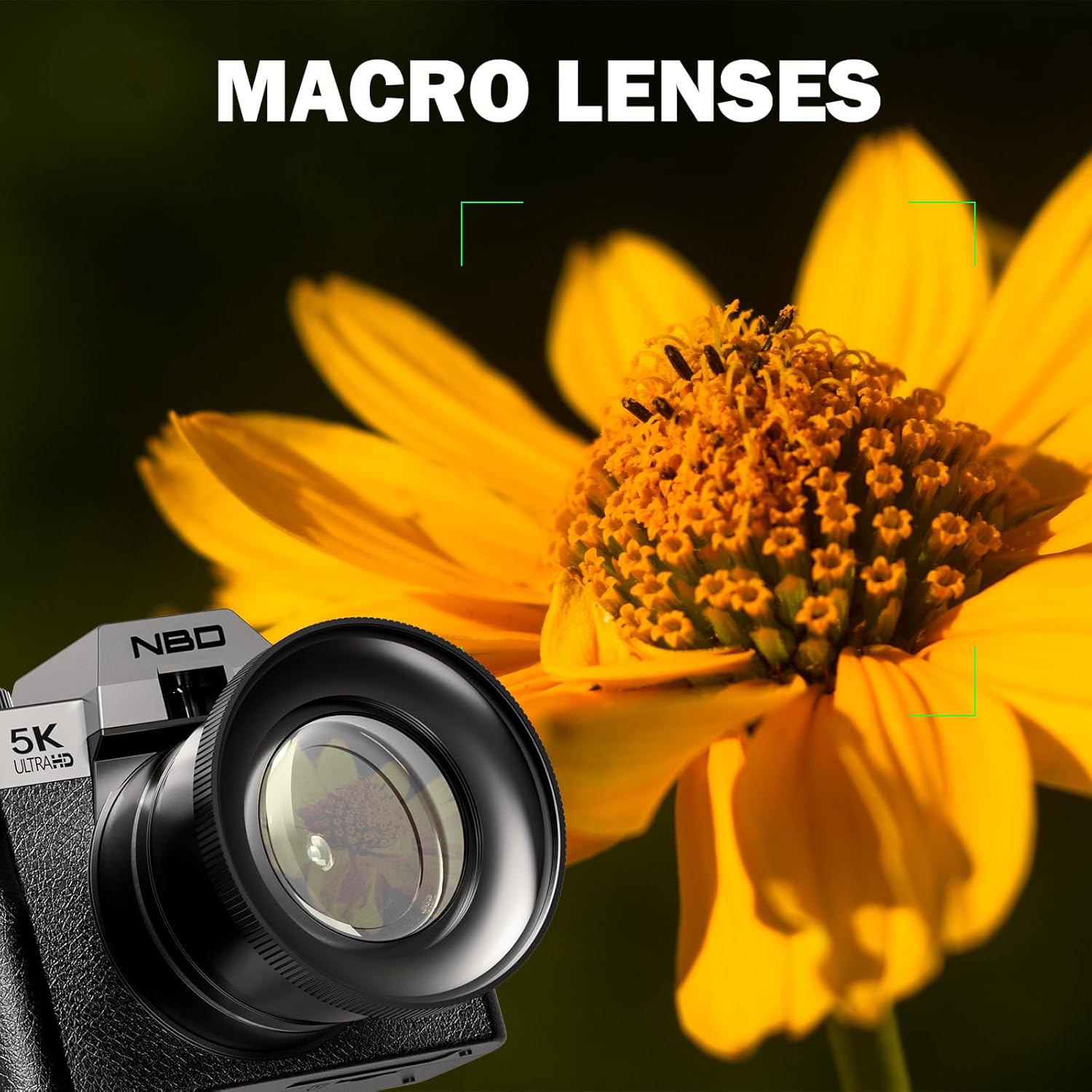
Image: The camera's mode dial and examples of Lapse Mode, Effect Mode, Scene Mode, and Auto Mode.
- Automatic: General purpose shooting, camera adjusts settings automatically.
- Portrait: Optimizes settings for capturing portraits, often with background blur.
- Macro: For close-up shots of small subjects like flowers and insects.
- Movie: Dedicated video recording mode.
- Easy: Simplified mode for beginners.
- Time-lapse: Captures a series of images over time to create a sped-up video.
- Slow-motion: Records video at a higher frame rate for slow-motion playback.
5.6. Macro Photography
Attach the macro lens component for detailed close-up photography.
Image: The NBD 5K Digital Camera with the macro lens attached, capturing a detailed image of a flower.
6. Connectivity
6.1. Wi-Fi Connectivity
Connect your camera to a smartphone or tablet via Wi-Fi for remote control and quick file transfer.
Image: The camera displaying Wi-Fi hotspot information, with a smartphone showing a remote camera view.
- Activate Wi-Fi: Access the camera's menu and enable Wi-Fi. The camera will display a network name (SSID) and password.
- Connect Device: On your smartphone or tablet, go to Wi-Fi settings and connect to the camera's network using the provided password.
- Use App: Download and install the dedicated camera app (refer to camera packaging or manufacturer website for app name). Use the app for remote framing, controlling settings, and transferring photos/videos.
6.2. USB Connection
Use the USB cable to connect the camera to a computer for file transfer.
- Connect one end of the USB cable to the camera's USB port.
- Connect the other end to a USB port on your computer.
- The camera will appear as a removable drive on your computer, allowing you to access and transfer files.
7. Maintenance
7.1. Cleaning the Camera
- Lens: Use the provided lens cleaning cloth or a soft, lint-free cloth specifically designed for optical surfaces. Gently wipe the lens in a circular motion. Avoid using harsh chemicals.
- Screen: Use a soft, dry cloth to clean the LCD screen. For stubborn smudges, a slightly damp cloth can be used, followed by a dry one.
- Camera Body: Wipe the camera body with a soft, dry cloth.
7.2. Battery Care
- Store batteries in a cool, dry place when not in use.
- Avoid fully discharging batteries frequently to prolong their lifespan.
- Do not expose batteries to extreme temperatures.
7.3. Storage
When not in use, store the camera in the provided black leather bag to protect it from dust and scratches. Remove batteries if storing for extended periods.
8. Troubleshooting
If you encounter issues with your NBD 5K Digital Camera, refer to the following common problems and solutions:
| Problem | Possible Cause | Solution |
|---|---|---|
| Camera does not power on. | Battery is dead or incorrectly inserted. | Charge the battery or re-insert it correctly. |
| Photos are blurry. | Camera not focused, subject movement, low light. | Ensure auto-focus locks before shooting. Use flash in low light. Hold camera steady. |
| Memory card error. | Card incorrectly inserted, corrupted, or full. | Re-insert card. Format card (will erase data). Use a different card. Delete files to free space. |
| Wi-Fi connection issues. | Incorrect password, app not installed, distance. | Verify password. Ensure app is installed. Stay within range of the camera's Wi-Fi signal. |
| No audio in video. | External microphone not connected or faulty. | Ensure external microphone is securely plugged in. Check microphone settings in camera menu. |
If the problem persists, please contact NBD customer support for further assistance.
9. Specifications
Key technical specifications for the NBD 5K Digital Camera:
| Feature | Detail |
|---|---|
| Brand | NBD |
| Model Name | NBD |
| Model Number | B0FR94J83W |
| Photo Sensor Resolution | 64 MP |
| Effective Still Resolution | 64 MP |
| Video Resolution | 2160p (5K), 1080p |
| Frame Rate | 25fps, 30fps, 60fps, 120fps |
| Digital Zoom | 16X |
| Lens Type | Macro (with F1.8 aperture) |
| Screen Size | 3 Inches |
| Display Type | LCD (180° Flip Screen) |
| Memory Storage Capacity | 64 GB (TF Card included) |
| Sensor Type | CMOS |
| Image Stabilization | Digital |
| Auto Focus Technology | Contrast Detection |
| Connectivity Technology | USB, Wi-Fi |
| Battery Type | Lithium Ion (2 included) |
| Specific Uses For Product | Vlogging, Photography |
| Color | Black |
| Water Resistance Level | Not Water Resistant |
10. Warranty & Support
10.1. Product Warranty
The NBD 5K Digital Camera comes with a limited warranty. Please refer to the warranty card included in your package or visit the official NBD website for detailed terms and conditions regarding coverage and duration.
10.2. Customer Support
For technical assistance, troubleshooting beyond this manual, or warranty claims, please contact NBD customer support. Contact information can typically be found on the product packaging, the official NBD website, or through your retailer.

