
Introduction
This manual provides detailed instructions for the TONGVEO AI Auto-Tracking PTZ Conference Camera System, Model NV3HM3B. This all-in-one video and audio conferencing solution is designed for professional use in various environments, including business conferences, classrooms, and places of worship. It features a Full HD 1080P PTZ camera with AI auto-tracking and a Bluetooth conference speakerphone for clear communication.
Setup
1. Unboxing and Component Identification
Carefully unpack all components from the box. Verify that all items listed in the packing list are present:
- PTZ Camera Unit
- Bluetooth Speakerphone
- IR Remote Control
- USB3.0 Cable
- Power Adapter (DC 12V)
- Mounting Bracket with Screws
- Wireless Dongle (for speakerphone)
- User Manual
2. Physical Installation
The camera unit can be placed on a desktop, mounted on a wall, or ceiling. The mounting bracket and screws are provided for wall or ceiling installations. Ensure the camera is positioned to capture the desired area for your conference or streaming needs.

Figure 1: TONGVEO PTZ Camera showing various installation methods: desktop, wall mount, and ceiling mount. The image also displays included accessories like the Bluetooth speakerphone, USB cable, power adapter, wireless dongle, IR remote control, and user manual.
3. Power Connection
Connect the provided DC 12V power adapter to the camera unit's DC 12V input port. Plug the power adapter into a suitable electrical outlet. Upon powering on, the camera will perform an automatic calibration sequence, rotating and tilting to its default position. This process is quiet and ensures optimal functionality.
4. Video and Audio Connections
Camera to Computer/Display:
- For video output, connect the USB3.0 cable from the camera to your computer's USB port.
- Alternatively, use an HDMI cable to connect the camera to a compatible display or video switcher.
Speakerphone Connection:
- Connect the speakerphone to your computer via the provided USB cable.
- For wireless connection, plug the Bluetooth wireless dongle into your computer. The speakerphone can also connect directly via Bluetooth 5.0.
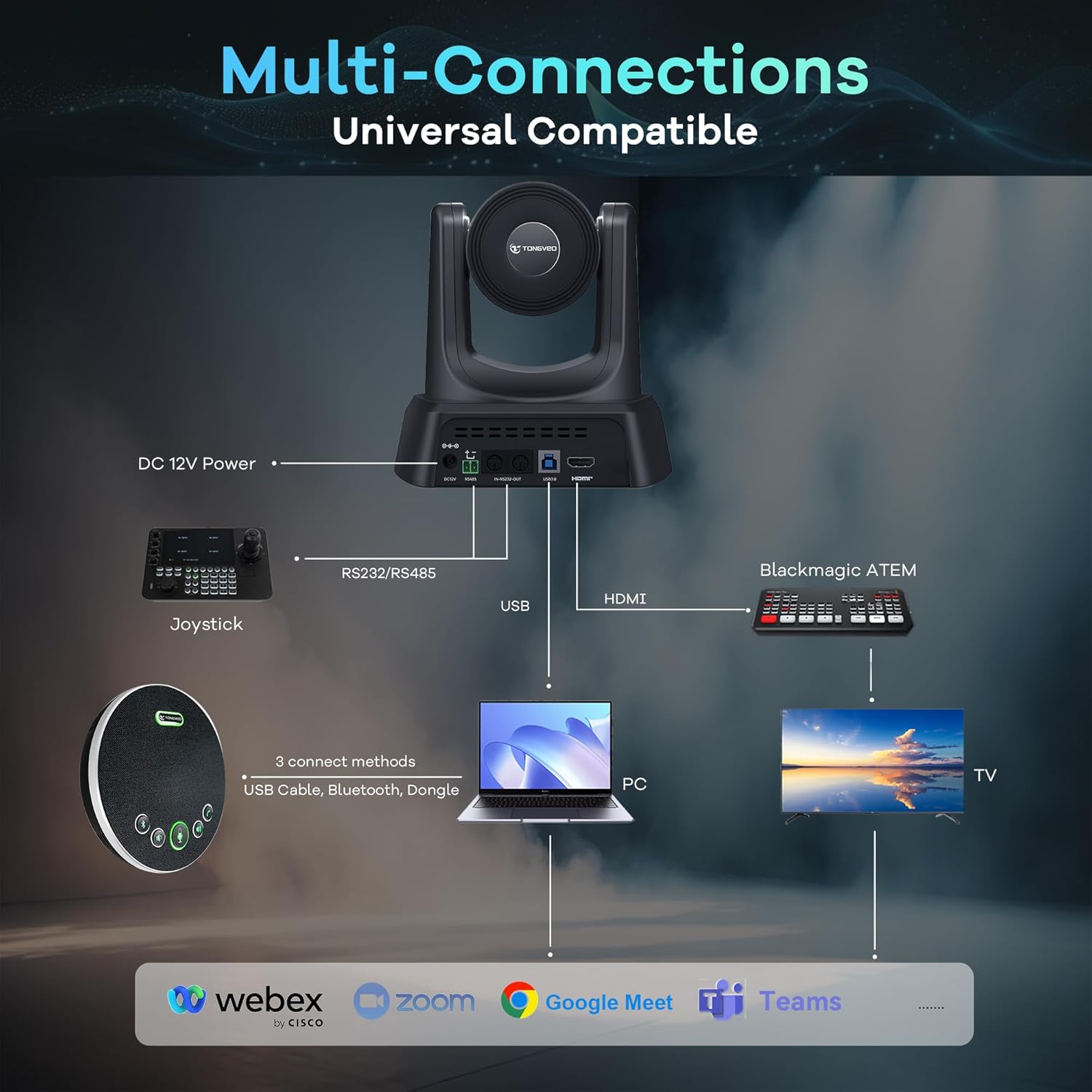
Figure 2: Diagram illustrating multi-connection options for the TONGVEO PTZ Camera and Bluetooth Speakerphone. Connections include DC 12V Power, RS232/RS485, USB, and HDMI for the camera, and USB Cable, Bluetooth, or Dongle for the speakerphone, connecting to a PC or TV. Compatible with Webex, Zoom, Google Meet, and Teams.
Operating Instructions
1. Camera Controls (via IR Remote)
The included IR remote control allows for full manipulation of the camera's functions:
- Power: Press the POWER button to toggle between ON and Standby mode.
- Pan/Tilt: Use the directional arrow buttons to move the camera horizontally (pan) and vertically (tilt).
- Zoom: Use the 'ZOOM SLOW' or 'ZOOM FAST' buttons to adjust the optical zoom (3X).
- Focus: Select 'AUTO', 'FAR', 'NEAR', or 'MANUAL' to adjust the camera's focus.
- Presets: Set up to 10 preset positions. To save a preset, position the camera as desired, then press 'PRESET' followed by a number (0-9). To recall a preset, simply press the corresponding number.
- Home: Press the home button to return the camera to its default central position.
- Mirror/Flip: Adjust image orientation if the camera is mounted upside down or for specific viewing needs.
- AI Auto-Tracking: Activate or deactivate the intelligent auto-tracking feature. The camera will automatically detect and follow active speakers.

Figure 3: TONGVEO AI Auto-Tracking PTZ Camera in a church setting, demonstrating its ability to detect and track a speaker (highlighted in green).
2. Speakerphone Controls
The Bluetooth speakerphone provides intuitive controls for audio management:
- Microphone Mute: Press the microphone icon to mute/unmute the microphone. The LED indicator will change color to show mute status.
- Volume Up/Down: Use the '+' and '-' buttons to adjust the speaker volume.
- Call Answer/Hang Up: Use the phone icon to answer or end calls when connected via Bluetooth or USB.
- Bluetooth Connection: Press the Bluetooth icon to initiate pairing mode.
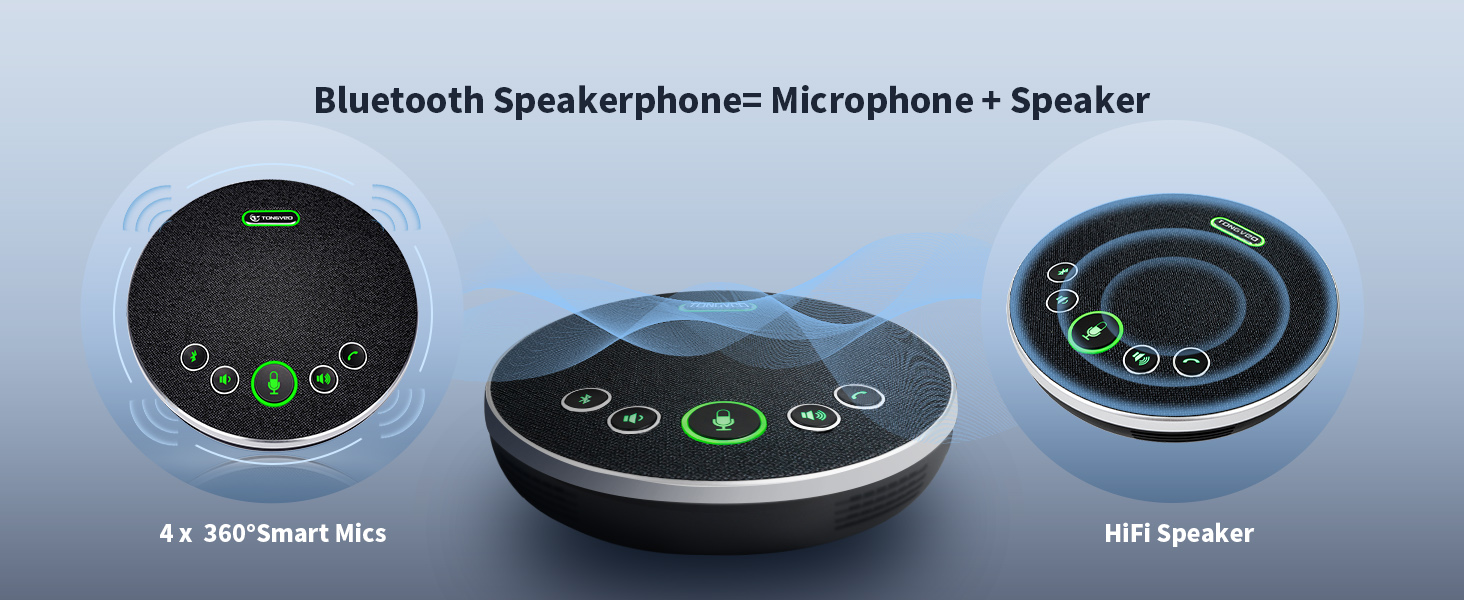
Figure 4: TONGVEO Bluetooth Speakerphone with clearly labeled and illuminated controls for mute, volume, call, and Bluetooth connection.
3. Software Compatibility
The TONGVEO system is universally compatible with major conferencing platforms, including but not limited to Zoom, Microsoft Teams, WebEx, GoToMeeting, and Skype. It supports Windows XP/Vista/7/8/10/11 and Mac OS 10.4 or later.
Maintenance
- Keep the camera lens clean using a soft, dry cloth. Avoid abrasive materials.
- Store the device in a cool, dry place away from direct sunlight and extreme temperatures.
- Regularly check cable connections to ensure they are secure.
- The speakerphone has a built-in 2400mAh battery. Charge it fully before extended storage.
Troubleshooting
- No Video Output: Ensure all cables (USB3.0, HDMI) are securely connected. Verify the correct input source is selected on your computer or display.
- No Audio from Speakerphone: Check Bluetooth connection or USB cable. Ensure the speakerphone is powered on and not muted. Verify audio settings on your computer.
- Camera Not Responding to Remote: Ensure the remote has fresh AAA batteries. Point the remote directly at the camera's IR sensor.
- Camera Freezing: Disconnect and reconnect the power cable. Check the USB port and cable for damage. Consider updating camera firmware if available from the manufacturer's website.
- Image Quality Issues: Adjust exposure, color, and image settings via the camera's menu (accessible via remote). Ensure proper lighting in the room.
Specifications
| Feature | Detail |
|---|---|
| Model Number | NV3HM3B |
| Video Capture Resolution | 1080p |
| Optical Zoom | 3X |
| Frame Rate | 60fps |
| Field of View (FOV) | 93° Wide-Angle |
| Connectivity Technology | HDMI, USB3.0, RS232, RS485 |
| Speakerphone Connectivity | USB, Bluetooth 5.0, Wireless Dongle |
| Speakerphone Battery | 2400mAh (6-8 hours continuous operation) |
| Photo Sensor Technology | CMOS |
| Item Weight | 6.8 pounds |
| Package Dimensions | 11.89 x 10.24 x 8.15 inches |
Warranty and Support
For warranty information, technical support, or service inquiries, please contact TONGVEO directly. Refer to the product packaging or the official TONGVEO website for contact details.


