
1. Introduction
This manual provides detailed instructions for the installation, operation, and maintenance of your Nunoo 8-Core Car Radio. This unit is designed to enhance your driving experience with advanced features such as Wireless CarPlay, Android Auto, a high-definition touchscreen, and integrated navigation. Please read this manual thoroughly before use to ensure proper functionality and safety.

Image: The Nunoo 8-Core Car Stereo with 4GB RAM and 64GB ROM, designed for Dodge Ram 1500, 2500, 3500 models from 2013-2018 with manual AC.
2. Package Contents
Verify that all items listed below are included in your package. If any items are missing or damaged, please contact customer support.
- User manual
- Cleaning cloth
- Power cord
- USB 4Pin cable
- USB 6Pin cable
- Car radio (1280*720) with frame
- GPS antenna
- AHD 1080P rear view camera

Image: A visual representation of all components included in the package, such as the head unit, frame, various cables (power, RCA, USB), GPS antenna, and AHD rear view camera.
3. Product Overview
3.1 Display and Interface
The unit features a 9-inch HD IPS touchscreen with a resolution of 1280x720 pixels, providing clear visuals and responsive touch control. The interface is designed for intuitive navigation.
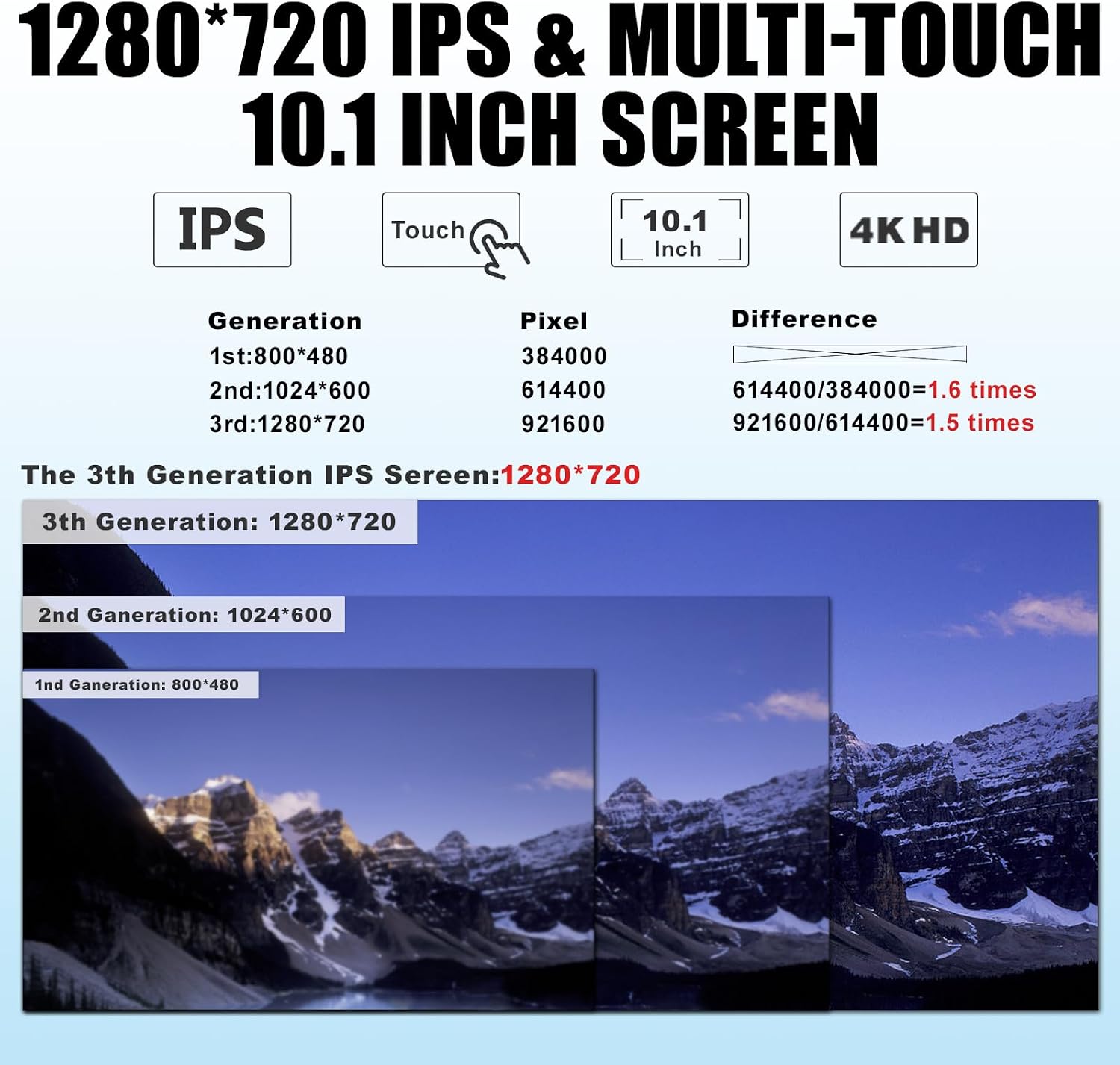
Image: A visual comparison highlighting the clarity and detail of the 1280x720 IPS touchscreen compared to lower resolution displays.
3.2 Processor and Memory
Equipped with an 8-core CPU, 4GB RAM, and 64GB ROM, the system ensures smooth operation, fast app loading, and efficient multitasking. This configuration supports various applications and features without performance degradation.

Image: An illustration detailing the 8-core CPU architecture and its performance benefits, including increased processing speed and efficiency.
4. Compatibility
This car radio is specifically designed for Dodge Ram 1500, 2500, and 3500 models manufactured between 2013 and 2018, equipped with manual AC controls. It is crucial to verify your vehicle's dashboard configuration matches the compatible models shown below before installation.

Image: A guide showing different Dodge Ram OEM radio configurations, indicating which ones are compatible with this unit (specifically those with manual AC controls).
5. Setup and Installation
Installation of the Nunoo car radio requires technical knowledge and careful handling of vehicle wiring. Professional installation is recommended. The package includes a complete installation kit. Refer to the wiring diagram provided in the 'Accessories' section for connections.
5.1 General Installation Steps (Professional Recommended)
- Disconnect Battery: Before starting, disconnect the vehicle's negative battery terminal to prevent electrical shorts.
- Remove OEM Radio: Carefully remove the existing factory radio and dashboard trim. Use appropriate tools to avoid damage.
- Connect Wiring Harness: Connect the provided power cord and other necessary cables (USB, RCA, GPS antenna, backup camera) to the new head unit and the vehicle's wiring harness. Ensure all connections are secure.
- Install GPS Antenna: Mount the GPS antenna in a location with a clear view of the sky, typically on the dashboard or under the windshield.
- Install Backup Camera: Route the backup camera cable from the rear of the vehicle to the head unit. Connect the camera and its power supply according to the diagram.
- Test Functionality: Before fully reassembling the dashboard, reconnect the battery and test all functions of the new radio (power, audio, touchscreen, CarPlay/Android Auto, backup camera, steering wheel controls).
- Reassemble Dashboard: Once all functions are verified, carefully reassemble the dashboard trim and secure the new car radio in place.
For detailed visual guidance, search online for installation videos specific to Dodge Ram 2013-2018 radio upgrades. While the exact unit may differ, the general dashboard removal and wiring principles often apply.
6. Operating Instructions
6.1 Power On/Off
Press and hold the power button on the unit or use the vehicle's ignition to power the device on or off. A short press typically mutes or unmutes the audio.
6.2 Touchscreen Operation
The 9-inch IPS touchscreen supports multi-touch gestures. Navigate through menus, select applications, and control media playback by tapping, swiping, and pinching on the screen.
6.3 Wireless CarPlay and Android Auto
Connect your iPhone or Android smartphone wirelessly to access navigation, make calls, send messages, and listen to music directly from the car radio display. This feature allows for voice control via Siri or Google Assistant.

Image: Displays of Wireless CarPlay and Android Auto interfaces, demonstrating seamless smartphone integration for navigation, communication, and entertainment.
6.4 Bluetooth Hands-Free Calling
Pair your smartphone via Bluetooth 5.4 to make and receive calls hands-free. The system automatically connects to your paired device upon startup. You can also stream audio from your phone.

Image: A visual representation of the Bluetooth hands-free calling function, showing a driver safely communicating while driving.
6.5 Navigation and Wi-Fi
The unit supports online and offline GPS navigation. Connect to Wi-Fi to download maps, stream content, and access various applications like Waze, Spotify, and YouTube from the Google Play Store.

Image: The car radio screen displaying GPS navigation alongside icons for various popular applications accessible via Wi-Fi.
6.6 Audio Settings (AM/FM/RDS, EQ, Subwoofer)
Access the AM/FM radio with RDS functionality to tune into your favorite stations. Customize your audio experience with the 32-band equalizer (EQ) and adjust subwoofer settings for optimal sound quality.

Image: Screenshots demonstrating the detailed audio customization options, including the 32-band equalizer, Digital Sound Processor (DSP) settings, and subwoofer controls.
6.7 Steering Wheel Controls (SWC)
The unit retains compatibility with your vehicle's factory steering wheel controls, allowing you to manage calls, adjust volume, and change tracks without taking your hands off the wheel.

Image: The car radio's interface for mapping and utilizing existing steering wheel controls for convenient operation.
6.8 Backup Camera
The included AHD 1080P rear view camera provides a clear, wide-angle view (178°) of the area behind your vehicle, enhancing parking safety. The display automatically switches to the camera feed when reversing.

Image: A demonstration of the backup camera's wide-angle view displayed on the car radio screen, illustrating its night vision and waterproof features.
6.9 Mirror Link
Utilize the Mirror Link function to project your smartphone screen directly onto the car radio display, allowing you to view apps and content from your phone on a larger screen.
7. Maintenance
Proper care ensures the longevity and optimal performance of your car radio.
- Screen Cleaning: Use the provided cleaning cloth or a soft, lint-free cloth to gently wipe the touchscreen. Avoid abrasive cleaners or harsh chemicals.
- General Cleaning: Keep the unit free from dust and debris. Use a soft brush or compressed air for hard-to-reach areas.
- Temperature: Avoid exposing the unit to extreme temperatures.
- Software Updates: Periodically check for software updates to ensure the best performance and access to new features.
8. Troubleshooting
If you encounter issues with your Nunoo car radio, refer to the following common problems and solutions:
| Problem | Possible Cause | Solution |
|---|---|---|
| No Power | Loose power connection, blown fuse, vehicle battery issue. | Check power cable connections. Inspect vehicle fuses. Verify battery charge. |
| No Sound | Volume muted, incorrect audio source, loose speaker wires. | Check volume and mute settings. Select correct audio source. Verify speaker wire connections. |
| Touchscreen Unresponsive | System freeze, calibration issue. | Restart the unit. If issue persists, perform a factory reset (refer to settings menu). |
| CarPlay/Android Auto Not Connecting | Bluetooth/Wi-Fi off, phone compatibility, app issues. | Ensure phone's Bluetooth/Wi-Fi is on. Check phone settings for CarPlay/Android Auto. Restart phone and unit. |
| Backup Camera Not Displaying | Loose camera connection, incorrect wiring, camera malfunction. | Check camera cable connections. Verify power to the camera. Ensure correct input selection. |
If the problem persists after attempting these solutions, please contact Nunoo customer support for further assistance.
9. Specifications
| Feature | Detail |
|---|---|
| Processor | 8-Core CPU |
| Memory (RAM) | 4GB |
| Storage (ROM) | 64GB |
| Display | 9-inch HD IPS Touchscreen (1280x720) |
| Operating System | Android |
| Connectivity | Bluetooth 5.4, Wi-Fi |
| Special Features | Wireless CarPlay, Android Auto, Mirror Link, GPS Navigation, AM/FM/RDS, 32EQ, DSP, Rear View Camera Input, SWC |
| Compatible Devices | Amplifier, Smartphone, Speaker |
| Audio Output Mode | Stereo |
| Item Weight | 3.56 pounds |
| Package Dimensions | 13.6 x 10 x 5.7 inches |
10. Warranty and Support
Nunoo provides professional pre-sales and after-sales service. For any questions regarding installation, technical support, or warranty claims, please contact our support team.
10.1 How to Contact Support
You can reach our support team through the seller's storefront on Amazon:
- Visit the product page on Amazon.
- Click on the seller name, "NUNOO".
- On the seller's page, click "Ask a question" to send a message.
Please provide pictures or videos of any technical or installation issues you encounter to help us assist you more efficiently.

Image: A visual guide demonstrating the steps to contact Nunoo customer support through the Amazon platform.


