
1. Introduction
This manual provides detailed instructions for the setup, operation, and maintenance of your SENCKIT WiFi Hygrometer Thermometer system. This system allows for real-time monitoring of indoor temperature and humidity, offering smart features such as app alerts, data storage, and voice control compatibility.
The main unit functions as both a gateway and a temperature/humidity monitor, capable of connecting with up to 10 wireless sub-sensors. Data can be accessed and managed via the Tuya Smart or Smart Life application.
2. Setup
2.1 Package Contents
- 1 x Base Station (Main Unit)
- 3 x Wireless Sub-Sensors
- 1 x User Manual
- 1 x USB Type-C Cable (for Base Station power)
- 2 x AAA Batteries (for each Sub-Sensor)
2.2 Powering On
- Base Station: Connect the provided USB Type-C cable to the base station and a suitable 5V 1A power adapter (not included). The display will illuminate.
- Sub-Sensors: Open the battery compartment on each sub-sensor and insert two AAA batteries, ensuring correct polarity. Close the compartment.
2.3 App Installation
Download and install the Tuya Smart or Smart Life application from your mobile device's app store (iOS App Store or Google Play Store).
2.4 Pairing the Base Station (Main Unit)
- Ensure your mobile device is connected to a 2.4 GHz Wi-Fi network. The system does not support 5 GHz Wi-Fi.
- Open the Tuya Smart/Smart Life app and create an account or log in.
- Add a new device by tapping the '+' icon. Select 'Sensors' or 'Temperature & Humidity Sensor (Wi-Fi)'.
- Follow the on-screen instructions to connect the base station to your Wi-Fi network. This typically involves putting the base station into pairing mode (refer to the base station's display or specific button instructions if available) and entering your Wi-Fi credentials in the app.
2.5 Pairing Sub-Sensors
Once the base station is connected to the app, the sub-sensors will automatically attempt to pair with the base station via 433 MHz wireless protocol. Ensure sub-sensors are within the 100m (open field) range of the base station. The base station display will show data from connected sub-sensors.

Figure 2.1: Connection diagram illustrating the base station's Wi-Fi and wireless sensor connections.

Figure 2.2: The SENCKIT system showing the main display unit and three wireless sensors.
3. Operating Instructions
3.1 Real-time Monitoring
The base station's LCD screen displays current temperature and humidity for itself and connected sub-sensors. The Tuya Smart/Smart Life app provides real-time data from all connected sensors, accessible from anywhere with an internet connection.
3.2 App Notification Alerts
You can set custom temperature and humidity ranges within the app. If any sensor's readings fall outside these preset ranges, you will receive an instant notification on your mobile device. This feature is useful for monitoring critical environments like wine cellars or greenhouses.

Figure 3.1: Setting temperature and humidity alarm thresholds in the mobile application.
3.3 Voice Control & Smart Linkage
The system is compatible with Amazon Alexa and Google Home. You can ask for current temperature and humidity readings using voice commands. Additionally, the Smart Life app allows for smart scene creation, enabling automation. For example, you can set a fan to turn on when the temperature exceeds a certain limit or a humidifier to activate when humidity drops below a specified level.
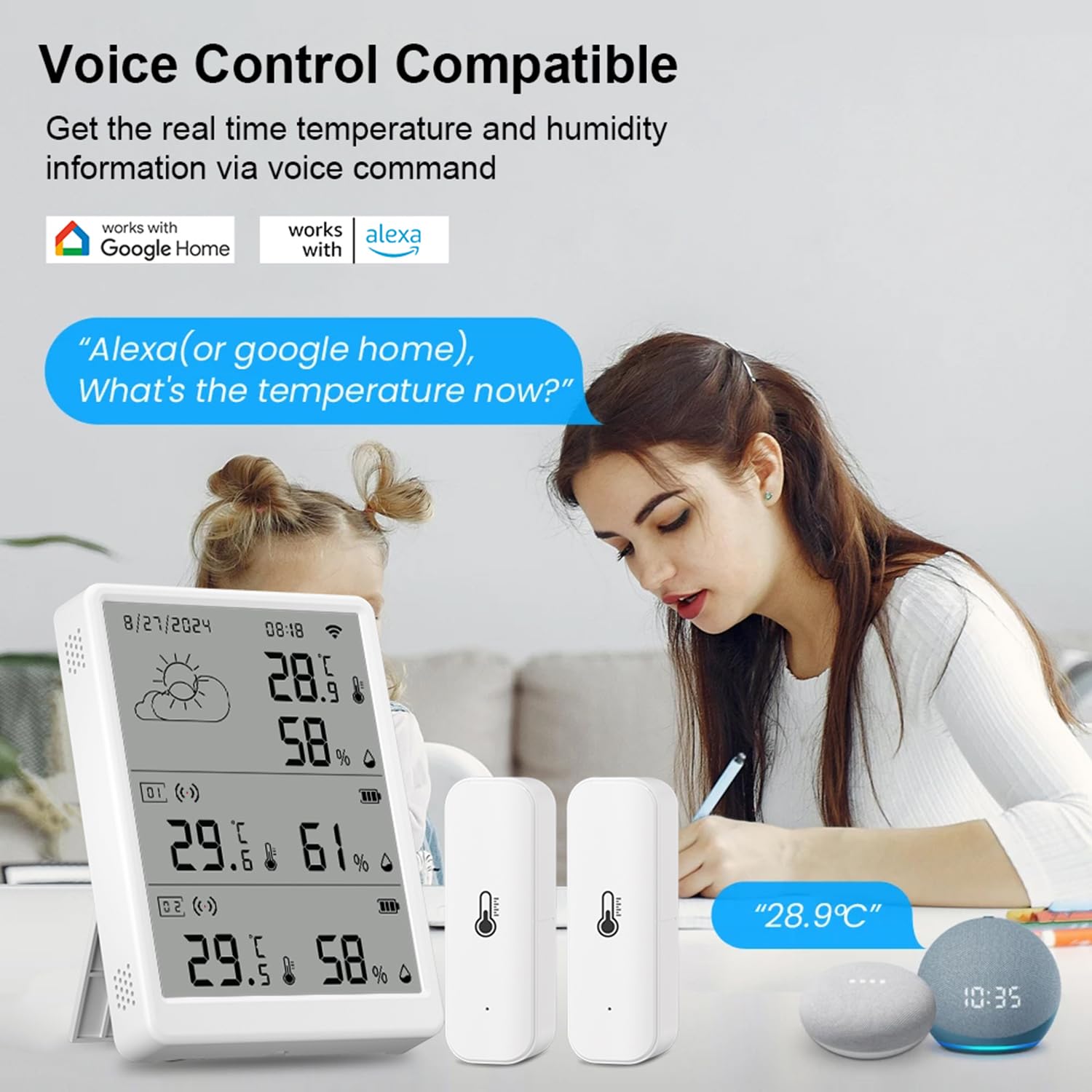
Figure 3.2: Voice control functionality with Alexa and Google Home for temperature and humidity inquiries.
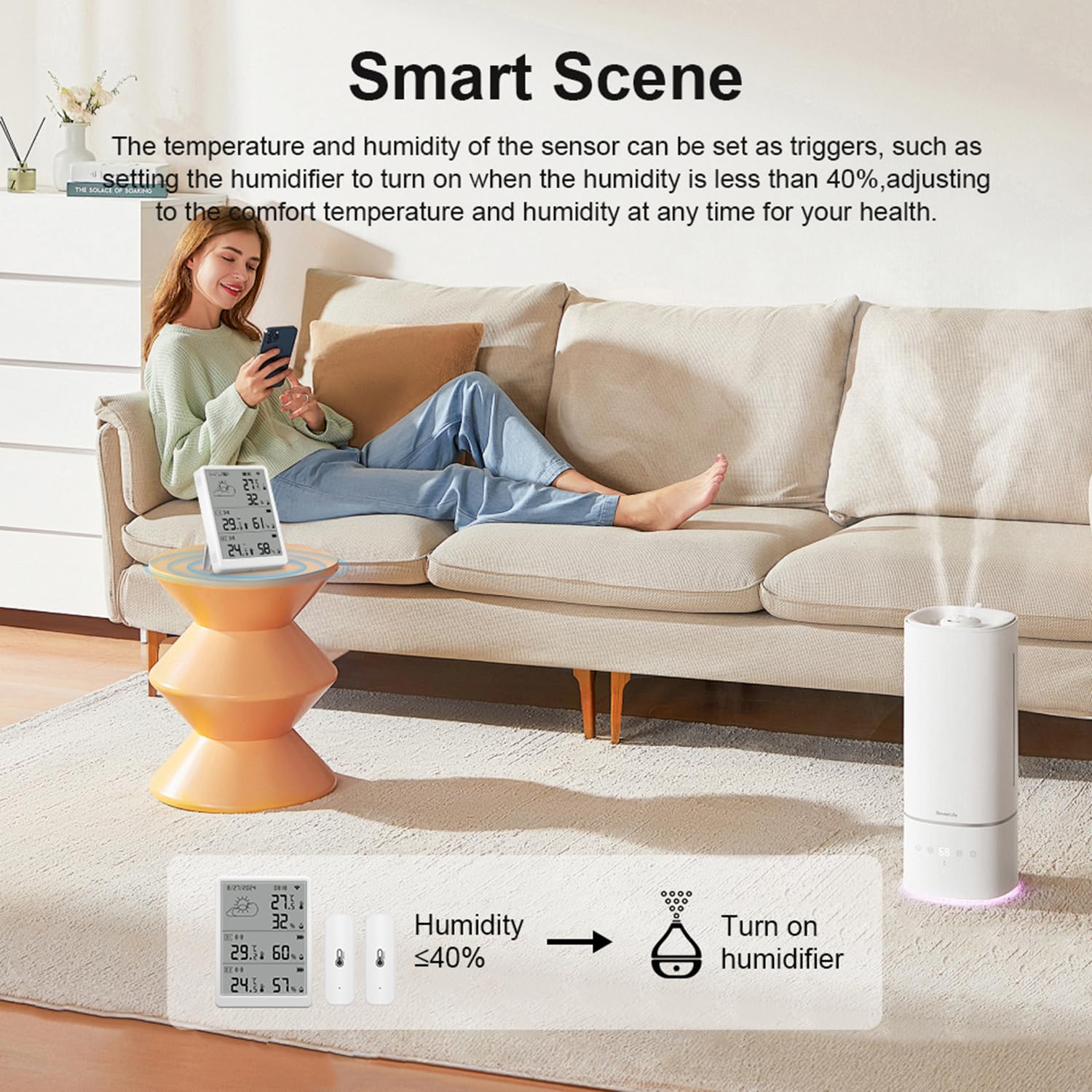
Figure 3.3: Example of a smart scene: humidifier activation based on humidity levels detected by the SENCKIT system.
3.4 Data Storage & Export
The Tuya Smart/Smart Life app stores historical temperature and humidity data for up to one year. This data can be viewed within the app and exported as .csv files for detailed analysis.

Figure 3.4: Viewing and exporting historical data from the SENCKIT system.
3.5 LCD Digital Display Screen
The base station features an easy-to-read LCD that displays not only temperature and humidity data from all connected sensors but also the current date, time, and weather conditions. A button is included for switching between Celsius and Fahrenheit temperature units.

Figure 3.5: Multiple sensor readings displayed simultaneously on the base station screen.

Figure 3.6: The base station's weather station function, showing real-time weather updates.
4. Maintenance
4.1 Battery Replacement (Sub-Sensors)
When the battery indicator on a sub-sensor or in the app shows low power, replace the two AAA batteries. Ensure correct polarity during installation.
4.2 Cleaning
Wipe the base station and sub-sensors with a soft, dry cloth. Do not use liquid cleaners or abrasive materials, as these can damage the devices.
4.3 Environmental Considerations
Avoid placing the devices in direct sunlight, near heat sources, or in areas with extreme temperature fluctuations or high humidity (beyond specified operating ranges) to ensure accurate readings and device longevity.
5. Troubleshooting
- No data displayed on base station or app:
- Ensure the base station is powered on and connected to Wi-Fi.
- Check sub-sensor batteries and ensure they are within range of the base station.
- Verify your Wi-Fi network is 2.4 GHz and stable.
- App connection issues:
- Restart the app and your mobile device.
- Ensure the base station is in pairing mode if attempting to reconnect.
- Check your Wi-Fi router and internet connection.
- Inaccurate readings:
- Ensure sensors are not placed near heat sources, vents, or in direct sunlight.
- Allow devices to stabilize for 15-30 minutes after placement.
6. Specifications
| Product Name | Wi-Fi Hygrometer/Thermometer |
| App Compatibility | Tuya Smart / Smart Life App |
| Material | ABS |
| Base Station Size | 105 x 76 x 16 mm |
| Color | White |
| Wi-Fi Frequency | 802.11b/g/n 2.4 GHz |
| Wireless Protocol (Sensors) | 433 MHz |
| Wi-Fi Range | 100 m (open field) |
| Input Voltage (Base Station) | DC 5 V 1 A Type-C |
| Battery (Sub-Sensors) | 2 x AAA batteries (DC 1.5 V) |
| Temperature Measurement Range | -10 °C to 60 °C |
| Humidity Measurement Range | 0 % to 99 % Relative Humidity |
7. Warranty and Support
For warranty information and technical support, please refer to the documentation included with your purchase or contact SENCKIT customer service directly. Contact details are typically available on the manufacturer's official website or through the retailer where the product was purchased.