
1. Product Overview
The OTTOCAST Mini 3.0 is a versatile 2-in-1 wireless adapter designed to convert your car's factory-wired CarPlay or Android Auto system into a wireless experience. It is compatible with a wide range of vehicles including sedans, SUVs, and trucks that already feature wired CarPlay or Android Auto functionality.

Image: The OTTOCAST Mini 3.0 adapter shown with its packaging and included USB-C adapter.
Key Features
- Universal Car Compatibility: Works as both a wireless CarPlay and wireless Android Auto adapter for vehicles with existing wired systems.
- Automatic Phone Switching: Automatically reconnects to the last used phone or a second saved device, ideal for shared vehicles.
- High-Speed Dual-Band WiFi: Supports 5GHz for low latency and stable performance in navigation, music streaming, and call quality.
- Universal USB-A & USB-C Fit: Includes a USB-A plug and an A-to-C adapter for broad compatibility with various car systems.
- Drive-Friendly Controls: Maintains full compatibility with existing steering wheel buttons, dash knobs, touchscreens, and voice assistants.
- Superior Audio Quality: Delivers Hi-Fi sound with reduced lag compared to standard Bluetooth car adapters.
2. Package Contents
Ensure all the following items are present in your product package:
- OTTOCAST Mini 3.0 Wireless CarPlay/Android Auto Adapter
- USB-A to USB-C Adapter
- User Manual

Image: The OTTOCAST Mini 3.0 adapter, USB-A to USB-C adapter, and user manual as found in the product packaging.
3. Setup Guide
Follow these steps for a quick and effortless setup of your OTTOCAST Mini 3.0 adapter.
Step 1: Connect the Adapter to Your Car
Plug the OTTOCAST Mini 3.0 adapter into your car's USB port. Use the included USB-A to USB-C adapter if your car only has USB-C ports. The adapter's indicator light will illuminate.

Image: Visual guide for connecting the adapter to the car's USB port.
Step 2: Enable Wi-Fi and Bluetooth on Your Phone
On your iPhone (iOS 10.0+) or Android device (Android 11.0+), ensure both Wi-Fi and Bluetooth are turned on.
Step 3: Pair and Confirm Connection
Search for the adapter's Bluetooth name (e.g., "AUTO2-xxxx") in your phone's Bluetooth settings and select it to pair. Confirm any authorization requests on your phone. Once successfully paired, your car's display should show the CarPlay or Android Auto interface.
Video: A brief overview demonstrating the connection process of the OTTOCAST Mini 3.0.
4. Operating Instructions
Wireless Connectivity
The adapter seamlessly converts your wired CarPlay or Android Auto into a wireless connection, allowing you to access your phone's features on your car's display without cables.
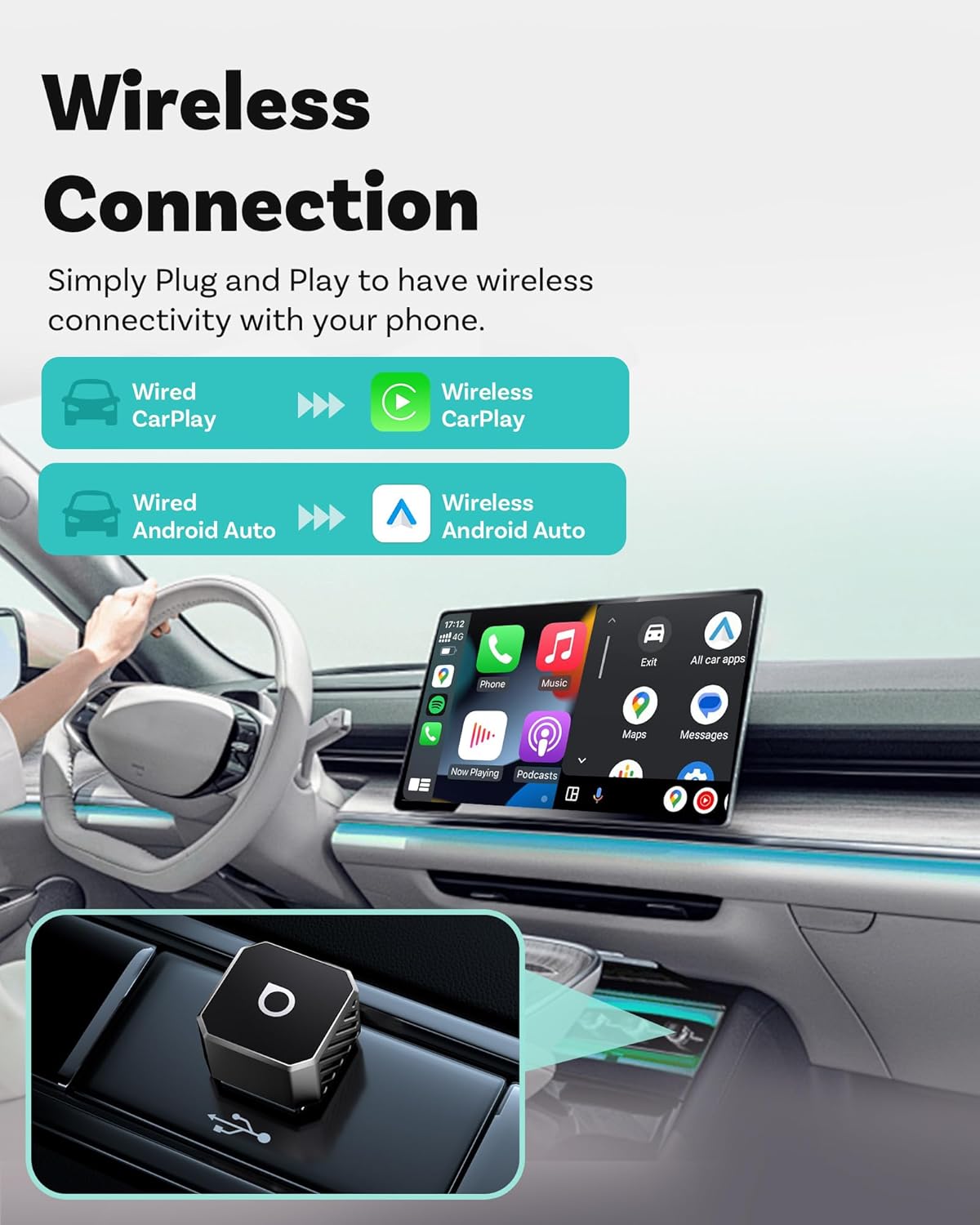
Image: Illustration of wired to wireless conversion for CarPlay and Android Auto.
Dual Phone Memory
The device is designed to remember up to two paired phones. It will automatically reconnect to the last used device or the second saved device upon entering the vehicle, facilitating easy use for multiple drivers.
Vehicle Controls Integration
All original car control methods remain functional, including steering wheel buttons, dash knob, touchscreen, and voice assistants (Siri/Google Assistant) for a safe and familiar driving experience.
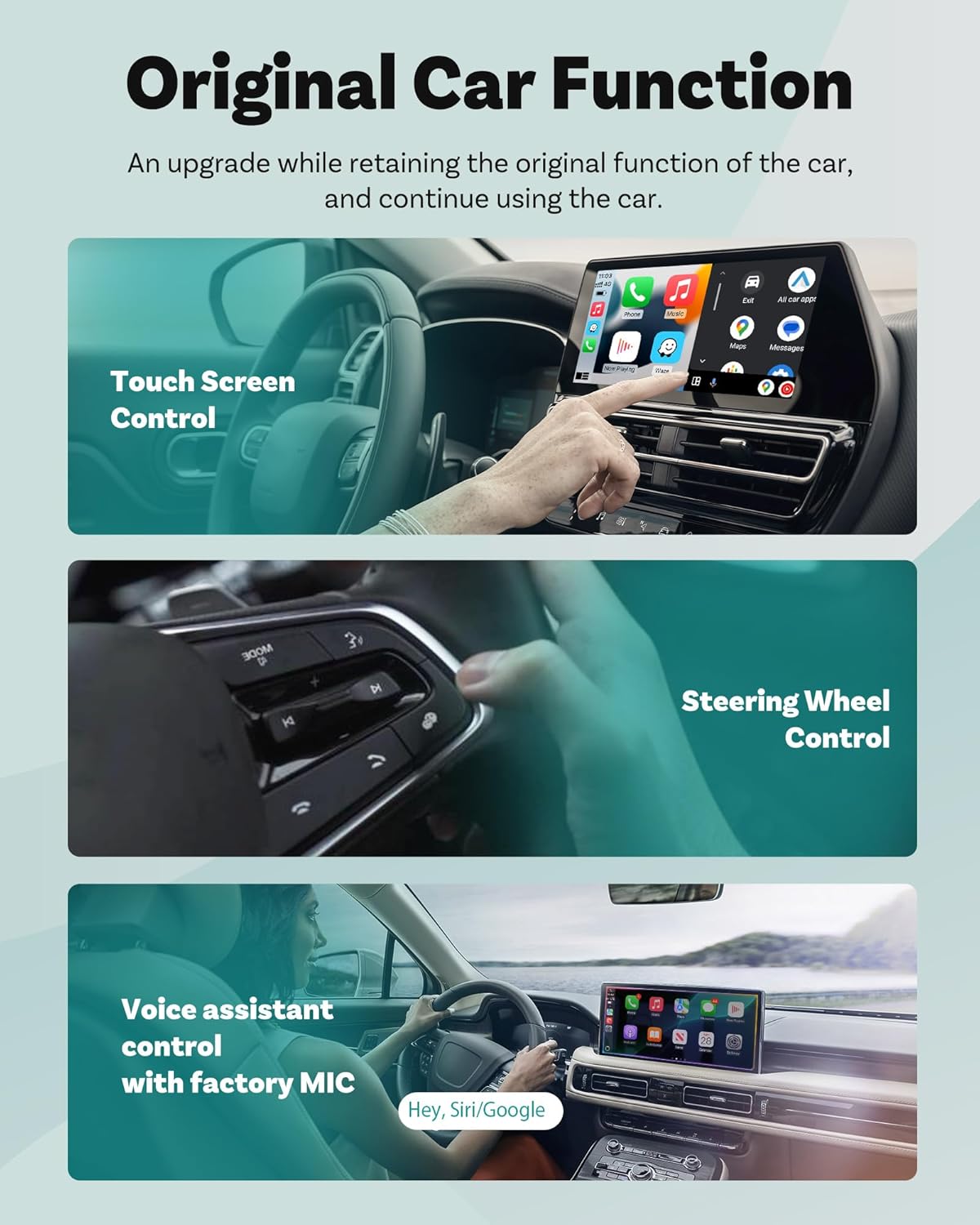
Image: Demonstrates compatibility with various car control methods.
Audio Quality
Experience superior Hi-Fi audio quality for music and calls, with reduced latency compared to standard Bluetooth connections.
5. Compatibility
The OTTOCAST Mini 3.0 adapter is compatible with most car models that come with factory-wired CarPlay or Android Auto. It supports:
- iPhones with iOS 10.0 or later for Wireless CarPlay.
- Android phones with Android 11.0 or later for Wireless Android Auto.

Image: Overview of supported car models and phone operating systems.
6. Maintenance and Updates
Firmware Updates (OTA)
The OTTOCAST Mini 3.0 supports Over-The-Air (OTA) firmware upgrades. This ensures your device remains up-to-date with the latest features and performance enhancements. Instructions for performing OTA updates can be found in the detailed user manual or by contacting customer support.
7. Troubleshooting Tips
If you encounter any issues with your OTTOCAST Mini 3.0 adapter, please try the following basic troubleshooting steps:
- Connection Issues: Ensure the adapter is securely plugged into the correct USB port in your car. Verify that your phone's Wi-Fi and Bluetooth are enabled. Try restarting both your phone and your car's infotainment system.
- Audio Problems: Check your car's volume settings and your phone's media volume. Ensure no other Bluetooth devices are interfering with the connection.
- Performance Lag: Ensure your phone's operating system is up to date. Check for any available OTA firmware updates for the adapter.
- Adapter Indicator Light: Refer to the user manual for specific meanings of the adapter's indicator light colors and patterns.
For more detailed troubleshooting or persistent issues, please refer to the full user manual or contact OTTOCAST customer support.
Video: A user guide for the OTTOCAST Mini 3.0, offering further assistance with setup and potential issues.
8. Technical Specifications
| Specification | Detail |
|---|---|
| Model | Mini 3.0 |
| Item Weight | 1.44 ounces (0.04 Kilograms) |
| Package Dimensions | 3.74 x 2.95 x 1.14 inches |
| Connectivity Technology | USB |
| Special Feature | Mini, Dual-Band WiFi (2.4/5GHz) |
| Compatible OS | iPhone (iOS 10.0+), Android (Android 11.0+) |
| Voice Command | Buttons, Voice Assistants |
| Display Type | LCD |
| Touch Screen Type | Capacitive |
9. Warranty and Support
The OTTOCAST Mini 3.0 Wireless CarPlay & Android Auto Adapter comes with a 24-month manufacturer's warranty. Additionally, customers benefit from a 30-day return policy and dedicated US-based support for any inquiries or assistance needed.
For warranty claims, returns, or technical support, please refer to the contact information provided in your product packaging or visit the official OTTOCAST website.


