1. Introduction
Thank you for choosing the Garvee 61-Key Weighted Electronic Keyboard Piano. This manual provides essential information for setting up, operating, and maintaining your new instrument. Please read it thoroughly to ensure optimal performance and longevity of your keyboard.

Figure 1: Garvee 61-Key Weighted Electronic Keyboard Piano
2. What's Included
Verify that all items listed below are present in your package:
- 1x Garvee 61-Key Weighted Electronic Keyboard Piano
- 1x Music Rest/Holder
- 1x X-Stand
- 1x Stool
- 1x Microphone
- 1x Headphones
- 1x Note Stickers
- 1x Power Adapter/Charger
- 1x Sustain Pedal

Figure 2: Included Accessories
3. Setup Instructions
- Assemble the X-Stand: Unfold the X-stand and adjust it to your desired height. Ensure it is stable on a flat surface.
- Place the Keyboard: Carefully place the Garvee keyboard onto the assembled X-stand, ensuring it sits securely on the rubberized supports.
- Attach Music Rest: Insert the music rest into the designated slots on the top panel of the keyboard.
- Connect Power: Plug the power adapter into the DC 12V input port on the rear of the keyboard, then plug the adapter into a wall outlet. Alternatively, for portable use, install 6x AA batteries (not included) into the battery compartment on the underside of the keyboard.
- Connect Sustain Pedal: Plug the sustain pedal into the 'PEDAL' jack on the rear of the keyboard.
- Connect Headphones: For private practice, plug the headphones into the 'PHONES' jack on the rear of the keyboard.
- Connect Microphone: Plug the microphone into the 'MIC IN' jack on the rear of the keyboard.
- Apply Note Stickers: If desired, apply the provided note stickers to the keys to aid in learning.
Video 1: Garvee Keyboard Setup and Comparison. This video demonstrates the unfolding and setup of the Garvee keyboard, highlighting its sturdy design and key features.
4. Operating Instructions
4.1. Power On/Off and Volume
- Power: Press the POWER button to turn the keyboard ON or OFF.
- Volume: Use the VOLUME knob or buttons to adjust the master volume.
4.2. Selecting Tones, Rhythms, and Demos
- Tones: The keyboard features 128 tones. Use the TONE buttons and number pad to select different instrument sounds. The LCD display will show the selected tone.
- Rhythms: Choose from 128 rhythms using the RHYTHM buttons and number pad. Adjust tempo with the TEMPO buttons.
- Demo Songs: Play pre-recorded demo songs using the DEMO buttons.
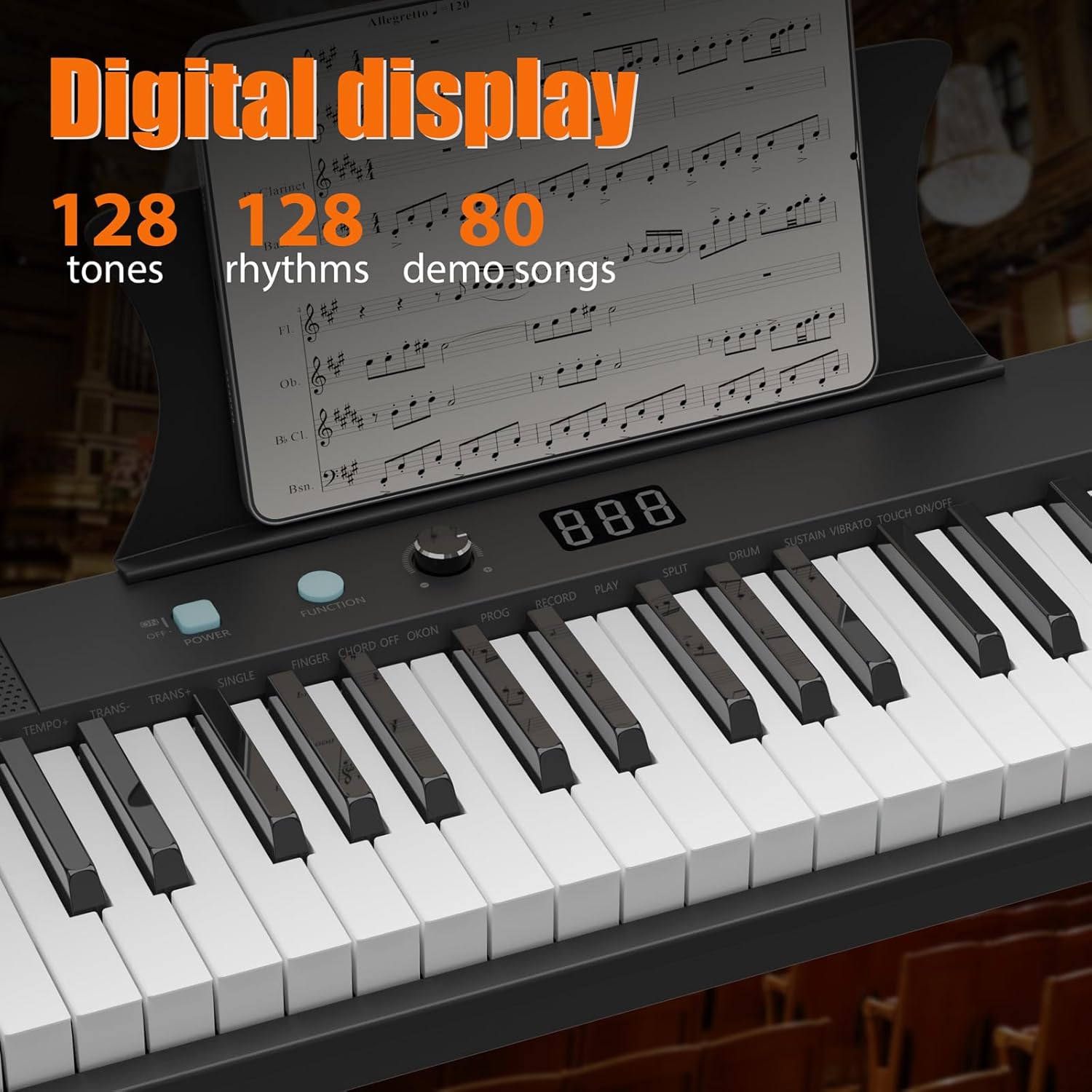
Figure 3: Digital Display and Controls
4.3. Teaching Modes
The keyboard includes teaching modes to assist beginners:
- Follow Mode: The keyboard waits for you to play the correct note before proceeding.
- One Key Mode: Play any key to advance through the melody of a demo song.
4.4. Recording and Playback
Use the RECORD button to record your performance and the PLAY button for playback.
4.5. External Connections
The keyboard supports various external connections:
- USB: Connect to a computer for MIDI functionality.
- AUX IN: Connect external audio devices to play along with your favorite music.
- AUX OUT: Connect to external speakers or amplifiers.

Figure 4: Connectivity Ports
Video 2: 61-Key Portable Keyboard Features. This video showcases the various functions and controls of a 61-key portable keyboard, including tone selection, rhythm, and demo modes.
5. Key Features
- 61 Weighted Keys: Provides a realistic piano playing experience with keys that respond to touch velocity.
- Portable Design: Lightweight and compact, making it easy to transport and store.
- LCD Display: Clear display for easy navigation and selection of tones, rhythms, and settings.
- Dual Power Supply: Operates via AC adapter or batteries for versatile use at home or on the go.
- Built-in Speakers: Delivers clear and rich audio for practice and performance.
- Comprehensive Starter Kit: Includes essential accessories like a stand, stool, headphones, microphone, and sustain pedal.

Figure 5: Product Dimensions
6. Maintenance
- Cleaning: Use a soft, dry cloth to clean the keyboard surface. Avoid using abrasive cleaners or solvents.
- Storage: Store the keyboard in a cool, dry place away from direct sunlight and extreme temperatures. If storing for an extended period, remove batteries to prevent leakage.
- Battery Replacement: When using batteries, replace all batteries simultaneously with new ones of the same type (AA). Do not mix old and new batteries or different types of batteries.
7. Troubleshooting
| Problem | Possible Cause | Solution |
|---|---|---|
| No sound | Volume too low; Headphones connected; Power issue | Increase volume; Disconnect headphones; Check power adapter/batteries |
| Keys not responding | Keyboard not powered on; Function mode active | Ensure power is on; Check active function modes (e.g., teaching mode) |
| Distorted sound | Volume too high; External device issue | Lower volume; Check connections to external devices |
8. Specifications
| Feature | Detail |
|---|---|
| Number of Keys | 61 |
| Key Type | Weighted, Velocity-sensitive |
| Dimensions (L x W x H) | 40.35" x 11.22" x 4.72" |
| Item Weight | 8.82 pounds |
| Tones | 128 |
| Rhythms | 128 |
| Demo Songs | 60 |
| Connectivity | 3.5mm Jack (Headphones, AUX IN, MIC IN), USB |
| Power Supply | DC 12V Adapter or 6x AA Batteries |
| Body Material | Plastic |
| Model Number | 0QQTRWT6 |
| UPC | 199641941961 |
9. Warranty & Support
For warranty information and customer support, please refer to the documentation included with your product or visit the official Garvee website. Keep your purchase receipt as proof of purchase for any warranty claims.
Online Support: For additional resources and FAQs, please visit the Garvee Store on Amazon.


