
Introduction
Thank you for purchasing the Arafuna Portable CD Player, Model CD528B. This manual provides detailed instructions for setup, operation, maintenance, and troubleshooting to ensure optimal performance and longevity of your device. Please read this manual thoroughly before using the product.
Package Contents
Before use, please check the package to ensure all items are present:
- Arafuna Portable CD Player (CD528B)
- USB Type-C charging cable
- AUX cable
- Wired headphones

Figure 1: Package Contents. This image displays the Arafuna CD Player along with its included accessories: a USB Type-C cable for charging, an AUX cable for wired connections, and a pair of wired headphones.
Product Overview
The Arafuna CD528B is a compact and versatile portable CD player featuring Bluetooth connectivity, a built-in rechargeable battery, and integrated stereo speakers. It supports various CD formats and offers multiple playback modes and sound effects.

Figure 2: Player Ports. This image highlights the AUX Port (also serving as the Headphone Port) and the TF Card Port on the side of the Arafuna CD Player.

Figure 3: Control Panel. This image displays the main control buttons on the Arafuna CD Player, including BT/TX for Bluetooth, EQ for sound effects, Play/Pause, Skip tracks, Mode selection, Program, Repeat, and A-B repeat functions, along with the central digital display.
Setup
1. Charging the Battery
The CD player features a built-in 2000 mAh rechargeable battery. Before first use, fully charge the device.
- Connect the included USB Type-C cable to the charging port on the CD player.
- Connect the other end of the USB cable to a compatible USB power adapter (not included), car charger, or power bank.
- The charging indicator will illuminate. Once fully charged, the indicator may change color or turn off depending on the model.
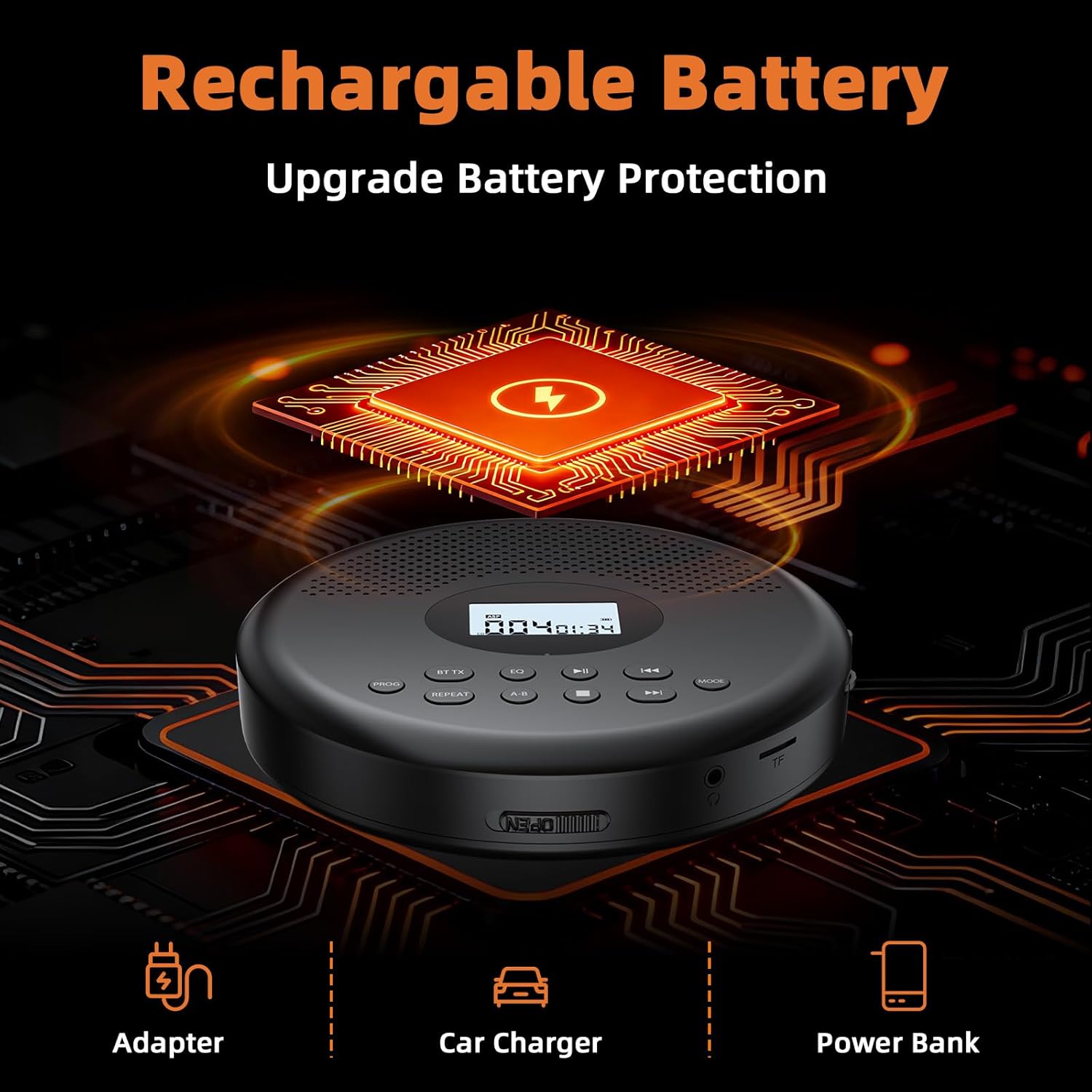
Figure 4: Charging Options. This image demonstrates how to charge the Arafuna CD Player using the USB Type-C cable connected to an adapter, a car charger, or a portable power bank.
2. Inserting a CD
- Locate the "OPEN" switch or button on the CD player.
- Gently slide or press to open the CD compartment lid. Note: The lid opens from the bottom. Avoid pressing the back of the player when opening the lid.
- Place the CD with the label side facing up onto the central spindle. Ensure the CD is securely seated.
- Close the CD compartment lid until it clicks into place.
3. Connecting Headphones or External Speakers
- Wired Connection: Plug the included wired headphones or an AUX cable (for external speakers) into the 3.5mm AUX/Headphone port.
- Bluetooth Connection:
- Turn on the CD player.
- Press the BT/TX button to activate Bluetooth mode. The display will indicate Bluetooth pairing.
- Enable Bluetooth on your headphones or external speaker and set them to pairing mode.
- The CD player will search for nearby Bluetooth devices. Select "Arafuna CD528B" (or similar) from your device's Bluetooth list if prompted.
- Once paired, the display will confirm the connection.
Figure 5: Bluetooth Controls. This image highlights the BT/TX button on the control panel, used for initiating Bluetooth transmission or reception.
Operating Instructions
1. Basic Playback
- Power On/Off: Use the power switch (usually on the side or bottom) to turn the player on or off.
- Play/Pause: Press the Play/Pause button (▶‖) to start or pause playback.
- Skip Tracks: Press the Next Track button (▶▶|) to skip to the next track. Press the Previous Track button (|◀◀) to go to the beginning of the current track or the previous track.
- Volume Control: Adjust the volume using the dedicated volume buttons or dial (if present).
2. Playback Modes
Press the MODE button to cycle through different playback modes:
- Repeat One: Repeats the current track.
- Repeat All: Repeats all tracks on the CD.
- Shuffle Play: Plays tracks in a random order.
- Play First 10s: Plays the first 10 seconds of each track (preview mode).
- Play in Order: Plays tracks sequentially.
- A-B Repeat: Repeats a specific section of a track. Press A-B once to set point A, press again to set point B, and the section will loop. Press a third time to cancel.
- Program Playback: Allows you to program a specific order of tracks.
- In stop mode, press the PROG button.
- Use the Next/Previous Track buttons to select the desired track.
- Press PROG again to add the track to the program list.
- Repeat steps b and c to add more tracks.
- Press Play to start programmed playback.

Figure 6: Playback Features. This image visually summarizes the compatible CD formats, the seven available playback modes, and the five sound effect options of the Arafuna CD Player.
3. Sound Effects (EQ)
Press the EQ button to cycle through 5 sound effect modes:
- Classic
- Pop
- Rock
- Jazz
- Balanced (default)
4. TF Card Playback
The player supports TF card input for playing MP3/WMA files.
- Insert a TF card into the TF card slot.
- The player should automatically switch to TF card mode or you may need to press the MODE button to select it.
- Use the standard playback controls (Play/Pause, Skip) to navigate and play tracks.
Maintenance
- Cleaning: Use a soft, dry cloth to clean the exterior of the player. For the lens, use a specialized CD lens cleaning kit. Do not use abrasive cleaners or solvents.
- Storage: Store the player in a cool, dry place away from direct sunlight and extreme temperatures.
- Battery Care: To prolong battery life, avoid fully discharging the battery frequently. Charge the device regularly, even if not in use for extended periods.
- CD Handling: Always hold CDs by their edges. Keep them clean and free of scratches to ensure optimal playback.
Troubleshooting
No Power / Player Does Not Turn On
- Ensure the battery is charged. Connect the player to a power source using the USB Type-C cable.
- Check the power switch to ensure it is in the "ON" position.
CD Does Not Play / Skipping
- Ensure the CD is inserted correctly with the label side facing up.
- Check the CD for scratches, dirt, or smudges. Clean the CD with a soft, lint-free cloth, wiping from the center outwards.
- The player has anti-shock protection, but severe vibrations can still cause skipping. Ensure the player is on a stable surface or held steadily during use.
- Try a different CD to rule out a faulty disc.
- Clean the CD lens using a specialized CD lens cleaner.
No Sound
- Increase the volume on the CD player and any connected external device (headphones/speakers).
- If using wired headphones/speakers, ensure the cable is fully plugged into the AUX/Headphone port.
- If using Bluetooth, ensure the player is correctly paired with your Bluetooth device and the volume on both devices is adequate. Try re-pairing the Bluetooth device.
- Ensure the player is not in pause mode.
Bluetooth Pairing Issues
- Ensure both the CD player and the target Bluetooth device are in pairing mode.
- Make sure the devices are within the effective Bluetooth range (typically 10 meters/33 feet) and there are no significant obstructions.
- Turn off and on Bluetooth on both devices, then try pairing again.
- If the device was previously paired, try "forgetting" or "unpairing" it from your Bluetooth device's list and then re-pairing.
Specifications
| Model Number | CD528B |
| Brand | Arafuna |
| Compatible Formats | CD, CD-R, CD-RW, CD-WMA, MP3 |
| Audio Formats Supported | CD-DA, MP3, WMA |
| Connectivity Technology | Bluetooth, Auxiliary |
| Bluetooth Compatibility | Yes |
| Power Source | Battery Powered (2000 mAh rechargeable) |
| Speaker Type | Stereo (Built-in) |
| Audio Output Mode | Stereo |
| Number of Audio Channels | 2.0 |
| Color | Black/Silver |
Warranty and Support
For warranty information or technical support, please refer to the contact information provided with your purchase or visit the official Arafuna website. Keep your purchase receipt as proof of purchase for warranty claims.


