
Cuifati CUIFATIvd1g4kecbu
Cuifati 4G CPE Cat6 Mobile WiFi Hotspot Router User Manual
Model: CUIFATIvd1g4kecbu
1. Introduction
This manual provides detailed instructions for the setup, operation, and maintenance of your Cuifati 4G CPE Cat6 Mobile WiFi Hotspot Router. This device offers secure, high-speed internet sharing across multiple devices using a SIM card, making it suitable for various environments including home, office, and outdoor activities.
2. Package Contents
Please verify that all items listed below are present in your package:
- Cuifati 4G CPE Cat6 Mobile WiFi Hotspot Router
- Power Adapter
- Ethernet Cable
- Carabiner (for portability)
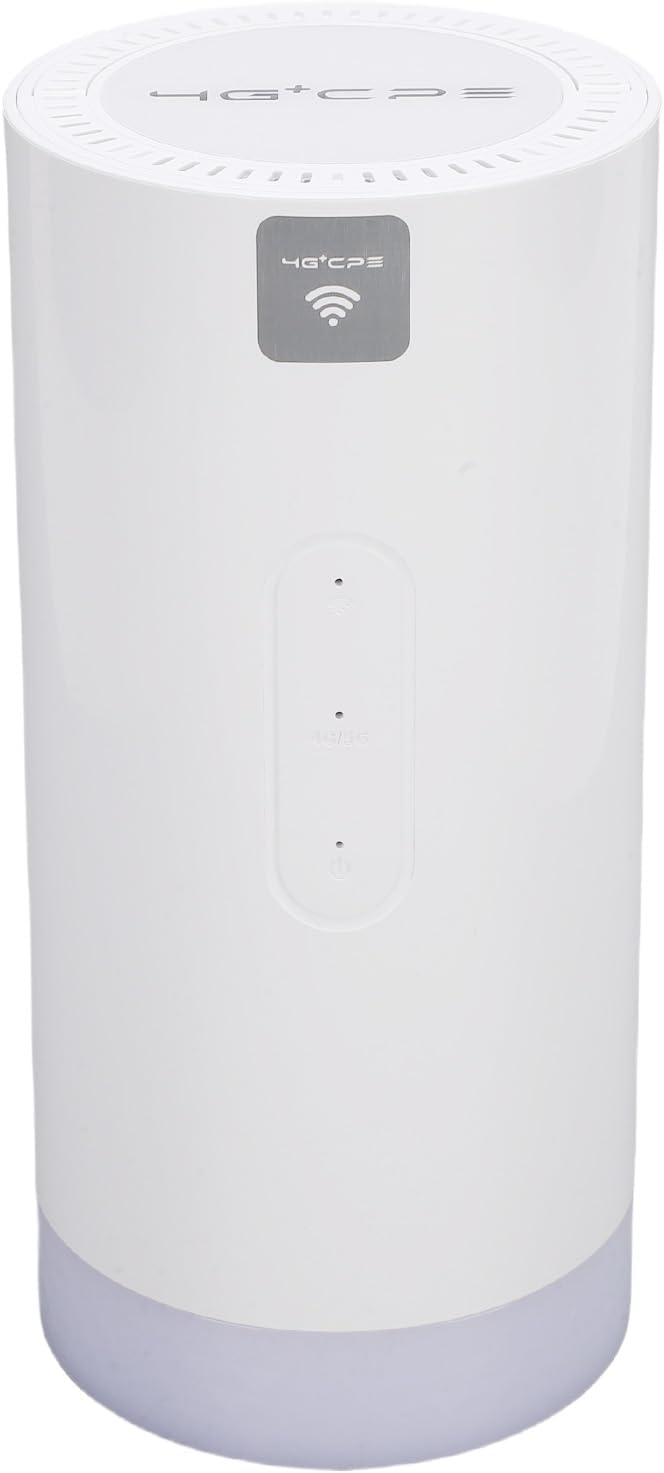
Image: Package contents including the router, power adapter, Ethernet cable, and carabiner.
3. Product Overview
3.1 Front Panel

Image: Front view of the router, showing LED indicators and the 4G+CPE logo.
The front panel features LED indicators for WiFi connection status, network connection status, and battery level, providing an intuitive display of the device's operational status.
3.2 Rear Panel and Ports

Image: Rear view of the router, displaying various ports and the product information label.
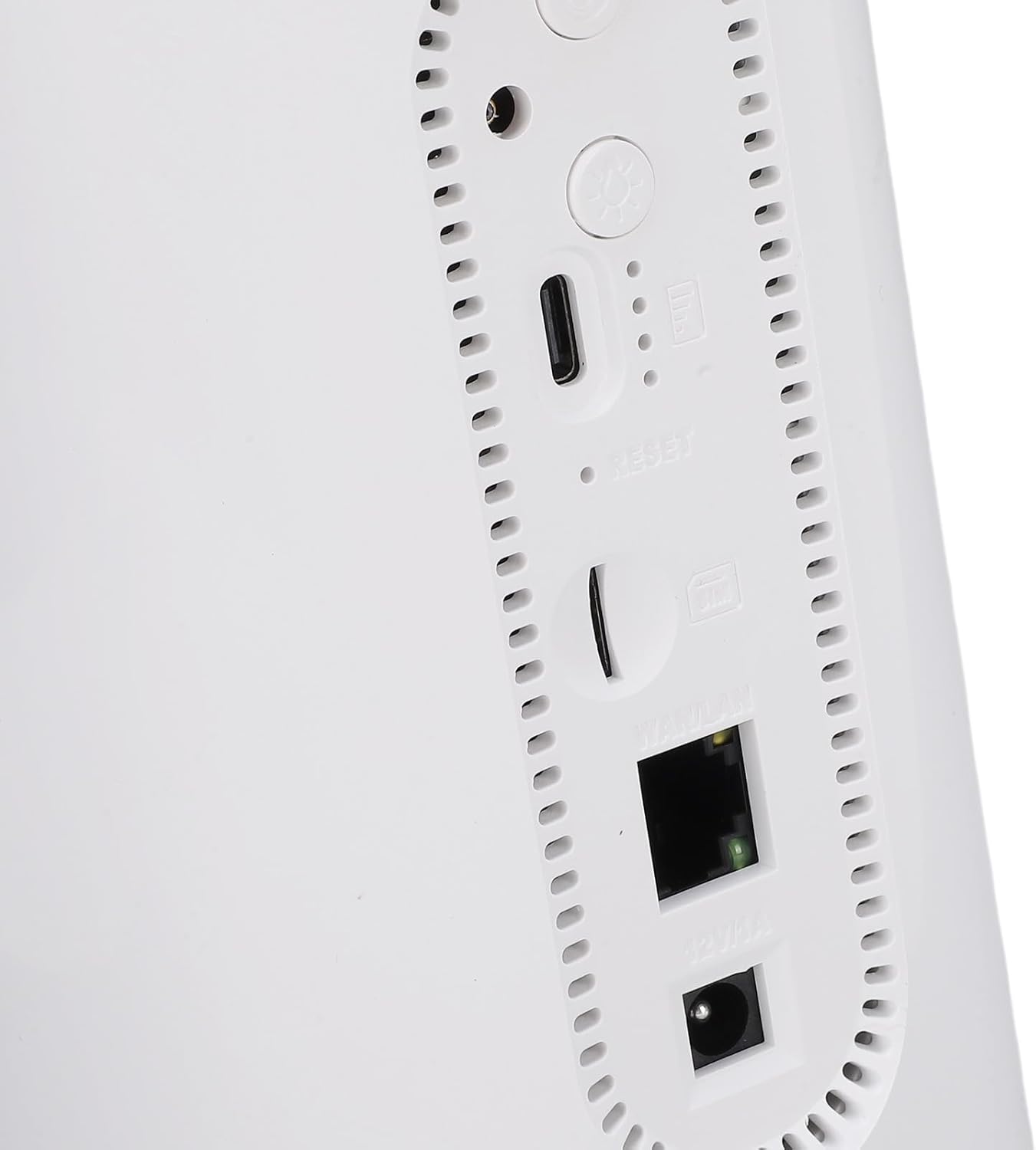
Image: Close-up view of the rear ports, including SIM card slot, Reset button, WAN/LAN port, and power input.
The rear panel includes essential ports and controls:
- SIM Card Slot: For inserting a Micro SIM card.
- Reset Button: Used to restore factory settings.
- WAN/LAN Port: An Ethernet port for wired connections or connecting to an existing network.
- Power Input: For connecting the power adapter.
- Power Button: To turn the device on or off.
- Camping Light Button: To activate or deactivate the colorful light feature.
4. Setup
4.1 SIM Card Installation
- Ensure the router is powered off.
- Locate the SIM card slot on the rear panel.
- Insert a Micro SIM card into the slot with the gold contacts facing down and the notched corner oriented correctly. Push until it clicks into place.
- To remove, gently push the SIM card again until it ejects.
4.2 Powering On
- Connect the provided power adapter to the power input port on the rear panel.
- Plug the power adapter into a wall outlet.
- Press and hold the Power Button until the LED indicators illuminate. The device will begin to boot up.
4.3 Initial WiFi Connection
- Once the router is powered on and the network indicator shows a stable connection, locate the default WiFi Network Name (SSID) and Password (PWD) on the label at the bottom or rear of the device. (Example: SSID: 4G+CPE-XXXX, PWD: XXXXXXXXXX)
- On your smartphone, tablet, or computer, search for available WiFi networks.
- Select the SSID corresponding to your router.
- Enter the default PWD when prompted.
- You should now be connected to the internet.
5. Operating Instructions
5.1 Connecting Devices
You can connect multiple devices to the router via WiFi. For wired connections, use an Ethernet cable to connect a device to the WAN/LAN port.
5.2 Accessing the Web Management Interface
To configure advanced settings, access the web management interface:
- Ensure your device is connected to the router's WiFi network.
- Open a web browser (e.g., Chrome, Firefox).
- Enter the default IP address (e.g., 192.168.199.1) into the address bar and press Enter. This IP address is typically found on the product label.
- Enter the default username (e.g., admin) and password (e.g., admin) when prompted. These credentials are also on the product label.
- From the interface, you can change WiFi settings, view connected devices, and manage network preferences.
5.3 LED Indicators
The LED indicators on the front panel provide visual feedback on the router's status:
- WiFi Indicator: Shows the status of the WiFi network.
- Network Indicator: Displays the status of the 4G/3G/2G mobile network connection.
- Battery Indicator: Indicates the current battery level.
Refer to the full product specifications for detailed indicator behavior (e.g., solid, blinking, color codes).
5.4 Camping Light Function
This router includes a colorful light feature. Press the dedicated Camping Light Button on the rear panel to activate or deactivate this function. This can be useful for outdoor activities.
6. Maintenance
- Cleaning: Use a soft, dry cloth to clean the device. Avoid liquid cleaners or abrasive materials.
- Storage: Store the router in a cool, dry place away from direct sunlight and extreme temperatures.
- Battery Care: For optimal battery life, avoid fully discharging the battery frequently. If storing for extended periods, charge the battery to approximately 50%.
- Firmware Updates: Periodically check the manufacturer's website or the web management interface for available firmware updates to ensure optimal performance and security.
7. Troubleshooting
- No Internet Connection:
- Ensure the SIM card is correctly inserted and activated with a data plan.
- Check the network LED indicator. If it's off or red, there might be a network issue or no signal.
- Restart the router and your connected device.
- Verify APN settings in the web management interface (if applicable).
- Cannot Connect to WiFi:
- Ensure the WiFi LED indicator is on.
- Verify you are entering the correct WiFi password.
- Move closer to the router to improve signal strength.
- Restart the router.
- Slow Internet Speed:
- Check your mobile network signal strength.
- Reduce the number of connected devices.
- Ensure no background applications are consuming excessive bandwidth.
- Try moving the router to a location with better signal reception.
- Router Not Responding:
- Press and hold the Power Button for 10 seconds to force a shutdown, then restart.
- If issues persist, perform a factory reset by pressing the Reset button with a pin for 5-10 seconds. Note: This will erase all custom settings.
8. Specifications
| Feature | Specification |
|---|---|
| Model Number | CUIFATIvd1g4kecbu |
| Brand | Cuifati |
| Connectivity Technology | 4G LTE (Cat6), Ethernet |
| Wireless Standard | 802.11 b/g/n/AC (2.4G, 5.8G) |
| WiFi Speed | 2.4G: 300Mbps, 5.8G: 866Mbps |
| Frequency Band Class | Tri-Band (LTE FDD, TDD, WCDMA, EDGE) |
| SIM Card Type | Micro SIM x 1 |
| Battery Capacity | 10000mAh Lithium Cell (Built-in) |
| Encryption | WiFi Protected Access™ (WPA/WPA2) 2 |
| Dimensions | Approx. 200x95x92mm / 7.87x3.74x3.62in |
| Item Weight | 1.88 pounds |
| Compatible Devices | Smartphones, Tablets, Laptops, Computers |
| Recommended Use | Indoor/Outdoor |
9. Warranty and Support
For warranty information and technical support, please refer to the documentation included with your purchase or contact Cuifati customer service directly. You may also visit the official Cuifati website for further assistance and resources.
Ask a question about this manual
Ask about setup, troubleshooting, compatibility, parts, safety, or missing instructions. Manuals+ will review the question and use this page’s manual context to help answer it.