
1. Product Overview
The BIEGEDY B22 is a 10-inch Android 15 tablet designed for versatile use, from daily entertainment to productivity tasks. It features an Octa-Core processor, up to 30GB RAM (including virtual expansion), 64GB internal storage, and support for up to 2TB Micro SD card expansion. The tablet comes equipped with a 10.1-inch FHD IPS display with Widevine L1 certification for high-definition streaming, 5G WiFi 6, Bluetooth 5.0, and a 6000mAh battery. It also includes essential accessories such as a keyboard, mouse, and protective case.

Image 1.1: The BIEGEDY B22 tablet shown with its full accessory kit, including a keyboard, mouse, charger, data cable, OTG adapter, and protective case.
2. Setup and Initial Use
2.1 Package Contents
Before starting, ensure all items are present in the package:
- BIEGEDY B22 10-inch Tablet
- Bluetooth Keyboard
- Wireless Mouse
- Protective Case
- Charger
- USB Data Cable
- OTG Adapter
- Screen Protector (one pre-applied, one spare)
2.2 Charging the Tablet
For optimal performance, fully charge the tablet before first use. Connect the charger to the tablet's USB-C port and plug it into a power outlet. The charging indicator will show the battery status.
2.3 Powering On/Off
- To Power On: Press and hold the Power button until the BIEGEDY logo appears.
- To Power Off: Press and hold the Power button, then select 'Power Off' from the options on the screen.
- To Restart: Press and hold the Power button, then select 'Restart' from the options.
2.4 Initial Android Setup
Upon first power-on, the tablet will guide you through the initial setup process:
- Select your preferred language.
- Connect to a Wi-Fi network.
- Sign in with your Google account or create a new one.
- Follow the on-screen prompts to complete the setup, including setting up security features like facial recognition or a PIN/password.
2.5 Inserting a MicroSD Card
The tablet supports MicroSD cards up to 2TB for expanded storage. Locate the SIM/MicroSD card tray on the side of the tablet. Use the provided ejector tool to open the tray, place the MicroSD card into the designated slot, and reinsert the tray firmly.
2.6 Connecting Bluetooth Accessories
To connect the included Bluetooth keyboard and mouse:
- Go to Settings > Connected devices > Bluetooth on your tablet and ensure Bluetooth is enabled.
- Turn on the Bluetooth keyboard/mouse and put them into pairing mode (refer to their individual manuals if needed).
- On the tablet, tap 'Pair new device' and select the keyboard/mouse from the list of available devices.
- Follow any on-screen prompts to complete the pairing.
3. Operating Your Tablet
3.1 Android 15 Features
Your BIEGEDY B22 tablet runs on Android 15, offering enhanced security, privacy controls, and an optimized user experience. Key features include:
- Improved Security: Advanced measures to protect your data and privacy.
- Gemini AI Integration: Built-in AI capabilities for real-time language translation, intelligent task management, and responsive interactions.
- GMS Certified: Full access to the Google Play Store and Google services.
- Dynamic Performance: Optimized resource management for smoother operation and reduced power consumption.
- Enhanced Multitasking: Split-screen and floating window modes for improved productivity.

Image 3.1: Visual representation of Android 15's core features, highlighting privacy, security, performance, and user interface enhancements.
3.2 Display and Multimedia
The tablet features a 10.1-inch Full HD (1280x800 pixels) IPS display. It supports Widevine L1 certification, enabling high-definition video playback on streaming platforms like Netflix, YouTube, and Prime Video. An eye protection mode is available to reduce blue light exposure.

Image 3.2: The tablet's 10.1-inch display, emphasizing Widevine L1 support for HD streaming and the presence of stereo speakers for an immersive audio experience.
3.3 Performance and Storage
Powered by an Octa-Core A523 processor, the tablet ensures smooth operation for various applications. It comes with 64GB of internal storage and up to 30GB of RAM (including virtual expansion), allowing for efficient multitasking and demanding applications. Storage can be expanded up to 2TB using a Micro SD card.

Image 3.3: Diagram illustrating the Octa-Core A523 processor and the tablet's memory configuration, including 30GB RAM, 64GB ROM, and 2TB expandable storage.
3.4 Connectivity
- 5G WiFi 6: Supports dual-band 2.4GHz and 5GHz Wi-Fi for faster and more stable internet connections.
- Bluetooth 5.0: Provides quick and stable connections to wireless peripherals like headphones, speakers, and the included keyboard and mouse.
- GPS: Integrated GPS for navigation and location-based services.
3.5 Cameras and Security
The tablet is equipped with a 5MP front camera for video calls and an 8MP rear camera for capturing photos and scanning documents. It also supports facial recognition for convenient and secure unlocking.

Image 3.4: Depiction of the tablet's 5MP front and 8MP rear cameras, alongside the facial recognition security feature.
3.6 Battery Life
The 6000mAh battery provides extended usage times. Typical usage estimates are:
- Music Playback: Up to 8 hours
- Video Playback: Up to 5 hours
- Gaming: Up to 4 hours
- Standard Use: Up to 24 hours (standby)
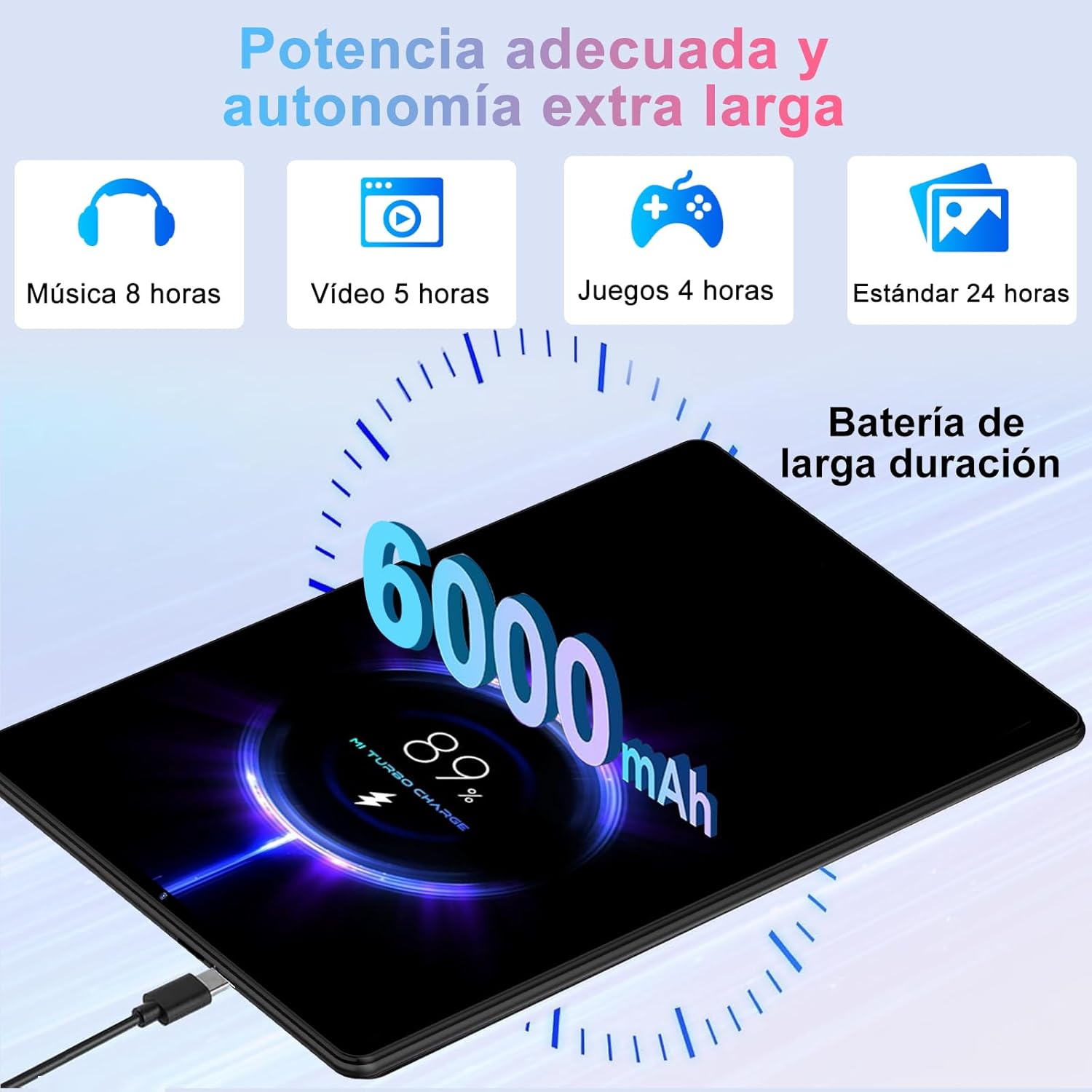
Image 3.5: The tablet displaying its 6000mAh battery capacity and charging status.
4. Maintenance
4.1 Cleaning Your Tablet
To clean the tablet, power it off and disconnect all cables. Use a soft, lint-free cloth slightly dampened with water or a screen cleaner specifically designed for electronics. Avoid using harsh chemicals, abrasive materials, or excessive moisture.
4.2 Software Updates
Periodically check for system updates to ensure your tablet has the latest features and security patches. Go to Settings > System > System update to check for and install available updates. Ensure your tablet is sufficiently charged and connected to Wi-Fi before performing updates.
4.3 Storage Optimization
To maintain optimal performance, regularly manage your tablet's storage:
- Delete unnecessary apps and files.
- Clear cache data for apps in Settings > Apps > [App Name] > Storage & cache.
- Transfer large files (photos, videos) to the Micro SD card or cloud storage.
5. Troubleshooting
If you encounter issues with your tablet, refer to the following common solutions:
| Problem | Possible Solution |
|---|---|
| Tablet does not turn on | Ensure the battery is charged. Connect the charger and wait a few minutes before attempting to power on again. If unresponsive, press and hold the power button for 10-15 seconds to force a restart. |
| Wi-Fi connection issues | Restart the tablet and your Wi-Fi router. Forget the network in Wi-Fi settings and reconnect. Ensure you are within range of the Wi-Fi signal. |
| Bluetooth pairing failure | Ensure Bluetooth is enabled on both devices. Place devices close to each other. Restart both devices and try pairing again. Check if the accessory is in pairing mode. |
| Slow performance or app crashes | Close unnecessary background apps. Clear app cache. Free up storage space. Restart the tablet. |
| Screen unresponsive | Restart the tablet. If the issue persists, ensure the screen is clean and free of debris. |
5.1 Factory Reset
If troubleshooting steps do not resolve the issue, a factory reset may be necessary. Warning: This will erase all data on your tablet. Back up important data before proceeding.
To perform a factory reset: Go to Settings > System > Reset options > Erase all data (factory reset). Follow the on-screen instructions.
6. Specifications
| Feature | Specification |
|---|---|
| Brand | BIEGEDY |
| Model | B22 |
| Operating System | Android 15 |
| Processor | Octa-Core A523 |
| RAM | Up to 30GB (including virtual expansion) |
| Internal Storage (ROM) | 64GB |
| Expandable Storage | Micro SD up to 2TB |
| Display Size | 10.1 inches |
| Display Resolution | 1280 x 800 Pixels (FHD IPS) |
| Widevine Certification | L1 |
| Rear Camera | 8 MP |
| Front Camera | 5 MP |
| Battery Capacity | 6000mAh |
| Wi-Fi | 5G WiFi 6 (2.4GHz/5GHz dual-band) |
| Bluetooth | Bluetooth 5.0 |
| GPS | Yes |
| Dimensions | 24.6 x 15.4 x 0.74 cm |
| Weight | 1.23 kg (including accessories, tablet is approx. 400g) |
| Color | Black |
7. Warranty and Support
BIEGEDY is committed to providing excellent customer service. Your tablet comes with the following service guarantees:
- 24/7 After-Sales Service: Customer support is available 24 hours a day, 7 days a week.
- 30-Day Refund Policy: Eligibility for a refund within 30 days of purchase.
- 24-Month Warranty: A 24-month warranty covers manufacturing defects.
- Expedited Delivery: For eligible purchases.
For any inquiries or support needs, please refer to the contact information provided with your product packaging or visit the official BIEGEDY support website.

Image 7.1: Overview of BIEGEDY's service guarantee, including support availability, refund policy, and warranty duration.