
1. Introduction
The Redragon G821 Hall Effect Analog Gaming Controller is engineered to provide a precise and immersive gaming experience. This manual provides essential information for setting up, operating, maintaining, and troubleshooting your controller to ensure optimal performance.
2. Product Features
- Hall Effect Analog Sticks: Utilizes Hall Effect technology for enhanced durability, precision, and extended lifespan, eliminating stick drift.
- Configurable Turbo Function: Allows for programmable rapid-fire actions on selected buttons.
- Ergonomic Design: Features a comfortable form factor with an optimized left analog stick placement for improved user comfort during extended gaming sessions.
- Dual Vibration Motors: Provides tactile feedback through dual motors, enhancing gaming immersion.
- Versatile Connectivity: Supports both USB Type-C wired connection and 2.4GHz wireless connectivity.
- Headset Jack: Integrated 3.5mm audio jack for headset connection.
- High Polling Rate: 1000Hz polling rate ensures minimal input lag.
- Multi-Platform Compatibility: Supports X-Input and Direct Input protocols for broad compatibility with PC and other devices.
3. Package Contents
Please verify that all items are present in your package:
- Redragon G821 Gaming Controller
- USB Type-C Cable
- 2.4GHz Wireless Dongle
- User Manual (this document)
4. Setup
4.1 Charging the Controller
Before first use, fully charge the controller. Connect the supplied USB Type-C cable to the controller's charging port and the other end to a USB power source (e.g., PC, USB wall adapter). The LED indicator will show charging status and turn off or change color when fully charged.
4.2 Wireless Connection (2.4GHz)
- Insert the 2.4GHz wireless dongle into an available USB port on your PC or compatible device.
- Press and hold the Home button on the controller to power it on.
- The controller will automatically attempt to pair with the dongle. The LED indicator will stabilize once connected.
4.3 Wired Connection (USB Type-C)
Connect the USB Type-C cable directly from the controller to an available USB port on your PC or compatible device. The controller will be recognized automatically, and the LED indicator will confirm the connection.
5. Operating Instructions
5.1 Controller Layout
Familiarize yourself with the buttons and controls of your Redragon G821 controller.

Figure 1: Front view of the Redragon G821 controller, showing the Hall Effect analog sticks, D-pad, action buttons (A, B, X, Y), and central function buttons.
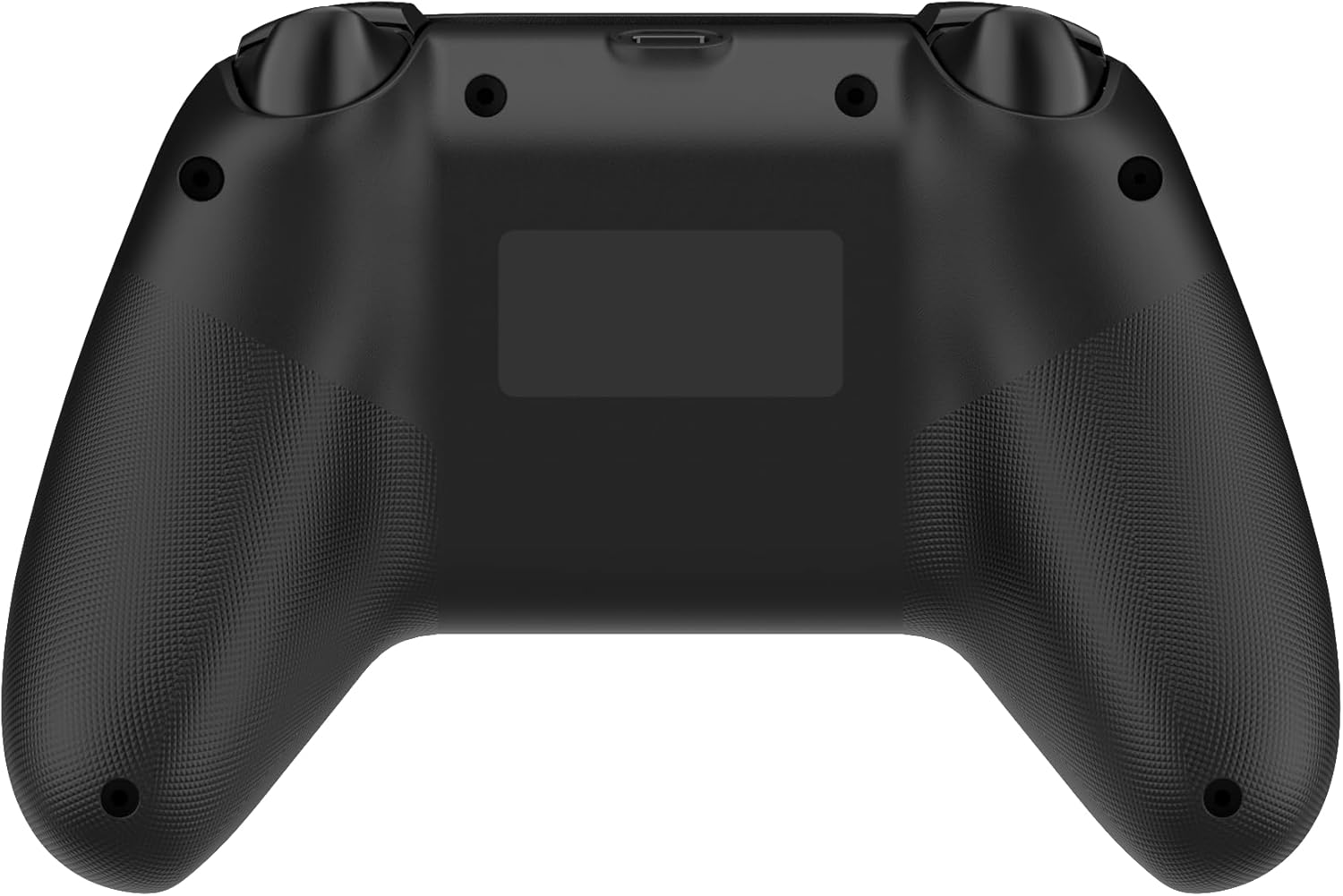
Figure 2: Back view of the Redragon G821 controller, highlighting the ergonomic grip texture.

Figure 3: Top view of the Redragon G821 controller, showing the shoulder buttons (LB, RB) and triggers (LT, RT), along with the USB-C port.
5.2 Power On/Off
- Power On: Press and hold the Home button for 1-2 seconds.
- Power Off: Press and hold the Home button for 5 seconds until the LED indicators turn off. The controller will also automatically power off after a period of inactivity to conserve battery.
5.3 Turbo Function
The Turbo function allows a button to repeatedly register input as long as it is held down.
- Activate Turbo: Press and hold the desired button (e.g., A) and then press the Turbo button simultaneously. The button will now have Turbo functionality.
- Deactivate Turbo: Repeat the activation steps (hold the Turbo-enabled button and press the Turbo button) to disable Turbo for that specific button.
5.4 Vibration Feedback
The dual vibration motors provide haptic feedback during gameplay. This feature is automatically enabled when supported by the game. The intensity of the vibration is typically controlled by the game itself.
5.5 Headset Connection
Plug your 3.5mm compatible headset into the audio jack located on the bottom of the controller. Audio output and microphone input will be routed through the controller, provided your device and game support this functionality.
6. Maintenance
6.1 Cleaning
To clean your controller, use a soft, dry cloth. For stubborn dirt, slightly dampen the cloth with water or a mild cleaning solution. Avoid using harsh chemicals, abrasive materials, or excessive moisture, as these can damage the controller.
6.2 Storage
Store the controller in a cool, dry place away from direct sunlight, extreme temperatures, and high humidity. Keep it away from dust and liquids. If storing for an extended period, ensure the battery is partially charged (around 50%) to prolong its lifespan.
6.3 Battery Care
The controller contains a built-in rechargeable Lithium Polymer battery. Do not attempt to replace the battery yourself. Avoid fully discharging the battery frequently, as this can reduce its overall lifespan. Charge the controller regularly, even if not in constant use.
7. Troubleshooting
7.1 Controller Not Connecting
- Ensure the controller is charged.
- For wireless connection, verify the 2.4GHz dongle is securely plugged into a working USB port. Try a different USB port.
- For wired connection, ensure the USB Type-C cable is properly connected to both the controller and the device. Try a different USB port or cable.
- Restart your PC or device.
- Check if there are any driver updates available for the controller on the Redragon official website.
7.2 Buttons Not Responding / Analog Stick Drift
- Ensure the controller is properly connected and powered on.
- Test the controller in a different game or a controller calibration tool to determine if the issue is game-specific.
- For analog stick issues, the Hall Effect technology significantly reduces drift, but ensure no physical obstructions are present.
- Perform a factory reset if available (refer to the Redragon support website for specific instructions for your model).
7.3 Vibration Not Working
- Verify that the game you are playing supports vibration feedback.
- Check in-game settings to ensure vibration is enabled.
- Ensure the controller's battery level is sufficient.
8. Specifications
| Feature | Detail |
|---|---|
| Model | G821 |
| Connectivity | USB Type-C Wired, 2.4GHz Wireless |
| Analog Sticks | Hall Effect |
| Battery Type | Lithium Polymer |
| Battery Capacity | 600mAh |
| Polling Rate | 1000Hz |
| Number of Buttons | 19 |
| Supported Protocols | X-Input, Direct Input |
| Headset Jack | 3.5mm |
| Approx. Product Dimensions | 156 x 104 x 60 mm |
| Approx. Product Weight | 185 grams |
9. Warranty and Support
Redragon products are designed for reliability and performance. For warranty information, technical support, or to register your product, please visit the official Redragon website or contact their customer service. Keep your proof of purchase for warranty claims.
Official Website: www.redragonzone.com