Introduction
This manual provides detailed instructions for the Redragon Darkflame G820 Gamer Controller. Please read this guide thoroughly before using the product to ensure proper operation and to maximize your gaming experience. Keep this manual for future reference.
Product Overview
The Redragon Darkflame G820 is a high-performance gamer controller designed for precision and durability. Key features include:
- Hall Effect Analog Sticks: Enhanced durability and precision for analog inputs.
- Turbo Function: Configurable repeat function for rapid button presses.
- Macro Buttons: Additional programmable buttons located on the back for custom commands.
- LED Lighting: Integrated lighting on buttons for visual appeal.
- Adjustable Triggers: Independently adjustable press triggers for personalized control.
- Connectivity: USB Type-C and Bluetooth 5.3 for versatile connection options.
- Headphone Jack: 3.5mm audio jack for headset connection.
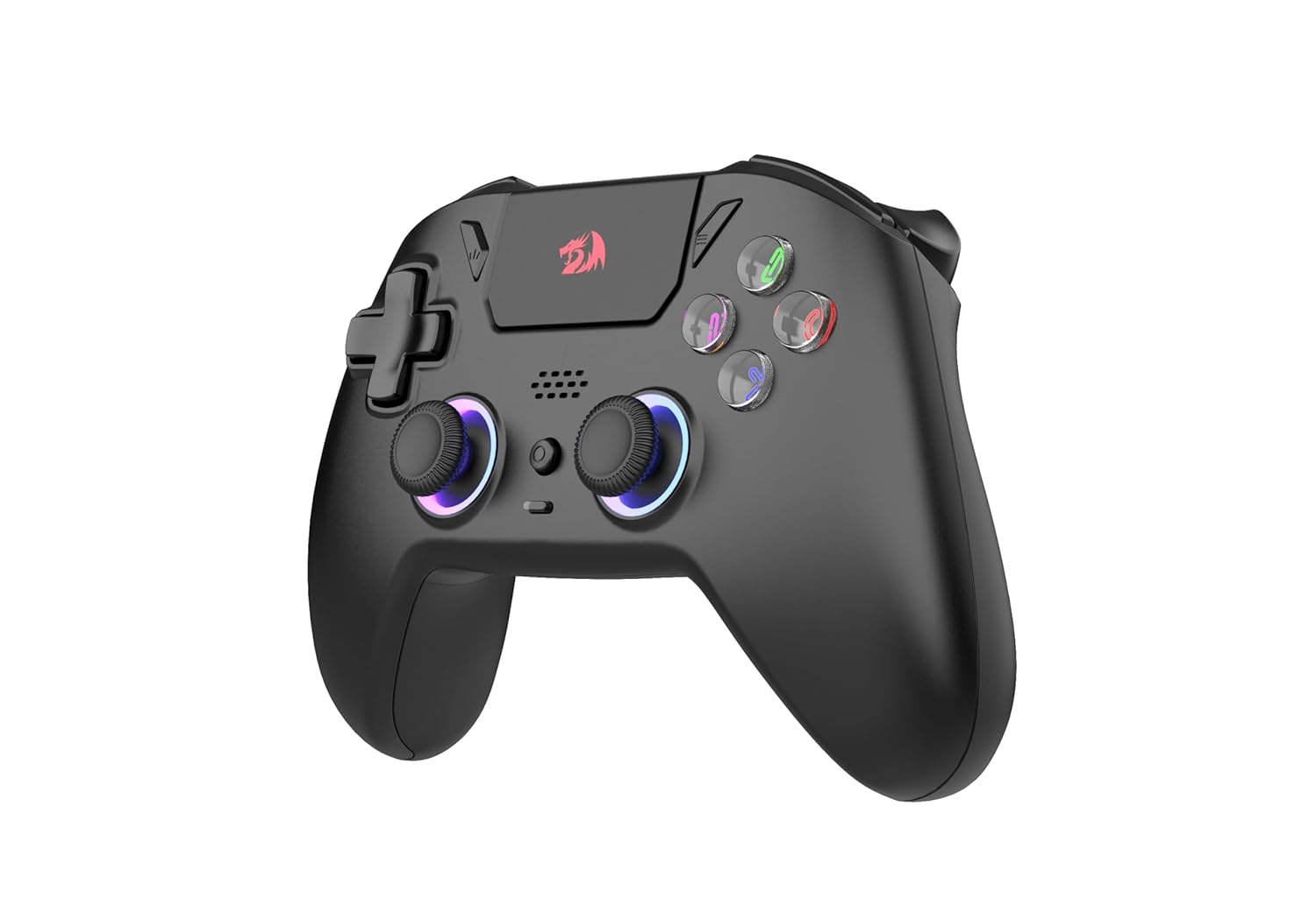
Figure 1: Front view of the Redragon Darkflame G820 Controller, showing the analog sticks, D-pad, action buttons with LED lighting, and central function buttons.

Figure 2: Side view of the Redragon Darkflame G820 Controller, highlighting the ergonomic grip and shoulder buttons.

Figure 3: Back view of the Redragon Darkflame G820 Controller, showing the additional macro buttons (MR, ML) and textured grip.

Figure 4: Top view of the Redragon Darkflame G820 Controller, displaying the shoulder buttons (L1, R1) and triggers (L2, R2).

Figure 5: Bottom view of the Redragon Darkflame G820 Controller, showing the USB-C charging port and 3.5mm headphone jack.
Setup
Charging the Controller
Before first use, fully charge the controller. Connect the provided USB Type-C cable to the controller's charging port and the other end to a USB power source (e.g., PC, wall adapter). The LED indicator will show charging status and turn off or change color when fully charged.
Connecting via USB Type-C (Wired Mode)
- Connect one end of the USB Type-C cable to the controller.
- Connect the other end to an available USB port on your PC or gaming console.
- The controller should be automatically recognized by your system.
Connecting via Bluetooth (Wireless Mode)
- Ensure your device (PC, console, mobile) has Bluetooth enabled.
- On the Redragon Darkflame G820, press and hold the Pairing Button (refer to product diagram for location, typically a small button on the top or back) until the LED indicator starts flashing rapidly. This indicates pairing mode.
- On your device, search for new Bluetooth devices and select "Redragon G820" (or similar name) from the list.
- Once paired, the LED indicator on the controller will stop flashing and remain solid.
Operating Instructions
Basic Controls
- Analog Sticks: Use for movement and camera control.
- D-Pad: For directional input, menu navigation.
- Action Buttons (A, B, X, Y): For in-game actions.
- Shoulder Buttons (L1, R1): For various in-game functions.
- Triggers (L2, R2): Pressure-sensitive inputs for actions like acceleration or shooting.
Turbo Function
To activate Turbo mode for a button:
- Press and hold the Turbo button (usually a dedicated button or a combination with another button).
- While holding Turbo, press the desired action button (e.g., A, B, X, Y, L1, R1, L2, R2).
- Release both buttons. The selected action button will now repeat its input as long as it's held down.
To deactivate Turbo mode for a button, repeat the same steps.
Macro Buttons (MR, ML)
The MR and ML buttons on the back of the controller can be programmed to perform a sequence of button presses. Refer to the specific software or advanced settings for detailed macro programming instructions, as this can vary by platform and controller firmware.
Adjusting Triggers
The L2 and R2 triggers feature independent adjustment. This typically involves a physical switch or dial near the triggers that allows you to change their travel distance or sensitivity. Adjust to your preference for different game types (e.g., shorter travel for faster shooting, longer travel for precise acceleration).
Headphone Connection
Plug your 3.5mm compatible headset into the headphone jack located on the bottom of the controller for audio and microphone functionality (if supported by your system and game).
Maintenance
- Cleaning: Use a soft, dry cloth to wipe the controller. For stubborn dirt, slightly dampen the cloth with water. Avoid harsh chemicals or abrasive cleaners.
- Storage: Store the controller in a cool, dry place away from direct sunlight and extreme temperatures.
- Battery Care: To prolong battery life, avoid fully discharging the controller frequently. Charge it regularly, even if not in constant use.
- Cable Management: Avoid sharp bends or kinks in the USB-C cable to prevent damage.
Troubleshooting
Controller Not Responding
- Check Battery: Ensure the controller is charged. Connect it via USB-C to see if it powers on.
- Wired Connection: Try connecting the controller directly via USB-C cable. Ensure the cable is securely plugged into both the controller and the device.
- Bluetooth Connection: If using Bluetooth, ensure the controller is paired correctly. Try unpairing and re-pairing the device. Ensure your device's Bluetooth is enabled and working.
- Restart Device: Restart your PC or console.
Input Lag or Disconnections
- Interference: Move closer to your device if using Bluetooth. Reduce potential wireless interference from other devices.
- Battery Level: Low battery can affect wireless performance. Charge the controller.
- Firmware Update: Check the Redragon official website for any available firmware updates for the G820 controller.
Buttons or Analog Sticks Not Working Correctly
- Calibration: Some operating systems or games allow for controller calibration. Check your system settings.
- Cleaning: Ensure no debris is lodged around buttons or analog sticks.
- Software Conflict: Close any background applications that might interfere with controller input.
Specifications
| Feature | Detail |
|---|---|
| Model | Redragon Darkflame G820 |
| Connectivity | USB Type-C, Bluetooth 5.3 |
| Battery Capacity | 1000mAh |
| Number of Buttons | 16 |
| Analog Technology | Hall Effect |
| Headphone Connection | 1x 3.5mm Jack |
| Approximate Product Dimensions | 156 x 107 x 60 mm |
| Approximate Product Weight | 280 g (Net), 415 g (Gross) |
Warranty and Support
For warranty information and technical support, please refer to the warranty card included with your product or visit the official Redragon website. You can also contact Redragon customer service directly for assistance with product issues or inquiries.
Redragon Official Website: www.redragonzone.com
Official Product Videos
No official product videos from the seller were found for this model at this time.


