
Introduction
This manual provides essential information for setting up, operating, maintaining, and troubleshooting your Acer Nitro V 15 Gaming Laptop, model ANV15-52-90QH. Please read this guide thoroughly to ensure proper use and to maximize the performance and longevity of your device.
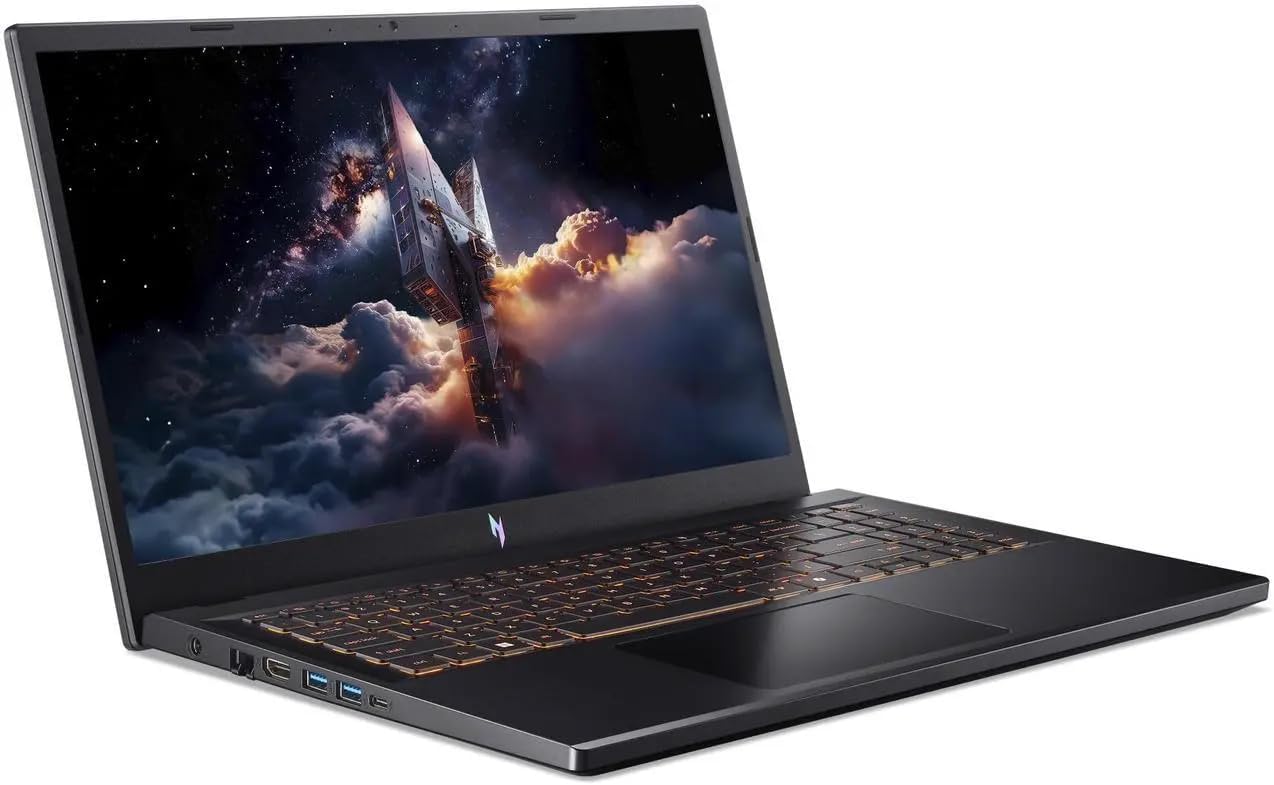
Image: Acer Nitro V 15 Gaming Laptop with its display open, viewed from an angle, showcasing the keyboard and screen.
Setup
1. Unboxing and Initial Inspection
- Carefully remove the laptop and all accessories from the packaging.
- Verify that all components are present: laptop, power adapter, and documentation.
- Inspect the laptop for any physical damage. If damage is found, contact your retailer immediately.
2. Connecting Power
- Connect the AC adapter cable to the power adapter.
- Plug the power adapter into the DC-in jack on the laptop.
- Plug the other end of the AC adapter into a grounded electrical outlet.
- Allow the laptop to charge for at least 30 minutes before initial use.

Image: Side view of the laptop highlighting various ports including the DC-in jack for power, Ethernet (RJ-45) port, HDMI, USB 3.2 ports, and a Type-C Thunderbolt 4 port.
3. Initial Boot and Windows Setup
- Open the laptop lid and press the power button.
- Follow the on-screen instructions to complete the Windows 11 Home setup process. This includes selecting your region, language, accepting terms, and creating a user account.
4. Connecting Peripherals and Network
- USB Devices: Connect external mice, keyboards, or other USB peripherals to the available USB 3.2 ports.
- External Display: Use the HDMI or Thunderbolt 4 (USB Type-C) port to connect an external monitor.
- Ethernet: For a wired network connection, plug an Ethernet cable into the RJ-45 port.
- Wi-Fi: During Windows setup or via the Windows settings, connect to a Wi-Fi 6E compatible network for wireless internet access.
- Headset: Connect your headset to the dedicated headset jack.
Operating Your Laptop
1. Power Management
- Power On: Press the power button located on the keyboard deck.
- Sleep Mode: Close the lid or select 'Sleep' from the Windows Start menu.
- Shut Down: Select 'Shut down' from the Windows Start menu.
- Restart: Select 'Restart' from the Windows Start menu.
2. Keyboard and Touchpad

Image: Top-down view of the laptop's keyboard and touchpad, illustrating the layout and backlit keys.
- The laptop features a full-size backlit keyboard. Adjust backlight intensity using function keys (Fn + F9/F10, or as indicated by keyboard icons).
- The precision touchpad supports multi-touch gestures for navigation. Refer to Windows settings for customization.
- Function keys (F1-F12) often have secondary functions (e.g., volume, brightness, Wi-Fi toggle) accessible by pressing Fn + the desired function key.
3. Display and Graphics
- Your laptop is equipped with a 15.6-inch Full HD (1920x1080) IPS display with a 165Hz refresh rate for smooth visuals.
- The NVIDIA GeForce RTX 5060 GPU handles graphics processing, providing high performance for gaming and demanding applications.
- Adjust display settings (resolution, refresh rate, color) through Windows Display Settings or the NVIDIA Control Panel.
4. Audio and Webcam
- Integrated speakers provide audio output. Connect headphones to the headset jack for private listening.
- The built-in webcam supports video conferencing and recording. Ensure proper lighting for optimal image quality.
- The laptop includes PurifiedVoice AI Noise Reduction for clear audio during calls and PurifiedView AI Powered Webcam for enhanced video quality.

Image: PurifiedView AI Powered Webcam interface.

Image: PurifiedVoice AI Noise Reduction in action during a video call.
Maintenance
1. Cleaning Your Laptop
- Screen: Use a soft, lint-free cloth dampened with water or a screen cleaner. Do not spray liquid directly onto the screen.
- Keyboard and Chassis: Use a soft cloth to wipe surfaces. For stubborn dirt, a slightly damp cloth can be used. Avoid harsh chemicals.
- Vents: Periodically clean the cooling vents with compressed air to prevent dust buildup, which can affect performance.

Image: Underside of the laptop, displaying the ventilation grilles for the cooling system.
2. Battery Care
- Avoid fully discharging the battery frequently.
- Store the laptop in a cool, dry place if not used for extended periods.
- Use only the original Acer power adapter.
3. Software Updates
- Regularly update Windows and device drivers (especially graphics drivers) to ensure optimal performance and security.
- Check the Acer support website for specific driver updates for your model.
Troubleshooting
Common Issues and Solutions
| Problem | Possible Solution |
|---|---|
| Laptop does not power on. |
|
| Screen is blank or black. |
|
| Slow performance. |
|
| Wi-Fi connectivity issues. |
|
Specifications
| Feature | Detail |
|---|---|
| Brand | acer |
| Model Name | Nitro V 15 |
| Model Number | ANV15-52-90QH |
| Screen Size | 15.6 Inches |
| Display Type | FHD IPS LED |
| Native Resolution | 1920 x 1080 pixels |
| Refresh Rate | 165 Hz |
| CPU Model | Intel Core i9-13900H |
| Processor Speed | Up to 5.4 GHz |
| Graphics Coprocessor | NVIDIA GeForce RTX 5060 |
| RAM Memory Installed Size | 32 GB DDR5 RAM |
| Hard Disk Size | 1 TB SSD |
| Operating System | Windows 11 Home |
| Connectivity Technology | Thunderbolt 4, USB Type-C, USB Type-A, HDMI, Ethernet, Wi-Fi 6E |
| Total USB Ports | 3 |
| Keyboard | Backlit |
| Item Weight | 5.7 Pounds |
| Item Dimensions (L x W x Thickness) | 14.3"L x 10"W x 0.9"Th |
Warranty and Support
1. Warranty Information
Your Acer Nitro V 15 Gaming Laptop comes with a 1-Year Limited Warranty. This warranty is full and international, covering manufacturing defects under normal use. For detailed terms and conditions, please refer to the warranty card included with your product or visit the official Acer support website.
2. Technical Support
For technical assistance, driver downloads, or further product information, please visit the official Acer support website. You can typically find support resources by searching for your model number (ANV15-52-90QH) on the Acer support portal.
- Online Support: Access FAQs, troubleshooting guides, and driver downloads.
- Contact Support: Find contact numbers or online chat options for direct assistance.


