
1. Introduction
This manual provides detailed instructions for the installation, operation, and maintenance of your AVAPOW X1 4K Dash Cam. The AVAPOW X1 is designed to capture high-quality video footage of your journeys, offering features such as 4K UHD recording, Wi-Fi 6 connectivity, G-Sensor for emergency recording, loop recording, enhanced night vision, and 24-hour parking mode with the included hardwire kit. Please read this manual thoroughly before using the device to ensure proper functionality and safety.
2. Package Contents
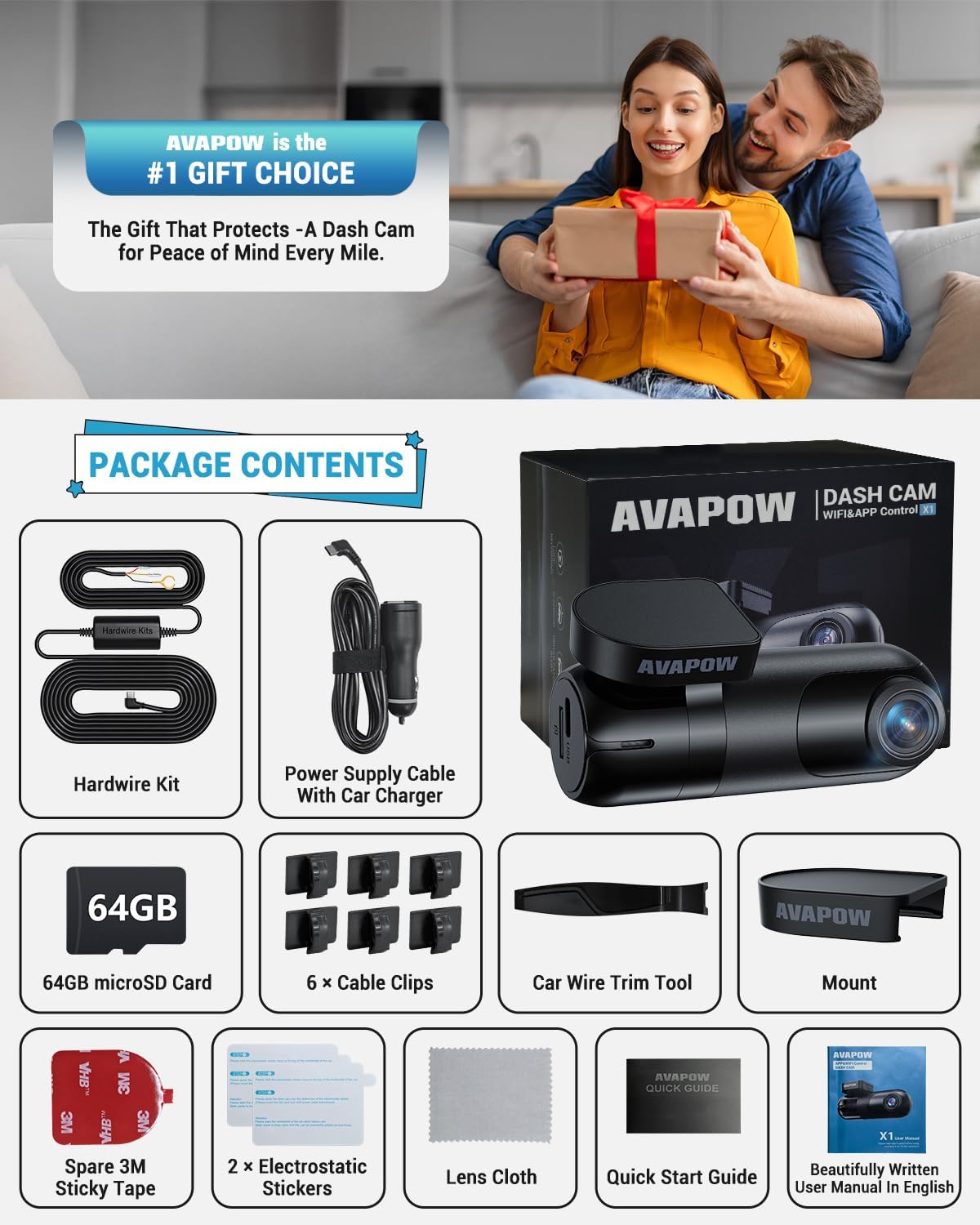
Verify that all items listed below are included in your package:
- AVAPOW X1 4K Dash Cam
- Hardwire Kit
- 64GB microSD Card
- Car Charger
- Crowbar (Trim Tool)
- Cable Clips
- Quick Guide
- User Manual
- Spare 3M Sticky Tape
- 2 x Electrostatic Stickers
- Lens Cloth
3. Setup and Installation
3.1 Mounting the Dash Cam
- Clean the desired area on your windshield thoroughly.
- Apply an electrostatic sticker to the cleaned area on the windshield. This helps protect your windshield and makes removal easier.
- Attach the dash cam mount with the 3M adhesive to the electrostatic sticker. Ensure the camera lens has a clear view of the road.
- Insert the 64GB microSD card into the designated slot on the dash cam.
- Connect the USB-C power cable to the dash cam.

3.2 Power Connection Options
You have two options for powering your dash cam:
- Cigarette Lighter Power: Use the included car charger to plug into your vehicle's cigarette lighter socket. This provides power when the vehicle is running.
- Hardwire Kit Installation (for 24/7 Parking Mode): For continuous power and parking monitoring features, install the included hardwire kit. This connects directly to your vehicle's fuse box.
Hardwire Kit Installation Steps:
- Locate your car's fuse box (usually under the dashboard or side panel).
- Identify a constant power fuse (always on) and an ACC fuse (on with ignition). Use a circuit tester to verify.
- Connect the yellow wire (VCC+) of the hardwire kit to the constant power fuse.
- Connect the red wire (ACC) of the hardwire kit to the ACC fuse.
- Connect the black wire (GND-) to a metal part of the car body for grounding.
- Route the USB-C cable from the hardwire kit along the windshield edge and A-pillar using the provided trim tool and cable clips, then connect it to the dash cam.

3.3 App Installation and Wi-Fi Connection
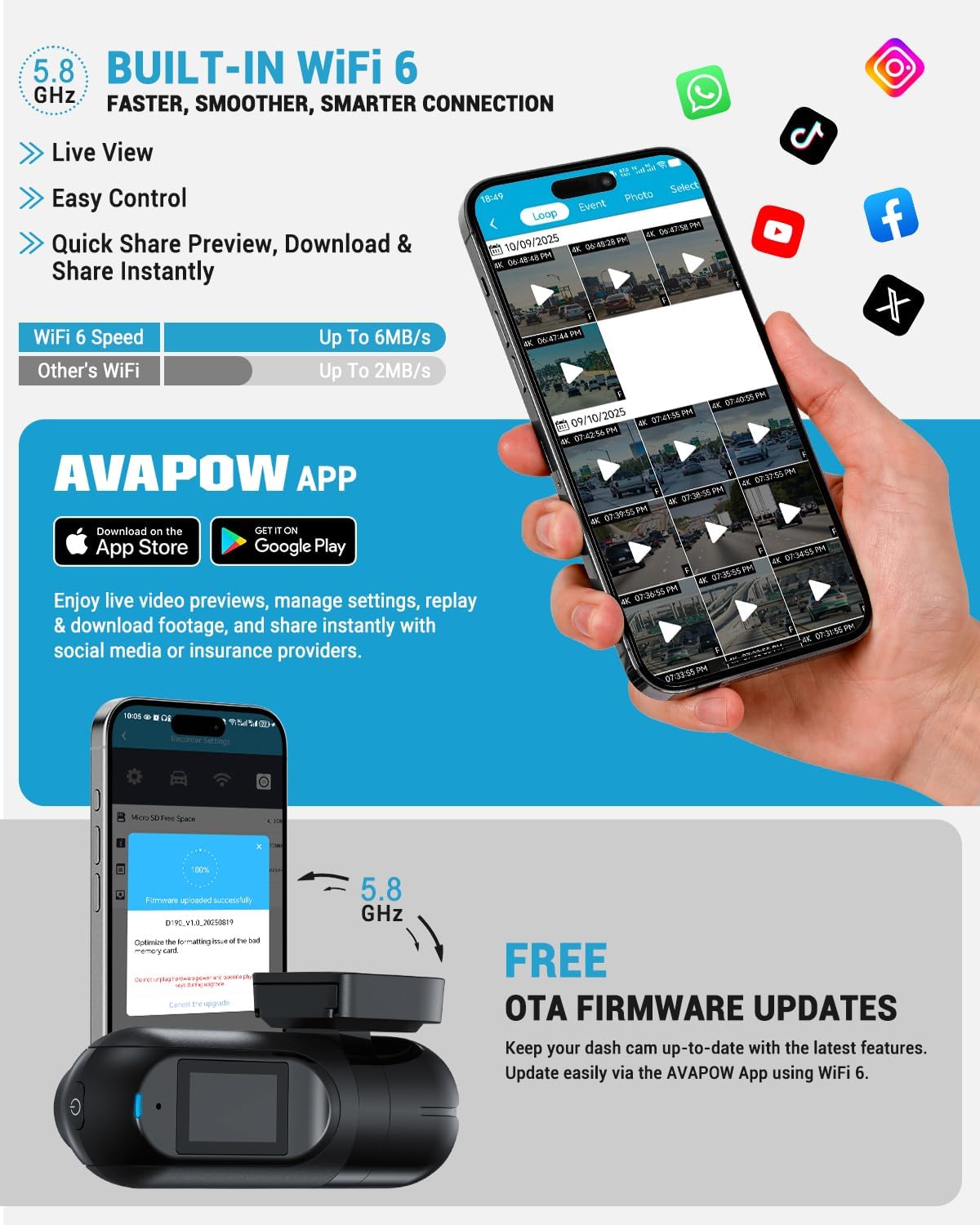
- Download the "AVAPOW" app from your smartphone's app store (iOS or Android).
- Turn on the dash cam.
- On your smartphone, go to Wi-Fi settings and connect to the dash cam's Wi-Fi network (e.g., "AVAPOW_X1_XXXX"). The default password is usually "12345678".
- Open the AVAPOW app. The app should automatically detect and connect to the dash cam.
4. Operating Instructions
4.1 Basic Recording
The dash cam automatically begins recording when powered on. It utilizes loop recording, continuously recording video in segments (e.g., 1, 3, or 5 minutes). When the memory card is full, the oldest unlocked footage is overwritten to ensure continuous recording.
4.2 G-Sensor (Emergency Recording)
The built-in G-Sensor detects sudden impacts or collisions. When triggered, it automatically locks the current video segment, preventing it from being overwritten by loop recording. This ensures critical evidence is preserved.

4.3 24-Hour Parking Mode
With the hardwire kit installed, the dash cam can provide 24-hour parking protection. It can be configured for:
- Motion Detection: Records when motion is detected around the parked vehicle.
- Collision Detection: Records when an impact is detected (via G-Sensor) while parked.
- Time-Lapse Recording: Captures frames at set intervals to condense long periods into short videos, saving storage space.

4.4 App Control and Firmware Updates
The AVAPOW app allows you to:
- View live video feed from the dash cam.
- Adjust camera settings (resolution, loop recording duration, audio recording, G-Sensor sensitivity, etc.).
- Download recorded videos directly to your smartphone at high speeds (up to 6MB/s with Wi-Fi 6).
- Share video clips to social media.
- Perform Over-The-Air (OTA) firmware updates to keep your dash cam's software current.
5. Key Features
5.1 4K Ultra HD Recording
The AVAPOW X1 captures video in ultra-sharp 3840×2160P at 30 frames per second (fps) with a 170° ultra-wide front lens. This high resolution ensures clear capture of license plates, road signs, and other critical details, day or night.

5.2 Enhanced Night Vision
Equipped with Wide Dynamic Range (WDR) and High Dynamic Range (HDR) technology, the dash cam delivers clear video footage even in low-light conditions or at night. This ensures visibility of pedestrians, license plates, and other details in challenging lighting environments.

5.3 Super Capacitor Technology
The dash cam incorporates a built-in super capacitor, allowing it to operate reliably in extreme temperatures (up to 167°F / 75°C). This technology provides enhanced durability, a longer product lifespan, and improved safety compared to traditional battery-based systems, as it is fire and explosion proof.

6. Maintenance
- Cleaning: Use the provided lens cloth to gently clean the camera lens and screen. Avoid abrasive materials or chemical cleaners.
- MicroSD Card: Regularly format the microSD card (at least once a month) through the dash cam settings in the AVAPOW app to ensure optimal performance and prevent data corruption.
- Firmware Updates: Keep the dash cam's firmware updated via the AVAPOW app to benefit from the latest features and improvements.
7. Troubleshooting
- Dash Cam Not Turning On:
- Check power connections. Ensure the car charger or hardwire kit is properly connected and receiving power.
- If using the hardwire kit, verify fuse connections.
- Recording Issues (e.g., freezing, corrupted files):
- Format the microSD card using the AVAPOW app.
- Ensure the microSD card is a high-quality, high-speed card (Class 10 or higher recommended).
- Try a different microSD card to rule out card issues.
- Wi-Fi Connection Problems:
- Ensure the dash cam's Wi-Fi is enabled.
- Verify you are connecting to the correct Wi-Fi network and entering the correct password.
- Restart both the dash cam and your smartphone.
- Ensure your phone's cellular data is temporarily disabled during connection to avoid interference.
- Parking Mode Not Working:
- Confirm the hardwire kit is correctly installed and providing constant power.
- Check parking mode settings in the AVAPOW app to ensure it's enabled and configured as desired.
8. Specifications
| Model Name | X1 |
| Video Capture Resolution | 2160p (4K UHD 3840x2160P) |
| Field Of View | 170 Degrees |
| Connectivity Technology | Wi-Fi 6 |
| Special Features | Built-In WiFi, G-Sensor, Loop Recording, Night Vision (WDR/HDR), 24H Parking Monitor |
| Mounting Type | Windshield Mount |
| Product Dimensions | 1.34 x 3.78 x 1.89 inches |
| Item Weight | 3.52 ounces |
| Color | Black |
| Manufacturer | AVAPOW |
9. Warranty and Support
The AVAPOW X1 Dash Cam comes with a 2-Year Customer Support and 24/7 Customer Care. For any questions, issues, or technical assistance, please contact AVAPOW customer service. You can reach them via phone for a faster response or email their customer care team. OTA firmware updates are provided via the AVAPOW app to ensure your dash cam always runs smoothly.
