
Introduction
This manual provides comprehensive instructions for the installation, operation, and maintenance of your EDSACE Starlight Window Camera. This indoor security camera offers 2K resolution, full-color night vision, Wi-Fi connectivity, and AI detection capabilities, designed for effective home surveillance from your window.
Product Overview
The EDSACE Starlight Window Camera is engineered for clear and reliable indoor surveillance. Its compact design allows for discreet placement and easy installation.
Key Features
- 2K Ultra HD Resolution: Provides clear video capture for detailed monitoring.
- AI Full-Color Night Vision: Delivers vivid, true-to-life colors in low-light conditions.
- 2.4GHz Wi-Fi Connectivity: Ensures a stable connection to your home network.
- AI Human and Motion Detection: Intelligently identifies human activity to minimize false alarms.
- 24/7 Continuous Recording: Captures footage continuously, day and night.
- Local SD Card & Cloud Storage: Supports local storage (32GB-256GB, SD card not included) and encrypted cloud backup options.
- Two-Way Audio: Built-in microphone and speaker for communication.
- Alexa Voice Control: Integrates with Alexa for enhanced smart home experience.
Package Contents
- EDSACE Starlight Window Camera
- Charging Cable
- USB Power Adapter
- Protective Adhesive Patches (for window mounting)
- Quick Start Guide
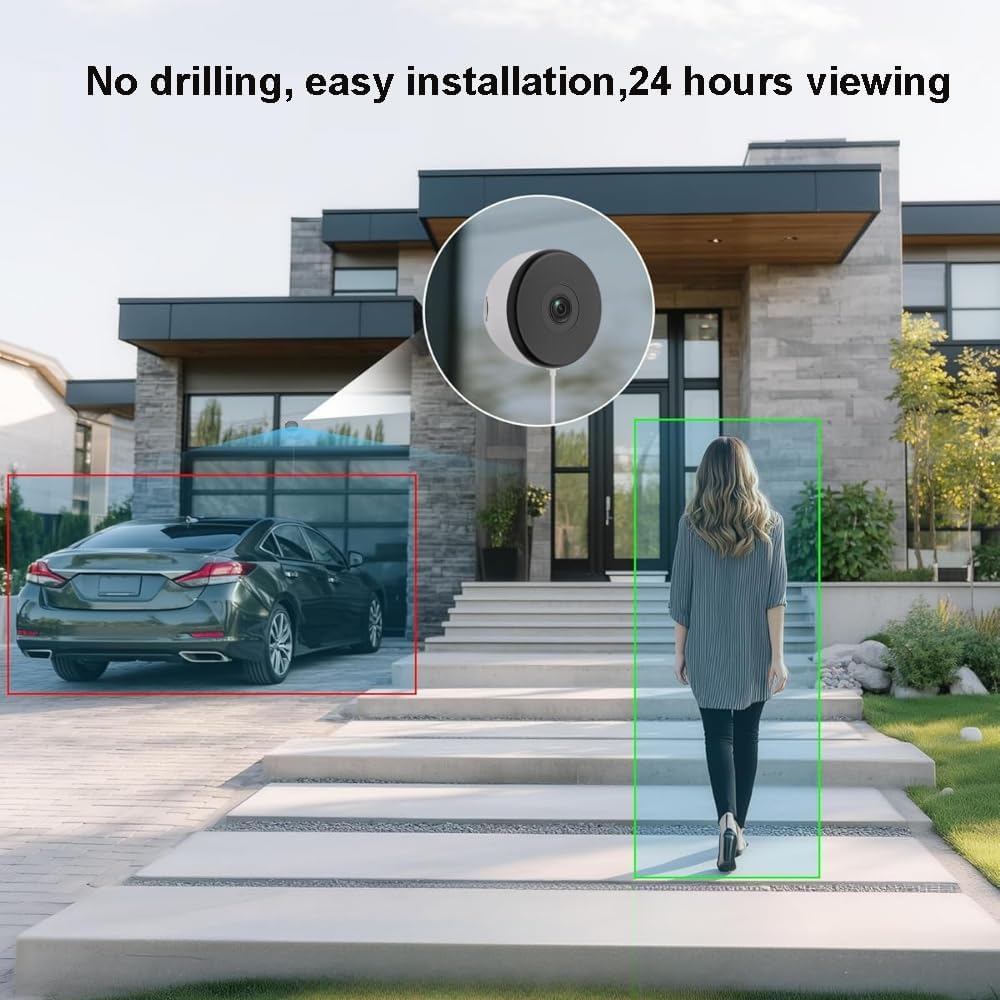
Image: The EDSACE Starlight Window Camera, a compact white device with a dark lens, designed for indoor window mounting.

Image: Visual representation of the camera's features including 2K resolution, AI voice output, night vision, 24/7 local recording, motion detection, two-way audio, automatic alarm, and cloud storage.

Image: A side-by-side comparison illustrating the superior clarity of 2K resolution over 1080p for surveillance footage.
Setup
1. Physical Installation
- Choose a Location: Select an indoor window with a clear view of the area you wish to monitor (e.g., driveway, backyard, front door).
- Clean the Window Surface: Ensure the window surface is clean and dry for optimal adhesion.
- Apply Adhesive Patches: Attach the provided peel-and-stick protective adhesive patches to the camera, then firmly press the camera onto the desired spot on your window. No drilling is required.
- Connect Power: Plug the charging cable into the camera and then into the USB power adapter. Connect the adapter to a power outlet.

Image: A visual demonstrating the easy, no-drilling installation of the camera on a window, showing its view of a house exterior with motion detection highlights.
2. App and Wi-Fi Configuration
- Download the App: Search for the recommended EDSACE security camera app on your smartphone's app store (e.g., Apple App Store or Google Play Store).
- Create an Account: Follow the in-app instructions to create a new user account.
- Add Device: Select the option to add a new device and follow the on-screen prompts. This typically involves scanning a QR code on the camera or manually entering device details.
- Connect to Wi-Fi: Ensure your smartphone is connected to a 2.4GHz Wi-Fi network. The camera is compatible with 2.4GHz Wi-Fi only. Enter your Wi-Fi network name and password when prompted by the app.
- Complete Setup: Once connected, the camera will be ready for use. You can customize settings such as motion detection zones, notification preferences, and recording options within the app.
3. SD Card Installation (Optional)
For local storage, insert a Micro SD card (32GB-256GB, not included) into the camera's designated slot. The camera will automatically begin continuous recording to the SD card, even without an internet connection.
Operating Instructions
Live View and Recording
- Open the EDSACE app on your smartphone to access the live video feed from your camera.
- The camera provides 24/7 continuous recording. Recorded footage can be accessed via the app from your local SD card or cloud storage (subscription may be required for cloud services).

Image: A nighttime scene showing the camera's full-color night vision capability, capturing a person in a mask with clear detail.
Motion and AI Detection
- The camera utilizes AI to detect human and general motion, sending instant alerts to your smartphone.
- Customize detection zones and sensitivity settings within the app to reduce unwanted notifications.

Image: A delivery person approaching a door, illustrating the camera's motion detection and voice pickup capabilities.
Two-Way Audio
- Use the two-way audio feature in the app to communicate with individuals on the other side of the window.
Alexa Voice Control
- Integrate your camera with Amazon Alexa for voice-activated viewing on compatible devices. Follow the instructions in the app to link your EDSACE account with Alexa.

Image: A woman in a kitchen interacting with an Alexa-enabled smart display, which shows the camera's live feed, demonstrating voice control functionality.
Maintenance
Cleaning
- Gently wipe the camera lens and body with a soft, dry cloth to remove dust and smudges.
- Avoid using harsh chemicals or abrasive cleaners, as these can damage the camera's finish or lens.
Software Updates
- Regularly check the EDSACE app for available firmware updates for your camera. Updates often include performance improvements, new features, and security enhancements.
- Follow the in-app instructions to perform any necessary updates. Ensure the camera remains powered during the update process.
Troubleshooting
Camera Not Connecting to Wi-Fi
- Check Wi-Fi Band: Ensure your router is broadcasting a 2.4GHz Wi-Fi signal and your phone is connected to it during setup. The camera does not support 5GHz Wi-Fi.
- Signal Strength: Place the camera within a reasonable range of your Wi-Fi router to ensure a strong signal.
- Router Settings: Verify that your Wi-Fi password is correct and there are no MAC address filtering or firewall settings blocking the camera.
- Restart Devices: Try restarting your camera, router, and smartphone.
Poor Video Quality
- Clean Lens: Ensure the camera lens is clean and free from dust or smudges.
- Lighting Conditions: While the camera has full-color night vision, extreme low light or direct glare can affect image quality. Adjust placement if necessary.
- Internet Speed: A stable internet connection is crucial for optimal streaming quality. Check your network speed.
Motion Alerts Not Received
- App Notifications: Verify that notifications are enabled for the EDSACE app in your smartphone's settings.
- In-App Settings: Check the motion detection settings within the app, including sensitivity and detection zones.
- Power and Connectivity: Ensure the camera is powered on and connected to Wi-Fi.
SD Card Not Recording
- Card Compatibility: Ensure the Micro SD card is between 32GB and 256GB and formatted correctly (usually FAT32).
- Card Insertion: Reinsert the SD card to ensure it is properly seated.
- Card Status: Check the SD card status within the app. It may need to be formatted through the app.
Specifications
| Feature | Specification |
|---|---|
| Model Number | EDS-WD01 |
| Resolution | 2K (1296p) |
| Night Vision | AI Full-Color Starlight Night Vision (up to 98 feet) |
| Connectivity | 2.4GHz Wi-Fi |
| Storage Options | Micro SD Card (32GB-256GB), Cloud Storage |
| Audio | Two-Way Audio (Built-in Mic & Speaker) |
| Detection | AI Human and Motion Detection |
| Viewing Angle | 120 Degrees |
| Power Source | Corded Electric |
| Dimensions (L x W x H) | 2.7 x 2.7 x 1.4 inches |
| Weight | 6 ounces |
| Material | Plastic |
| Frame Rate | 30fps |
| Smart Home Compatibility | Alexa Voice Control |
Warranty and Support
Warranty Information
Please refer to the product packaging or the official EDSACE website for specific warranty details and terms. Typically, products come with a limited manufacturer's warranty covering defects in materials and workmanship.
Customer Support
For technical assistance, troubleshooting, or any questions regarding your EDSACE Starlight Window Camera, please contact EDSACE customer support through the contact information provided on the official EDSACE website or within the product app.