
1. Introduction
Thank you for choosing the Dragon Touch OB20 4G/WiFi Cellular Security Camera. This manual provides essential information for setting up, operating, and maintaining your camera to ensure optimal performance and security. The OB20 is a versatile outdoor surveillance solution featuring 4K resolution, a unique 3-lens design with 10x optical zoom, 360° PTZ (Pan-Tilt-Zoom) capabilities, and AI tracking. It supports both 4G LTE (USA only) and WiFi connectivity, powered by a 12000mAh battery and a 9W solar panel for continuous operation. An included 64GB SD card provides local storage.
2. Package Contents
Please verify that all items listed below are included in your package:
- Dragon Touch OB20 Security Camera
- Solar Panel
- Mounting Screws and Anchors
- Charging Cable (USB)
- Instruction Manual (this document)
- 64GB Micro SD Card (pre-installed or included separately)
Video: Unboxing the Dragon Touch OB20 4G LTE Cellular Security Camera, showing the camera, solar panel, and accessories.
3. Product Overview
The Dragon Touch OB20 camera features a dual-camera system with a fixed 4K bullet lens and a 2K PTZ lens, providing comprehensive coverage and detailed imaging.

Image: Detailed view of the Dragon Touch OB20 camera highlighting its 4K bullet cam and 2K PTZ cam with dual lenses.
Key Components:
- Upper 4K Bullet Lens: Provides a 120° fixed wide-angle view.
- Lower 2K PTZ Dual-Lens: Offers 360° smart tracking and 10x optical zoom.
- Antennas: For 4G LTE and WiFi connectivity.
- PIR Sensors: For accurate motion detection.
- Speaker & Microphone: For two-way audio communication.
- Spotlights & Siren: For active deterrence.
- Solar Panel Port: For connecting the solar charging panel.
- Micro SD Card Slot: Supports up to 128GB for local storage (64GB included).
- Reset Button: To restore factory settings.
4. Setup
4.1 Physical Installation
- Choose a Location: Select a mounting location that provides optimal sunlight exposure for the solar panel and a clear view for surveillance. Ensure the camera is within range of your WiFi network if using WiFi mode, or has good 4G signal if using cellular mode.
- Mount the Camera: Use the provided mounting bracket and screws to securely attach the camera to a wall or pole. Ensure the camera is positioned to cover the desired area.
- Install Solar Panel: Attach the solar panel to the camera's mounting bracket or a separate location that receives direct sunlight for most of the day. Connect the solar panel cable to the camera's charging port.

Image: Examples of camera placement for multi-directional coverage, illustrating front, back, and side views.
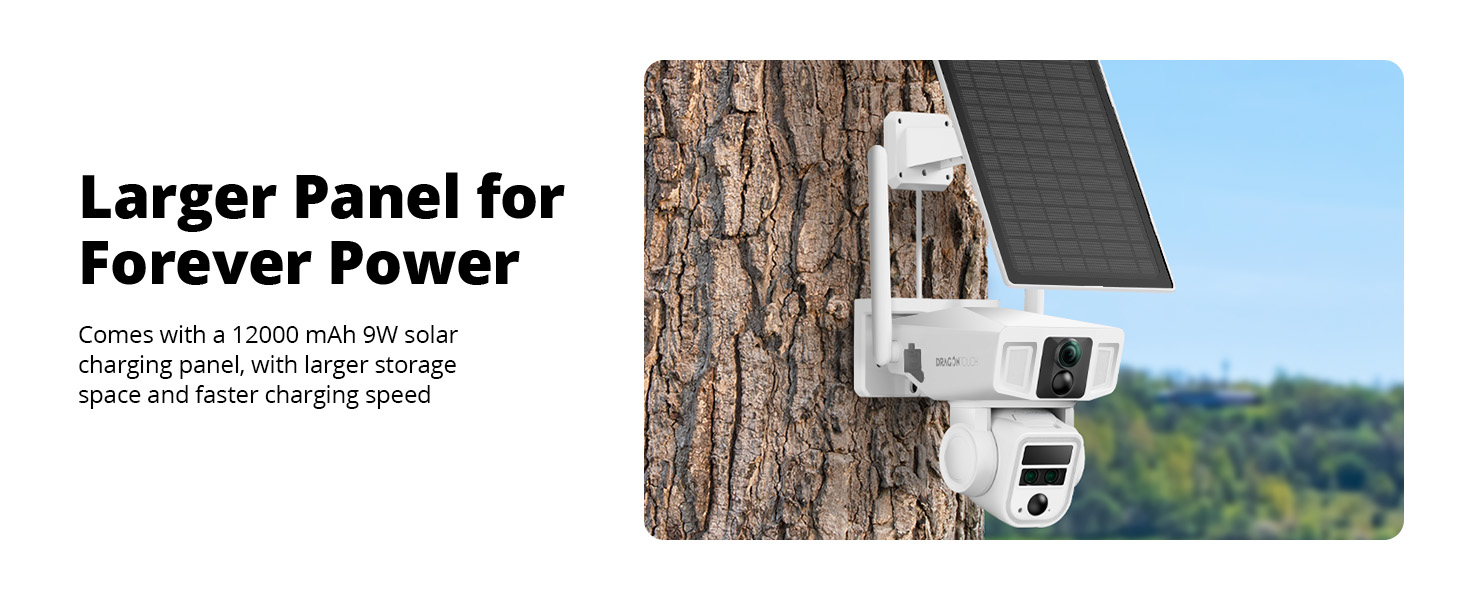
Image: The Dragon Touch OB20 camera mounted with its solar panel, demonstrating a typical outdoor installation.
4.2 App Installation & Pairing
- Download the App: Search for the recommended companion app (e.g., 'NIVIEW' or 'Dragon Touch Security') on the App Store (iOS) or Google Play Store (Android).
- Create Account: Open the app and follow the on-screen instructions to create a new user account.
- Add Device: Power on the camera. In the app, select 'Add Device' or the '+' icon. Follow the prompts to scan the QR code on the camera or manually enter its ID.
- Network Configuration:
- For WiFi: Select your 2.4GHz WiFi network and enter the password. The camera does not support 5GHz WiFi.
- For 4G LTE (USA ONLY): Insert a compatible data SIM card (e.g., T-Mobile, AT&T-data plan, Freedom POP) into the camera's SIM card slot. The camera will automatically connect to the 4G network.

Image: Diagram illustrating the dual 4G and Wi-Fi connectivity modes of the Dragon Touch OB20 camera.
5. Operating Instructions
5.1 Live View & Playback
Access the live feed from your camera via the mobile app. You can switch between the 4K bullet lens and the 2K PTZ lens views. Recorded footage can be accessed and played back from the Micro SD card or cloud storage (if subscribed).
5.2 PTZ Control & Optical Zoom
Use the directional controls within the app to pan (horizontal) and tilt (vertical) the 2K PTZ camera. The 10x optical zoom allows you to magnify specific areas without losing image quality.
5.3 AI Tracking
When enabled, the camera's AI tracking feature will automatically detect and follow moving subjects within its field of view, ensuring continuous surveillance of activity.

Image: A person walking past a house, with the camera's AI tracking feature highlighted on a smartphone screen.
5.4 Two-Way Audio
Utilize the built-in microphone and speaker for real-time two-way communication through the app. This allows you to speak to visitors or deter intruders.
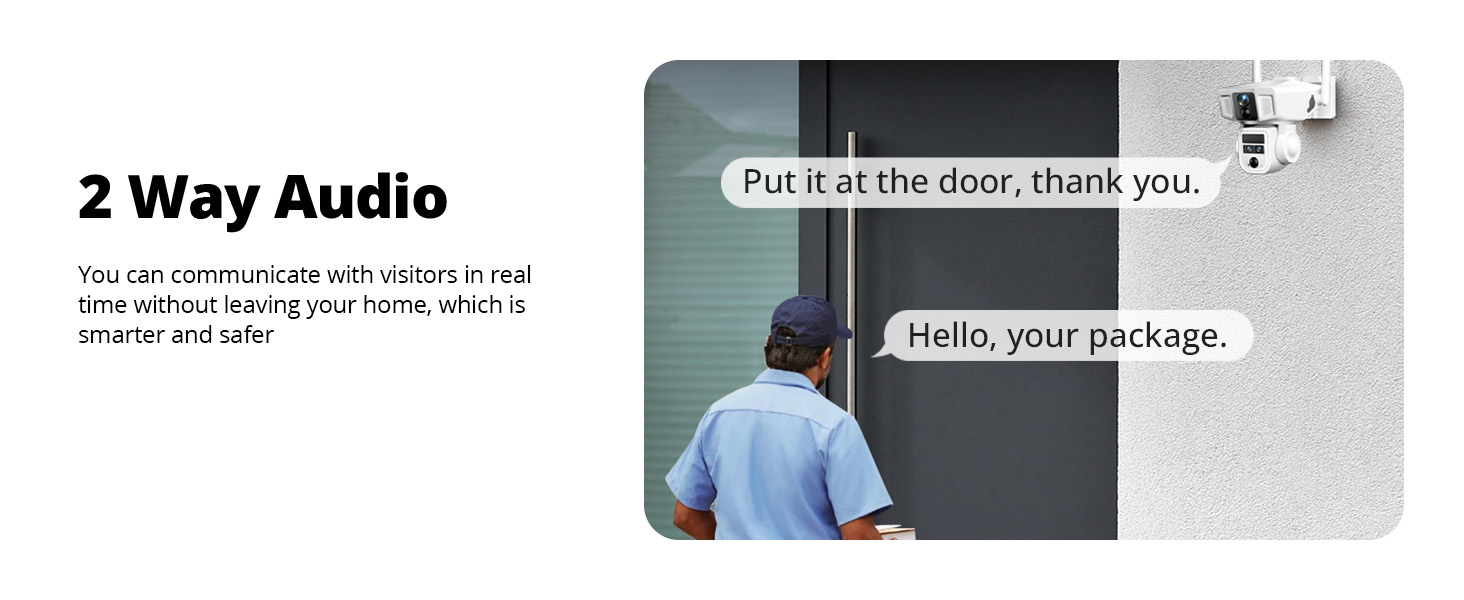
Image: A visual representation of the two-way audio function, where a user can communicate with a person at their door via the camera.
5.5 Motion Detection & Alarms
The PIR sensors provide accurate motion alerts. When motion is detected in a designated area or time period, the camera can activate warning lights, a 105-decibel siren, and send real-time notifications to your phone.

Image: An illustration of the AI motion-activated alarm system, showing motion detection, siren alarm, notification push, and two-way talk features in action against an intruder.
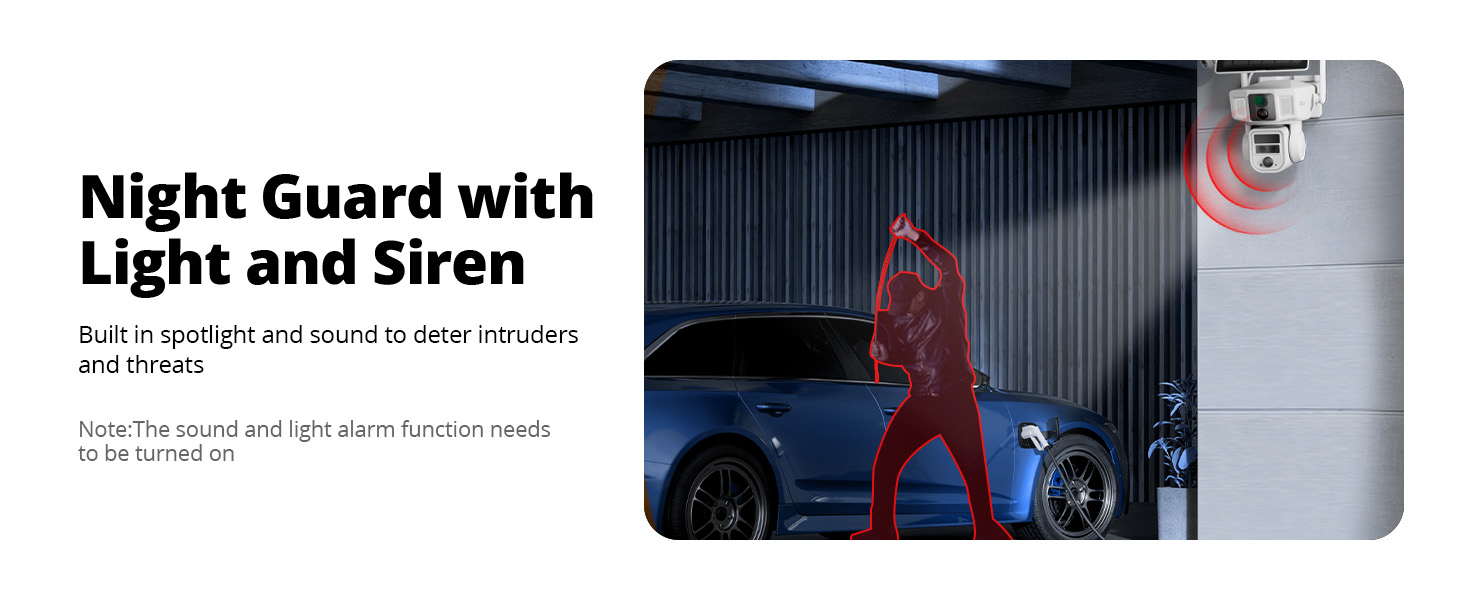
Image: The Night Guard feature of the camera, showing a spotlight and siren deterring an intruder near a car at night. Note: The sound and light alarm function needs to be turned on.
5.6 Recording & Storage
The camera supports local storage on a Micro SD card (up to 128GB, 64GB included). Cloud storage options may also be available through the app for additional backup and features.
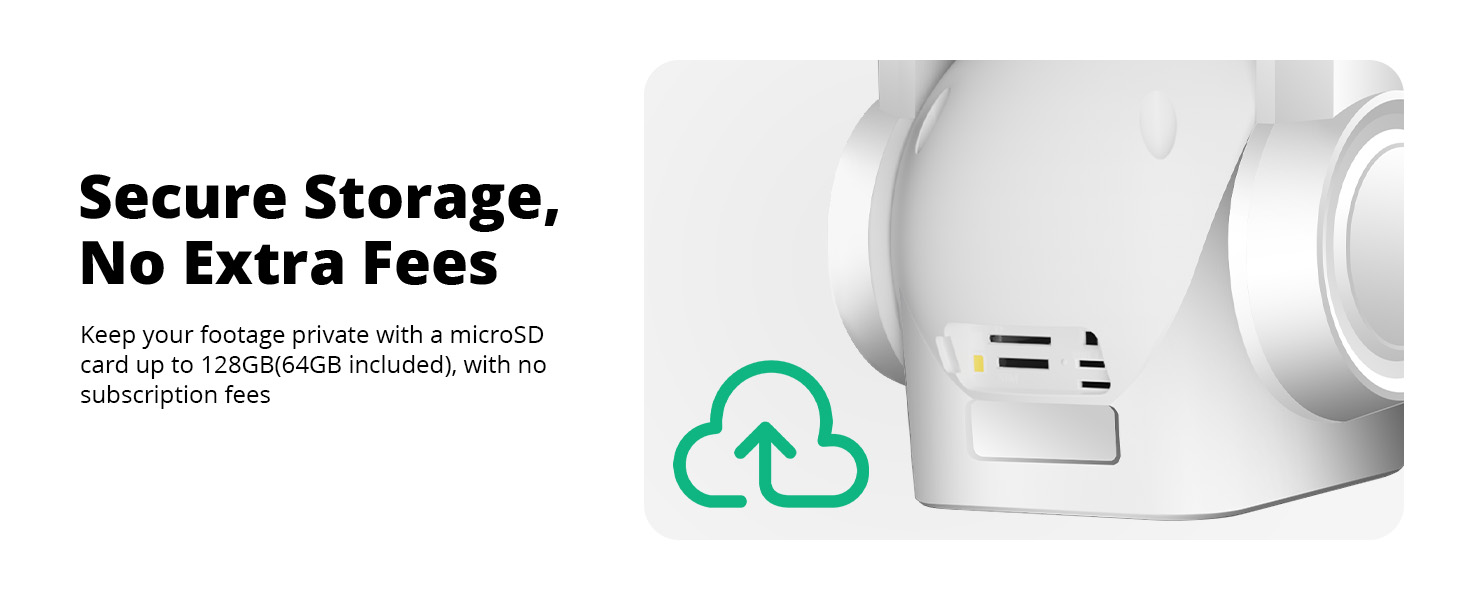
Image: A close-up of the camera's side, indicating secure local storage with a microSD card slot, supporting up to 128GB (64GB included).
6. Maintenance
6.1 Battery Charging (Solar)
The camera is equipped with a 12000mAh battery and a 9W high-speed solar charging panel. Ensure the solar panel is positioned to receive maximum direct sunlight to keep the battery charged. In periods of low sunlight, the camera can be charged via the USB charging cable.
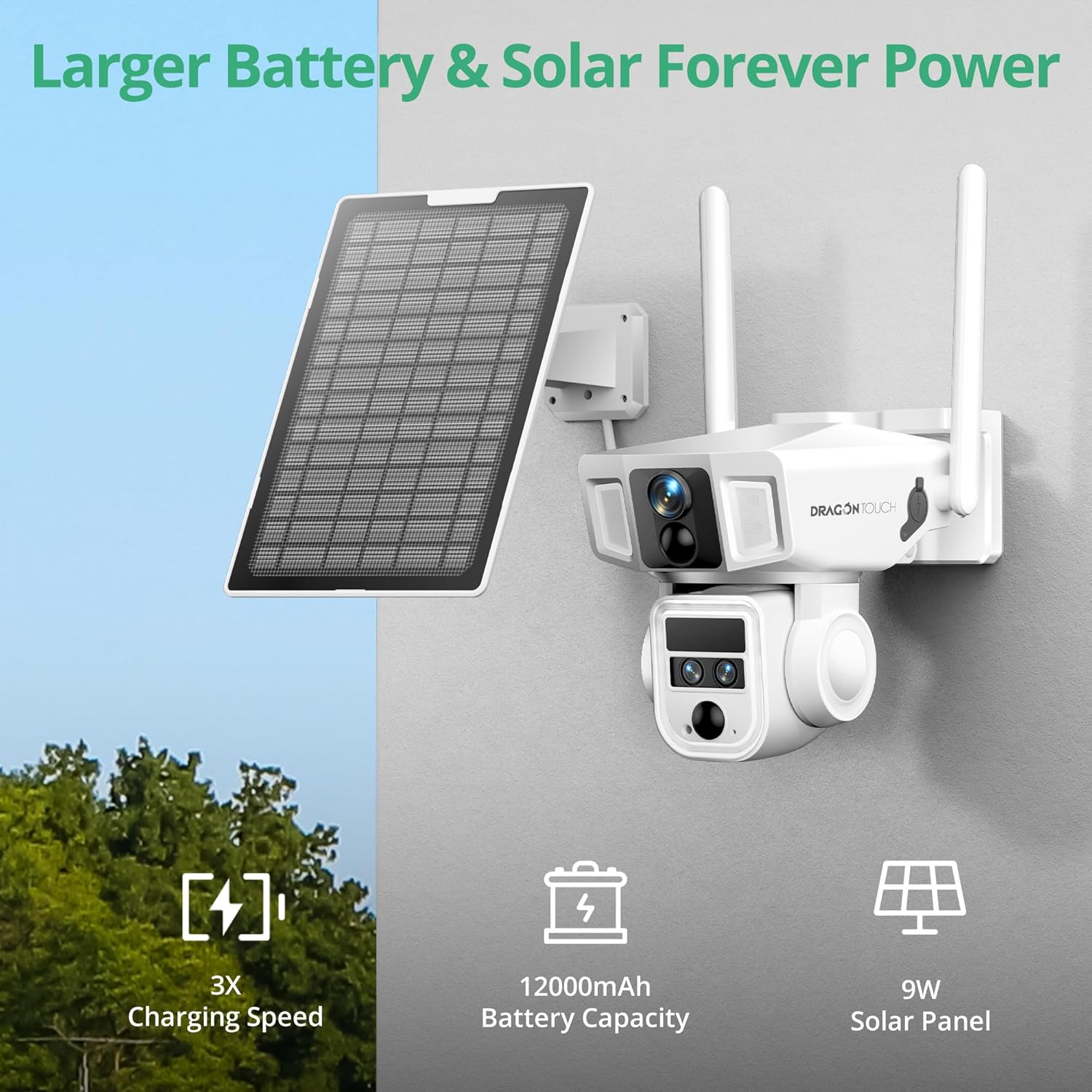
Image: The camera mounted with its solar panel, emphasizing the large battery capacity and efficient solar charging.
6.2 Cleaning
Regularly clean the camera lenses and solar panel with a soft, damp cloth to ensure clear images and efficient charging. Avoid using harsh chemicals.
6.3 Firmware Updates
Periodically check the mobile app for available firmware updates. Keeping your camera's firmware up-to-date ensures optimal performance, security, and access to new features.
7. Troubleshooting
- Camera Not Connecting: Ensure the camera is powered on and within range of your WiFi network or has a strong 4G signal. Check the SIM card installation if using 4G. Try restarting the camera and your router.
- Poor Image Quality: Clean the camera lenses. Ensure there are no obstructions. Check your network connection speed.
- Battery Not Charging: Verify the solar panel is clean and receiving direct sunlight. Check the connection between the solar panel and the camera. Charge the camera directly using the USB cable if necessary.
- False Motion Alerts: Adjust the PIR sensor sensitivity settings in the app. Define specific detection zones to minimize unwanted alerts.
- PTZ Control Unresponsive: Check your network connection. Restart the camera.
- App Issues: Ensure the app is updated to the latest version. Clear the app's cache or reinstall it.
8. Specifications
| Brand | Dragon Touch |
| Model Name | OB20 |
| Connectivity Technology | Wired, Wireless (4G LTE, Wi-Fi 2.4GHz) |
| Video Capture Resolution | 4K (Bullet Lens), 2K (PTZ Lens) |
| Optical Zoom | 10x |
| PTZ Functionality | 360° Pan, Tilt, AI Tracking |
| Battery Capacity | 12000mAh |
| Power Source | Solar Powered (9W Solar Panel) |
| Local Storage | Micro SD Card (up to 128GB, 64GB included) |
| Weather Resistance | IP66 Waterproof |
| Special Features | 2-Way Audio, Night Vision, PTZ Technology, Weather Proof, AI Tracking |
| Item Dimensions | 2.94 x 2.4 x 2.24 inches |
9. Warranty & Support
9.1 Warranty Information
Your Dragon Touch OB20 camera comes with a standard manufacturer's warranty. Please refer to the warranty card included in your package for specific terms and conditions. Extended warranty options may be available for purchase.
9.2 Customer Support
For technical assistance, troubleshooting, or any questions regarding your Dragon Touch OB20 camera, please contact our customer support team:
- Website: Visit the official Dragon Touch website for FAQs and support resources.
- Email: Refer to your warranty card or product packaging for customer service email.
- Phone: Refer to your warranty card or product packaging for customer service phone number.
Please have your model number (OB20) and purchase information ready when contacting support.


