
1. Introduction
This manual provides detailed instructions for the NBD K100C 64MP 5K Digital Camera. Please read this manual thoroughly before using the camera to ensure proper operation and to maximize its features. Keep this manual for future reference.
The NBD K100C is a versatile digital camera designed for high-quality photography and videography, featuring 64MP photo resolution, 5K video recording, autofocus, 18x digital zoom, and a 180° flip screen. It is suitable for various applications, including vlogging, travel, and everyday photography.
2. Package Contents
Verify that all items are present in your package:
- NBD K100C Digital Camera
- Rechargeable Batteries (x2)
- Battery Charger
- 64GB SD Card
- USB 2.0 Card Reader
- USB Cable
- Shoulder Strap
- User Manual (this document)
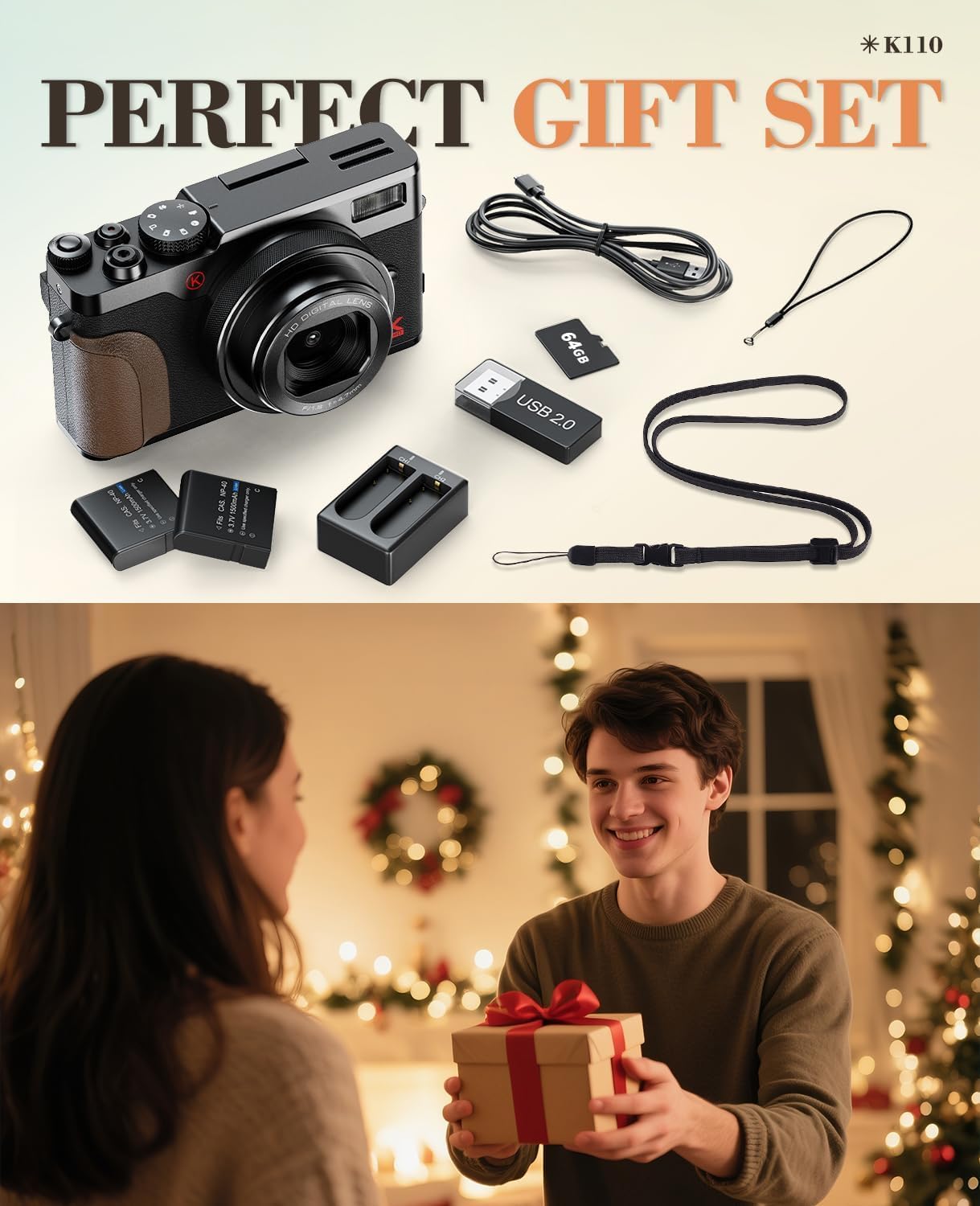
Image: Contents of the NBD K100C Digital Camera package.
3. Camera Overview
Familiarize yourself with the main components of your NBD K100C camera.

Image: Front and rear view of the NBD K100C Digital Camera.
Key Features:
- 64MP Photo Resolution: Capture high-detail still images.
- 5K Video Recording: Record ultra-clear videos.
- Autofocus: Automatically focuses on subjects for sharp images.
- 18x Digital Zoom: Magnify distant subjects.
- 180° Flip Screen: Ideal for self-portraits and vlogging.
- Anti-Shake: Reduces blur from camera movement.
- Built-in Fill Light: Improves clarity in low-light conditions.
- Webcam Functionality: Connect to a computer for live streaming.
4. Setup
4.1. Charging the Battery
- Insert the rechargeable battery into the provided battery charger.
- Connect the charger to a power source using the USB cable.
- The indicator light on the charger will show charging status. Charge until fully charged.
4.2. Installing the Battery and SD Card
- Open the battery compartment cover on the bottom of the camera.
- Insert the charged battery according to the polarity indicators.
- Insert the 64GB SD card into the SD card slot until it clicks into place. Ensure the card is inserted correctly to avoid damage.
- Close the battery compartment cover securely.
4.3. Attaching the Shoulder Strap
Thread the shoulder strap through the designated loops on the camera body to prevent accidental drops.
5. Operating Instructions
5.1. Powering On/Off
Press and hold the Power Button to turn the camera on or off.
5.2. Mode Selection
Rotate the Mode Dial on the top of the camera to select between different shooting modes such as Video, Photo, Continuous Shooting, Time-Lapse, and Slow Motion.

Image: Mode Dial and various shooting functions.
5.3. Taking Photos
- Select Photo Mode using the Mode Dial.
- Frame your shot using the 3-inch flip screen. You can rotate the screen 180° for self-portraits or vlogging.
- Half-press the Shutter Button to activate autofocus. A green focus indicator will appear when the subject is in focus.
- Fully press the Shutter Button to capture the photo.
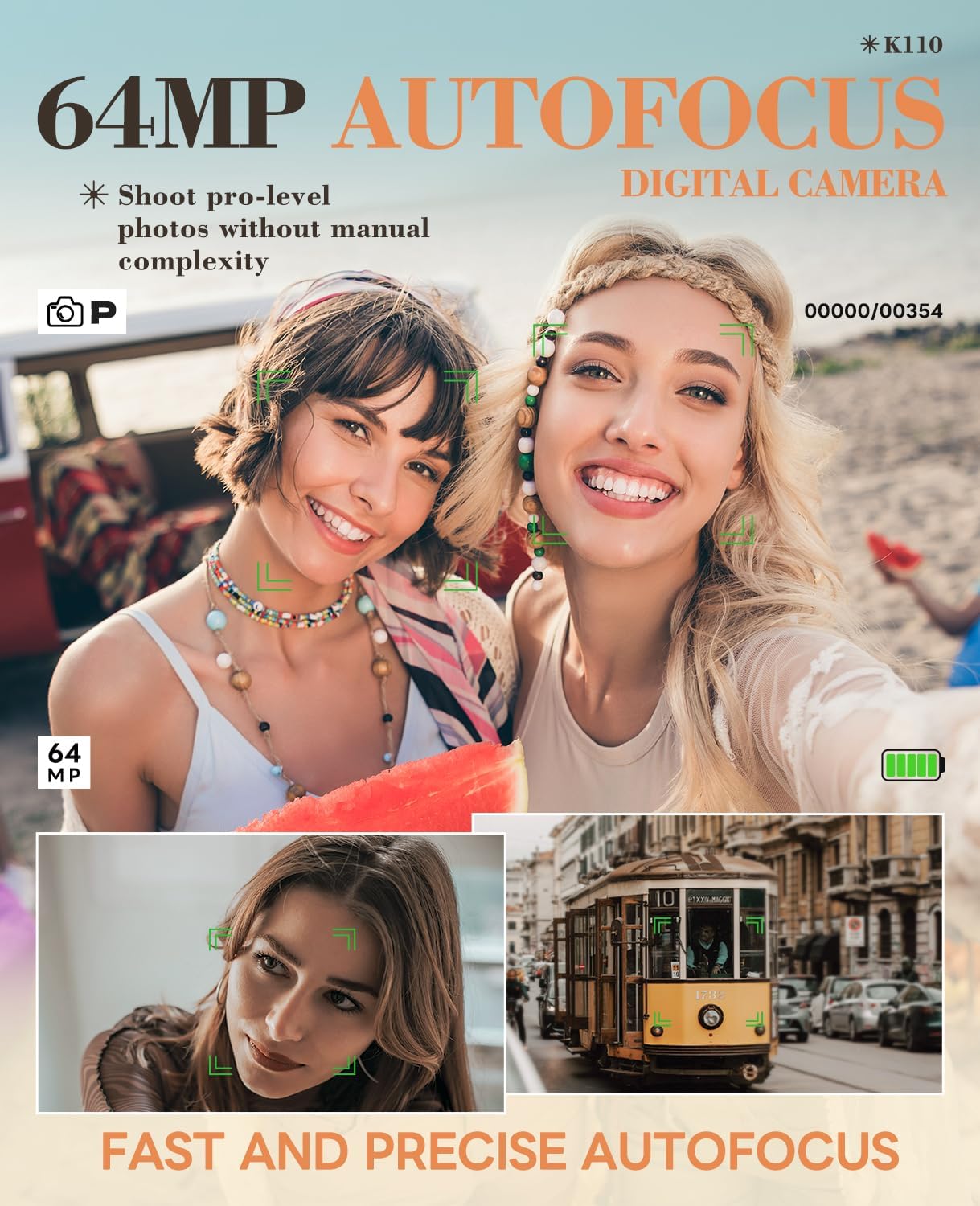
Image: Demonstrating the camera's autofocus capability.
5.4. Recording Videos
- Select Video Mode using the Mode Dial.
- Press the Shutter Button to start recording. A recording indicator will appear on the screen.
- Press the Shutter Button again to stop recording.
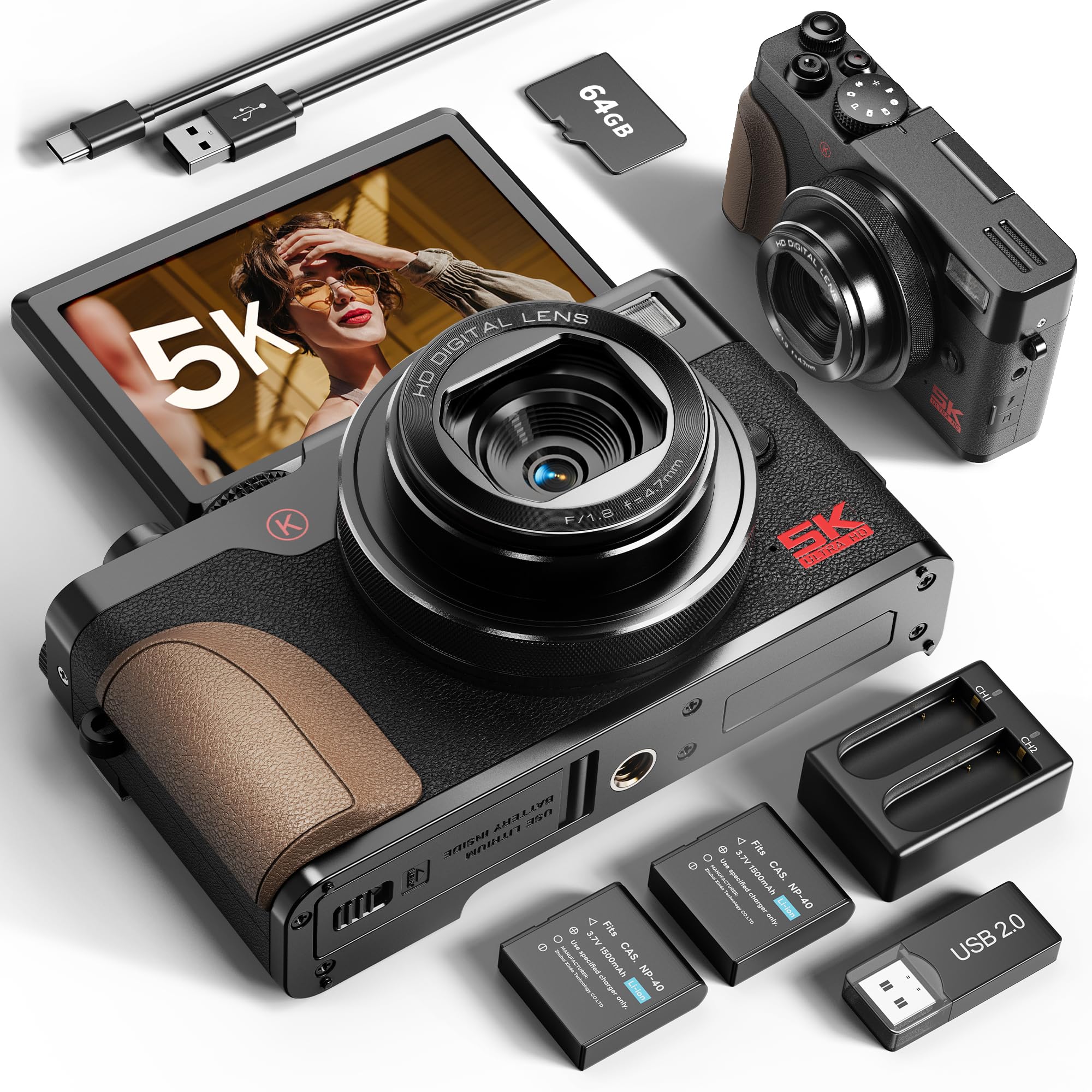
Image: Camera in 5K video recording mode with 180° flip screen.
5.5. Using Digital Zoom
In Photo or Video mode, use the Zoom Lever (typically around the shutter button) to zoom in or out digitally up to 18x.

Image: Example of 18x digital zoom.
5.6. Webcam Mode
- Connect the camera to your computer using the provided USB cable.
- On the camera screen, select PC Camera Mode (or Webcam Mode) when prompted.
- Your computer should recognize the camera as a webcam. You can then use it with video conferencing software or live streaming platforms.
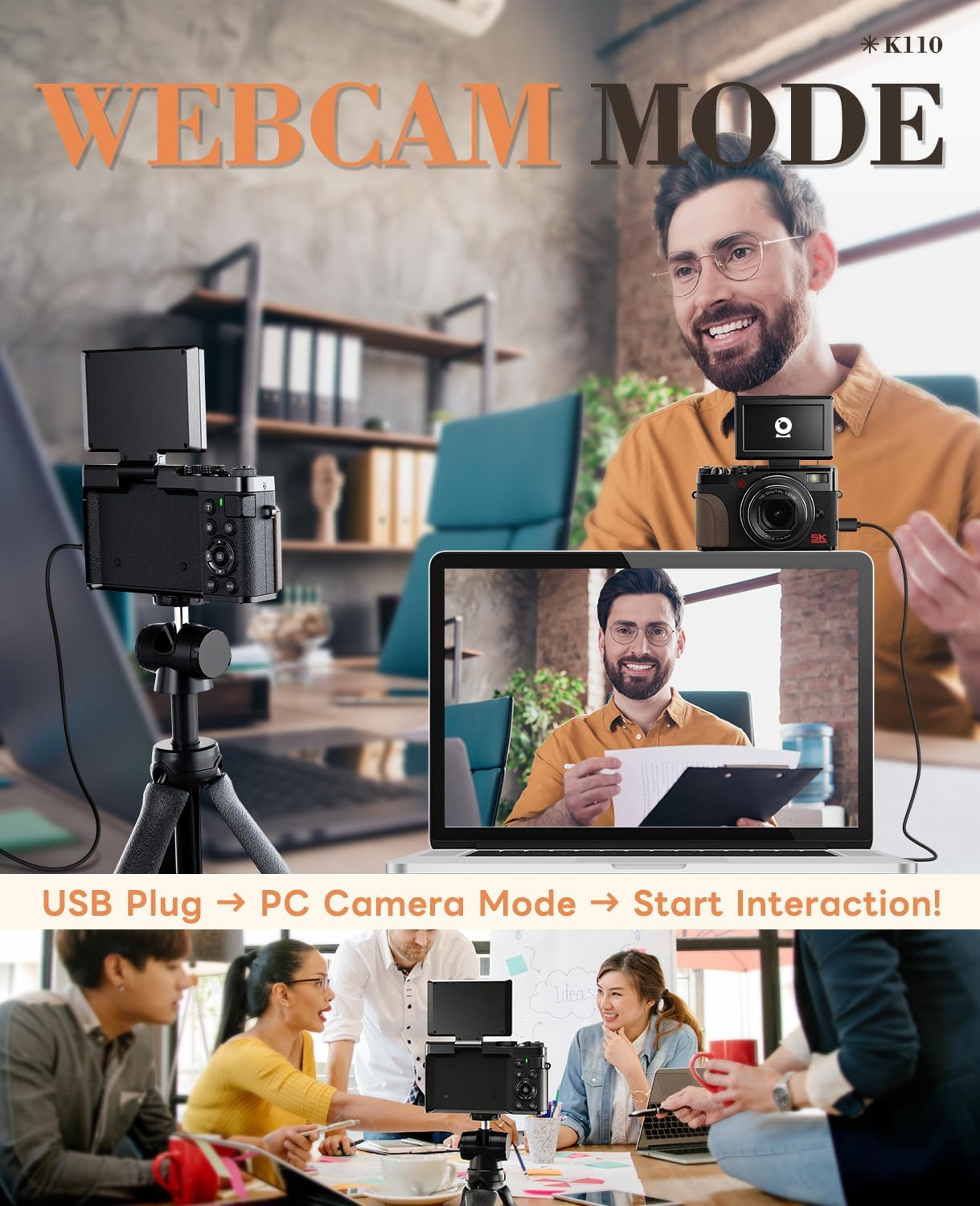
Image: Camera connected and functioning as a webcam.
5.7. Other Functions
- Continuous Shooting: Capture a rapid sequence of photos.
- Slow Motion: Record videos at a higher frame rate for slow-motion playback.
- Time-Lapse: Capture images at set intervals to create a time-lapse video.
- Filter Mode: Apply various creative filters to your photos.
- Macro Mode: For close-up photography of small subjects.
- Timed Taking: Set a timer for 3s, 5s, or 10s before taking a photo.
6. Maintenance
6.1. Cleaning the Camera
- Use a soft, dry cloth to clean the camera body.
- For the lens, use a lens cleaning cloth and specialized lens cleaning solution. Avoid touching the lens surface with your fingers.
- Do not use organic solvents or strong chemicals to clean the camera.
6.2. Battery Care
- Store batteries in a cool, dry place when not in use.
- Avoid fully discharging batteries frequently to prolong their lifespan.
- If the camera will not be used for an extended period, remove the battery.
6.3. Storage
Store the camera in a dry, dust-free environment, away from direct sunlight and extreme temperatures. Use a camera bag for protection during transport.
7. Troubleshooting
| Problem | Possible Cause | Solution |
|---|---|---|
| Camera does not power on. | Battery is dead or incorrectly inserted. | Charge the battery fully. Reinsert the battery correctly. |
| Images are blurry. | Autofocus failed, camera shake, or dirty lens. | Ensure autofocus locks on (green indicator). Hold camera steady or use a tripod. Clean the lens. |
| SD card error. | SD card is full, corrupted, or incorrectly inserted. | Delete unnecessary files or use a new SD card. Reinsert the card. Format the card (this will erase all data). |
| Camera freezes. | Temporary software glitch. | Remove and reinsert the battery to reset the camera. |
8. Specifications
| Feature | Detail |
|---|---|
| Brand | NBDDIGITAL |
| Model Name | K100C |
| Maximum Webcam Image Resolution | 64 MP |
| Photo Sensor Size | 1/3-inch |
| Photo Sensor Technology | CMOS |
| Image Stabilisation | Digital |
| Supported File Format | MP4 (for video) |
| Aspect Ratio | 4:3 |
| Form Factor | Compact |
| Item Weight | 265 g (approx. 9.3 oz) |
| Package Dimensions | 15.19 x 12.29 x 8.41 cm |
9. Warranty and Support
This product comes with a standard manufacturer's warranty. Please refer to the warranty card included in your package for specific terms and conditions. For technical support, service, or warranty claims, please contact NBDDIGITAL customer service through the retailer where the product was purchased or visit the official NBDDIGITAL website for contact information.