
Caydo T3
Caydo T3 AI Drawing Projector User Manual
Model: T3
1. Product Overview
The Caydo T3 AI Drawing Projector is an innovative educational tool designed to foster creativity and develop essential skills in children aged 5 and above. This device combines a native 720P HD projector with advanced AI capabilities, offering a versatile platform for drawing, tracing, and interactive learning.
Key Features:
- Step-by-Step Drawing Guidance: Access over 700 pre-loaded patterns across five educational themes, including Simple Sketches, Color Painting, Stroke Practice, and Letter & Number Tracing. Interactive guidance simplifies the drawing process.
- AI Magic Integration: Transform text descriptions into unique images for projection. Utilize fun filters (Pixel, Sketch, Cartoon, Cyberpunk) on personal photos or cut out images for custom designs.
- Photo-to-Sketch Conversion: Convert any photo into three distinct art styles (Detailed, Bold-Line, Cartoon) with an easy-to-follow step-by-step guide for tracing.
- Native 720P HD Projector: Enjoy clear projections with 60 ANSI lumens. Functions as a movie projector for cartoons, a Bluetooth speaker for audio, and a wireless screen for family videos.
- User-Friendly Design: No assembly required. Features auto keystone correction and smooth manual focus for distortion-free images. Operates offline for portability.
- Eye-Safe Projection: Certified for low blue light (SGS RG0) with auto-brightness adjustment and an adjustable break reminder (0/0.5/1/2H) to promote healthy viewing habits.
2. What's in the Box
- 1x T3 Drawing Projector
- 1x Power Adaptor
- 1x Remote (requires 2 AAA batteries, not included)
- 1x User Manual (this document)
3. Setup Guide
- Unfold the Projector: Gently unfold the projector from its compact form.
- Connect Power: Plug the provided power adaptor into the projector and a suitable power outlet.
- Power On: Press the power button on the projector or use the remote control to turn on the device.
- Adjust Stand: Position the versatile stand to achieve the desired projection angle for either table or wall use.
- Focus Image: Use the manual focus adjustment to ensure a clear and sharp projected image. The device also features auto keystone correction for distortion-free display.
- Insert Batteries in Remote: Open the battery compartment of the remote control and insert 2 AAA batteries (not included), observing polarity.

Figure 3.1: Caydo T3 Projector unfolded and projecting an image.
Video 3.1: Demonstrates how to set up and use the T3 projector.
4. Operating Instructions
4.1 Basic Drawing & Tracing
- Select a Pattern: Use the on-device controls or the remote to browse through the pre-loaded patterns. Alternatively, connect to the Caydo app for a wider selection.
- Place Paper: Place a sheet of paper directly under the projected image.
- Trace: Follow the projected lines to trace the image onto your paper. For step-by-step patterns, advance through the stages as you complete each part of the drawing.
- Color: Once tracing is complete, use your preferred coloring tools to bring your artwork to life.

Figure 4.1: Step-by-step tracing of a projected image.
Video 4.1: Demonstrates the step-by-step tracing and drawing process.
4.2 Using the Caydo App (AI Magic & Photo-to-Sketch)
- Download App: Download the official Caydo app from your device's app store.
- Connect Projector: Open the app and follow the on-screen instructions to connect your T3 projector via Bluetooth.
- AI Drawing:
- Select the AI Drawing feature within the app.
- Type in a description of the image you wish to create. The AI will generate a unique picture for projection.
- Photo-to-Sketch:
- Capture a photo using your device's camera or select one from your gallery.
- The app will transform the photo into various art styles (Detailed, Bold-Line, Cartoon) and provide a step-by-step guide for tracing.
- Image Filters & Cutout: Experiment with filters like Pixel, Sketch, Cartoon, or Cyberpunk. Use the AI-powered image cutout feature to isolate objects and remove backgrounds for creative compositions.

Figure 4.2: Example of artwork created using the AI Magic feature.
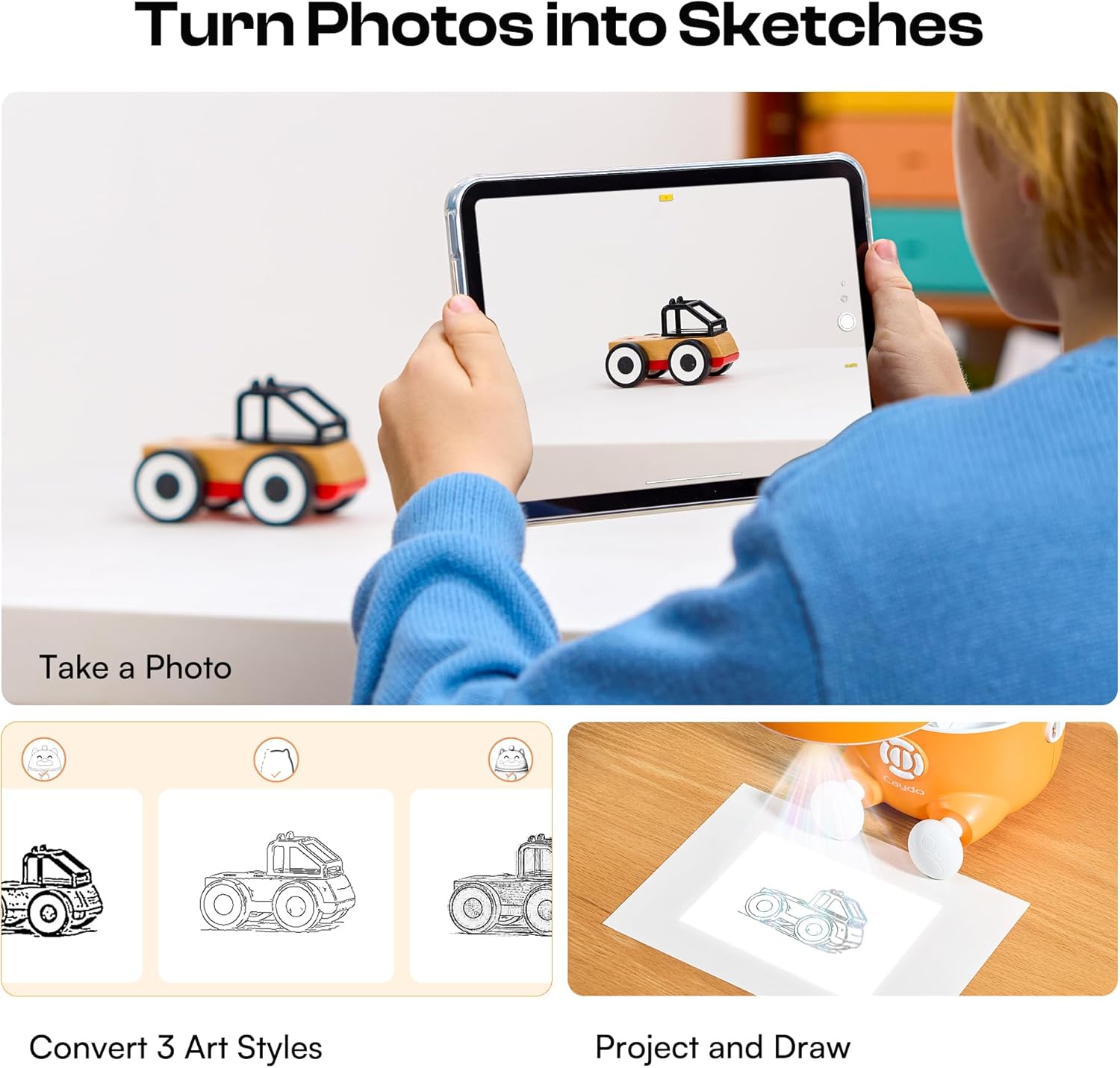
Figure 4.3: Demonstrates converting a photo into a traceable sketch.
4.3 Multimedia Projection
The T3 projector can also be used for entertainment beyond drawing:
- Movie Projector: Project cartoons or videos onto any flat surface for a large-screen viewing experience.
- Bluetooth Speaker: Connect your device via Bluetooth to use the T3 as an audio speaker for music or storytelling.
- Wireless Screen: Mirror content from compatible devices for family videos or presentations.

Figure 4.4: The T3 projector used for multimedia entertainment.
5. Eye Safety and Care
The Caydo T3 projector is designed with eye safety in mind:
- Low Blue Light: The projector is SGS RG0 certified for low blue light emission.
- Auto-Brightness: The device automatically adjusts brightness for comfortable viewing.
- Break Reminder: Utilize the adjustable break reminder feature (0/0.5/1/2H) to encourage regular breaks during use, protecting developing eyes.
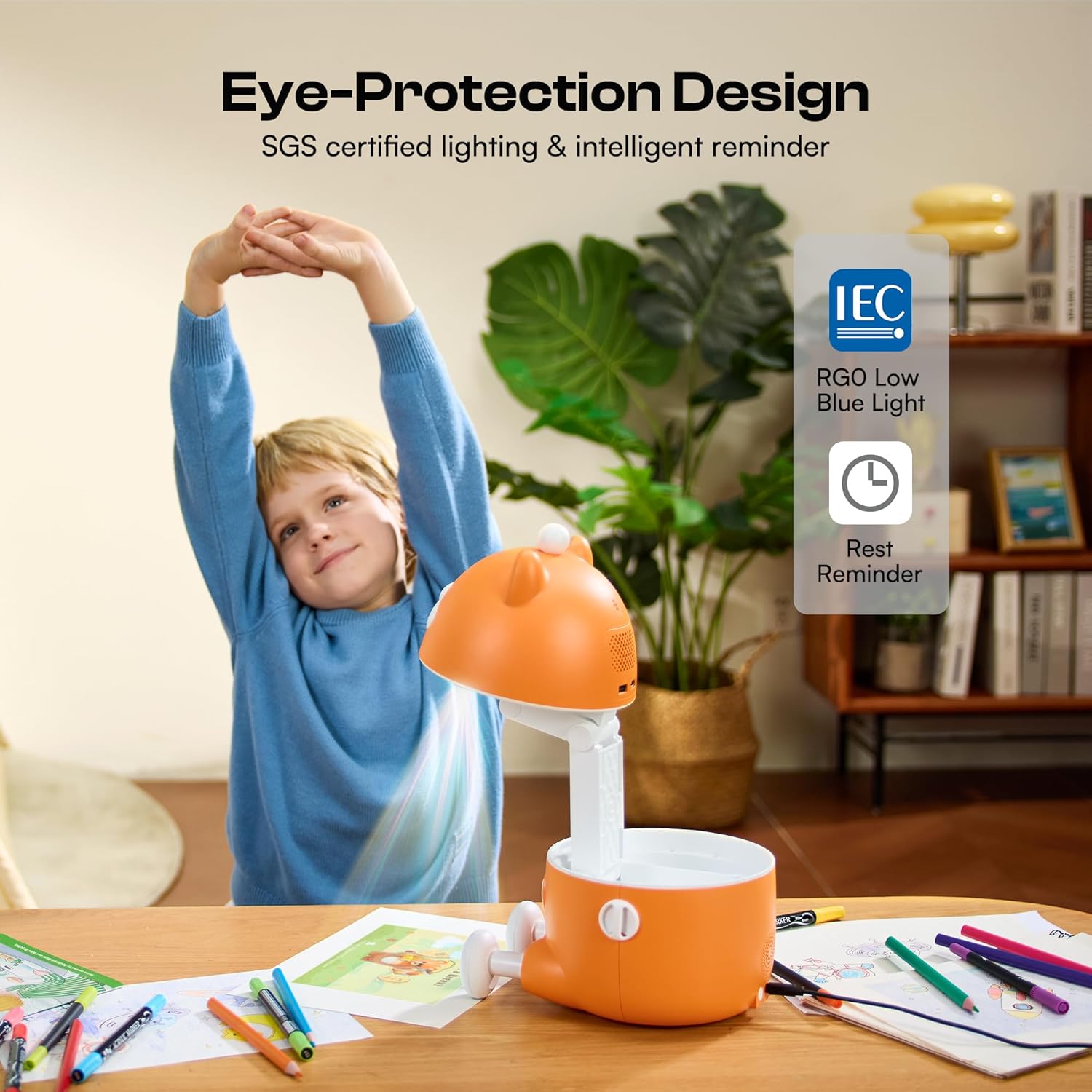
Figure 5.1: Eye-protection features promoting healthy screen-free fun.
6. Maintenance and Care
- Cleaning: Use a soft, dry cloth to clean the exterior of the projector. Do not use liquid cleaners or abrasive materials.
- Lens Care: Gently wipe the projector lens with a microfiber cloth designed for optics. Avoid touching the lens with bare fingers.
- Storage: When not in use, fold the projector into its compact form and store it in a cool, dry place away from direct sunlight and extreme temperatures.
- Battery Replacement: Replace AAA batteries in the remote control as needed.
7. Troubleshooting
- No Power: Ensure the power adaptor is securely connected to both the projector and a working power outlet. Check if the power button is pressed.
- Blurry Image: Adjust the manual focus ring on the projector lens until the image is clear. Ensure the projection surface is flat and the projector is stable.
- No Projection: Verify the projector is powered on. If using the app, ensure the projector is correctly connected via Bluetooth.
- App Connectivity Issues: Ensure Bluetooth is enabled on your device and the projector. Restart both the app and the projector if connection fails.
- Remote Not Responding: Check if the remote control batteries are correctly inserted and not depleted. Replace batteries if necessary.
8. Product Specifications
| Feature | Detail |
|---|---|
| Product Dimensions | 9.37 x 7.32 x 7.87 inches |
| Item Weight | 3.2 pounds |
| Model Number | T3 |
| Manufacturer | Caydo |
| Resolution | Native 720P HD |
| Brightness | 60 ANSI lumens |
| Connectivity | Bluetooth, Wi-Fi (for app features) |
| Eye Safety Certification | SGS RG0 Low Blue Light |

Figure 8.1: Physical dimensions of the Caydo T3 Projector.
9. Warranty and Support
For warranty information, technical support, or customer service inquiries, please refer to the contact details provided on the product packaging or visit the official Caydo website. Keep your purchase receipt for warranty claims.
Related documentsT3

Ask a question about this manual
Ask about setup, troubleshooting, compatibility, parts, safety, or missing instructions. Manuals+ will review the question and use this page’s manual context to help answer it.