
1. Introduction
This manual provides comprehensive instructions for the setup, operation, maintenance, and troubleshooting of your GMKtec Mini PC G3S. Please read this manual thoroughly before using the device to ensure optimal performance and longevity.

Figure 1: GMKtec Mini PC G3S, showcasing its compact design and various ports.
2. Package Contents
Verify that all items listed below are present in your product packaging:
- GMKtec Nucbox G3 S Mini PC (16GB RAM, 512GB SSD)
- VESA Mount with Screws
- HDMI Cable
- Power Adapter
- User Manual
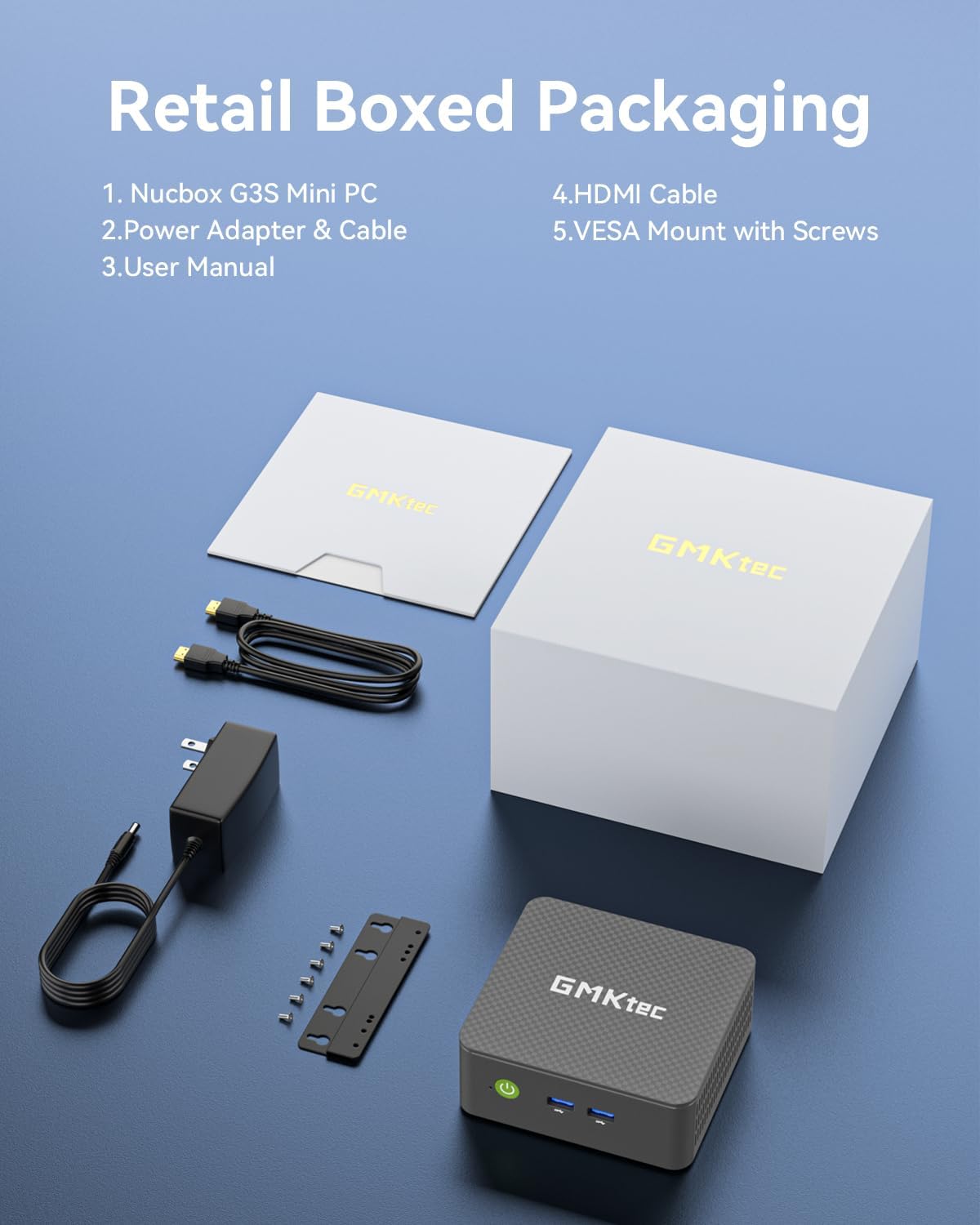
Figure 2: All components included in the GMKtec Mini PC G3S retail packaging.
3. Physical Features and Ports
The GMKtec Mini PC G3S is designed with a variety of ports for versatile connectivity:
- Front Panel: Power Button, 2x USB 3.2 (Gen 2) ports.
- Side Panel: Kensington Lock slot, Micro SD Card Reader.
- Rear Panel: 2x HDMI 2.0 ports (4K@60Hz support), 1x USB 2.0 port, 1x USB 3.2 (Gen 2) port, 1x Gigabit Ethernet (RJ45 1000MbE) port, 1x 3.5mm Audio Jack, DC 12V 3A Power Input.

Figure 3: Detailed view of the front and rear ports on the GMKtec Mini PC G3S.
4. Setup Guide
Follow these steps for initial setup of your Mini PC:
- Connect Peripherals: Connect your monitor(s) to the HDMI ports using the provided HDMI cable. Connect a USB keyboard and mouse to the available USB ports.
- Power Connection: Connect the power adapter to the DC 12V 3A input port on the rear of the Mini PC, then plug the adapter into a power outlet.
- Power On: Press the power button located on the front panel of the Mini PC. The power indicator light will illuminate.
- Initial Boot: The system will boot into Windows 11 Pro. Follow the on-screen instructions to complete the initial Windows setup, including language, region, network connection, and user account creation.
- VESA Mount Installation (Optional): If desired, attach the VESA mount to the back of a compatible monitor using the provided screws, then secure the Mini PC to the VESA mount. This allows for a clutter-free desktop setup.

Figure 4: The GMKtec Mini PC G3S demonstrating VESA mount compatibility and compact desk placement.
5. Operation
5.1. Dual 4K Display Support
The Mini PC G3S supports dual 4K@60Hz displays via its two HDMI 2.0 outputs. This allows for extended desktop environments, enhancing productivity for multitasking.
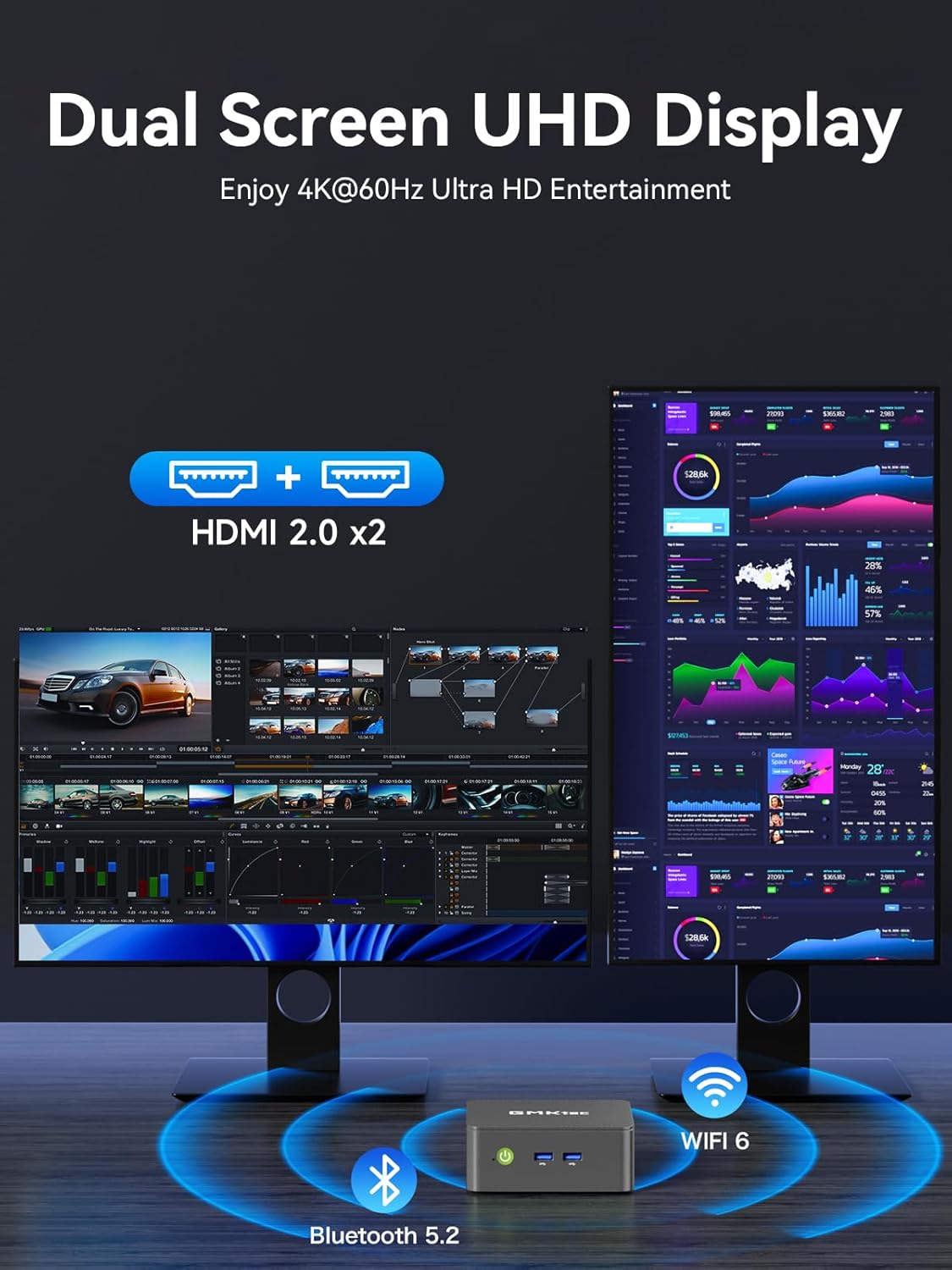
Figure 5: The Mini PC G3S powering a dual 4K display setup for enhanced workspace.
5.2. Network and Wireless Connectivity
The device offers robust connectivity options:
- Wired: Gigabit Ethernet (RJ45 1000MbE) for stable and high-speed internet access.
- Wireless: Integrated WiFi 5 (802.11ac) for wireless internet and Bluetooth 5.0 for connecting wireless peripherals.
5.3. Performance Modes
The Mini PC G3S features adjustable performance modes to suit different usage scenarios. These modes can be accessed and configured via the BIOS settings:
- Quiet Mode: Optimized for minimal fan noise, suitable for light tasks and quiet environments.
- Normal Mode (Default): Balanced performance for everyday computing.
- Performance Mode: Maximizes CPU and GPU performance for demanding applications.
To adjust modes, press the Esc key during boot-up to enter the BIOS page, then navigate to BIOS Setup to select your preferred mode.
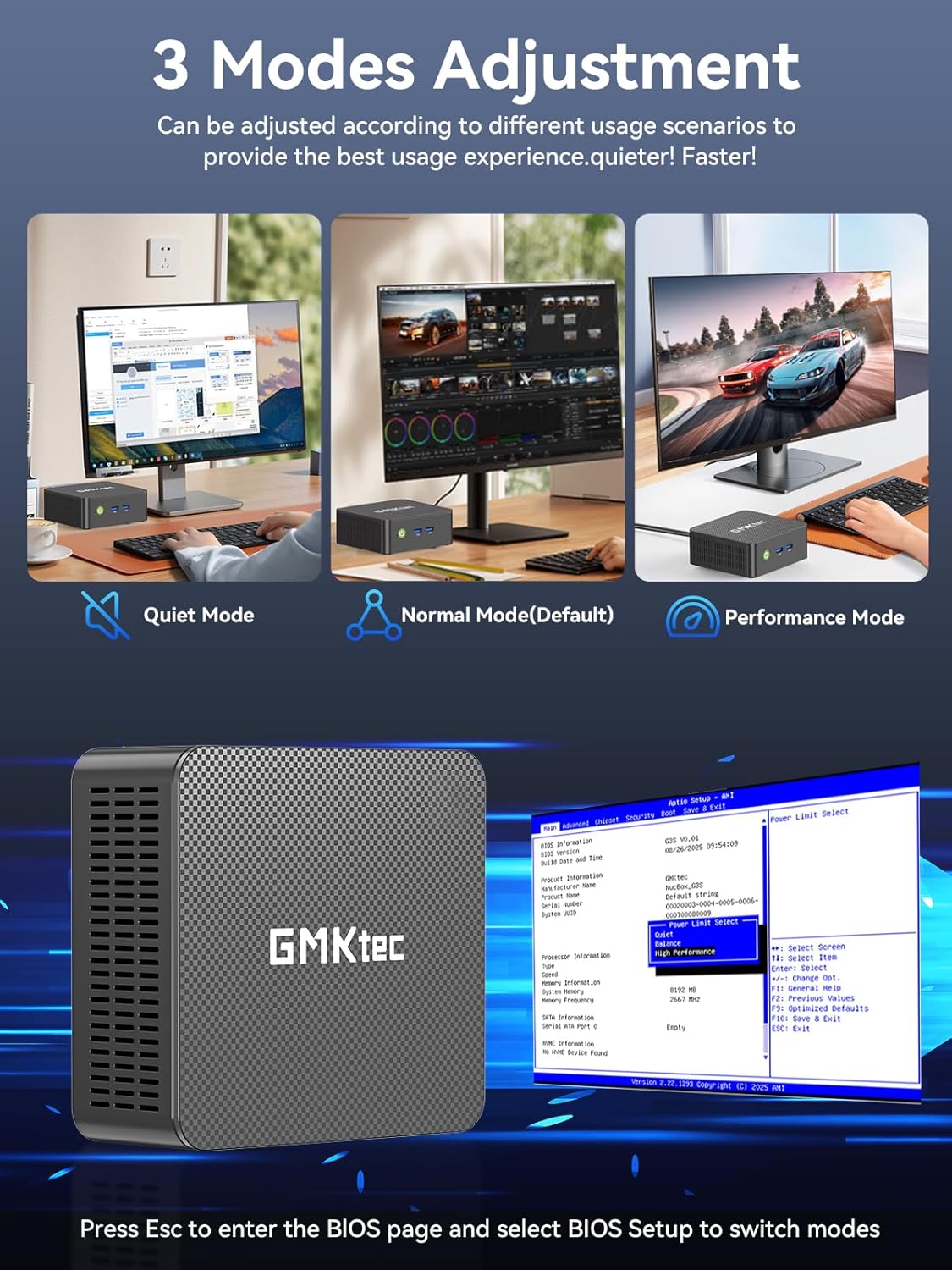
Figure 6: Illustration of the three performance modes and the BIOS entry screen.
6. Storage Expansion
The GMKtec Mini PC G3S comes with a 512GB M.2 2242 SSD and 16GB DDR4 RAM. For additional storage, the device supports expansion:
- M.2 2280 PCIe: Expandable up to 8TB.
- M.2 2242 SATA: Expandable up to 2TB.
Consult a qualified technician for storage upgrades to ensure proper installation and avoid damage to the device.

Figure 7: Internal view illustrating the RAM and dual SSD slots for storage expansion.
7. Technical Specifications
| Feature | Specification |
|---|---|
| Processor | 12th Gen Intel N95 (up to 3.4GHz, 4 Cores/4 Threads, 6MB Cache) |
| Graphics | Intel UHD Graphics (up to 1200MHz) |
| RAM | 16GB DDR4 SO-DIMM |
| Storage | 512GB M.2 2242 SATA SSD |
| Storage Expansion | 1x M.2 2280 PCIe Gen3*2 (Max 8TB), 1x M.2 2242 SATA (Max 2TB) |
| Video Output | 2x HDMI 2.0 (4K@60Hz) |
| USB Ports | 3x USB 3.2 (Gen 2), 1x USB 2.0 |
| Network | Gigabit Ethernet (RJ45 1000MbE), WiFi 5 (802.11ac), Bluetooth 5.0 |
| Operating System | Windows 11 Pro |
| Dimensions | Approximately 6.46 x 6.3 x 4.21 inches |
| Weight | Approximately 2.07 pounds |
8. Maintenance
To ensure the longevity and optimal performance of your GMKtec Mini PC G3S, follow these maintenance guidelines:
- Cleaning: Regularly clean the exterior of the Mini PC with a soft, dry cloth. Use compressed air to clear dust from ventilation grilles to prevent overheating. Ensure the device is powered off and unplugged before cleaning.
- Software Updates: Keep your operating system and drivers updated to the latest versions. This improves security, stability, and performance.
- Ventilation: Ensure the Mini PC is placed in a well-ventilated area and that its vents are not obstructed. Proper airflow is crucial for heat dissipation.
- Power Supply: Use only the original power adapter provided with the device.
9. Troubleshooting
If you encounter issues with your Mini PC, refer to the following common solutions:
- No Display:
- Ensure the monitor is powered on and correctly connected to the Mini PC via HDMI.
- Verify the correct input source is selected on your monitor.
- Try a different HDMI cable or monitor if available.
- No Power:
- Check that the power adapter is securely connected to both the Mini PC and a working power outlet.
- Ensure the power button is pressed firmly.
- Network Connectivity Issues:
- For wired connections, ensure the Ethernet cable is properly connected and the router is functioning.
- For Wi-Fi, check that Wi-Fi is enabled in Windows settings and you are connected to the correct network with the correct password.
- Restart your router/modem and the Mini PC.
- Slow Performance:
- Close unnecessary applications running in the background.
- Ensure the system is updated and free of malware.
- Consider switching to 'Performance Mode' in BIOS settings if sustained high performance is required.
If problems persist, please contact GMKtec customer support.
10. Warranty and Support
GMKtec offers a 1-year limited warranty for each Mini PC, effective from the date of purchase. This warranty covers defects due to design and workmanship. For any issues or inquiries, please utilize the following support channels:
- Amazon Customer Service: Log in to your Amazon account, navigate to 'Your Orders', and select 'Ask Product Question' for assistance.
- GMKtec After-Sales Team: Contact support directly via email at support@gmktec.com.
- 24/7 Client Support: GMKtec provides continuous client support for your convenience.

Figure 8: Overview of available customer support options for GMKtec products.
Official Product Video
Video 1: An official product overview of the GMKtec Mini PC G3S, highlighting its features and capabilities.


