
1. Introduction
Welcome to the Genérico GT8 Drone User Manual. This guide provides essential information for the safe and effective operation, maintenance, and troubleshooting of your GT8 drone. Please read this manual thoroughly before operating the drone to ensure a safe and enjoyable flight experience.
2. Safety Guidelines
Adherence to these safety guidelines is crucial for preventing accidents and ensuring the longevity of your drone.
- Pre-Flight Check: Always inspect the drone, remote control, and battery for any damage before each flight.
- Flight Environment: Fly in open areas, away from people, buildings, trees, and power lines. Avoid flying in strong winds, rain, or fog.
- Battery Safety: Use only approved chargers and batteries. Do not overcharge or puncture batteries. Discontinue use if batteries are damaged or swollen.
- Propeller Safety: Keep hands and face clear of rotating propellers. Ensure propellers are securely attached before flight.
- Respect Privacy: Be mindful of privacy laws and regulations when using the camera.
- Altitude and Distance: Adhere to local regulations regarding maximum flight altitude and distance.
- Emergency Procedures: Familiarize yourself with the Return-to-Home (RTH) function and emergency stop procedures.
3. Package Contents
Verify that all items are present in your package:
- GT8 Drone
- Remote Control with Integrated Screen
- 1x Flight Battery (additional batteries available with Fly More kit)
- Spare Propellers
- Charging Cable
- User Manual (this document)
- Optional Memory Card (may be included depending on package)
4. Product Overview
4.1 Drone Components

This image displays the Genérico GT8 drone in its unfolded state alongside its remote control. The drone features four propellers, a central body housing the camera and gimbal system, and landing gear. The remote control has a built-in screen for real-time FPV viewing.
- Propellers: Provide lift and thrust.
- Motors: Brushless motors for stable flight.
- Camera with 3-Axis Gimbal: Captures 4K HD video and photos, stabilized for smooth footage.
- Obstacle Avoidance Sensors: Detects obstacles to prevent collisions.
- Flight Battery Compartment: Houses the removable flight battery.
- LED Indicators: Display drone status and battery level.
4.2 Remote Control Components

This image shows the Genérico GT8 drone in its folded, compact state next to the remote control. The remote control features dual joysticks, various control buttons, and a central integrated screen for FPV (First Person View) without needing a separate smartphone.
- Control Sticks: For flight direction and altitude.
- Integrated Screen: Displays real-time FPV feed and flight data.
- Power Button: Turns the remote control on/off.
- Return-to-Home (RTH) Button: Initiates automatic return to takeoff point.
- Photo/Video Button: Captures images or starts/stops video recording.
- Gimbal Control Dial: Adjusts camera tilt.
5. Setup
5.1 Battery Installation and Charging
- Insert the flight battery into the drone's battery compartment until it clicks securely into place.
- Connect the charging cable to the battery and a suitable USB power adapter (not included).
- Charge the battery fully before first use. The LED indicators on the battery will show charging status.
- Charge the remote control using its dedicated charging port and cable.
5.2 Propeller Installation
Ensure propellers are installed correctly according to their markings (e.g., A and B) and the corresponding motor arms. Incorrect installation can lead to unstable flight.
- Unfold the drone arms.
- Match the propeller type (A or B) with the motor base.
- Press down and rotate the propeller in the direction indicated until it locks securely.
5.3 Remote Control Preparation
- Ensure the remote control is fully charged.
- Press and hold the power button to turn on the remote control.
5.4 Initial Pairing
- Place the drone on a flat, level surface.
- Power on the drone.
- Power on the remote control.
- Follow the on-screen instructions on the remote control to pair with the drone. This usually involves moving the control sticks in a specific pattern.
6. Operating the Drone
6.1 Pre-Flight Checklist
- Drone battery fully charged and securely installed.
- Remote control fully charged.
- Propellers correctly installed and undamaged.
- Flight area clear of obstacles and people.
- GPS signal acquired (if applicable, for RTH and stable flight).
6.2 Takeoff and Landing
- Automatic Takeoff: Press the dedicated auto-takeoff button on the remote control. The drone will ascend to a safe height and hover.
- Manual Takeoff: Push both control sticks outwards and downwards to arm the motors. Then, slowly push the left stick (throttle) upwards to ascend.
- Automatic Landing: Press the dedicated auto-landing button. The drone will descend and land automatically.
- Manual Landing: Slowly pull the left stick (throttle) downwards to descend. Once landed, pull both sticks outwards and downwards to disarm the motors.
6.3 Flight Controls
Use the control sticks on the remote control to maneuver the drone:
- Left Stick (Throttle/Yaw): Up/Down for altitude, Left/Right for rotation (yaw).
- Right Stick (Pitch/Roll): Up/Down for forward/backward movement (pitch), Left/Right for sideways movement (roll).
6.4 Camera Operation (4K HD with 3-Axis Gimbal)
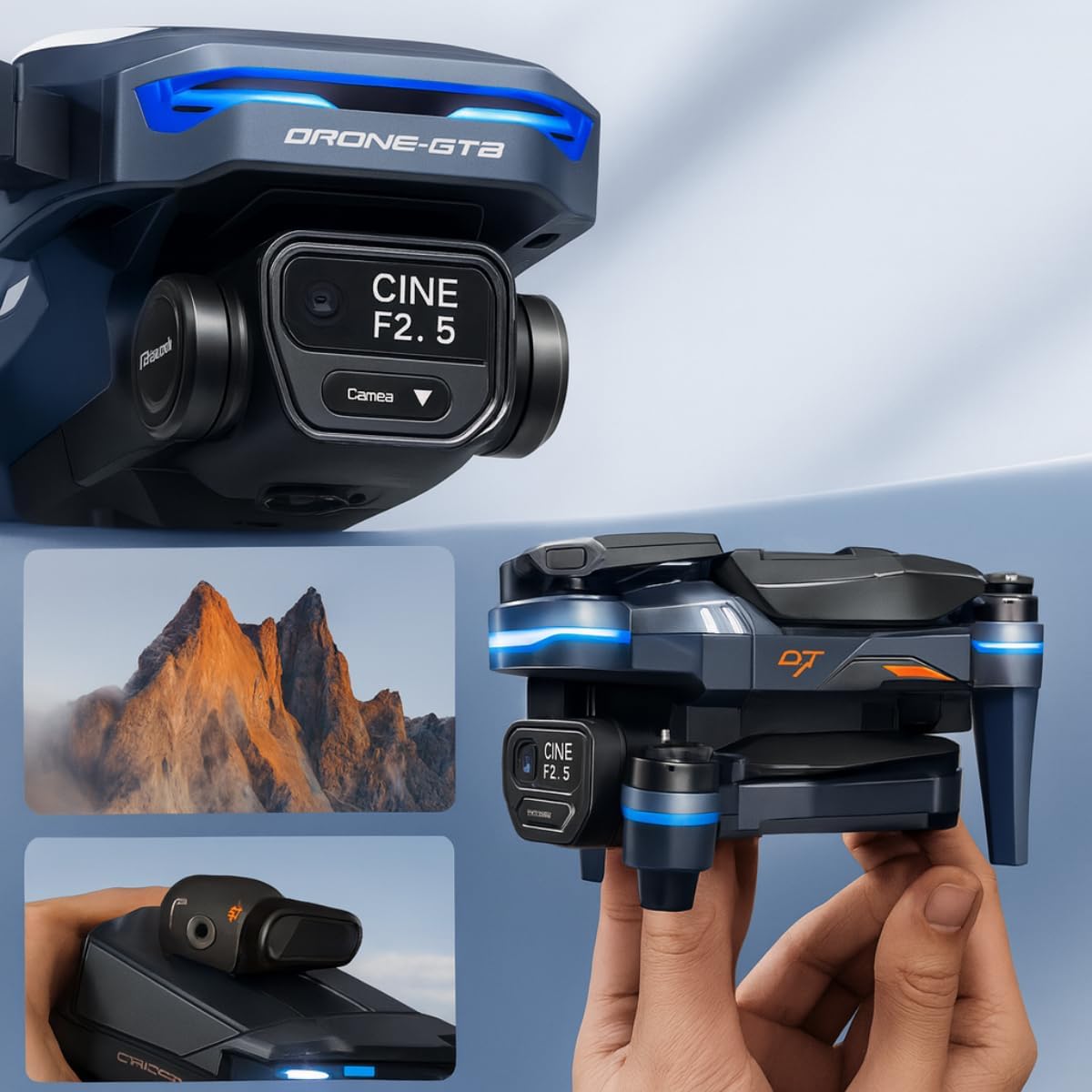
This image provides a close-up view of the Genérico GT8 drone's camera and 3-axis gimbal system, highlighting its cinematic capabilities. The camera is labeled 'CINE F2.5', indicating its aperture. Below, smaller images show the drone held in hand and a scenic mountain view, illustrating its portability and imaging potential.
- Photo/Video Button: Press once to take a photo, press and hold to start/stop video recording.
- Gimbal Control Dial: Use the dial on the remote control to adjust the camera's vertical angle (tilt) during flight for optimal framing.
- 4K HD Resolution: The camera captures high-definition 4K footage, providing clear and detailed visuals.
- 3-Axis Gimbal: The gimbal stabilizes the camera, ensuring smooth and shake-free video even during drone movements.
6.5 Intelligent Flight Modes
The GT8 drone offers several intelligent flight modes for automated and creative filming:
- Follow Me: The drone automatically tracks and follows a designated subject (e.g., the remote control).
- Orbit: The drone flies in a circular path around a chosen point of interest, keeping it centered in the frame.
- Waypoints: Plan a flight path by setting multiple waypoints on the map, and the drone will fly the route autonomously.
- Timelapse: Capture a series of photos over time to create a timelapse video.
- QuickShots: Pre-programmed flight patterns that capture short, cinematic video clips.
6.6 Obstacle Avoidance
The drone is equipped with obstacle avoidance sensors that help detect and bypass obstacles in its flight path, enhancing flight safety. Always remain vigilant and do not solely rely on these sensors.
6.7 Return-to-Home (RTH)
The RTH function allows the drone to automatically return to its takeoff point. This feature is activated by pressing the RTH button on the remote control or automatically when the battery is low or connection is lost. The RTH function relies on GPS/GLONASS signals for accurate positioning.
7. Maintenance
7.1 Cleaning
- Wipe the drone and remote control with a soft, dry cloth after each use.
- Gently clean the camera lens with a microfiber cloth.
- Remove any debris from the motors and propeller shafts.
7.2 Storage
- Store the drone and remote control in a cool, dry place, away from direct sunlight.
- Remove batteries from the drone and remote control if storing for extended periods.
7.3 Battery Care
- Charge batteries fully before storage if they will not be used for a long time.
- Do not store fully charged or completely depleted batteries for extended periods. Aim for approximately 50-60% charge for long-term storage.
7.4 Propeller Replacement
If propellers are damaged, replace them immediately using the spare propellers provided or genuine replacements. Ensure correct propeller type (A or B) is installed on the corresponding motor.
8. Troubleshooting
Refer to the table below for common issues and their solutions:
| Problem | Possible Cause | Solution |
|---|---|---|
| Drone does not power on | Low or uncharged battery; Battery not properly installed. | Charge the flight battery; Ensure battery is securely inserted. |
| Remote control does not power on | Low or uncharged remote control battery. | Charge the remote control. |
| Drone fails to pair with remote control | Incorrect pairing procedure; Interference. | Repeat pairing steps carefully; Move to an area with less interference. |
| Unstable flight or drifting | Propellers damaged or incorrectly installed; Calibration needed; Strong winds. | Replace damaged propellers, ensure correct installation; Perform IMU/compass calibration; Fly in calm conditions. |
| Poor video/photo quality | Dirty camera lens; Insufficient lighting; SD card issues; Gimbal not calibrated. | Clean lens; Fly in well-lit conditions; Check/format SD card; Calibrate gimbal. |
| Return-to-Home (RTH) not working accurately | Weak or no GPS/GLONASS signal at takeoff point; Compass interference. | Ensure strong GPS/GLONASS signal before takeoff; Calibrate compass in an open area. |
| Obstacle avoidance not functioning | Sensors obstructed or dirty; Flying too fast for sensors to react. | Clean sensors; Reduce flight speed in complex environments. |
9. Specifications
Key technical specifications for the Genérico GT8 Drone:
- Brand: Genérico
- Model: GT8
- Color: Gray
- Connectivity Technology: Bluetooth (for certain functions, e.g., app connection)
- Drone Weight: 500 Grams
- Dimensions (L x W x H): 30 x 20 x 12 centimeters (unfolded)
- Camera: 4K HD
- Gimbal: 3-Axis Stabilization
- Flight Time: Up to 30 minutes (varies based on flight conditions and battery charge)
- Navigation: GLONASS (for positioning and RTH)
- Safety Features: Obstacle Avoidance, Return-to-Home (RTH)
- Intelligent Modes: Follow, Orbit, Waypoints, Timelapse, QuickShots
10. Warranty and Support
For warranty information, please refer to the documentation provided at the time of purchase or contact your retailer. For technical support, assistance with operation, or spare parts, please contact Genérico customer service through the contact details provided on the product packaging or the official Genérico website.