
1. Introduction
This manual provides comprehensive instructions for the installation of the Ygpmoiki LCD Display Touch Screen Digitizer Assembly with Frame, designed specifically for the TCL K32 T513W 6.75" mobile phone. Please read all instructions carefully before beginning the installation process to ensure proper function and to avoid damage to your device or the replacement part.
This assembly is intended to resolve issues such as unresponsive touch, abnormal display, or broken glass on your phone.
2. Safety Information and Disclaimer
- Professional Installation Recommended: Replacing a phone screen requires technical skills and specialized tools. If you are not confident in your ability to perform this repair, seek assistance from a qualified technician.
- Risk of Damage: Improper installation can lead to damage to the phone or the new display assembly. The manufacturer is not responsible for any damage caused by incorrect installation.
- Static Electricity: Static discharge can damage electronic components. Use an anti-static wrist strap or take other precautions to prevent static electricity.
- Battery Disconnection: Always disconnect the phone's battery before performing any repairs to prevent short circuits or electrical damage.
- Handle with Care: The display assembly is fragile. Handle it gently, especially the flex cables.
3. What's in the Box
Your package should contain the following items:
- 1x LCD Screen Display Touch Digitizer Assembly with Frame Replacement for TCL K32 T513W 6.75"
- 1x Set of Installation Tools (typically includes screwdrivers, prying tools, suction cup)

Image: The LCD Display Touch Screen Digitizer Assembly with Frame, alongside a typical set of repair tools including screwdrivers, prying tools, and a suction cup.
4. Compatibility Check
This replacement part is specifically designed for the TCL K32 T513W 6.75" model. It is crucial to verify your phone's model before proceeding with installation.
To confirm your phone model:
- Go to your phone's Settings.
- Scroll down and tap on "About Phone".
- Look for "Hardware Information" or "Model Number" to confirm it matches TCL K32 T513W.
Using this part with an incompatible model may result in damage or improper function.
5. Pre-Installation Testing
Before permanently installing the new screen assembly, it is essential to test its functionality. Do NOT remove any protective films or adhesive until testing is complete and successful.
- Connect Flex Cables: Carefully connect the new display's flex cables to the corresponding connectors on your phone's motherboard. Do not apply excessive force.
- Power On: Reconnect the battery and power on your phone.
- Test Display: Check for any dead pixels, lines, or discoloration on the screen.
- Test Touch Functionality: Verify that the touch screen responds accurately across the entire display. You can test this by dragging an app icon around the screen or using a drawing app.
- Test Other Functions: If possible, test brightness adjustment, proximity sensor (if applicable), and other screen-related features.
If the testing results are unsatisfactory (e.g., display issues, unresponsive touch), do NOT proceed with the full installation. Contact customer support for assistance. If the testing is successful, you may proceed with the full installation.
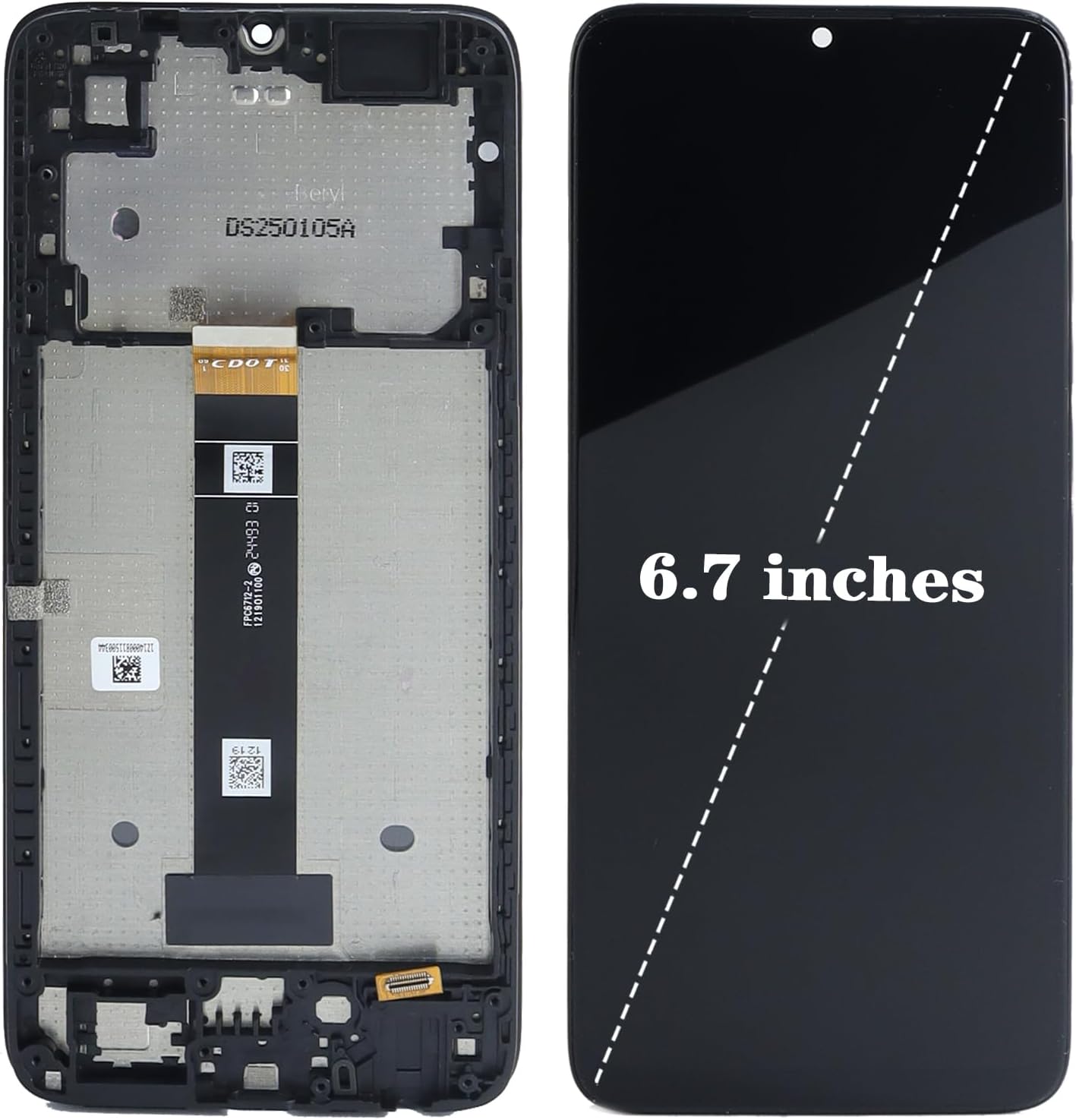
Image: The complete LCD Display Touch Screen Digitizer Assembly with Frame, indicating its 6.7-inch size, ready for pre-installation testing.
6. Installation Instructions
This section outlines the general steps for installing the display assembly. Specific disassembly and reassembly steps for your phone model may vary. Refer to online repair guides or videos for detailed model-specific instructions.
- Power Off and Disassemble: Power off your phone completely. Carefully disassemble your phone, removing the back cover, battery, and any other components necessary to access the old display assembly.
- Remove Old Display: Gently heat the edges of the old display to soften the adhesive. Use prying tools and a suction cup to carefully separate the old display from the phone frame. Disconnect its flex cables from the motherboard.
- Clean Frame: Thoroughly clean any remaining adhesive or glass fragments from the phone's frame. Ensure the frame is smooth and free of debris.
- Transfer Components (if necessary): If your new assembly does not include certain components (e.g., earpiece speaker, front camera, home button, vibration motor), carefully transfer them from your old display or frame to the new one.
- Install New Display: Align the new display assembly with the phone frame. Ensure all flex cables are properly routed and connected to the motherboard.
- Secure Display: Apply new adhesive (if not pre-applied) around the edges of the frame and carefully press the new display into place. Ensure a snug fit.
- Reassemble Phone: Reinstall all components, including the battery and back cover, in reverse order of disassembly.
- Final Test: Power on the phone and perform a final test of the display and touch functions.

Image: Detailed view of the upper section of the display assembly, highlighting the frame structure and flex cable connection points.

Image: Detailed view of the lower section of the display assembly, showing the frame structure and flex cable connection points.
Installation Video Guide
Video: An official installation guide demonstrating the process of replacing the LCD Display Touch Screen Digitizer Assembly with Frame for the TCL K32 T513W 6.75" phone. This video provides a visual walkthrough of the steps involved.
7. Specifications
| Compatible Model | TCL K32 T513W 6.75" |
| Part Type | LCD Display Touch Screen Digitizer Assembly with Frame |
| Screen Size | 6.75 inches |
| Color | Black |
| Item Weight | 3.53 ounces (approx. 100 grams) |
| Package Dimensions | 7.09 x 3.94 x 0.79 inches |
| Manufacturer | Ygpmoiki |
8. Troubleshooting
If you encounter issues after installation, consider the following troubleshooting steps:
- Screen Not Turning On:
- Ensure all flex cables are securely connected to the motherboard.
- Check if the battery is properly connected and charged.
- Try a hard reset of the phone (refer to your phone's user manual for specific steps).
- Touch Not Responding:
- Verify the touch screen flex cable is correctly seated.
- Ensure there are no foreign objects or debris between the screen and the frame.
- Perform a soft reset or restart the phone.
- Display Issues (lines, discoloration, dead pixels):
- Recheck the display flex cable connection.
- Ensure no pressure is being applied to the screen from internal components or a tight frame.
- If issues persist, the display unit may be faulty.
- Screen Flickering:
- Check all connections, especially the display flex cable.
- Ensure the phone's internal components are not loose or causing interference.
If troubleshooting does not resolve the issue, it is recommended to consult a professional repair service or contact the seller for further assistance.
9. Warranty and Support
For warranty information, returns, or technical support, please refer to the purchase platform or contact the seller directly. Keep your proof of purchase for any warranty claims.
Please note that damage caused by improper installation or misuse is typically not covered under warranty.