
Introduction
This manual provides comprehensive instructions for the installation, operation, and maintenance of your Kestanlora YG002 Hidden Camera Smoke Detector. Please read this manual thoroughly before using the device to ensure proper functionality and safety.
Important Note:
This device is designed to resemble a smoke detector for discreet surveillance purposes. It does not function as a smoke detector and should not be relied upon for fire safety. Ensure the device is used in compliance with all local laws and regulations regarding surveillance.

Image: Kestanlora YG002 Hidden Camera Smoke Detector, highlighting the discreetly placed camera lens.
Product Overview
Package Contents
The following items are included in your package:
- Kestanlora YG002 Hidden Camera Smoke Detector
- User Manual
- USB Charging Cable
Key Features
- High Definition Video: Records in 1080P HD for clear real-time viewing.
- Night Vision: Equipped with 4 infrared lights for enhanced visibility in low-light conditions.
- Dual Connection Modes:
- AP Mode: Direct connection to the camera's own signal for local viewing (within 49.2ft) without Wi-Fi.
- P2P Mode: Connects to a 2.4GHz Wi-Fi network for remote monitoring from anywhere.
- Motion Detection & Alerts: Sends push notifications with images to your phone upon detecting motion.
- Continuous Loop Recording: Automatically saves and overwrites the oldest files when the memory card is full.
- Expandable Storage: Supports Micro SD cards up to 128GB (not included).
- Extended Operation: Provides 130 minutes of continuous recording on a full charge, or 24-hour live streaming when connected to USB power.
- Easy Setup: Simple connection process via a dedicated mobile application.
Device Layout

Image: Diagram illustrating the camera lens, IR light, and overall dimensions of the Kestanlora YG002 device.

Image: Front view of the Kestanlora YG002 Hidden Camera Smoke Detector.
Setup Instructions
Before You Begin
- Ensure your smartphone is connected to a 2.4GHz Wi-Fi network if you plan to use P2P remote monitoring.
- Obtain a Micro SD card (up to 128GB) if you intend to record video. The SD card is not included.
- Charge the device fully using the provided USB charging cable before initial use.
Step-by-Step Setup
- Power On: Locate the power button on the device and press it to turn on the camera.
- Download App: Scan the QR code provided in the physical user manual or search for the recommended application in your smartphone's app store. Install the application.
- Connect to Phone:
- AP Mode (Direct Connection): Turn on the camera. On your phone, go to Wi-Fi settings and connect to the camera's direct Wi-Fi signal (usually starts with a unique device ID). Open the app to view the live feed. This mode allows local viewing within approximately 49.2 feet (15 meters) of the camera.
- P2P Mode (Remote Connection): Ensure your phone is connected to a 2.4GHz Wi-Fi network. Open the app and follow the in-app instructions to add a new device. Select the P2P connection method and enter your home Wi-Fi network details. Once connected, you can monitor the camera remotely from anywhere with an internet connection.
- Insert SD Card (Optional): If using an SD card for recording, carefully insert it into the designated slot. Format the SD card through the app settings for optimal performance.

Image: Illustration of remote access via the mobile application, showing live streaming capabilities from various locations.
Operating Instructions
Recording Modes
- Continuous Loop Recording: When an SD card is inserted, the camera will continuously record video. Once the SD card is full, the newest recordings will automatically overwrite the oldest files, ensuring uninterrupted operation.
- Motion Detection Recording: Activate motion detection in the app settings. The camera will begin recording automatically when motion is detected and send a push notification to your smartphone.

Image: Diagram illustrating the continuous loop recording feature and support for up to 128GB Micro SD cards.
App Interface Functions
The mobile application provides various controls and settings for your camera:
- Live View: Access real-time video feed from your camera.
- Playback: Review recorded footage stored on the SD card.
- Screen Orientation: Adjust the video display (e.g., screen upside down, screen left and right).
- Indicator Light Control: Turn the device's indicator light on or off for discreet operation.
- Brightness Adjustment: Modify the video brightness.
- Night Vision Switch: Manually activate or deactivate night vision.
- Color Saturation: Adjust video color levels.

Image: Screenshot of the mobile application interface detailing various settings such as screen orientation, indicator light control, brightness, night vision, and color saturation.
Night Vision Functionality
The Kestanlora YG002 is equipped with 4 infrared lights to provide clear video footage even in low-light environments. This feature allows for continuous monitoring day and night. Note that while night vision enhances visibility in dim conditions, it is not designed for use in total darkness.

Image: Illustration demonstrating the camera's wide-angle view and night vision capabilities in different lighting conditions.
Maintenance
Cleaning the Device
To maintain optimal performance, periodically clean the exterior of the device with a soft, dry cloth. Avoid using liquid cleaners or abrasive materials, as these can damage the camera lens or housing.
SD Card Management
- Formatting: It is recommended to format the Micro SD card through the camera's app settings before its first use and periodically thereafter to ensure stable recording and prevent data corruption.
- Replacement: If the SD card becomes faulty or reaches its end of life, replace it with a new one (up to 128GB capacity).
Power and Charging
Ensure the device is regularly charged or connected to a continuous USB power source for uninterrupted operation. A full charge provides approximately 130 minutes of continuous recording. For 24/7 monitoring, keep the device plugged in.
Troubleshooting
If you encounter issues with your Kestanlora YG002, please refer to the following common problems and their solutions:
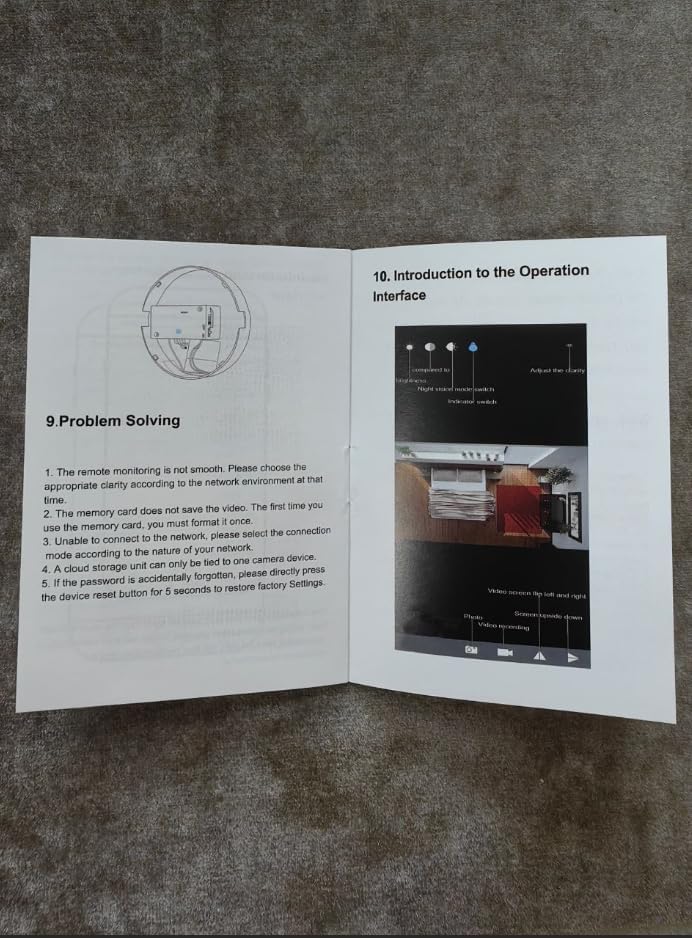
Image: A page from the physical user manual detailing common problems and their solutions, including network connection issues and memory card errors.
- Remote connection is not smooth:
Ensure your network environment is stable and has sufficient bandwidth. Adjust the video clarity settings in the app to a lower resolution if your network is slow.
- Memory card does not save video:
The memory card may not be formatted correctly or may be faulty. Format the SD card through the app settings. If the issue persists, try a different compatible Micro SD card.
- Difficulty connecting to the network:
Ensure you are selecting the correct connection mode (AP or P2P) based on your requirements. For P2P mode, verify that your Wi-Fi network is 2.4GHz and that the camera is within range of the router. Re-enter Wi-Fi credentials carefully.
- Forgot password or device not responding:
To restore factory settings, locate the reset button on the device and press it for 5 seconds. This will reset the device to its default configuration.
Specifications
| Feature | Detail |
|---|---|
| Model Name | YG002 |
| Brand | Kestanlora |
| Video Capture Resolution | 1080p HD |
| Connectivity Technology | Wireless (Wi-Fi) |
| Connectivity Protocol | Wi-Fi (2.4GHz) |
| Special Features | HD Resolution, Local Recording, Motion Detection, Night Vision |
| Indoor/Outdoor Usage | Indoor |
| Compatible Devices | Smartphone |
| Power Source | Corded Electric (USB) |
| Controller Type | APP |
| Mounting Type | Wall Mount |
| Max Memory Card Capacity | 128GB (Micro SD, not included) |
| Continuous Working Time (Battery) | Approx. 130 minutes |
| Product Dimensions (L x W x H) | 4 x 1 x 4 inches |
| Item Weight | 6.7 ounces |
| Color | White |
Warranty and Support
Warranty Information
Specific warranty details for the Kestanlora YG002 Hidden Camera Smoke Detector are not provided in this manual. Please refer to the product packaging or the seller's website for the most current warranty information.
Customer Support
For technical assistance, troubleshooting beyond this manual, or inquiries regarding your device, please contact Kestanlora customer support through the contact information provided on the product packaging or the official Kestanlora website.