
1. Introduction
The H96 MAX H618 Android 14 TV Box is a high-performance streaming media player designed to enhance your home entertainment experience. Featuring the latest Android 14 operating system, 8K decoding capabilities, and WiFi 6 dual-band connectivity, this device offers smooth, fast, and immersive viewing. This manual provides essential information for setup, operation, and maintenance of your TV box.

Image: The H96 MAX H618 Android 14 TV Box and its accompanying voice remote control.
2. What's in the Box
Please verify that all items are present in the package:
- H96 MAX V58 TV Box
- Voice Remote control
- Power Supply
- HD Cable
- User Manual

Image: All components included in the H96 MAX H618 TV Box package: the TV box, remote, power adapter, HDMI cable, and user manual.
3. Product Features
- Latest Android 14 OS: Offers a smoother interface, faster app switching, and improved system stability for responsive performance.
- 8K Decoding & 4K/60fps Output: Delivers sharp detail and vivid colors for an immersive viewing experience.
- WiFi 6 Dual-Band + Gigabit Ethernet: Ensures fast, reliable network performance with smoother playback and reduced buffering.
- 4GB RAM + 128GB ROM: Provides quicker loading, responsive operation, and ample storage for apps and files. USB 3.0 for faster data transfer.
- Easy Setup with Voice Remote: Simple HDMI connection for plug-and-play installation. Voice remote for hands-free navigation.

Image: An overview of the H96 MAX H618 Android 14 Smart TV Box, showcasing its main features including Android 14, H618 Quad-Core processor, 8K UHD HDR, and WiFi 6 + BT 5.4 connectivity.
4. Setup Guide
4.1 Connecting the TV Box
- Connect the HD Cable from the TV Box to an available HDMI port on your television.
- Connect the Power Supply to the DC port on the TV Box, then plug the adapter into a power outlet.
- For wired network connection, plug an Ethernet cable from your modem or router into the Ethernet port on the TV Box.
- Power on the TV Box.
4.2 Remote Control Pairing
For initial pairing, place the remote control near the TV Box. Press and hold the [LEFT] and [RIGHT] buttons on the remote control for about 10 seconds simultaneously. The red light on the remote will flash continuously. Release the buttons to automatically enter pairing mode. Once successfully paired, the indicator light will turn off.
Video: A demonstration of the H96 MAX H618 Plus Android 14 TV Box, including its physical features and basic setup.
4.3 Network Configuration
If using Wi-Fi, navigate to the Settings menu on your TV screen, select Network & Internet, choose your Wi-Fi network, and enter the password.

Image: A detailed diagram showing the various interface ports on the H96 MAX H618 TV Box, including DC power, AV, Ethernet, HD (HDMI), USB1, and USB2.
5. Operating Instructions
5.1 Navigation and Interface
The H96 MAX H618 features a user-friendly interface powered by Android 14. Use the directional buttons on your voice remote to navigate through menus and select applications. The home screen provides quick access to your favorite apps and recommended content.

Image: The Android 14 home screen of the H96 MAX H618 TV Box, displaying various streaming app icons and system information.
5.2 Voice Control
The included voice remote allows for hands-free control. Press the Google Assistant button on the remote and speak your commands to search for content, open apps, or control playback.
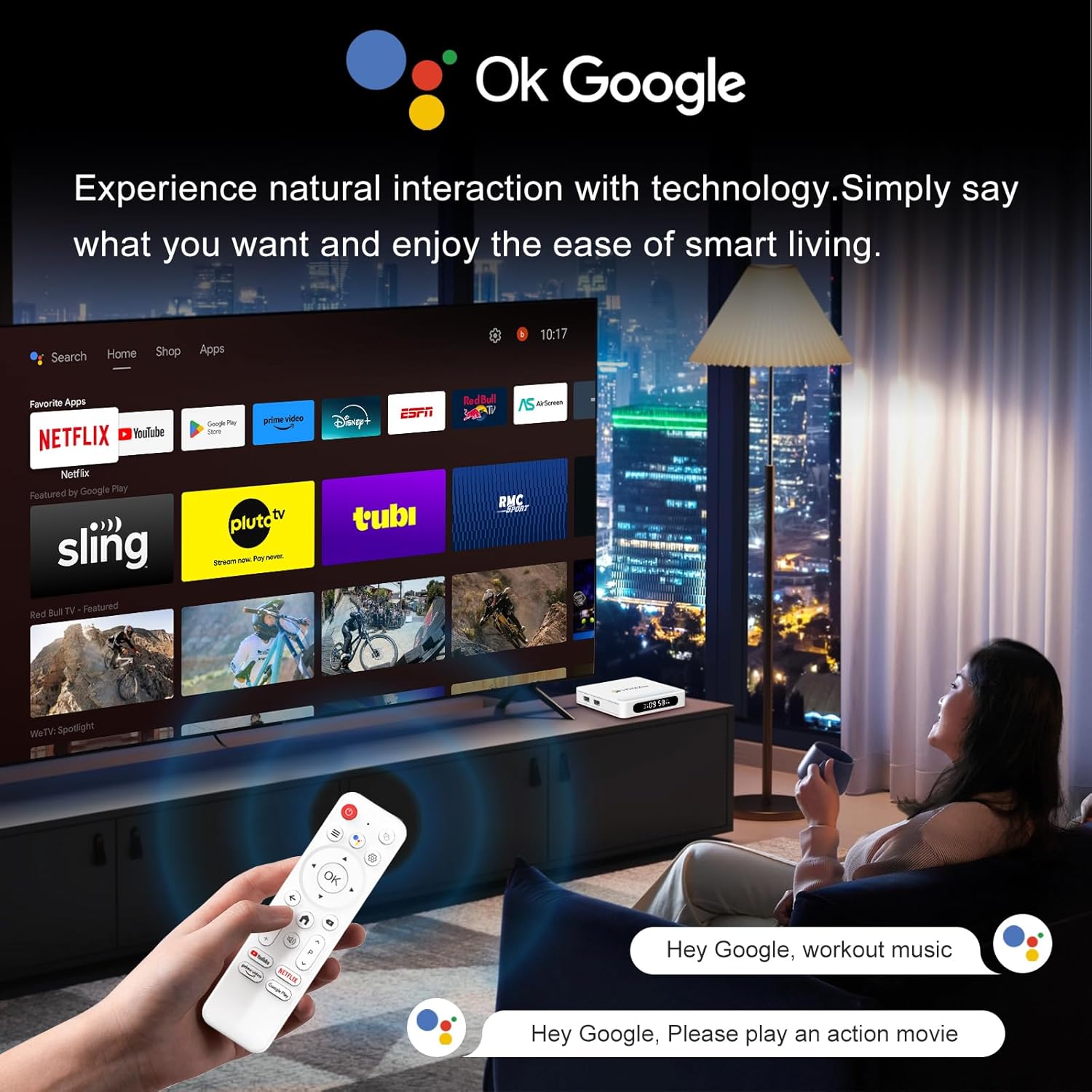
Image: A user in a living room setting interacting with the H96 MAX H618 TV Box using the voice remote, demonstrating voice commands for content search.
Video: A short preview demonstrating the voice remote control functionality of a Google Android TV Box, similar to the H96 MAX H618.
5.3 App Installation
Access the Google Play Store from the home screen to download and install a wide range of streaming applications, games, and utilities. The 128GB ROM provides ample space for your favorite content.
5.4 Media Playback
The TV Box supports 8K video decoding and 4K/60fps output. You can play local media files via USB 3.0 or stream content from various online services like Netflix, Prime Video, and YouTube.

Image: A visual representation of the 8K Ultra HD viewing experience offered by the H96 MAX H618 TV Box, showing a high-resolution image on a large screen.
6. Specifications
| Brand | H96 MAX |
| Model Name | H618 PLUS |
| Operating System | Android 14 |
| Resolution | 8K |
| RAM | 4GB |
| ROM | 128GB |
| Connectivity | Bluetooth, Ethernet, HDMI, USB, Wi-Fi (WiFi 6 Dual-Band) |
| Processor | Quad-Core |
| Special Features | Browser, DLNA, Voice Control |
| Dimensions | 3.97 x 3.97 x 0.75 inches |
| Weight | 3.99 ounces |

Image: A diagram illustrating the Allwinner H618 Ultra-Efficient AIoT SoC, detailing its Quad-Core Performance (Cortex A53), Mali G31 MP2 GPU, flexible RAM/ROM support, and advanced I/O capabilities.
7. Maintenance
7.1 Cleaning
Wipe the exterior of the TV Box with a soft, dry cloth. Avoid using liquid cleaners or abrasive materials.
7.2 Software Updates
Periodically check for system updates in the Settings menu to ensure optimal performance and access to the latest features. Updates can improve stability and introduce new functionalities.
8. Troubleshooting
- No Power: Ensure the power adapter is securely connected to the TV Box and a working power outlet.
- No Picture: Verify the HDMI cable is correctly connected to both the TV Box and the television. Ensure your TV input is set to the correct HDMI source.
- Remote Not Responding: Check if the remote control batteries are correctly inserted and have sufficient charge. Re-pair the remote control if necessary (refer to Section 4.2).
- Slow Performance: Close unused applications running in the background. Clear cached data from apps in the Settings menu. Consider performing a factory reset if issues persist (this will erase all data).
- Network Connectivity Issues: For Wi-Fi, ensure the network password is correct and the TV Box is within range of your router. For Ethernet, check the cable connection. Restart your router and the TV Box.
9. Warranty and Support
For warranty information or technical support, please refer to the documentation provided with your purchase or contact the manufacturer directly. Keep your proof of purchase for warranty claims.


