
Introduction
This manual provides detailed instructions for the MUCAR CS90 and BT200 OBD2 diagnostic tools. It covers essential information for proper setup, operation, and maintenance to ensure optimal performance and longevity of your devices. Please read this manual thoroughly before using the products.

Image: The MUCAR CS90 diagnostic tablet, its packaging, and the MUCAR BT200 Bluetooth adapter with its associated mobile application interface. This image illustrates the complete product package.
Setup and Initial Use
1. Unpacking and Inspection
Carefully unpack all components. Verify that all items listed in the packaging contents are present and undamaged. If any items are missing or damaged, contact customer support immediately.
2. Powering On the CS90
- Locate the power button on the MUCAR CS90 device.
- Press and hold the power button until the screen illuminates.
- Follow the on-screen prompts for initial language selection and Wi-Fi connection.
3. BT200 App Installation and Pairing
- Download the MUCAR app from your mobile device's app store (iOS or Android).
- Install the app and create an account or log in.
- Plug the BT200 device into your vehicle's OBD2 port. The device will power on automatically.
- Open the MUCAR app, navigate to the device connection section, and pair with the BT200 via Bluetooth.

Image: The MUCAR BT200 device connected to a vehicle's OBD2 port, demonstrating its compact size. A smartphone screen displays the MUCAR application, illustrating the user-friendly interface for diagnostics and data viewing. This image highlights the ease of installation and app integration.
Operating Instructions
1. MUCAR CS90 Diagnostic Functions
The CS90 offers comprehensive diagnostic capabilities for various vehicle systems and includes numerous reset services.
- 4 System Diagnostics: Engine, Transmission, ABS (Anti-lock Braking System), and Airbag (SRS).
- 28 Reset Services: Including Oil Reset, Brake Reset, Airbag Reset, DPF Regeneration, ABS Bleeding, BMS Reset, Immobilizer, Throttle Adaptation, Injector Coding, Suspension Reset, Gear Learning, TPMS Reset, Sunroof Reset, NOx Sensor Reset, Seats Calibration, AdBlue Reset, AFS Headlamp Reset, Gearbox Reset, Language Change, Transport Mode, and Coolant Bleed.
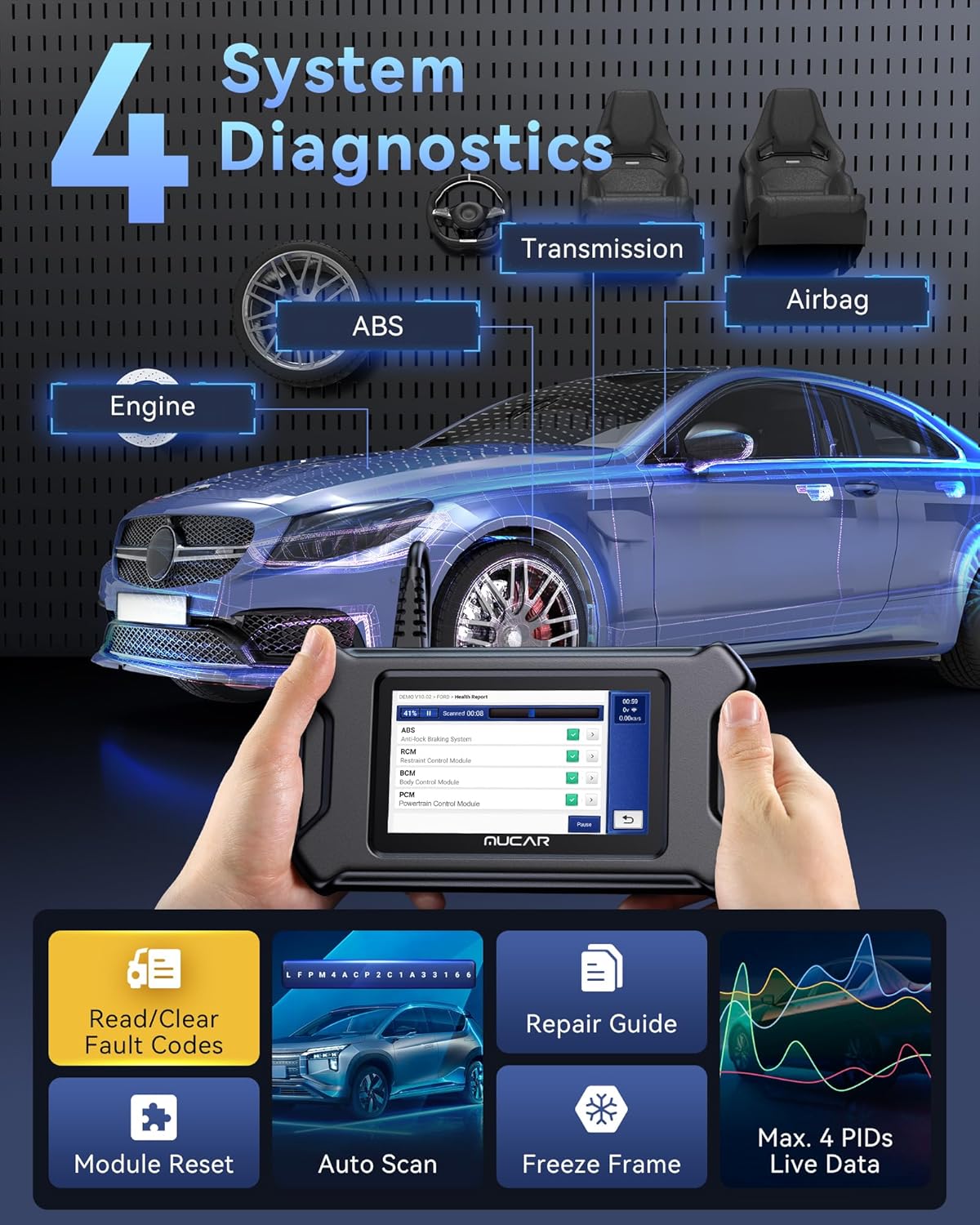
Image: The MUCAR CS90 device held by hands, displaying its interface during a diagnostic scan. The background illustrates a car with highlighted components like Engine, Transmission, ABS, and Airbag, indicating the four main systems the CS90 can diagnose. Icons for Read/Clear Fault Codes, Repair Guide, Auto Scan, and Live Data are also visible.

Image: A visual representation of the 28 comprehensive reset services offered by the MUCAR CS90. Icons and text labels for services such as Oil Reset, Brake Reset, Airbag Reset, DPF Regen, ABS Bleeding, and BMS Reset are prominently displayed, indicating the wide range of maintenance functions available.
2. MUCAR BT200 Diagnostic Functions
The BT200 provides full system diagnostics and essential reset services via the MUCAR mobile application.
- Full System Diagnostics: Access and diagnose all available electronic control units (ECUs) in the vehicle, including Engine, ABS, SRS, BCM, TPMS, EPB, Transmission, Steering System, Instrument System, and Air Conditioning.
- Key Reset Services: Oil Reset and SAS (Steering Angle Sensor) Reset.
- Full OBD2 Functions: Read Codes, Clear Codes, Live Data, Smog Check, Freeze Frame, O2 Sensor Test, EVAP Test, On-board Monitor Test, DTC Code Lookup, and Vehicle Information.
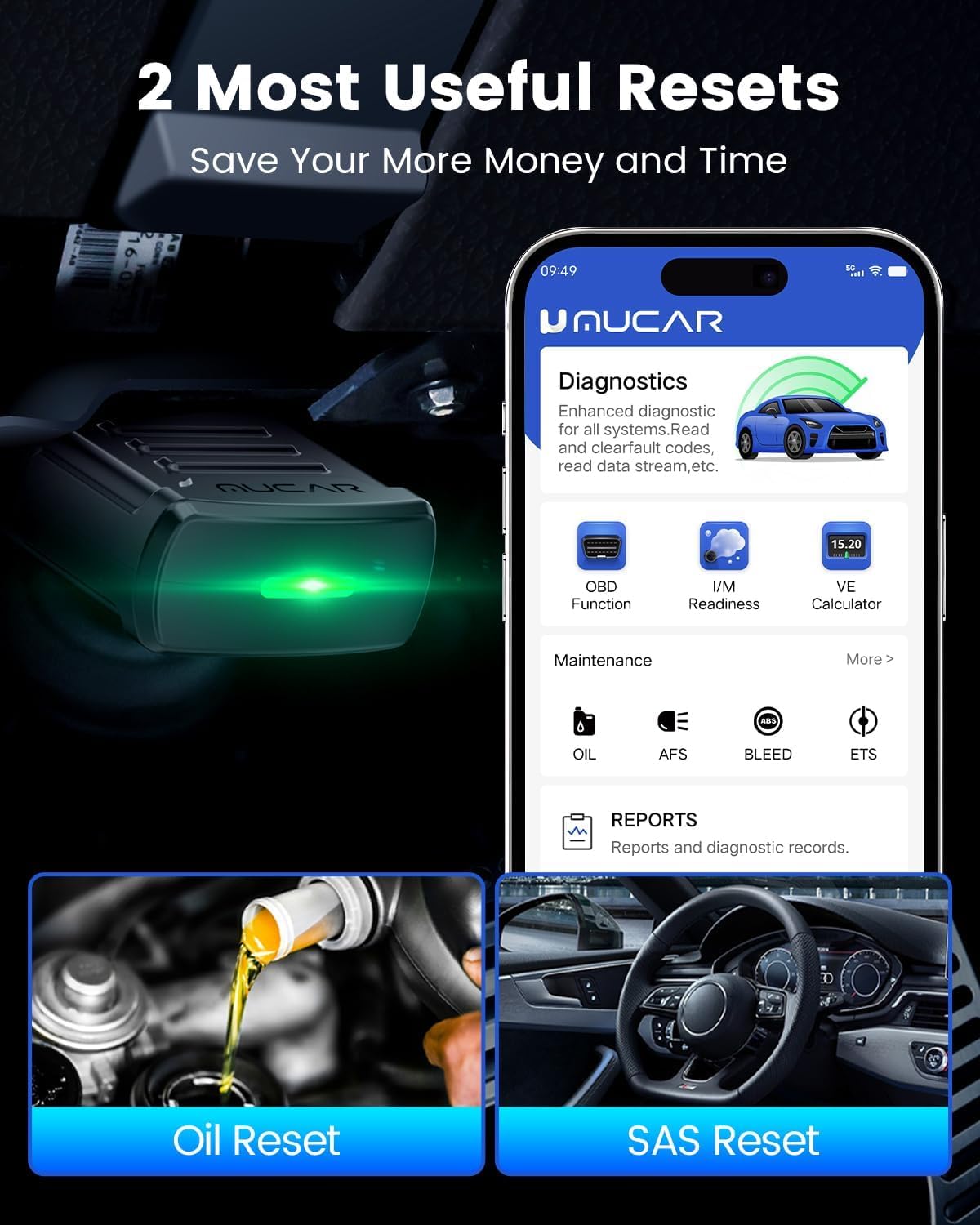
Image: The MUCAR BT200 device, highlighting its capability as an "All Systems Diagnostic Scanner." Icons representing various vehicle systems such as Engine, ABS, SRS, BCM, TPMS, EPB, Transmission, Steering System, Instrument System, and Air Conditioning are displayed around the device, indicating its comprehensive diagnostic coverage.

Image: The MUCAR BT200 device emitting a green light, indicating active connection. A smartphone screen displays the MUCAR app's "Diagnostics" interface, prominently featuring "Oil Reset" and "SAS Reset" functions, which are two key maintenance services provided by the BT200.

Image: The MUCAR BT200 device positioned next to a car, illustrating its role as a "Professional Car Code Reader." Various diagnostic functions are depicted through icons and text, including Read Codes, Clear Codes, Live Data, Smog Check, Freeze Frame, O2 Sensor Test, EVAP Test, On-board Monitor Test, DTC Code, and Vehicle Information, showcasing its full OBD2 capabilities.
3. FCA AutoAuth
Both CS90 and BT200 support FCA AutoAuth, allowing access to protected FCA vehicle modules for diagnostics and special functions. Refer to the MUCAR app or device for specific instructions on enabling and using this feature.
Maintenance
- Cleaning: Use a soft, dry cloth to clean the device screens and bodies. Avoid abrasive cleaners or solvents.
- Storage: Store the devices in a cool, dry place away from direct sunlight and extreme temperatures.
- Software Updates: Regularly check for software updates for both the CS90 and the MUCAR app (for BT200) to ensure optimal performance and access to the latest vehicle data and features. Updates are typically free for life.
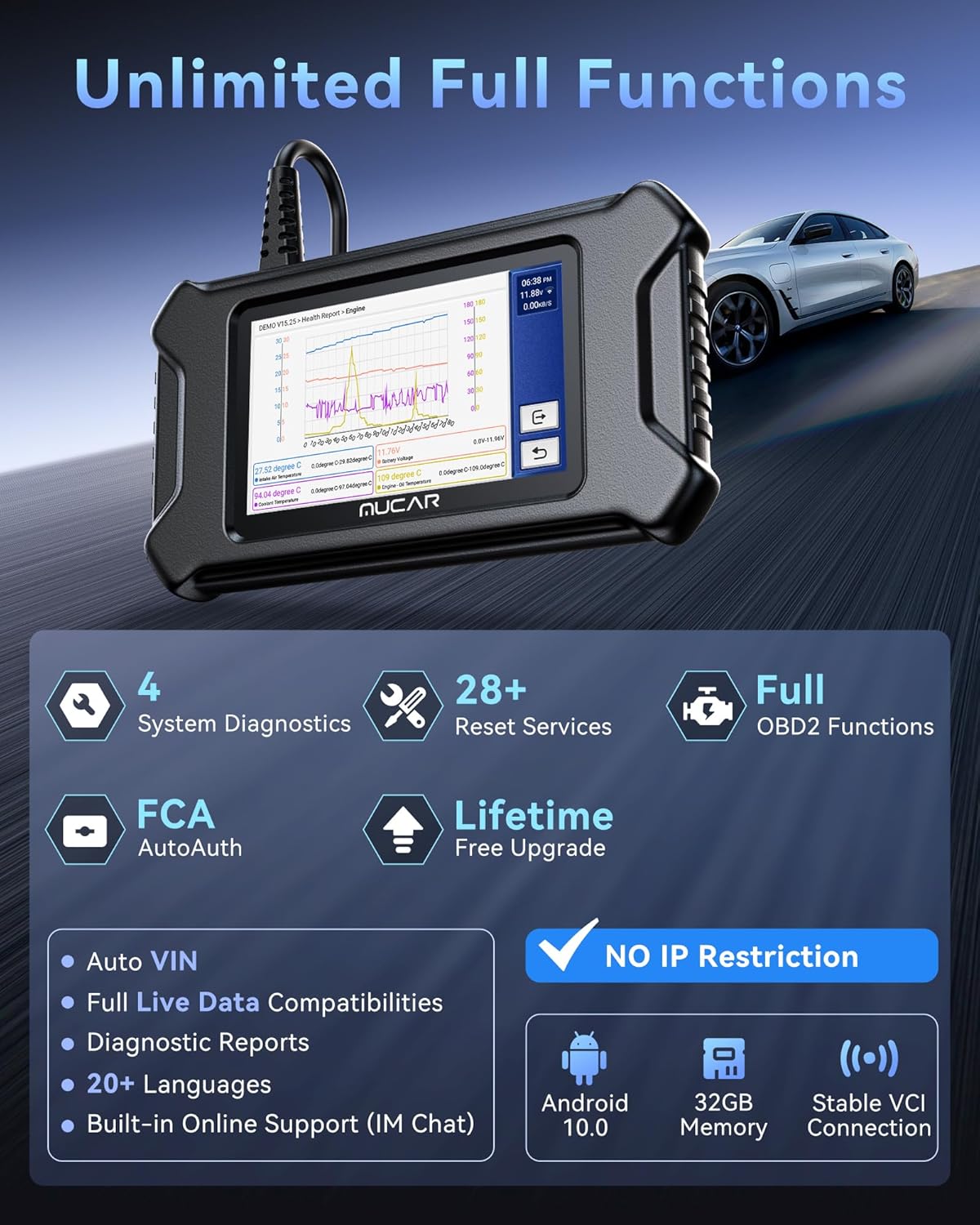
Image: The MUCAR CS90 device displaying a live data graph, indicating its advanced diagnostic capabilities. Surrounding the device are icons highlighting its key features: 4 System Diagnostics, 28+ Reset Services, Full OBD2 Functions, FCA AutoAuth, and Lifetime Free Upgrade, emphasizing its comprehensive functionality and ongoing support.
Troubleshooting
- Device Not Powering On: Ensure the device is fully charged (CS90) or properly connected to the vehicle's OBD2 port (BT200). Check the vehicle's battery if the BT200 does not power on.
- Connection Issues (BT200): Verify Bluetooth is enabled on your mobile device. Ensure the BT200 is securely plugged into the OBD2 port. Restart the app and try pairing again.
- Communication Errors: Ensure the vehicle's ignition is on. Check the OBD2 port for any obstructions or damage. Try the device on a different compatible vehicle if possible.
- Software Freezes: Restart the device (CS90) or the app (BT200). Ensure the software is up to date.
Specifications
| Brand | MUCAR |
| Models | CS90, BT200 |
| Connectivity (BT200) | Bluetooth |
| Operating System (CS90) | Android 10.0 |
| Memory (CS90) | 32GB |
| Diagnostic Systems (CS90) | 4 (Engine, Transmission, ABS, Airbag) |
| Reset Services (CS90) | 28+ |
| Diagnostic Systems (BT200) | Full System |
| Reset Services (BT200) | Oil Reset, SAS Reset |
| OBD2 Functions | Full OBD2 functions supported by both devices |
Warranty and Support
MUCAR products are designed for reliability and performance. For specific warranty details, please refer to the warranty card included with your product or visit the official MUCAR website.
For technical support, compatibility inquiries, or any other assistance, please contact MUCAR customer service:
- Email: service@mucarco.com
- Online Support: Utilize the built-in online support (IM Chat) feature available on the CS90 device or within the MUCAR app.
Please provide your product model and a detailed description of the issue when contacting support to facilitate a quicker resolution.


