
1. Introduction
This manual provides detailed instructions for the installation, operation, and maintenance of your SIXWIN P4-4G+128G Android Car Stereo Radio. This unit is designed to enhance your driving experience with advanced features such as a 10.1-inch incell touchscreen, Wireless CarPlay, Android Auto, GPS navigation, Bluetooth 5.0, FM/RDS radio, and support for a backup camera and steering wheel controls. Please read this manual thoroughly before installation and use to ensure proper function and safety.
2. Vehicle Compatibility
This Android car stereo is specifically designed for Honda Accord models manufactured between 2008 and 2013. Before installation, verify your vehicle's model, year, and the shape of the center console to ensure compatibility. Wiring harness compatibility should also be confirmed. If you have any questions regarding compatibility, please contact customer support.

3. Package Contents
Verify that all components listed below are included in your package:
- Car Stereo Unit (10.1 Inch Incell Touch Screen)
- Power Cable
- USB Cable
- GPS Antenna
- Rear Camera Input Cable
- Power Cable & Mounting Bracket
- Small Screen Extension Cable (if applicable)
- AUX Adapter (if applicable)
- RCA Cable
- User Manual
- Microphone
- Rear Camera
- Accessories
- Installation Tool

Video: What is included in the package for the 11.5" Accord 8th?
This video provides a visual overview of the items typically included in the product package, assisting in verifying contents upon receipt.
4. Setup and Installation
Professional installation is recommended. If performing self-installation, proceed with caution and ensure the vehicle's battery is disconnected before starting. Refer to the provided installation videos for guidance.
4.1 General Installation Steps
- Disassembly: Carefully remove the existing car stereo and dashboard trim. Refer to vehicle-specific guides or videos for your Honda Accord model year.
- Wiring Connections: Connect the provided wiring harnesses to the car stereo and the vehicle's existing wiring. Ensure all connections are secure.
- AUX Cable Routing: If your vehicle has a 1-CD stereo (not the 6-CD changer), you may need to route an RCA to 3.5mm AUX cable to the AUX port in the center console.
- Backup Camera Installation: Install the backup camera at the rear of the vehicle and route its cable to the stereo unit.
- GPS Antenna: Mount the GPS antenna in a location with a clear view of the sky.
- Testing: Before reassembling the dashboard, power on the unit and test all functions (audio, touchscreen, CarPlay/Android Auto, GPS, backup camera, steering wheel controls).
- Reassembly: Securely reassemble all dashboard components.
4.2 Important Wiring Notes (Based on User Feedback)
- 1-CD vs. 6-CD Factory Head Unit: This unit is more directly plug-and-play with 6-CD factory head unit versions. For 1-CD versions, wiring modifications may be necessary.
- Illumination Wire (A13) and Ground (A12): Some 1-CD models may experience a blown fuse (#6 for center console and steering wheel button lights) when headlights are turned on. This can occur if the 'Lights on Signal' wire (A13) is incorrectly spliced into 'Ground' (A12) on the main harness. If this issue arises, cut the ground splice and reconnect the illumination wire (A13) so it is a direct passthrough (A13 to A13).
- AUX Connection for 1-CD Models: If you have a 1-CD stereo, the included AUX breakout harness may not fit. You will need to connect the RCA output from the new unit to the vehicle's 3.5mm AUX input, often located in the center console box. This may require drilling a small hole to route the cable.
Video: How to install the Honda Accord 2008-2013 radio?
This video demonstrates the installation process for the car radio in a Honda Accord 2008-2013 model.
Video: How to install Car Radio for Honda Accord (2008-2013)
Another installation guide for the car radio in Honda Accord models from 2008 to 2013.
Video: AUX Cable Routing
This video illustrates how to route the AUX cable during installation, particularly relevant for certain factory radio configurations.
Video: Dashboard Disassembly for Installation
This short video demonstrates the initial steps of removing dashboard components, including screws and trim, to access the stereo compartment.
5. Operating Instructions
5.1 Touchscreen Interface
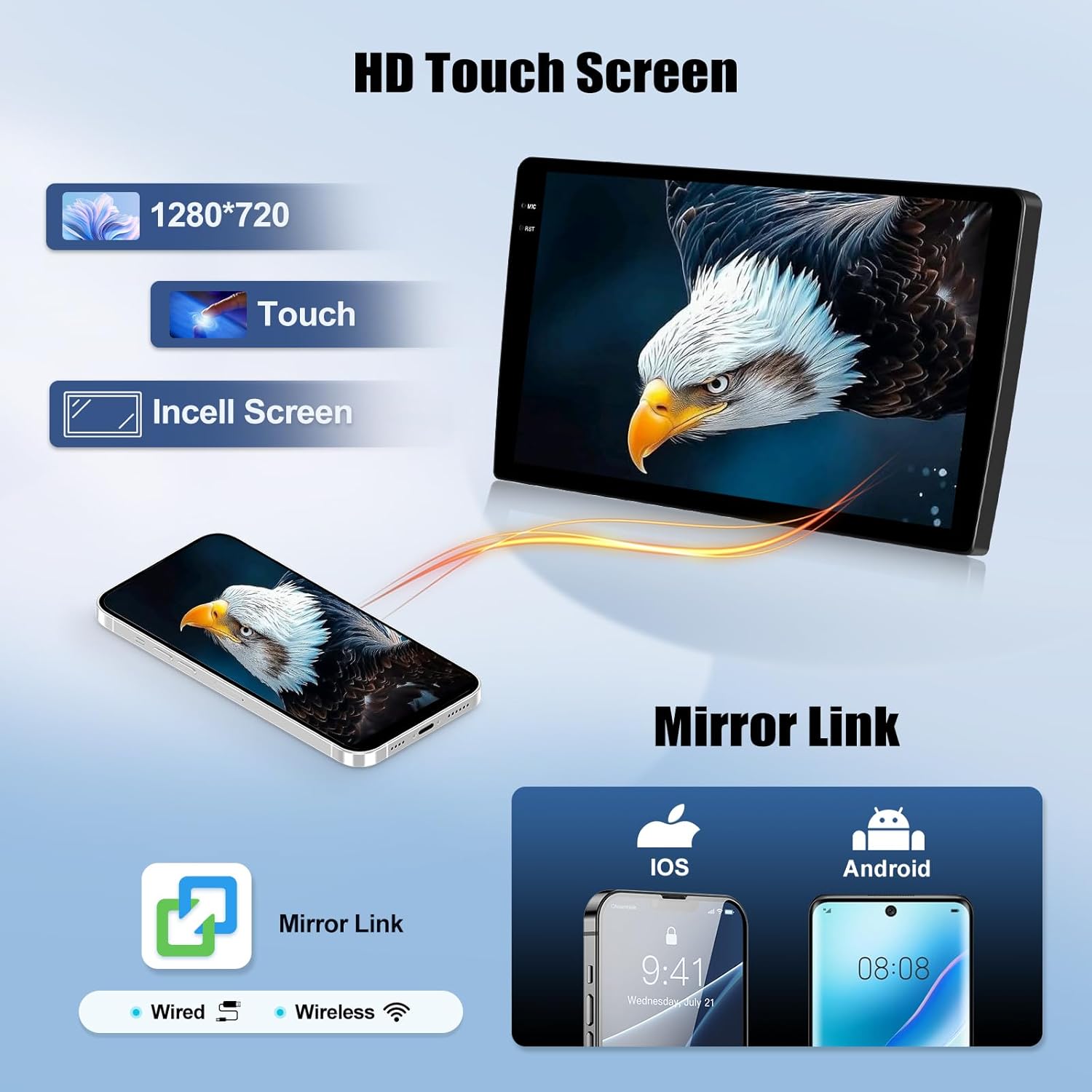
The unit features a responsive 10.1-inch HD (1280*720) incell touchscreen. Navigate through menus and applications by tapping, swiping, and pinching. Multiple UI themes are available for customization.
Video: Function Interface Display
This video demonstrates the various functions and interface elements of the car stereo display.
5.2 Wireless CarPlay & Android Auto
Connect your iPhone or Android device wirelessly to access navigation, music, calls, and messages via voice commands or the touchscreen. This feature provides a seamless and integrated smartphone experience.

Video: How to connect CarPlay Android Auto
This video guides you through the steps to connect your smartphone using Wireless CarPlay or Android Auto.
5.3 GPS Navigation & WiFi Connectivity
The built-in GPS supports both online and offline maps, offering voice guidance and real-time traffic updates. Connect to a Wi-Fi hotspot to stream content, download apps, and browse the web directly on the display.
5.4 Bluetooth 5.0 & FM/RDS Radio
Utilize Bluetooth 5.0 for hands-free calls and music streaming. The high-sensitivity microphone ensures clear communication. The FM/RDS radio provides clear reception of local stations, news, and traffic updates.
5.5 Steering Wheel Control
The unit supports full steering wheel control, allowing you to manage music, volume, and calls without taking your hands off the wheel. This feature enhances safety and convenience.

5.6 Backup Camera
The included AHD backup camera automatically activates when shifting into reverse, displaying a sharp, real-time view on the screen with parking guidelines. This aids in safer and more effortless parking.
5.7 Mirror Link
Mirror Link allows seamless smartphone integration via USB or WiFi, projecting your phone's screen directly to the stereo display for full access to apps, media, and videos.
5.8 EQ Settings
Customize the audio output with built-in EQ settings to achieve your preferred sound profile and restore original audio quality for a premium listening experience. For optimal audio, some users recommend leaving the EQ flat and turning off Hi-Fi settings.
6. Maintenance
To ensure the longevity and optimal performance of your car stereo, follow these maintenance guidelines:
- Screen Cleaning: Use a soft, lint-free cloth to gently wipe the touchscreen. Avoid abrasive cleaners or harsh chemicals that could damage the display.
- Software Updates: Periodically check for and install software updates to ensure the system runs efficiently and has the latest features and security patches.
- Environmental Conditions: Avoid exposing the unit to extreme temperatures, direct sunlight for prolonged periods, or excessive moisture.
- Cable Connections: Ensure all cables are securely connected and free from damage. Loose connections can lead to intermittent functionality.
- System Reset: If the unit experiences minor glitches, a soft reset (power cycle) may resolve the issue. For persistent problems, a factory reset might be necessary (note: this will erase user data and settings).
7. Troubleshooting
This section addresses common issues you might encounter with your SIXWIN Android Car Stereo. For more complex problems, refer to the troubleshooting video or contact customer support.
7.1 Common Issues and Solutions
- No Power / Unit Not Turning On:
- Check all power connections and fuses.
- Ensure the vehicle's battery is charged.
- No Sound / Poor Sound Quality:
- Verify speaker connections.
- Check volume levels on both the stereo and your connected device.
- Ensure the correct audio input source (e.g., AUX) is selected.
- Adjust EQ settings.
- CarPlay/Android Auto Not Connecting or Disconnecting:
- Ensure Bluetooth and Wi-Fi are enabled on your smartphone.
- Try re-pairing your phone with the stereo.
- Restart both your phone and the car stereo.
- Check for software updates for both devices.
- Backup Camera Not Displaying:
- Verify the camera's power and video signal connections.
- Ensure the camera is properly installed and not obstructed.
- Check the camera settings within the stereo unit.
- GPS Inaccurate or Slow to Acquire Signal:
- Ensure the GPS antenna is mounted in a location with a clear view of the sky.
- Verify the GPS antenna connection.
- Allow sufficient time for the unit to acquire a signal, especially after initial setup or if the vehicle has been parked for an extended period.
- Slow Performance / Lagging:
- Close unnecessary background applications.
- Clear cache for frequently used apps.
- Consider a factory reset if performance issues persist (backup important data first).
- No Button Lights on Center Console/Steering Wheel (1-CD models):
- This is often due to an incorrect wiring splice between the 'Lights on Signal' (A13) and 'Ground' (A12) wires. Refer to Section 4.2 for detailed instructions on correcting this wiring.
Video: Fixes 90% of Common Issues: Essential Troubleshooting Guide
This video provides solutions for many common operational and technical issues encountered with the car stereo.
8. Specifications
| Feature | Specification |
|---|---|
| Brand | SIXWIN |
| Model Name | A7246 |
| Operating System | Android 15 |
| Memory (RAM + ROM) | 4GB RAM + 128GB ROM |
| Screen Size | 10.1 Inches |
| Display Type | Incell Touch Screen |
| Resolution | 1280*720 HD |
| Connectivity Technology | Wi-Fi, Bluetooth 5.0 |
| Supported Navigation System | GPS (Online/Offline Maps) |
| Human-Interface Input | Touchscreen, Voice |
| Compatible Devices | Smartphone (Wireless CarPlay, Android Auto, Mirror Link) |
| Radio | FM/RDS |
| Included Components | Car radio, Backup Camera |
| Product Dimensions | 1"L x 1"W x 1"H (Approximate, refer to diagram for exact screen dimensions) |
9. Warranty and Support
9.1 Warranty Information
This product comes with a 2-year warranty. Please retain your proof of purchase for warranty claims. The warranty covers manufacturing defects and malfunctions under normal use. It does not cover damage caused by improper installation, misuse, accidents, or unauthorized modifications.
9.2 Customer Support
For technical assistance, troubleshooting, or warranty inquiries, please contact SIXWIN customer service. You can typically find contact information on the product packaging, the seller's Amazon store page, or through the 'Contact Seller' option on your Amazon order details. When contacting support, please provide your product model number (P4-4G+128G) and a detailed description of the issue.
