1. Introduction
This manual provides instructions for the TP-Link EH210 1 to 2 Gigabit Ethernet Splitter Network Switch. The EH210 is designed to expand a single Gigabit Ethernet connection into two, allowing two devices to share a high-speed network connection simultaneously. It features a compact design, plug-and-play functionality, and supports speeds up to 1000Mbps.
2. Package Contents
Verify that your package contains the following items:
- 1 × TP-Link EH210 Ethernet Splitter
- 1 × USB Power Cable
- 1 × Cat 5e Ethernet Cable
- Quick Installation Guide
3. Product Overview
The TP-Link EH210 is a compact device with multiple ports and indicators for easy network expansion.
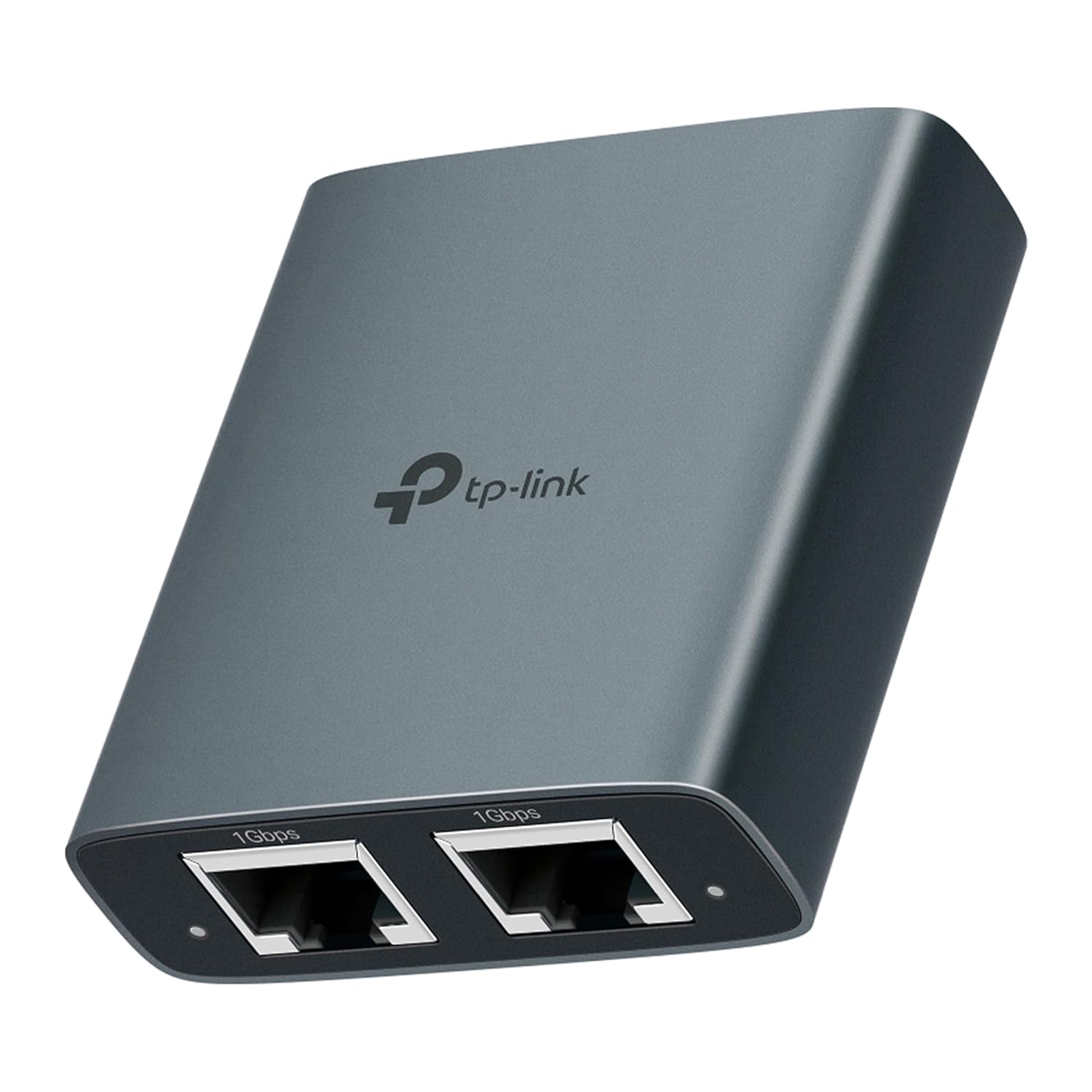
Image: The TP-Link EH210 Gigabit Ethernet Splitter, showcasing its compact grey casing and two Ethernet ports on the front.
3.1 Front Panel
The front panel features two 1Gbps Ethernet ports, allowing connection to two network devices.

Image: Close-up view of the EH210's front panel, showing two clearly labeled '1Gbps' Ethernet ports.
3.2 Rear Panel
The rear panel includes a USB 5V power input and one 1Gbps Ethernet port for the incoming network connection.

Image: Close-up view of the EH210's rear panel, displaying the USB 5V power input and a single '1Gbps' Ethernet port.
3.3 LED Indicators
The device features LED indicators to show power status and network connection activity for each port.

Image: Illustration showing the power indicator light and network indicator lights on the EH210, indicating active connections.
4. Setup
The TP-Link EH210 is designed for simple plug-and-play installation. No complex configuration is required.
- Connect Power: Connect the provided USB power cable to the USB 5V port on the EH210 and then to a USB power adapter (not included) or a USB port on a device for power.
- Connect Network Input: Connect an Ethernet cable from your router, modem, or network wall outlet to one of the 1Gbps Ethernet ports on the EH210. This port will serve as the network input.
- Connect Devices: Connect Ethernet cables from your two network devices (e.g., laptop, TV box, gaming console) to the remaining two 1Gbps Ethernet ports on the EH210.
- Verify Connection: Once all cables are connected, the LED indicators on the EH210 will illuminate, indicating active power and network connections.

Image: A hand plugging the USB power cable into the EH210's USB 5V port, illustrating the power connection step.

Image: The EH210 splitter connected to a TV box and a laptop, demonstrating dual device access to the internet.
5. Operating the Splitter
The EH210 functions as a network switch, dividing a single Gigabit Ethernet connection into two independent Gigabit connections. This allows two devices to access the network simultaneously at high speeds.
5.1 High-Speed Transmission
The EH210 supports a maximum of 1000Mbps (1 Gigabit per second) Ethernet network connections, ensuring fast data transfer for connected devices. It is also backward compatible with 100Mbps and 10Mbps network speeds.

Image: Graphic illustrating the EH210's capability to deliver up to 1000 Mbps speed, significantly faster than typical 100 Mbps connections.
5.2 Dual Device Access
With the EH210, two devices can share the same network source, making it ideal for setups where multiple wired connections are needed but only one Ethernet port is available from the source.
6. Maintenance
To ensure optimal performance and longevity of your TP-Link EH210, follow these maintenance guidelines:
- Cleaning: Use a soft, dry cloth to clean the device. Avoid liquid cleaners or aerosols.
- Environment: Place the device in a cool, dry place away from direct sunlight, heat sources, and moisture.
- Ventilation: Ensure proper airflow around the device. The aluminum alloy casing aids in heat dissipation for stable performance.
- Cable Management: Keep cables neatly organized to prevent strain on ports and accidental disconnections.
7. Troubleshooting
If you encounter issues with your EH210, refer to the following common problems and solutions:
- No Power Indicator Light:
- Ensure the USB power cable is securely connected to the EH210 and a working USB power source.
- Try a different USB power adapter or USB port.
- No Network Connection:
- Check that all Ethernet cables are securely plugged into the EH210 and the connected devices/router.
- Verify that the network indicator lights on the EH210 are illuminated for active connections.
- Ensure the incoming network source (router/modem) is functioning correctly.
- Test with different Ethernet cables, especially if you are not using the included Cat 5e cable or higher.
- Slow Network Speed:
- Ensure all connected Ethernet cables are Cat 5e or higher to support Gigabit speeds.
- Verify that your incoming network connection from the router/modem is indeed Gigabit speed.
- Check for other network congestion or issues with your internet service provider.
8. Specifications
| Feature | Detail |
|---|---|
| Brand | TP-Link |
| Model | EH210 |
| Data Transfer Rate | 1000 Megabits Per Second (1Gbps) |
| Hardware Interface | Ethernet, USB Type C (for power) |
| Compatible Devices | Desktop, Laptop, Smart TV, Xbox, Hubs, Switches, Routers, Wireless Devices |
| Compatible Cables | Cat 8, Cat 7, Cat 6, Cat 5e, Cat 5 (Cat 5e and higher recommended) |
| Dimensions (LxWxH) | 5.8 x 5.3 x 1.84 cm |
| Item Weight | 150 g |
| Colour | Grey |
| Included Components | Ethernet Splitter (EH210), USB Power Cable, Cat 5e Ethernet Cable, Quick Installation Guide |
8.1 High Compatibility
The EH210 is compatible with a wide range of Ethernet cables and devices, ensuring versatile use in various network environments.

Image: Diagram illustrating the high compatibility of the EH210 with various Ethernet devices like routers, laptops, TVs, printers, computers, wireless devices, and set-top boxes, and recommending Cat 5e or higher Ethernet cables.
9. Warranty and Support
For warranty information and technical support, please refer to the official TP-Link website or the contact details provided in your product packaging. You may also contact TP-Link customer support at the following:
- Toll Free: 1800 2094 168
- Email: support.in@tp-link.com


