
Introduction
The meross Smart Plug Mini (Model MSS110HK) is a compact, Wi-Fi enabled smart plug designed to make your home appliances smart. It supports various voice assistants and smart home platforms, offering convenient control over your devices. This manual provides detailed instructions for setup, operation, maintenance, and troubleshooting to ensure optimal use of your smart plug.

Image: Meross Smart Plug Mini, showcasing its compact design and smart capabilities.
Safety Information
- The smart plug is designed for indoor use only.
- Supports home appliances up to 15A. Do not exceed this rating to prevent overheating and potential damage.
- Constructed from PC flame retardant material for enhanced safety.
- Certified by ETL and FCC for safety and quality assurance.
- Ensure proper grounding when plugging into an outlet.

Image: Diagram illustrating the reliable safety design of the Meross Smart Plug Mini, highlighting ETL certification, 15A/1800W rating, fire-retardant housing, and overload protection.
What's in the Box
- Smart Plug * 2
Setup
1. Initial Power-On
- Plug the meross Smart Plug Mini into a standard wall outlet.
- Observe the LED indicator. It should blink green and amber, indicating it's in configuration mode.
2. Meross App Setup
- Download the meross app from the App Store or Google Play.
- Create an account or log in.
- Tap the '+' icon in the top right corner of the app to add a new device.
- Select 'Smart Plug' and follow the in-app instructions to connect the plug to your 2.4GHz Wi-Fi network.
3. Apple HomeKit Setup
To enable HomeKit control, ensure you have a HomePod, Apple TV 4K, Apple TV HD, or an iPad set up as a HomeKit bridge and connected to your home's 2.4GHz Wi-Fi network. Keep the bridge online for remote control functionality.
- Open the Apple Home app on your iOS device.
- Tap the '+' icon and select 'Add Accessory'.
- Scan the HomeKit setup code located on the smart plug or its packaging.
- Follow the on-screen prompts to name your accessory and assign it to a room.

Image: Illustration of HomeKit remote control setup, showing a HomePod, Apple TV, and the Meross app interface on an iPad.
For more information on HomeKit setup, refer to Apple's official FAQ: Apple HomeKit FAQ
4. Alexa / Google Assistant Setup
Once your meross Smart Plug Mini is set up in the meross app, you can link it to Amazon Alexa or Google Assistant for voice control:
- Open the meross app, go to 'User' > 'Integration' > 'Amazon Alexa' or 'Google Assistant'.
- Follow the instructions to link your meross account with your chosen voice assistant.
Video: An official Meross video demonstrating the setup and features of the Meross Wi-Fi Smart Plug Mini with Apple HomeKit.
Operating
1. Voice Control
Control your connected devices hands-free using voice commands with compatible platforms:
- Siri: "Hey Siri, turn on the reading light."
- Alexa: "Alexa, turn off the Christmas tree lights."
- Google Assistant: "Hey Google, turn on the fan."
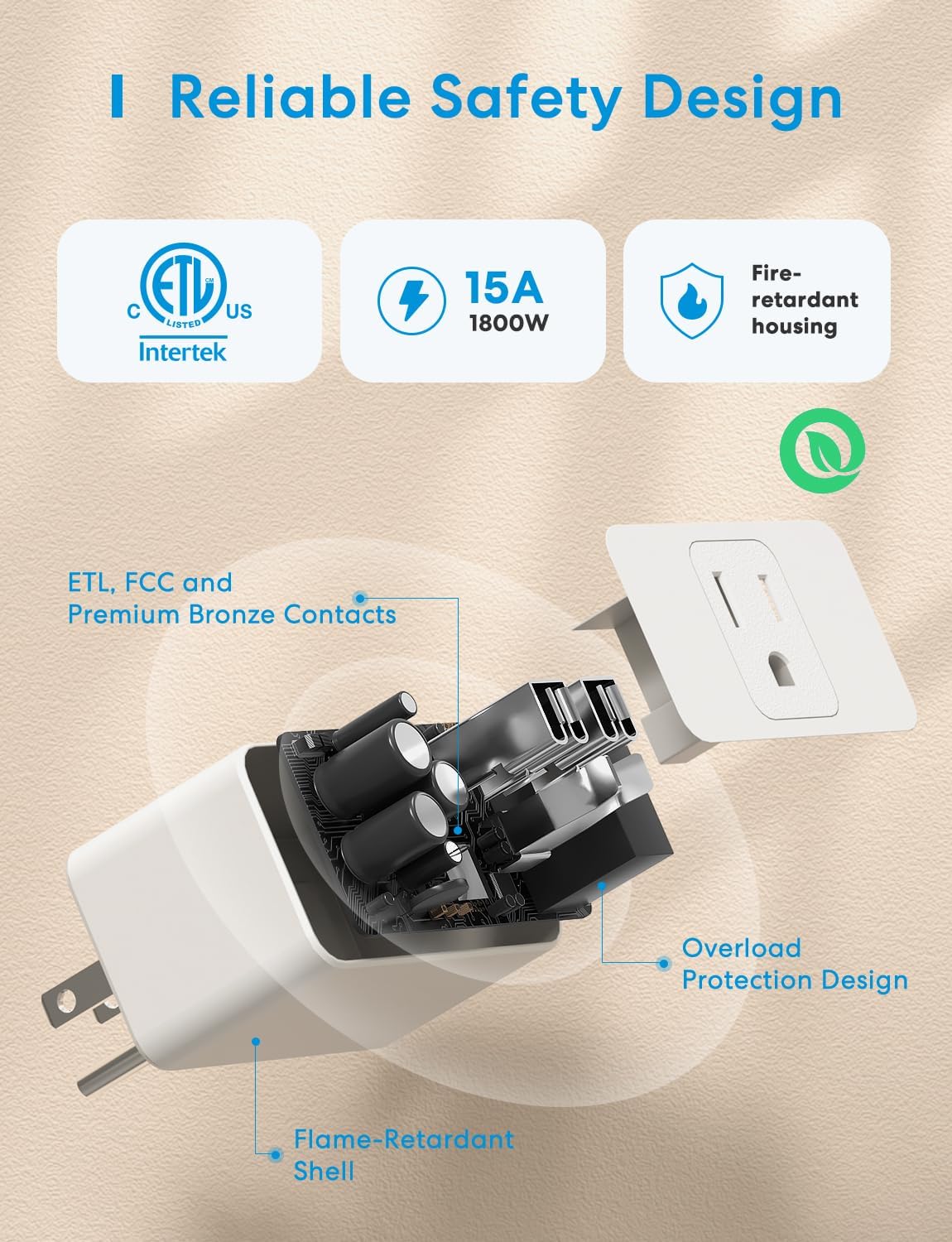
Image: A user interacting with smart speakers and a smartphone to control devices via voice commands, demonstrating hands-free convenience.
2. App Control
Use the meross app or your smart home platform app (Apple Home, Alexa, Google Home) to control devices remotely from anywhere with an internet connection.
- Remote On/Off: Toggle the power button in the app to turn devices on or off.
- Scheduling: Set daily schedules for devices to turn on or off automatically. This can save energy and automate routines.
- Timer: Set countdown timers for devices to switch off after a specified duration.
- Sunrise/Sunset: Configure schedules based on local sunrise and sunset times.

Image: Visual representation of scheduling features, including turning Christmas tree lights on/off and setting bedtime routines.
3. Offline Control
The meross Smart Plug Mini supports offline routine execution. Schedules and timers will continue to function even if your internet connection is temporarily down.

Image: Diagram comparing Meross's local control response time (0.01s) to others (up to 3s), illustrating faster operation even without internet.
Maintenance
- Keep the device clean and dry. Avoid exposure to moisture or extreme temperatures.
- Do not attempt to disassemble or repair the device yourself. Contact customer support for assistance.
- Regularly check for firmware updates through the meross app to ensure optimal performance and security.
Troubleshooting
1. Pairing Issues
- Ensure your Wi-Fi network is 2.4GHz. The meross Smart Plug Mini does not support 5GHz Wi-Fi.
- Verify your phone is connected to the same 2.4GHz Wi-Fi network during setup.
- If the LED is not blinking amber and green, press and hold the power button on the side of the plug for 5 seconds to reset it to factory settings.
- For HomeKit pairing, ensure your iOS device is updated to version 13.0 or later.

Image: A QR code providing solutions for HomeKit pairing issues. Scan the QR code for detailed information.
For additional HomeKit pairing solutions, scan the QR code above or visit: Meross HomeKit FAQ
2. Connectivity Issues
- Check your Wi-Fi router's signal strength. Move the smart plug closer to the router if necessary.
- If the smart plug becomes unresponsive, try unplugging it from the wall outlet for a few seconds and then plugging it back in.
Specifications
| Feature | Specification |
|---|---|
| Product Dimensions | 2.7 x 1.5 x 2.3 inches |
| Item Weight | 6.4 ounces |
| Manufacturer | meross |
| Item Model Number | MSS110HK |
| Brand | meross |
| Color | White |
| Compatible Devices | Smartphone |
| Material | Polycarbonate (PC) |
| Voltage | 120 Volts |
Warranty and Support
meross products typically come with a 1-year limited warranty. For specific warranty details and to register your product, please visit the official meross website.
If you encounter any issues or require further assistance, please contact meross customer support:
- Website: www.meross.com
- Email: Check the meross website for specific support email addresses.


